March 23, 2026Tziporah Zions/6 min read

Premiere Pro RGB Transition Effect

Master Professional RGB Transitions in Premiere Pro

Project Requirements

This tutorial requires Adobe Premiere Pro and the provided project files. Download and unzip the project files before beginning to ensure you have all necessary assets.

Getting the Project Files

  1. Download the project files.
  2. After downloading, extract the ZIP file if your system hasn't done so automatically. You should have a Premiere Pro RGB Transition Effect folder containing all necessary assets for this tutorial.

Pre-Tutorial Setup

0/3

Project Overview

This RGB transition effect creates a stunning chromatic aberration-style transition between clips, similar to the glitch effects popularized in modern motion graphics and film. The technique involves strategically cutting your footage into segments, converting them into nested sequences, and applying carefully timed color and blur effects.

Our workflow breaks down into four key phases: first, we'll use the Razor Tool to precisely cut our clips at specific timecodes. Next, we'll create Nested Sequences from these segments to enable advanced compositing. Then, we'll apply the Levels effect to control opacity transitions and the Channel Blur effect to separate RGB channels. Finally, we'll keyframe these effects to create smooth, professional transitions.

This technique is particularly effective for tech content, gaming footage, and contemporary commercial work where a digital aesthetic enhances the storytelling.

RGB Transition Workflow

1

Cut Footage

Use the Razor Tool to carefully slice clips at specific timecode points

2

Create Nested Sequences

Combine cut pieces into new sequences for easier effect management

3

Apply Effects

Add Levels and Channel Blur effects to both nested sequences

4

Animate with Keyframes

Adjust effect parameters over time to create smooth transitions

Cutting and Nesting Your Footage

1. Position the PlayheadImage1 at 00;00;02;12.

2. Hold Shift and press the left arrow key four times to move backward twenty frames to 00;00;01;17. This timing provides the optimal lead-in for our transition effect.

3. Press C to activate the Razor ToolImage4.

4. Click precisely where the PlayheadImage1 intersects your footage to create the first cut.

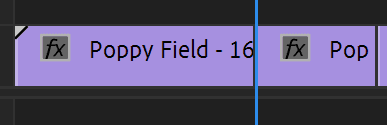
Image2

5. Move the PlayheadImage1 to 00;00;03;07 using either manual positioning or Shift+right arrow navigation.

6. With the Razor ToolImage4 still active, make your second cut at the playhead position.

7. Switch to the Selection ToolImage3 by pressing V.

8. Select both cut segments by holding Shift and clicking each piece.

9. Right-click on either selected segment to open the context menu.

10. Choose Nest from the menu. Nesting combines these clips into a single sequence object, allowing us to apply effects across the transition boundary.

11. Name your nested sequence RGB Transition 1 — clear naming conventions become crucial when managing multiple nested sequences.

12. Click OK to create the nested sequence.

Now we'll create the second transition segment:

13. Move the PlayheadImage1 to 00;00;05;16.

14. Use Shift+left arrow three times to position at 00;00;05;01.

15. Activate the Razor ToolImage4 with C and make your cut.

16. Navigate to 00;00;06;06 using Shift+right arrow six times.

17. Make your final cut with the Razor ToolImage4.

18. Return to the Selection Tool by pressing V.

19. Select both new segments using Shift+click.

20. Right-click and choose Nest.

21. Name this sequence RGB Transition 2.

22. Click OK.

With your nested sequences created, you now have the foundation for applying sophisticated transition effects that work across clip boundaries.

Applying and Configuring Effects

Now we'll apply the core effects that create the RGB separation and transition blend. The Levels effect controls the opacity fade, while Channel Blur creates the distinctive chromatic aberration.

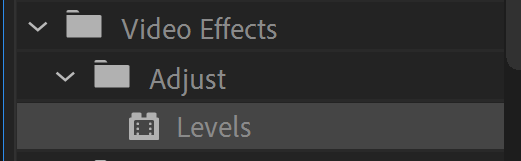
1. Navigate to the Effects panel and search for Levels.

2. Drag the Levels effect onto RGB Transition 1.

Image6

3. Apply Levels to RGB Transition 2 as well.

4. Search for Channel Blur in the Effects panel.

5. Drag Channel Blur onto RGB Transition 1.
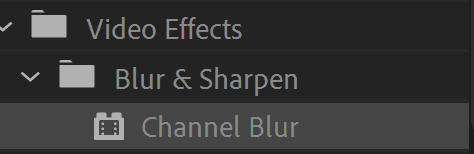
Image7

6. Apply Channel Blur to RGB Transition 2.

Now we'll configure the first transition sequence:

7. Select RGB Transition 1 and locate the Effects Control panel.

8. Position the PlayheadImage1 at 00;00;01;16 — this marks the beginning of our transition.

9. In the Levels effect, click the stopwatchImage5 next to (RGB) White Input Levels to establish your first keyframe.

10. Move to 00;00;02;11 and change (RGB) White Input Levels to 0. This creates a smooth fade-out effect.

11. Navigate to 00;00;03;07 — the endpoint of this transition segment.

12. In the Channel Blur section, click the stopwatchImage5 for Red Blurriness to create keyframes.

13. Do the same for Green Blurriness.

14. Set Red Blurriness to 300 and Green Blurriness to 30. These values create the characteristic color separation — red channels blur significantly while green shifts subtly.

15. Return to 00;00;01;16 and set both Red Blurriness and Green Blurriness to 0.

16. Enable Repeat Edge Pixels to prevent black borders during the blur effect.

17. Press Spacebar to preview your first transition. You should see a smooth fade with chromatic aberration that intensifies toward the end of the clip.

Configuring the Second Transition

The second transition reverses the effect, bringing the new footage into focus while maintaining the RGB separation aesthetic.

1. Position the PlayheadImage1 at 00;00;05;03.

2. Select RGB Transition 2 to access its effects in the control panel.

3. Click the stopwatchImage5 for (RGB) White Input Levels to begin keyframing.

4. Move to 00;00;05;18 and set (RGB) White Input Levels to 0.

5. Navigate to 00;00;06;04 and change (RGB) White Input Levels to 255, creating a fade-in effect.

6. In the Channel Blur section, activate keyframes for both Red Blurriness and Green Blurriness.

7. At 00;00;05;18, set Red Blurriness to 300 and Green Blurriness to 30 — matching the blur intensity from the first transition.

8. Return to 00;00;05;03 and set both blur values to 0.

9. Move the PlayheadImage1 to the beginning (00;00;00;00) and press Spacebar to preview the complete transition sequence.

Your footage should now blend seamlessly with distinctive RGB separation that creates a modern, digital aesthetic perfect for contemporary video content.

Conclusion

This RGB transition technique demonstrates the power of combining Premiere Pro's fundamental tools — the Razor Tool, Nested Sequences, Levels, and Channel Blur — to create sophisticated visual effects. The technique is particularly valuable because it's entirely achievable within Premiere Pro, eliminating the need for After Effects roundtrips.

Consider experimenting with variations: adjust the Levels input ranges for different opacity curves, modify the Channel Blur values to emphasize different color channels, or extend the transition duration for more dramatic effects. You might isolate the Blue channel for cyan-heavy transitions or increase all Channel Blur settings for more aggressive separation.

Professional tip: This effect works exceptionally well when color-graded footage maintains consistent exposure levels. Consider applying a primary color correction before creating your cuts to ensure smooth transitions.

As motion graphics continue evolving in 2026, mastering these foundational techniques positions you to create contemporary effects that clients expect while building the technical skills necessary for more advanced compositing work.

Happy editing!

RGB Transition Effect Analysis

Pros
Uses only two built-in Premiere Pro effects
Creates professional chromatic aberration look
Easily customizable blur and timing settings
Works with any footage type
Smooth blending between clips
Cons
Requires precise timing and cutting
Multiple keyframes needed for each transition
Can be processor intensive with high blur values

Customization Options

Levels Adjustment

Modify the white and black input levels to create different fade intensities and contrast variations.

Channel Blur Variations

Experiment with blue channel blur or adjust red and green values for different chromatic effects.

Duration Control

Extend or shorten the transition by adjusting the cut points and keyframe timing in your sequences.

Learn More About Motion Graphics

We offer industry-leading motion graphics training in NYC, designed for professionals ready to advance their careers. Our expert instructors guide you through real-world projects using current industry standards and cutting-edge techniques. Join our community of successful graduates working at top agencies and studios.

Key Takeaways

1RGB transitions in Premiere Pro require only two effects: Levels and Channel Blur, making them accessible to editors at any skill level
2Precise cutting with the Razor Tool at specific timecodes is essential for creating smooth transition points between clips
3Nested sequences allow you to treat multiple cut pieces as single clips, simplifying effect application and keyframe management
4The chromatic aberration effect is achieved by animating red and green channel blur values independently, with red typically set much higher than green
5Keyframe animation should start and end at zero values, peaking blur effects in the middle of transitions for natural-looking results
6The Repeat Edge Pixels option prevents unwanted black borders when blur effects extend beyond the original footage boundaries
7Both RGB transition sequences use identical effect values but at different timeline positions to maintain visual consistency
8The technique is highly customizable - adjust blur values, transition duration, add blue channel effects, or combine with additional effects for unique looks

RELATED ARTICLES