April 1, 2026Jerron Smith/10 min read

Packaging With Project Manager & Exporting Files in Premiere Pro

Master Professional Video Export and Project Management

Core Skills You'll Master

Project Organization

Learn to use Project Manager for backing up, archiving, and organizing all project files efficiently. Essential for professional workflow management.

Export Optimization

Master multiple export methods including timeline sections and Adobe Media Encoder queue. Understand when to use each approach for maximum efficiency.

Technical Understanding

Distinguish between codecs and file formats. Critical knowledge for ensuring compatibility and quality in professional video delivery.

Topics Covered in This Premiere Pro Tutorial:

Professional project packaging with Project Manager, advanced workflows using Adobe Media Encoder, optimized export settings, and strategic file format selection

Exercise Preview

preview export

Exercise Overview

In this comprehensive exercise, you'll master the essential organizational features that make Premiere Pro a professional-grade editing platform. You'll discover how to maintain media integrity throughout complex projects and explore multiple export strategies that ensure your content reaches its destination in optimal quality. These skills are fundamental to any serious video production workflow, whether you're delivering to clients, collaborating with team members, or preparing content for distribution across multiple platforms.

Project Setup Requirements

0/3

Packaging with Project Manager

The Project Manager is Premiere Pro's most powerful asset management tool, designed to streamline project handoffs, create reliable backups, and ensure media integrity across different systems. This feature becomes indispensable when collaborating with remote teams, archiving completed projects, or transitioning work between different workstations—scenarios that have become increasingly common in today's distributed production environment.

  1. If you have a project open in Premiere, choose File > Close All Projects to start with a clean workspace.

  2. Choose File > Open Project or press Cmd–O (Mac) or Ctrl–O (Windows).

  3. Navigate to Desktop > Class Files > Premiere Pro Intermediate > Exporting Files.

  4. Double–click on London Travel Promo—Missing File.prproj to open it.

    NOTE: If you encounter a Converting Project dialog (from a prior version), refer to the Fixing Version Compatibility Issues section in Exercise 1A. If the Link Media dialog appears, consult Locating Missing Media in Exercise 1A.

  5. Go to File > Save As to create your working copy:

    • Name the file Your Name—London Travel Promo.prproj
    • Save it to Desktop > Class Files > Premiere Pro Class > Exporting Files
  6. Choose File > Project Manager to access the packaging interface.

  7. In the Project Manager window, verify that the London Travel Promo sequence is checked. This determines which timeline elements will be included in your package.

  8. In the Resulting Project section, ensure Collect Files and Copy to New Location is selected. This creates a completely self-contained project folder.

  9. In the Options panel on the right, uncheck Exclude Unused Clips.

    This preserves your entire media library, including alternate takes and unused footage—essential for maintaining creative flexibility and accommodating future revisions or director's cuts.

  10. Under Destination Path, click Browse:

    • Navigate to Desktop > Class Files > Premiere Pro Intermediate > Exporting Files > Exports and click Choose.

    • To assess storage requirements before proceeding, click the Calculate button. This preview helps ensure adequate disk space, particularly important for large-scale productions.

  11. Click OK to execute the project packaging process.

  12. Minimize Premiere Pro and navigate to Desktop > Class Files > Premiere Pro Intermediate > Exporting Files > Exports to examine the results.

  13. Open the Copied_Your Name—London Travel Promo folder. Notice the comprehensive structure: all project media, a duplicate project file, preview render files, and organized media cache folders—everything needed for seamless project portability.

    NOTE: Project Manager cannot package custom fonts. When working with branded content or specific typography, manually copy font files into the project folder to ensure consistent rendering across different systems.

  14. Return to Premiere Pro to continue the workflow.
  15. Since this packaging exercise is complete, choose File > Close Project.

Project Manager Workflow

1

Access Project Manager

Go to File > Project Manager to open the comprehensive backup and archival tool

2

Configure Collection Settings

Select 'Collect Files and Copy to New Location' and uncheck 'Exclude Unused Clips' for complete backup

3

Set Destination Path

Navigate to your designated Exports folder to maintain organized file structure

4

Execute Backup Process

Click OK to create comprehensive project folder with all media, cache, and project files

Font Limitation

Project Manager cannot copy fonts used in your project. If you're using custom text styling, manually copy font files to the project folder before handoff or archival.

Exporting a Section of the Timeline

Selective timeline export is a critical skill for modern video professionals. Whether you're delivering specific segments to clients for approval, creating social media clips from longer content, or isolating problematic sections for review, precise export control saves time and storage while maintaining professional presentation standards.

  1. In Premiere Pro, choose File > Open Project to load a new exercise file.

  2. Navigate to Desktop > Class Files > Premiere Pro Intermediate > Exporting Files and open Before You Accuse Me—Export Timeline.prproj.

    NOTE: If you encounter a Converting Project dialog (from a prior version), refer to the Fixing Version Compatibility Issues section in Exercise 1A. If the Link Media dialog appears, consult Locating Missing Media in Exercise 1A.

  3. Choose File > Save As and create your working version:

    • Navigate to Desktop > Class Files > Premiere Pro Intermediate > Exporting Files
    • Name it Your Name—Before You Accuse Me.prproj and click Save
  4. In the Timeline panel, position the playhead precisely at 1:00:00 using either scrubbing or direct time code entry.

  5. Press the O key to set the Timeline's Out point. The In point automatically defaults to the timeline beginning, creating a one-minute export segment.

  6. At the top left of the interface, click Export. Alternatively, use the keyboard shortcut Cmd–M (Mac) or Ctrl–M (Windows), or navigate to File > Export > Media.

  7. Set the Preset to High Quality 1080p HD for this exercise.

    NOTE: Match Source—Adaptive High Bitrate represents the most versatile preset for professional workflows, as it preserves original resolution while optimizing compression settings automatically. The HD preset we're using converts higher resolution footage (such as 4K) down to 1080p, which is valuable for creating web-optimized versions or meeting specific delivery specifications.

  8. Next to Location, click the blue hyperlink text:

    • Navigate to Desktop > Class Files > Premiere Pro Intermediate > Exporting Files > Exports

    • Name the output file Before You Accuse Me and click Save

  9. On the right side of the export dialog, locate the Range setting near the bottom and confirm it reads Source In/Out. This ensures only your marked segment exports.

  10. Click the Export button in the bottom right corner to begin rendering.

    NOTE: During direct export from Premiere Pro (also called rendering), the application becomes unavailable for other tasks. This limitation makes the upcoming Media Encoder workflow particularly valuable for maintaining productivity.

  11. Save your project progress with File > Save or Cmd–S (Mac) / Ctrl–S (Windows).

  12. You can minimize Premiere Pro and navigate to Desktop > Class Files > Premiere Pro Intermediate > Exporting Files > Exports to preview the exported segment and verify the results.

Timeline Section Export Process

1

Set Timeline Markers

Position playhead at 1:00:00 and press O key to set Out point, with In point automatically set to timeline beginning

2

Access Export Settings

Click Export or use Cmd-M (Mac) / CTRL-M (Windows) to open Media Export dialog

3

Configure Export Parameters

Set preset to High Quality 1080p HD and confirm Range is set to Source In/Out

4

Execute Direct Export

Click Export button to render selected timeline section, noting Premiere Pro will be unavailable during process

Exporting Using Adobe Media Encoder Queue

Adobe Media Encoder represents the professional solution to Premiere Pro's rendering limitations. By offloading export processes to this dedicated application, you maintain full editing capability while simultaneously processing multiple deliverables—a workflow essential for meeting tight deadlines and managing complex delivery requirements across different platforms and specifications.

  1. Ensure the Your Name—Before You Accuse Me project remains open from the previous exercise.

  2. Click anywhere in the Timeline panel to make it the active interface element.

  3. Access the export interface by clicking Export at the top left, using Cmd–M (Mac) or Ctrl–M (Windows), or selecting File > Export > Media.

  4. Set the Preset to Match Source—Adaptive High Bitrate for optimal quality retention.

  5. Click Send to Media Encoder at the bottom right to transfer this render job to Adobe's dedicated encoding application.

    NOTE: When transferring projects to Adobe Media Encoder, Premiere Pro creates a temporary project copy to maintain encoding stability while preserving your original work environment.

  6. Once Adobe Media Encoder launches (this may take several moments on first startup), access the preferences:

    • Mac: Navigate to the Media Encoder menu and select Settings (or Preferences on older macOS versions)
    • Windows: Go to the Edit menu and choose Preferences
  7. In the General category, configure these professional workflow options:

    • Under Queue, enable Play chime when finished encoding for audio notification
    • Under Output, enable Append preset name to filename for better file organization
  8. Click OK to save these preference settings.

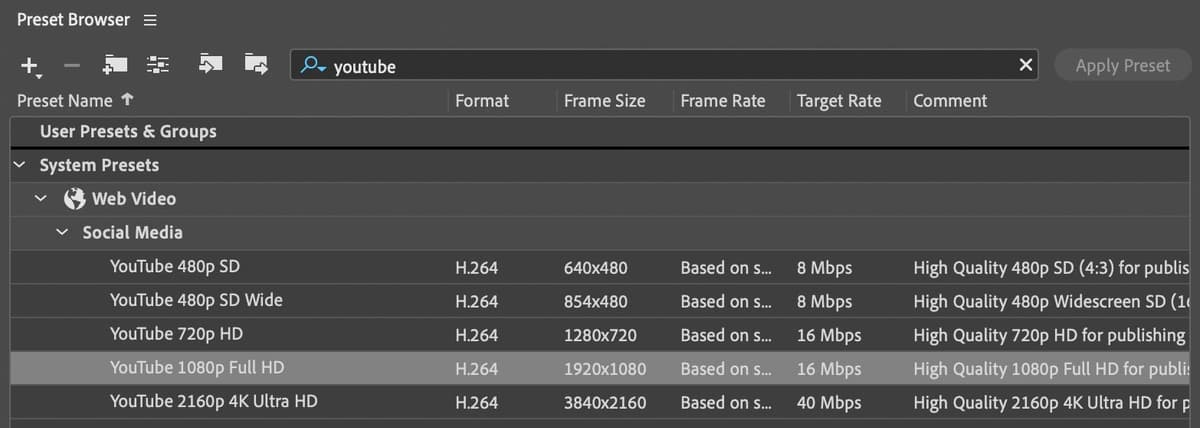
  9. In the Preset Browser at the bottom left, search for youtube to locate platform-optimized export options.

  10. Drag the YouTube 1080P Full HD preset into the Queue panel below the existing render job, creating a second simultaneous export with different specifications.

  11. To optimize video quality beyond default settings, click the blue YouTube 1080p Full HD text in the Queue to access advanced options.

  12. Navigate to the Video tab and use the right-side scroll bar to locate the Bitrate Settings section. Avoid mouse wheel scrolling over menus, as this can inadvertently change values.

  13. Change Bitrate Encoding to VBR, 2 Pass for superior quality.

    NOTE: Two-pass encoding (also called multi-pass encoding) analyzes the entire video during the first pass, then uses this data to optimize compression during the second pass. This process significantly improves quality consistency, particularly in scenes with varying complexity, though it increases render time.

  14. While the Target Bitrate should remain at 16, increase the Maximum Bitrate to 24.

    The elevated maximum bitrate provides encoding headroom for complex visual sequences, ensuring quality doesn't degrade during high-motion or detailed scenes.

  15. Click the Save Preset button_exportSavePreset button at the top right (adjacent to the Preset menu) to preserve these custom settings.

  16. Name the new preset 1080P—2Pass—HQ to clearly identify its enhanced quality characteristics, then click OK.

  17. Click OK to close the Export Settings dialog and return to Media Encoder's main interface.

  18. Click the blue Output File text for the first encoding job and navigate to Desktop > Class Files > Premiere Pro Intermediate > Exporting Files > Exports:

    • Click Save to confirm the destination path
  19. Repeat this process for the second encoding job, ensuring both outputs target the same organized export folder:

    • Again click Save to finalize the destination
  20. Click the Start Queue button_startQueue button at the top right to begin simultaneous rendering.

    Media Encoder operates as a background process, allowing you to continue editing in Premiere Pro, work in other applications, or step away from your workstation. The completion chime will signal when all encoding jobs finish, enabling efficient multitasking during render-intensive workflows.

  21. Upon completion of all render jobs, click the Output File links to access your export folder and review the results. Compare the different presets to understand how encoding choices affect final output quality and file size.

Direct Export vs Media Encoder Queue

FeatureDirect ExportMedia Encoder Queue
Application AvailabilityPremiere Pro locked during renderContinue working in Premiere Pro
Multiple FormatsSingle export at a timeQueue multiple formats simultaneously
Background ProcessingBlocks workflowRenders in background
EfficiencyLower productivityMaximum workflow efficiency
Recommended: Use Media Encoder Queue for professional workflows requiring continued productivity during rendering.
Two-Pass Encoding Advantage

VBR 2-Pass encoding analyzes video data in the first pass, then uses that information in the second pass for optimal compression. This results in better quality at similar file sizes compared to single-pass encoding.

Codecs Vs. Formats: Understanding the Professional Distinction

The distinction between file formats and video/audio codecs remains one of the most misunderstood concepts in digital video production, with implications that extend far beyond technical specifications into client delivery, archival strategies, and cross-platform compatibility.

Consider a format (also called a container file) as a sophisticated digital envelope—it determines the structural framework but reveals nothing about the content's actual encoding. Just as examining a shipping container tells you nothing about its contents, file formats like MPEG-4, AVI, QuickTime, and MP3 serve as organizational structures rather than quality determinants. In 2026's production landscape, understanding this distinction has become crucial as streaming platforms, social media networks, and client delivery systems each demand specific container requirements.

The codec represents the actual engine affecting your content quality, compression efficiency, and playback compatibility. This portmanteau of "compressor/decompressor" describes the mathematical algorithms that balance file size against visual fidelity. Modern codecs like H.264, H.265 (HEVC), ProRes, and DNx have evolved to meet current demands for 4K delivery, HDR content, and efficient streaming. What many professionals overlook is the bidirectional nature of codec dependency: both encoding and playback systems must support the chosen codec. When delivering a QuickTime file encoded with ProRes 422, recipients need both QuickTime-compatible playback software and the specific ProRes codec installed on their system—a consideration that becomes critical when working with clients using different operating systems or older hardware configurations.

Understanding File Architecture

File Formats (Containers)

Like a suitcase that wraps content. Examples include MPEG-4, AVI, QuickTime, and MP3. The exterior format doesn't indicate internal content quality or compatibility.

Codecs (Compression)

Mathematical algorithms that compress and decompress video data. Examples include H.264, ProRes, and Cineform. Determines actual video quality and compatibility requirements.

Playback Compatibility Requirement

Viewers need both a program that can open the file format AND the specific codec used for encoding installed on their computer. A QuickTime file with ProRes 422 codec requires both QuickTime player and ProRes codec for playback.

Key Takeaways

1Project Manager creates comprehensive backups including all media files, cache, and project structure, but cannot copy custom fonts which must be added manually
2Timeline section exports use In/Out points to render specific portions, with the O key setting Out points and automatic In point placement at timeline start
3Adobe Media Encoder Queue allows continued work in Premiere Pro during rendering, unlike direct exports which lock the application
4Two-pass encoding (VBR, 2 Pass) provides superior quality by analyzing video data in the first pass and optimizing compression in the second pass
5Multiple export formats can be queued simultaneously in Media Encoder, with custom presets saved for consistent quality standards
6File formats act as containers while codecs determine actual compression and quality, both requiring compatible software for playback
7Professional workflows benefit from Media Encoder's background processing capability and queue management for multiple format delivery
8Export settings like bitrate encoding and maximum bitrate values directly impact final video quality and file size optimization

RELATED ARTICLES