Office Man: Audio & Color Correction in Premiere Pro
What This Tutorial Covers
Lumetri Color
Premiere's professional color correction workspace.
Audio Levels
Mixing dialogue, music, and effects to broadcast standards.
Noise Reduction
Clean up dialogue audio that wasn't recorded perfectly.
Noble Desktop's Video Editing & Motion Graphics Certificate teaches Premiere Pro alongside After Effects, DaVinci Resolve, and the full motion design toolkit.
Dive into this comprehensive tutorial on Premiere Pro, covering key topics such as panning audio left to right, advanced color correction techniques, and exercise previews, all designed to help you finish off your 'office man' video project.
Exercise Preview
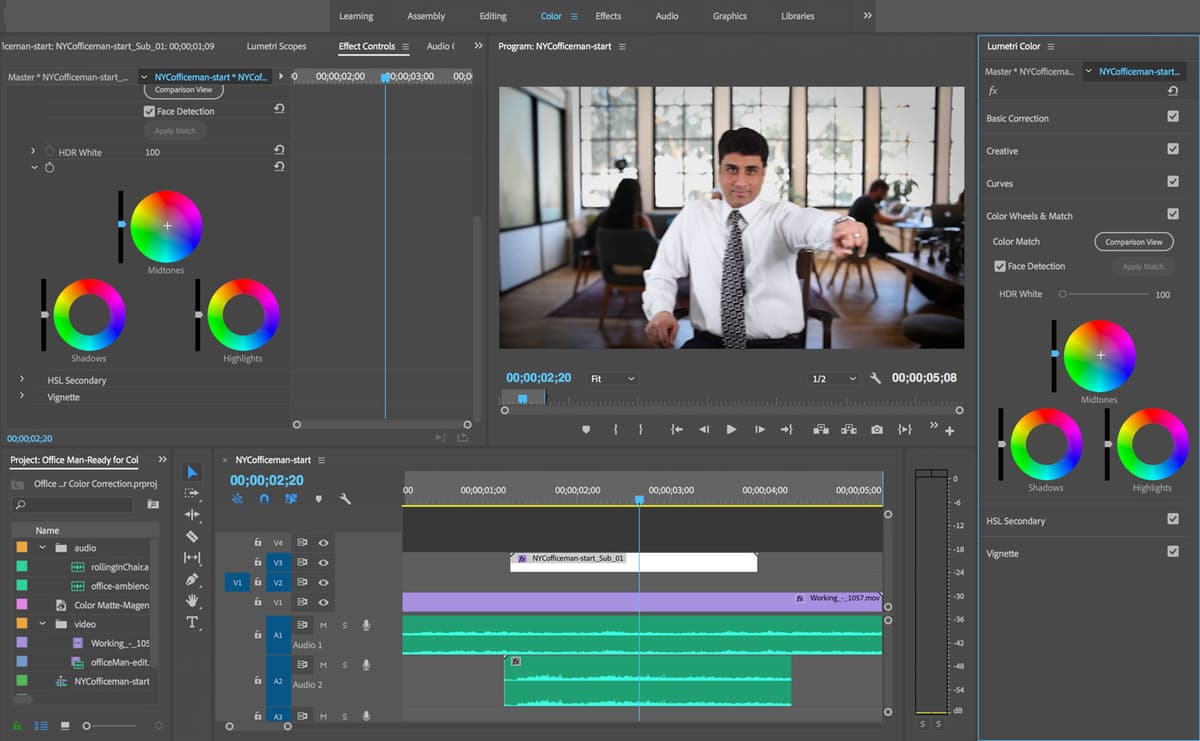
Audio Adjustments
In the Timeline, notice we have two audio tracks. The first audio clip on A1 is the office ambient noise, and the second on A2 is the sound of the rolling chair. We’ll be making some adjustments to both.
At the top of Premiere, click on Audio to switch to the Audio workspace.
Go to Window > Workspaces > Reset to Saved Layout.
To get a big visual of audio levels, drag the top of the Audio Meters panel (currently to the right of the Timeline) onto the Essential Sound panel on the far right.
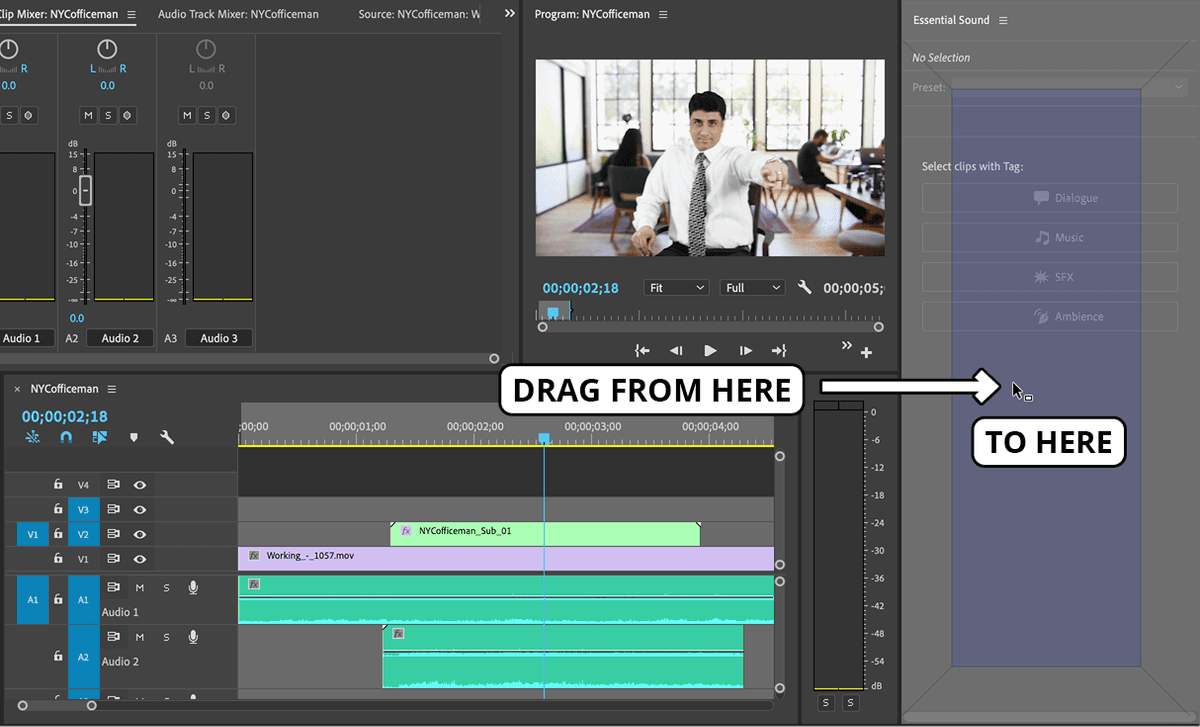
Play through the audio to see how loud it is (taking notice of the levels on the right).
The Audio Meters panel marks where the audio levels are reaching with a yellow line which is handy to view.
Let’s drop the audio level for the office ambience a little. Select the clip on A1.
In the middle of the interface, click the Audio Track Mixer tab (the second tab).
Lower the level for the office ambient noise on A1 (the leftmost column) to –8.5.
Next, select the clip on A2 (the rolling chair track).
We want to increase its level so it’s nice and loud. In the Audio Track Mixer, set the A2 slider to 6.
Play back what you have so far. The levels sound better, but the soundscape would be much improved if we adjust the rolling chair sound to correspond with the actor’s movement across the screen.
Panning Audio Left to Right
We want to create an effect of the actor realistically moving from left to right by adjusting the sound to appear to have been recorded with him. To do so, we’ll need to animate the panning (the distribution of the sound) going from the left speaker to the right speaker.
We can do this in the regular Editing workspace so switch to it now.
Select the clip on A2 if it isn’t already.
Make sure the playhead is at 1;07 where it begins.
In the Effect Controls panel, expand the Panner section.
Set the Balance to –100. This changes it so that all the sound is coming from the left speaker.
Play it back to hear what it sounds like.
Next, move the playhead to the end of the clip at 4;09.
In Effect Controls, set the Balance to 100 (all the way right).
Move the playhead to 2;19, when the actor is in the middle of the screen.
In Effect Controls, set the Balance to 0.
Play through the audio clip to hear how it’s sounding.
Not bad, but we can smooth out the point when he’s at 0 by further adjusting the keyframe. On the right side of the Effect Controls panel, CTRL–click (Mac) or Right–click (Windows) on the keyframe
 (at 2;19) and choose Auto Bezier. This will smooth the rate of change between the first and last keyframes.
Double-check that you didn’t change anything on the clip on A1 by selecting it and turning off its Balance stopwatch
 .
.Play through once more. It should be sound pretty good so we’re done with our audio!
Color Correcting the Actor
The last thing that’s missing in this video is adjusting the color of both the actor and the background. While these corrections are generally fine for web videos, when going to TV/broadcast you should hire a professional colorist. The colorist should have experience color grading for the much smaller TV color gamut (range of “safe” colors for TV). Otherwise skin tones especially, will look unappealing. Color grading for television can be done in Premiere itself (a specialized skill beyond the scope of this course), Adobe Speedgrade, or DaVinci Resolve.
To adjust the color, we want to use the Lumetri Color workspace. At the top of Premiere, click on Color to switch to it.
Select the NYCofficeman subsequence clip on V2.
In the top right Lumetri Color panel, click on Basic Correction to expand the options.
Zoom in a little in the Program Monitor to 100%.
Move the playhead to about 2;14 so that we can see the subject.
Let’s begin with some white balance adjustments. To set a white point (or define what is considered to be white, which automatically adjusts the rest of our tones), under White Balance, click on the WB Selector eyedropper
 .
.In the Program Monitor, click on the center of the ring on the officeman’s finger. Another option could be his watch.
Remember that we are doing what’s called a “primary” correction. This will affect the whole clip rather than portions of the clip.
Change the Program Monitor Zoom Level back to Fit.
In the Lumetri Color panel on the right, adjust the Temperature to –7.5. A lower value will mean its cooler in color, more towards blue.
Set the Tint to 0.5. This will push it slightly towards magenta.
Next, we’ll adjust the Tone. You can either adjust this manually, or simply click the Auto button. We already did some testing and found that the Auto settings wash out the subject too much, so we’re adjusting them manually.
Under Tone, set the Exposure to 0.2, to brighten the scene a little.
Increase the Saturation to 112 to make the colors richer.
Click on Basic Correction to close up this section.
Click on Creative to open its settings.
In the Creative panel, you can choose a “look” to put over the entire shot. Feel free to test a few out (many of these are black and white). We already did some experimenting and found a look that we like.
NOTE: Below the Look menu you can use the arrows to scrub through a little preview of the different look options.
Set the Look to Fuji ETERNA 250D Fuji 3510 (by Adobe) (it should be the second option).
Drop the Intensity to 14.5 so it’s subtle.
NOTE: To adjust the Creative look further, you can use the Adjustments section.
- Let’s take a moment to see how the Lumetri Color effect has changed our clip. From the Timeline, drag the NYCofficeman clip to the Source Monitor.
Switch over to the Effect Controls tab.
Notice that the Lumetri Color controls appear after the Transform effect we applied earlier.
To the left of Lumetri Color, click on the fx button to disable it and compare the adjustments with the original clip.
NOTE: In the far right Lumetri Color panel, you can similarly toggle (turn on and off) the different options you applied, to compare the results.
Let’s do a couple more adjustments. In the right Lumetri Color panel on your right, click on Curves to expand the options.
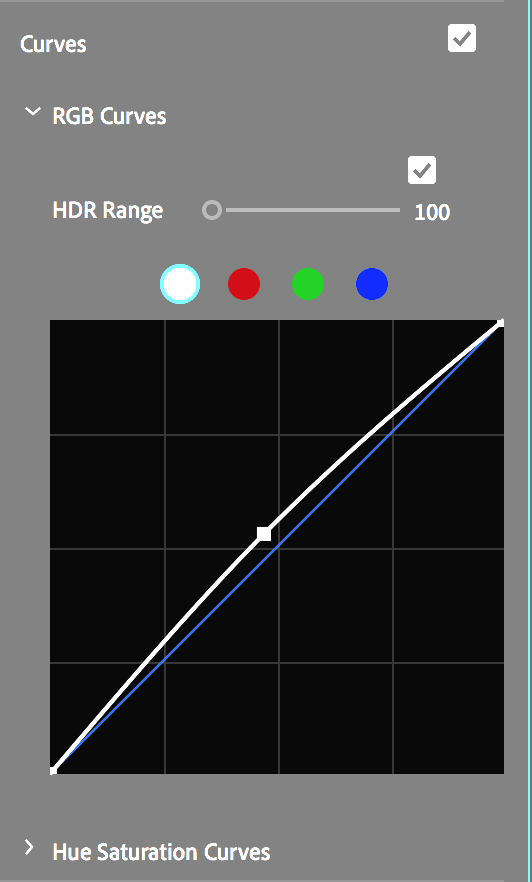
Expand RGB Curves. These are your standard contrast and value curves.
To brighten up the footage slightly, bump this curve up by a quarter of a gridline as shown below:
In the Lumetri Color panel, scroll down and click on Color Wheels & Match.
Using the color wheels here will help us compensate for any green color that may have bounced onto the subject from the green background.
To the left of the Midtones wheel, experiment with adjusting the slider to adjust the mid-point of the brightness values.
To adjust the hue, drag the crosshair in the center of the wheel over to certain colors (more towards magenta for example). Try this out now, sliding the center crosshair of each color wheel toward different hues, watching how the results change.
After you’re done experimenting, double–click the center crosshair. This resets any of the sliders or controllers.
NOTE: Any of these adjustments are also available in the Effect Controls panel. There you can also use the Reset Parameter
 if you make any mistakes.
We’re done with the actor, so let’s move onto the background clip.
Color Correcting the Background
In the Timeline, select the Working… clip on V1.
This clip has some saturated tones of green and purple that we’d like to tone down. This is supposed to be a subtle background, and right now the saturated colors are competing for our attention.
For the background clip, we’ll do a “secondary” color correction instead. Let’s start by toning down the rug by using the HSL Secondary settings (which stands for Hue, Saturation, & Lightness).
Click on HSL Secondary and open the Key section. This is basically a way of isolating a color and then adjusting that color.
To the right of Set color, click on the first eyedropper
to grab it.We want to isolate the purple color. Locate the darker section of purple in the bottom right of the rug, and click with the eyedropper.
To view the color we isolated against gray, check on/off Color/Gray.
To add more tones, next to Set color select the middle (+) eyedropper.
Click on areas of the rug to add more tones.
Take note that you can also adjust these settings in the Effect Controls panel. And if you make any mistakes, you can always click the Reset Parameter button
.Continue to add tones as needed.
NOTE: This is very much like working with key color when you’re color keying using Ultra Key in Premiere, or Keylight in After Effects. Or if you’re used to Photoshop, this is similar to the Quick Select tool or Color Range selector.
You may need to remove some of the extra tones along the bottom that are not part of the rug. To remove certain tones, click the third (-) eyedropper.
Continue to switch Color/Gray on and off to compare with the color image. You can add or remove tones in either view.
Once you’ve selected all of the colors that you want to key, removed any colors that may be extraneous, and you’ve checked it using the Color/Gray view, we’ll adjust the blurriness of that selection. This smoothes out the differences between what is and what isn’t being adjusted. Expand the Refine section and set Blur to 5.
Uncheck Color/Gray if it isn’t already.
Further down under Correction, start dragging the Saturation slider to the left to see the changes in the purple. Notice it moves from brown to gray.
We don’t want to remove all the color so set the Saturation to 54.
Set the Tint to 5 to give it back a little magenta back.
To adjust a second color, you could add more colors to your key, but that would mean they’d get the same color adjustments. To be able to adjust a second color independently of the first, we’re going to use the Curves section instead so scroll up and expand it now.
We’ll be using the Hue Saturation Curves which you may remember, can also be used as a keyer by simply choosing the color you want to isolate by creating points on the rainbow stripe in the Hue vs. Saturation section, as we did with the orange thread of the jeans in a previous exercise.
- We want to isolate the yellow and green colors so click the rainbow stripe where it is orange and cyan, being careful not to move them when clicking. These 2 points on the outer range of the colors that will be adjusted, are your protection points and isolate your corrections to this range of hues only.
- Add 3 more points equally spaced between these first 2 points.
- To make these colors less saturated, drag the 3 middle points downward. You should notice the green colors are starting to get less saturated.
Drag the 3 middle points down, so you end up with something similar to what’s shown below (which desaturates the greens).
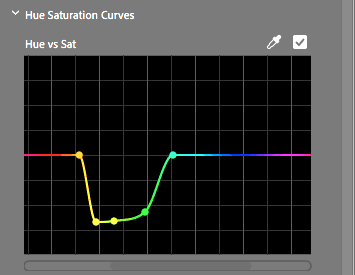
- To check your work, to the right of Curves, uncheck and check the box.
Close up all of the section names in the Lumetri Color panel.
Lastly, we’ll add a Vignette, which is conveniently located in the Lumetri Color panel as well. Click on Vignette to expand the section.
Play around with dragging the Amount slider to the left to see that the edges get darker. Dragging it to the right makes the edges lighter.
For our office setting, use an Amount of –1.7.
Set the Midpoint to 35 to make the vignette a little more extreme.
To the right of Vignette, uncheck the checkbox, then switch it back on to compare the results. Adjust the settings to your taste.
It would be great to match the vignette on our office background to our subject, so take note of those settings.
In the Timeline, click on the NYCofficeman… clip.
Below Vignette, set the same things:
- Amount: –1.7
- Midpoint: 35
Scrub through the clip to see the effect.