April 1, 2026Jerron Smith/7 min read

Music Video: Adding an After Effects Composition in Premiere Pro

Master After Effects Integration in Premiere Pro

Software Integration Benefits

Native Composition Import

Import unrendered After Effects compositions directly into Premiere Pro without losing quality or animation data.

Powerful Animation Tools

Leverage After Effects' advanced animation capabilities while maintaining your Premiere Pro editing workflow.

Seamless Workflow

Create complex motion graphics in After Effects and integrate them seamlessly into your video editing timeline.

Topics Covered in This Premiere Pro Tutorial:

Adding an After Effects Composition, Animating Motion Effects

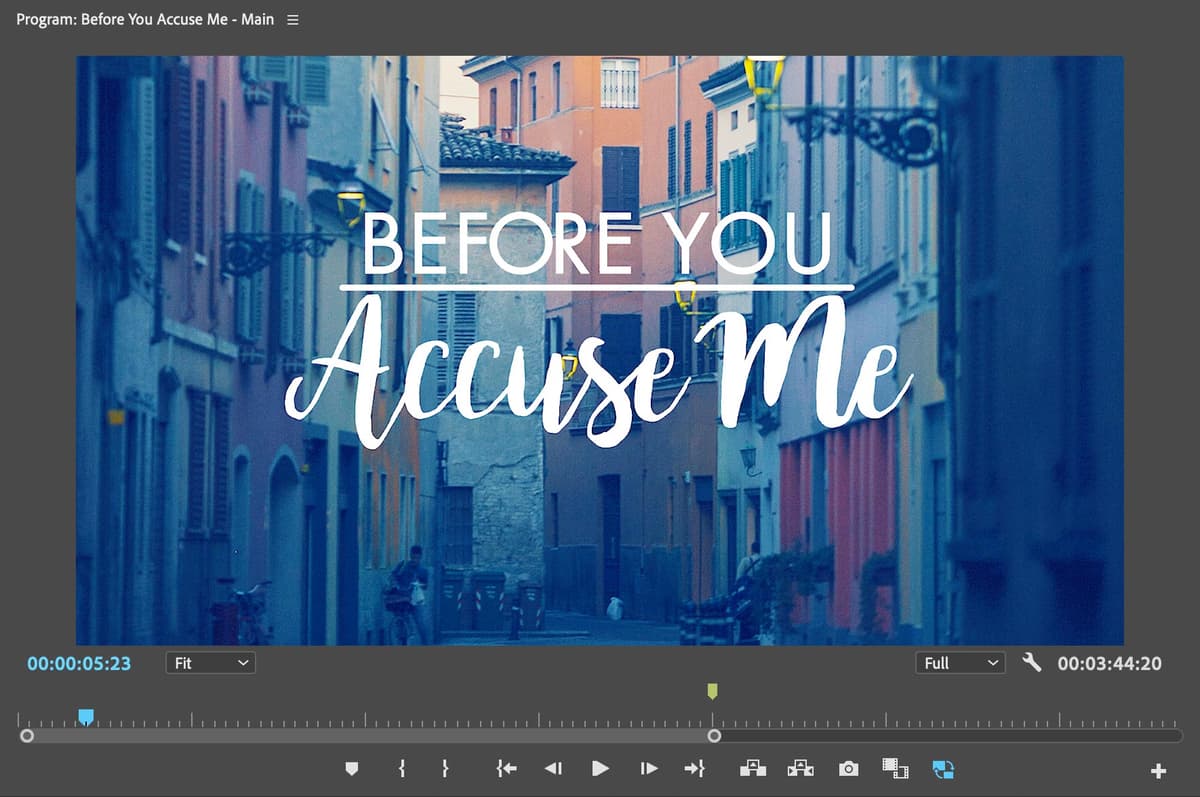
Exercise Preview

preview ae

Exercise Overview

While Premiere Pro handles basic animation tasks effectively, truly compelling motion graphics require the advanced capabilities of Adobe After Effects. The seamless integration between these applications represents one of Adobe Creative Cloud's greatest strengths—Premiere Pro can import native, unrendered After Effects compositions directly into your timeline, creating a powerful workflow that leverages both applications' unique capabilities without the performance overhead of pre-rendering.

Premiere Pro vs After Effects Animation

FeaturePremiere ProAfter Effects
Animation CapabilitiesBasic motion effectsAdvanced animation tools
Text AnimationLimited optionsWrite-on effects, complex motion
Timeline IntegrationNative editingImport as composition
Recommended: Use After Effects for complex animations, import into Premiere Pro for final editing

Previewing the Final Video

Before diving into the technical workflow, let's examine the sophisticated animation elements we'll be creating in this exercise.

  1. Navigate to your project preview to understand the final output you'll be achieving.

  2. On the Desktop, navigate to Class Files > Premiere Pro Intermediate > Multicam—Music Video > Preview Movie and double-click Before You Accuse Me.mp4.

  3. Analyze the following professional animation techniques:

    • The opening title features dynamic animation with a kinetic background element
    • The text animation incorporates multiple layers, including a sophisticated "write-on" effect that adds visual interest
    • A parallax-style scrolling image creates depth beneath the animated title sequence
  4. Review the video multiple times to understand the timing and layering. We'll reconstruct this complex animation through a systematic series of exercises that demonstrate industry-standard practices.

  5. Close the video when you've thoroughly analyzed the animation structure.

Key Elements to Observe

0/3

Getting Started

Let's establish our working environment and ensure proper project continuity from previous exercises.

  1. You should have Before You Accuse Me—Your Name open in Premiere Pro. If you've closed it, re-open it by navigating to File > Open Project then Desktop > Class Files > Premiere Pro Intermediate > Multicam—Music Video. If you're joining this exercise sequence mid-stream, follow the sidebar instructions to establish proper project continuity.

    File Organization Best Practice

    Maintaining proper project organization with named bins helps manage complex projects with multiple asset types and After Effects compositions.

If You Did Not Do the Previous Exercise

  1. If a project is currently open in Premiere Pro, save your work with File > Save, then close it using File > Close Project.
  2. Navigate to File > Open Project and locate Desktop > Class Files > Premiere Pro Intermediate > Multicam—Music Video > Finished Projects.
  3. Double-click on Before You Accuse Me—After Effects.prproj to open the prepared starting point.

  4. Immediately save a working copy by going to File > Save As. Name the file Before You Accuse Me—Your Name and save it to Desktop > Class Files > Premiere Pro Intermediate > Multicam—Music Video.

Adding an After Effects Composition to a Premiere Pro Sequence

With your music video edit refined and polished, it's time to elevate the production with a professional opening title sequence. This workflow demonstrates the power of Adobe's Dynamic Link technology, allowing you to import native After Effects compositions without rendering, maintaining maximum quality and editability throughout your post-production pipeline.

  1. Establish a clean workspace by choosing Window > Workspaces > Editing.
  2. Reset your interface to default settings with Window > Workspaces > Reset to Saved Layout.
  3. In the Project panel, create organizational structure by clicking the New Bin button new_bin.

  4. Rename this bin 05—AE to maintain consistent project organization.

  5. With the new bin selected, initiate the import process using File > Import or Cmd–I (Mac) or CTRL–I (Windows).

  6. Navigate to Desktop > Class Files > Premiere Pro Intermediate > Multicam—Music Video > Media > AE.

  7. Double-click on Before You Accuse Me_Logo.aep to import the After Effects project file directly.

  8. In the Import After Effects Composition dialog, select Logo—BYAM from the available compositions list.

  9. Click OK to complete the import process, establishing the Dynamic Link connection.

  10. In the Project panel, double-click the imported composition clip (Logo—BYAM… inside the 05—AE bin) to preview it in the Source panel.

  11. In the Source panel, scrub the playhead until you locate the text "BEFORE YOU Accuse Me". Observe how it appears as white text against a black background—this indicates the composition includes alpha channel transparency.

  12. At the bottom right of the Source panel, click the Wrench button button_wrench and select Transparency Grid to visualize the alpha channel.

    NOTE: In professional video editing, black backgrounds typically indicate transparent areas where underlying video layers will show through.

  13. Click the Wrench button_wrench again and choose Transparency Grid once more to return to standard display mode.

  14. On the Timeline, position the playhead at 2:00 to establish the title's entry point.

  15. Drag the Logo—BYAM clip from the Project panel onto the Video 3 track in the Timeline, ensuring it snaps to the playhead position for precise alignment.

  16. Preview the opening section of your timeline to confirm the animated logo integration.

  17. Save your progress using File > Save or Cmd–S (Mac) or CTRL–S (Windows).

Import After Effects Composition Process

1

Create Organization Structure

Create a new bin labeled '05—AE' to organize After Effects compositions separately from other media assets.

2

Import AE Project File

Use File > Import to select the .aep file containing your After Effects composition.

3

Select Composition

Choose the specific composition from the Import dialog, as AE projects can contain multiple compositions.

4

Preview and Place

Double-click to preview in Source panel, then drag to Timeline at desired position.

Transparency Display

Black backgrounds in Premiere Pro video preview typically indicate transparent areas. Use the Transparency Grid option to better visualize transparent elements.

Creating a Nested Sequence

While After Effects compositions can't be directly edited within Premiere Pro, you can use them as foundational elements for building more sophisticated composite graphics. Nesting allows you to treat multiple elements as a single, manageable unit while maintaining access to the underlying components.

  1. On the Timeline, CTRL–click (Mac) or Right-click (Windows) on the After Effects composition clip and select Nest from the context menu.

  2. Name the nested sequence BYAM—Opening Title and click OK to create the container.

  3. In the Project panel, locate the newly created BYAM—Opening Title sequence and organize it by dragging it into the 04—Nested Sequences bin.

  4. Double-click on the BYAM—Opening Title sequence to open its dedicated timeline environment.

  5. In the Project panel, expand the 03—Images bin by clicking its arrow to reveal the available assets.

  6. Drag the old city.jpg image onto the Video 1 track at the sequence beginning, establishing it as the background layer.

  7. Using the Selection tool tool_selection, extend the old city.jpg clip's out-point until it matches the Logo—BYAM clip duration, ensuring temporal continuity.

  8. Reposition the Logo—BYAM clip to the Video 2 track, creating proper layer hierarchy with the background image below and animated logo above.

  9. Select the old city.jpg clip on the timeline to access its properties.

  10. In the Effect Controls panel, expand the Motion category to reveal the transformation parameters.

  11. Modify the Position property's vertical value (second parameter) to 1420, creating the starting position. The Position should now read 960, 1420.

    NOTE: Position parameters follow X, Y coordinate system—the first value controls horizontal positioning, while the second governs vertical placement.

  12. Move the playhead to the timeline beginning to establish the starting keyframe position.
  13. Click the Toggle Animation button button_toggleAnim next to Position to enable keyframe animation and set the initial keyframe automatically.

  14. Advance the playhead to 5:00 to establish the animation's end point.

  15. Change the vertical Position value (second parameter) to -350. Premiere Pro automatically generates the second keyframe, creating a smooth upward scrolling motion.

  16. Return the playhead to the timeline beginning and press Spacebar to preview the parallax scrolling animation.

  17. Ensure the old city.jpg clip remains selected for keyframe refinement.

  18. In the Effect Controls panel, CTRL-click (Mac) or Right-click (Windows) on the first Position keyframe keyframe start and select Temporal Interpolation > Ease Out to create a smooth acceleration curve.

  19. Apply complementary easing to the second Position keyframe keyframe end by CTRL-clicking (Mac) or Right-clicking (Windows) and choosing Temporal Interpolation > Ease In.

  20. Preview the refined animation. Notice how the easing creates a more natural, cinematic motion that starts gradually, accelerates through the middle, and decelerates smoothly at the end—mimicking real-world physics.

  21. Close the nested sequence by clicking the X next to the BYAM—Opening Title tab, returning you to the Before You Accuse Me—Main sequence.

  22. Select the BYAM—Opening Title clip in the main timeline to prepare it for transition application.

  23. Apply professional transitions using Cmd–D (Mac) or CTRL–D (Windows), or navigate to Sequence > Apply Video Transition. This adds the default cross-dissolve to both the clip's in-point and out-point, creating smooth integration with surrounding content.

  24. Play through the opening timeline section to review your completed professional title sequence, noting how the layered animation, parallax scrolling, and transitions create a cohesive, broadcast-quality introduction.

  25. Save your completed project using File > Save or Cmd–S (Mac) or CTRL–S (Windows).

  26. With this exercise complete, close the project using File > Close Project to prepare for your next workflow challenge.

Nested Sequences for Complex Graphics

Pros
Allows building complex graphics using AE compositions as foundation
Maintains organization by grouping related elements
Enables adding additional layers and effects to AE compositions
Simplifies timeline by consolidating multiple elements into single clip
Cons
Cannot directly edit original After Effects composition
Adds complexity to project structure
May impact performance with multiple nested sequences

Creating Animated Background Movement

1

Set Initial Position

Position background image at starting coordinates (960, 1420) and enable animation with Toggle Animation button.

2

Create End Keyframe

Move playhead to 5:00 and change vertical position to -350 to create automatic second keyframe.

3

Apply Easing

Add Ease Out to first keyframe and Ease In to second keyframe for smooth, natural motion.

Key Takeaways

1Premiere Pro can import native, unrendered After Effects compositions directly without quality loss
2After Effects provides more powerful animation tools than Premiere Pro's basic motion effects
3Complex title animations with write-on effects and moving backgrounds require After Effects capabilities
4Nested sequences allow combining After Effects compositions with additional elements for complex graphics
5Black backgrounds in Premiere Pro preview typically indicate transparent areas in compositions
6Position values in Effect Controls represent X (horizontal) and Y (vertical) coordinates for precise placement
7Keyframe easing with Ease In and Ease Out creates more natural, professional-looking motion animations
8Proper project organization with labeled bins helps manage complex projects with multiple asset types

RELATED ARTICLES