Muffins Recipe Video: Retiming Video in Premiere Pro
What This Tutorial Covers
Speed/Duration
Change clip speed without changing pitch.
Time Remapping
Variable speed within a single clip via keyframes.
Optical Flow
Smooth slow-motion through frame interpolation.
Noble Desktop's Video Editing & Motion Graphics Certificate teaches Premiere Pro alongside After Effects, DaVinci Resolve, and the full motion design toolkit.
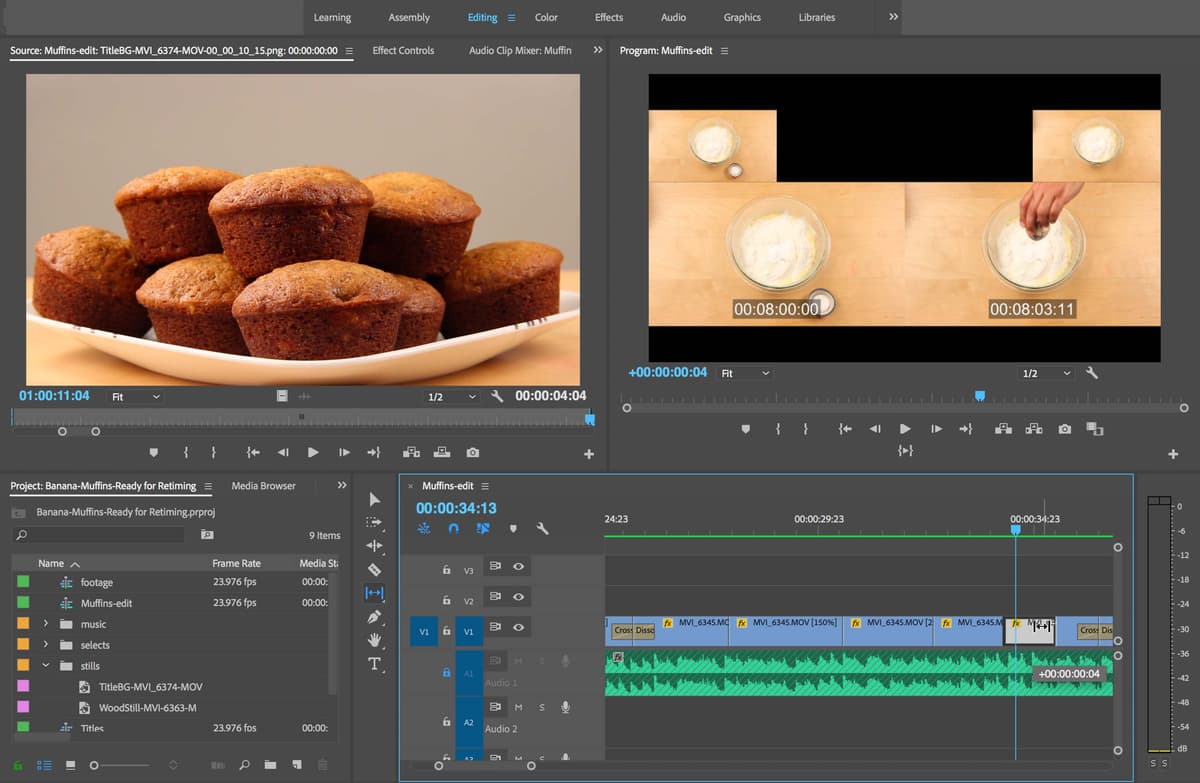
Master the art of professional video editing with Premiere Pro by learning how to import sequences from other projects, create title cards from stills, retime footage, and freeze-frame footage using the Ripple Edit Tool.
Exercise Preview
Importing a Sequence from Another Project
We want to create a sequence using the clips that we’ve chosen. We actually already have a sequence we can use, with the audio already edited and ready to go: we made it in the previous exercise, remember? We’ll import the sequence that we created in the last exercise.
You should still have yourname-Banana-Muffins open in Premiere Pro. If you closed it, re-open it now by going to File > Open Project then Desktop > Class Files > Premiere Pro Class > Banana Muffins. We recommend you finish the previous exercise (B2) before starting this one. If you haven’t finished it, do the following sidebar.
If You Did Not Do the Previous Exercise (B2)
- If a project is open in Premiere Pro, go to File > Save, then File > Close Project.
- Go to File > Open Project and navigate to Desktop > Class Files > Premiere Pro Class > Banana Muffins > Finished Projects.
- Double–click on Banana Muffins-Ready for Retiming.prproj.
- Go to File > Save As. Name the file yourname-Banana Muffins.prproj and save it into Desktop > Class Files > Premiere Pro Class > Banana Muffins.
Let’s import the project with the sequence containing the correct edited music. Go to File > Import and:
- Navigate to Desktop > Class Files > Premiere Pro Class > Banana Muffins.
- Double-click on the yourname-Muffins-music.prproj file.
In the Import Project dialog, check on Import Selected Sequences (all other buttons and checkboxes should be off) and click OK.
Give it some time while it connects to the other project.
Once it’s done connecting, select the Muffins-edit sequence and click OK.
Make sure the sequence didn’t accidentally get imported into a folder in the Project panel. If it did, move it out.
If it also imported an empty folder called music 01, you can delete that from the Project window.
In the Project panel, double–click on the Muffins-edit sequence to open it in the Timeline.
To the left of A1 click the Toggle Track Lock icon
 to lock the track. We don’t want to accidentally write over it with what we’re about to bring in.
At the bottom of the Project panel, click on the New Bin icon
 .
.Name the new bin selects.
Double–click the selects bin so that it opens in its own tab. We’ll use this bin for our selected shots.
In the Timeline, switch to the footage tab.
We want to select all of the video on the V2 track. Select the Track Select Forward tool
 .
.Hold Shift and click in the empty space at the beginning of V2. This will just select the clips on that track and the corresponding audio (because we have Linked Selection turned on).
Choose the Selection tool
 .
.Drag the selected clips from V2 to the selects folder panel that should still be open on the left.
In the selects bin panel, scroll over to the right until you see the Video In Point and Video Out Point columns. These are the columns we’re interested in for now.
We’re going to organize the shots firstly based on the Video In Point timecode and then secondly by name. At the top of the column, click on the word Video In Point.
Next, click on the word Name.
Make sure the little arrow to the right of Name is pointing upwards.
At the top of the Timeline, click on the Muffins-edit tab to switch to it.
Make sure A2 is the active audio track.
We want to drag all of the shots from the selects bin to this sequence. Move the playhead so it’s at the beginning of the Timeline.
Select all the shots in the selects bin by clicking on the first clip (with a Video In Point of 15:04). Then go to Edit > Select All.
Drag the selected clips to the Timeline on V1 (and A2), by dragging one of their filmstrip icons.
NOTE: We could have also copied and pasted the clips directly from the footage sequence, but this method means we don’t have the gaps between the clips, and saves us from having to manually go through and delete every single gap.
- In the Timeline, turn off Linked Selection
 .
. Choose the Track Select Forward tool
.Shift-click on the very first shot of A2 to select all the clips on the track.
Hit Delete to get rid of the audio from shooting that we don’t need.
We’re ready to start video editing!
Creating a Title Card from a Still
We want all of the shots to begin after the first phrase in the music. Move the playhead to the beginning of the Timeline and play through to listen to the audio. You’ll notice that the first phrase ends around 4:04.
Make sure the playhead is at 4:04 and you still have the Track Select Forward tool
selected.Click on the first shot on V1 so that all the shots are selected.
Switch to the Selection tool
.Drag the selected shots to the right so that they begin at the playhead. This is going to leave space for our title card at the beginning.
To create the title card, we’ll freeze-frame a still from the footage. The image that we want to use will be from the second to last shot—the finished muffins on a plate, so move the playhead to 9:52:17 (or whenever you see the finished muffins on the plate).
Use the plus (+) key to zoom in on the Timeline.
Double–click on the clip to open it in the Source Monitor.
At the bottom of the Source Monitor, look for the Export Frame button
 . If you don’t see this icon, do the following:
- Click the Button Editor icon
 .
. - Find the Export Frame icon and drag it down into the lineup of used buttons below.
- Click OK.
- Click the Button Editor icon
Click the Export Frame button
. This takes a frame of your video and saves it as a single image in the format of your choice.In the Export Frame dialog that opens:
- Add the text TitleBG- before the existing name (which has the name of the clip and the timecode which we like)
- Replace the periods (.) with dashes (–).
- Delete .Still001 at the end.
You should end up with a file named something similar to TitleBG-MVI_6374-m4v-00_00_10_13 (the exact frame number listed at the end, doesn’t matter).
Set the Format to PNG (so the file is lossless and high quality).
Check on Import into project.
Click on Browse and navigate to Desktop > Class Files > Premiere Pro Class > Banana Muffins > Capture > stills and click Choose (Mac) or Select Folder (Windows).
Back in the Export Frame dialog, click OK.
Switch back to the Project: yourname-BananaMuffins panel and close up any expanded bins.
Drag TitleBG-MVI_6374-m4v-00_00_10_13 to the New Bin icon
to create a new bin with the still image.Rename the bin stills.
- We’ll use the still for our title card at the very beginning of the sequence, so move to the beginning of the Timeline.
Drag TitleBG-MVI_6374-m4v-00_00_10_13 onto track V1.
Drag out the right end of the clip so that it fills the entire gap (the beginning phrase of the music).
Retiming Footage
Now that we have our title card, we’ll work on editing the footage so that it fits with the duration of the music. As you may have noticed, currently our footage is much too long. We’ll fix this by speeding up the shots using one of Premiere’s time-remapping features.
We want the first video shot to last around 4 seconds. Make sure the playhead is at the beginning of the clip at 4:04 in the Timeline.
Press the i key to set the in point here on the Timeline.
Move the playhead to 8:13 and hit the o key to set an out point on the Timeline.
At the bottom of the Program Monitor you should see the total duration of this section is 4:10. This is because it’s base 24 (every time it gets to 23 frames, the 1 is carried.)
Double–click the clip and notice that in the Source Monitor it’s actually showing that it’s 8:12 long.
In the Timeline, CTRL–click (Mac) or Right–click (Windows) on the clip and select Speed/Duration.
In the Clip Speed/Duration window that opens, click into the Duration field and type 410.
Click in an empty area of the window to see that this will automatically do the math to adjust the speed of the clip as necessary.
Check on Ripple Edit, Shifting Trailing Clips so that Premiere shifts all of the clips that happen after this to begin immediately after this clip is done.
Click OK.
Play back the “butter” section to see the sped up version. Looking good!
We no longer need the butter markers so go to Markers > Clear In and Out.
Next, we’re adding sugar according to the recipe. Notice that the next shot is way too long (over 3 minutes long!) so we’ll need to speed up this clip as well.
Select it in the Timeline and hit Cmd–R (Mac) or CTRL–R (Windows) to open the Clip Speed/Duration window.
Set the Speed to 2015%.
NOTE: As you may have guessed, any Speed value above 100% will speed-up the clip, and shorten its duration. Setting the speed less than 100% will slow-down and lengthen the clip duration.
Make sure Ripple Edit, Shifting Trailing Clips is still checked on.
Click OK.
Double–click the clip and notice that it is still too long at 10 seconds. This is about 20% of our entire film duration so it’s much too long. We’ll use a technique we call “elapsed time” for this one.
We want this clip to last about 4 seconds so in the Timeline, set the playhead to 10:06 (half of 4 seconds is 2 seconds later—which lands us at 10:06).
Use the Razor tool
 to cut the sugar clip into two pieces at 10:06.
- Switch to the Selection tool .
Drag the second section (beginning at 10:06) up to V2.
Move the playhead to where we want the entire “adding sugar” step to end at 12:06. Don’t cut here!
Drag the clip on V2 over so that it ends at that playhead at 12:06.
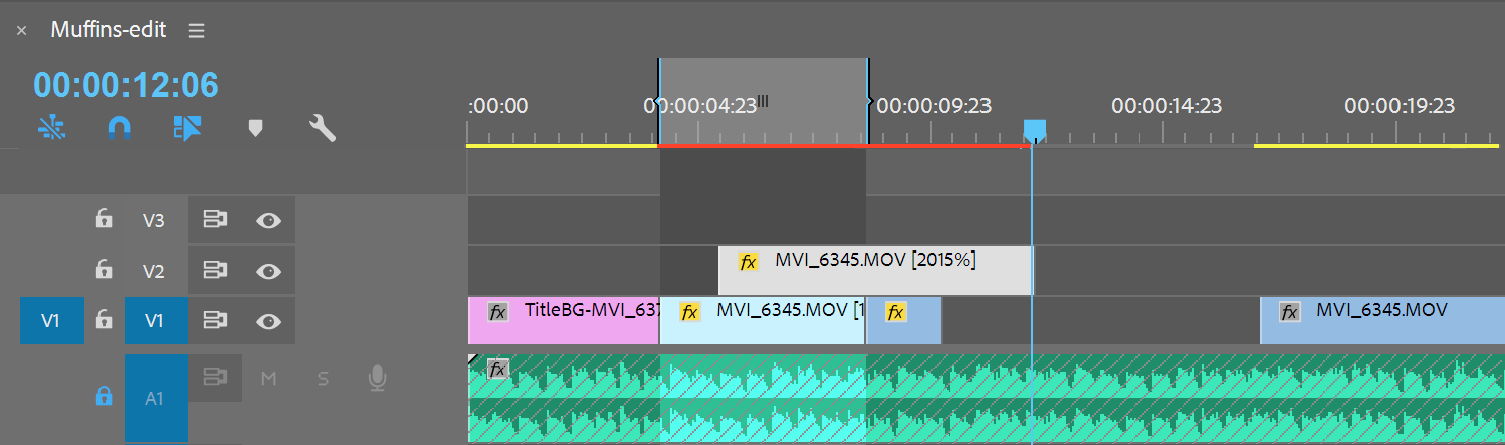
Drag on the left end of the clip to shorten the start of it so that it begins where the first part ends (at 10:06), filling in the gap on V1.

Now that it’s the correct length, drag the clip back down to V1.
Let’s watch it through to see that right now it’s going to be a jump cut. Move the playhead to around 8:14 and play the section. All of a sudden there are many things already in the bowl which doesn’t look right at all.
TIP: Arrow between 10:05 and 10:06 to see the jump cut more clearly.
Luckily, we have an easy fix. CTRL–click (Mac) or Right–click (Windows) between the two shots (at 10:06) and choose Apply Default Transitions.
Play through this section again to see that you end up with an elapsed time effect. It now looks like we added sugar a little at a time! We’ll be practicing this technique again a few more times.
In the Timeline, click on the gap that follows the “adding sugar” clip to select it.
Hit Delete.
This gets rid of the gap and shifts the rest of the clips over, also known as a ripple edit.
Retiming the Rest of the Clips
- Select the next “eggs” clip which starts at 12:06.
- Hit Cmd–R (Mac) or CTRL–R (Windows).
In the Clip Speed/Duration window, set the Speed to 745%.
Ripple Edit should already be checked on so just click OK.
The clip is still too long so we’ll back-time it too. Move the playhead to 14:05.
Use the Razor tool
to cut here.Move the playhead to 15:07.
- Switch to the Selection tool .
Drag the second clip up to V2, aligning the end to the playhead.
Drag in the left end of the clip on V2 so it matches the gap on V1.
Drag the section back down to V1.
CTRL–click (Mac) or Right–click (Windows) between the two shots and choose Apply Default Transitions to add another cross dissolve. The eggs should now be fully incorporated by the end of the clip.
Click the following gap to select it and hit Delete.
Next, at 15:07, is “Bananas”. There are a few different steps involving the bananas so let’s start with the first one. Select it in the Timeline.
We want the same speed for both the first and second sections. Hold Shift then click on the following shot so that both are selected.
Hit Cmd–R (Mac) or CTRL–R (Windows).
Set the Speed to 300% and click OK.
The third banana shot (the beginning of the mashing section) will have a speed of 200% so select it and change its speed now.
The last shot will be much faster. Set its speed to 750%.
We’re going to once again elapse-time the last banana shot. We really don’t need to see ALL of the banana mashing. Move the playhead to 25:17.
Use the Razor tool
to cut the clip at the playhead.Move the playhead to 27:22.
- Switch to the Selection tool .
Drag this section up to V2, aligning the end of the clip with the playhead.
Hit C to get the Razor tool again and cut where the previous banana clip ends on V1 (at 25:17).
Hit V to switch back to the Selection tool to select the first part of the clip and Delete it.
Drag the remaining clip back down to V1.
CTRL–click (Mac) or Right–click (Windows) between the two shots (at or around 25:17) and choose Apply Default Transitions.
Let’s play back the bananas section to see how it’s looking. Move the playhead to the beginning of the section at 15:07, and press i to set an in point.
NOTE: Feel free to use the Up and Down Arrows to move between the clips. This works on any active track.
Move the playhead to the end of the bananas at 27:21 and hit o.
To play just that section, locate the Play Video In to Out button
 at the bottom of the Program Monitor.
NOTE: If you don’t see it by default, you’ll need to use the Button Editor
to add it.Hover over the Program Monitor and hit the tilde (~) key to preview in full screen.
At the bottom of the screen, click the Play Video In to Out button
. Looking good! We have a nice representation of mashing bananas and it only took a matter of seconds, instead of a minute.Once it’s done playing, hit tilde (~) again to return to normal view.
- In the Timeline, select and Delete the following gap.
Hit Opt–X (Mac) or CTRL-Shift–X (Windows) to clear the in and out markers on the Timeline.
Adjusting Footage with a Slip Edit
- The next section (flour) is also long, so we’ll it speed up. Select the first flour clip.
Hit Cmd–R (Mac) or CTRL–R (Windows).
Set the Speed to 150%.
- Select the second flour clip.
Hit Cmd–R (Mac) or CTRL–R (Windows) and set its Speed to 250%.
In the third shot nothing actually happens so we’ll remove it. CTRL–click (Mac) or Right–click (Windows) on the clip and select Ripple Delete.
We want the next stirring section to start at 35:11 so we’ll need to fit the next couple of shots in before then. Select the next “baking soda” shot (which currently begins at 32:15) and speed it up by 225%.
Select the next section beginning at 34:06. We only need another 1:06 seconds before we get to 35:11 so hit Cmd–R (Mac) or CTRL–R (Windows), and set the Duration to 106 (it will automatically calculate the speed for us).
Click OK.
Play this section down from 32:15.
Actually, this section doesn’t make sense now. The actor was supposed to empty the rest of the baking soda before putting the salt in.
We’re going to perform a slip edit here. Remember that this keeps the duration of the shot the same, while shifting the content either earlier or later. In this case, we want it to be later so select the Slip tool
 .
.For the shot starting at 34:06, drag to the left, keeping an eye on the left thumbnail until the actor is completely off-screen, and about to come back in to grab the salt. We used 8:00:07.
Play it back again and notice he’s still in the frame at the end of this clip. (If you missed it, move the playhead to 35:11).
We’ll need to extend the clip out a little bit.
With the Selection tool, drag the clip up to V2.
Drag on the right end of the clip to extend it out, using the thumbnail to ensure he fully exits. We used 8:04:03 (your timecode might be off by a frame or 2).
Take note that the left thumbnail in the Program Monitor shows what the last frame will look like.
We still want this to last 1:06 so once again hit Cmd–R (Mac) or CTRL–R (Windows).
Set the Duration to 106 so that this section of video will be sped up even further to fit within this duration.
Move the playhead back to around 33:10 and play back to see him add salt properly. Nice!
Drag the clip back down into the gap on V1.
In the next section, he’s stirring the ingredients very slowly so we’ll speed it up too. Select and set the Speed to 670%.
Move the playhead to 35:11.
The clip should begin here so just drag it from the center slightly left to align with the playhead (zoom in if needed).
The stirring clip is still too long so move the playhead to 36:11. We’ll create another elapsed time there.
With the Razor tool
, cut the clip here.- Switch back to the Selection tool .
Select the second section so we can adjust its speed separately.
Hit Cmd–R (Mac) or CTRL–R (Windows).
Set the Speed to 200%, so the second part ends slower. The dough is thicker now, so the chef will mix it more slowly.
Move the playhead to 37:15.
Take note that all of these timecode decisions were made based on the music and through trial and error. In your own projects you would need to experiment yourself to find where to make these edit decisions.
Drag the second section up to V2, aligning the end with the playhead.
With the Razor tool
, cut the clip on V2 where the end of the clips are on V1.Select and Delete the first part.
Drag the remaining section down to V1.
To create the time-elapse effect, add a cross-dissolve between those last two clips.
Select and delete the following gap.
Next, we have a close-up of the “stirring” which also needs to be sped up quite a bit. Select the clip (it starts at 37:15) and hit Cmd–R (Mac) or CTRL–R (Windows).
Set the Speed to 195%.
This should end at 39:07 but at the moment it’s one frame short. Move the playhead there if it isn’t already.
Use the Track Select Forward tool
to move the other clips forward by a frame.Switch to the Selection tool to drag out the right end of the previous stirring clip, extending it out by one frame.
The next clip is the first close-up “scooping” clip. Make sure no other clips are selected, then speed that up by 250%.
This is followed by a wide shot of scooping and filling the muffin tin. This takes a long time so once again we’ll use the elapsed-time trick. Speed it up a lot to 1147%.
We want this clip to start at 41:11 so move the playhead there.
You’ll need to drag to shorten the left end of this clip first, and then extend the previous clip to fill in the gap.
Move the playhead to 43:01 and make a cut
.Move the playhead to 44:06.
With the Selection tool
, drag the second section up to V2 and align the end to the playhead at 44:06.Drag the left end of the clip so that it starts where the last clip on V1 ends.
Move the clip down to V1.
Add a cross-dissolve transition between the two sections.
Delete the gap that follows.
We now have a close-up of filling the last muffin tin. Speed that up to 300%.
If you’ve noticed your project playing back very slowly, then this may be a good time to render. Go to Markers > Clear In and Out.
Go to Sequence > Render In to Out.
Freeze-Framing Footage & the Ripple Edit Tool
This next shot shows the person lifting the filled muffin tin off the table, and at the end of this shot we just see the wooden table. This is a great shot, but we need it to last longer so that we have enough time for the text graphic that indicates the muffins are baking. We like the pace at which the muffin tin is lifted, but we’ll need to add a freeze frame of the last frame, of the empty table.
Move the playhead to 46:22 or so, the last frame of the empty table shot.
Double–click the clip to open it in the Source Monitor.
At the bottom of the Source Monitor, click on the Export Frame button
.NOTE: You can also export a frame from the Program Monitor, but it doesn’t create a file with a stamp of the original clip name and timecode.
In the Export Frame window that opens, add the text WoodStill- before the existing name (which has the name of the clip and the timecode which we like) and replace the periods (.) with dashes (–). Then delete .Still001 at the end. Your image filename should be similar to WoodStill-MVI_6363_MOV_00_00_03_11 though your ending frame-number may be a little different.
Set the Format to PNG.
Make sure the path location is set to the stills folder.
Check on Import into Project.
Click OK.
In the Project panel, drag the new still into the stills folder.
Move the playhead to 46:23, where we want to insert the wood still.
From the Project panel, drag the still right on top of the Program Monitor and drop it on to the Insert section in the middle.
Notice that this inserted the clip where we want it and extended out everything else.
We only need this still to be on-screen until 48:05 so move the playhead there.
Let’s see another way to do a ripple delete. Select the Ripple Edit tool
 .
.With the Ripple Edit tool
, drag on the right edge of the wood still clip, snapping it to the playhead.Notice it shortens your current shot and then moves all the other clips up to fill in the gap!
Next is the wide shot of the finished muffins and again it’s really slow. Switch to the Selection tool
to select the clip.Hit Cmd–R (Mac) or CTRL–R (Windows) and set the Speed to 300%.
We want to make the second section of that shot with the hand a little slower than the first half. Select the next clip.
Hit Cmd–R (Mac) or CTRL–R (Windows) and set the Speed to 150%.
Lastly, there’s a shot of the hand coming down holding the muffin with a bite taken out. Play through to see that it’s a little off-center. Let’s fix that, along with its speed.
Select the last shot, and hit Cmd–R (Mac) or CTRL–R (Windows).
Set the Speed to 125%.
Let’s move the muffin a little closer. Double–click it to open it in the Source Monitor.
Switch to the Effect Controls panel.
Under the Motion section, set the Scale to 105.
Adjust the Position slightly to 919, 540. This should center the muffin nicely on the screen.
Congratulations, you’re done with retiming!
Do a File > Save and leave this project open to use in the next exercise.