London Travel Promo: Refining Clips on the Timeline in Premiere Pro
What This Tutorial Covers
Trim Tools
Ripple, roll, slip, and slide for precision edits.
Timing Adjustments
Fine-tune cuts to match music beats.
Continuity
Keep visual flow across rapid cuts.
Noble Desktop's Video Editing & Motion Graphics Certificate teaches Premiere Pro alongside After Effects, DaVinci Resolve, and the full motion design toolkit.
Gain a deep understanding of how to utilize Premiere Pro's timeline tools, including the Ripple Edit tool and the Slip Tool, in this comprehensive tutorial that walks you through creating a London Travel Promo video.
Exercise Preview
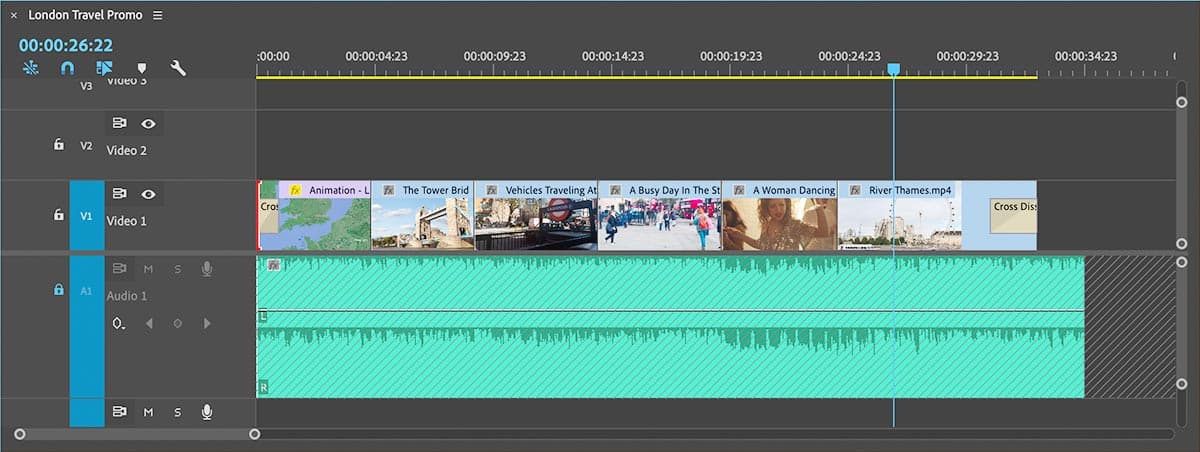
Refining Your Edits on the Timeline
As you previously learned, you can use the Source panel to trim clips so that you only add the footage you need to your Timeline. But it’s on the Timeline itself where much of your editing work happens.
If you can’t see all of the clips on your Timeline, hit the
\(backslash) key to zoom out and reveal all clips in the sequence.CTRL–click (Mac) or Right–click (Windows) on the first clip, Animation—London Zoom and choose Speed/Duration and:
- Change Speed to 200% (this will double the speed).
- Check on Ripple Edit, Shifting Trailing Clips.
- Click OK.
NOTE: The Ripple Edit pulls all of the clips, on every track over when you shorten or lengthen a clip. This prevents a gap in your video clips from forming when you change clip duration.
Press the Down Arrow key to jump the playhead to the edit line between the first and second clips.
NOTE: The Up Arrow and Down Arrow keys on your keyboard jump the playhead from edit line (the beginning or end of a clip) to edit line. Up Arrow moves the playhead to the left while Down Arrow moves it to the right.
Press the + (plus) key a few times until you can more clearly see the waveform (that’s the audio preview).
To make the waveform even easier to see you can make the audio tracks taller. To the right of the audio tracks, click on the bottom circle of the vertical slider and drag it up.
Move the Timeline playhead to 4;21
In the Tools panel, click on the Ripple Edit tool
 .
.NOTE: The keyboard shortcut for the Ripple Edit tool is B.
Hover over the end of the first clip (Animation—London Zoom In).
You’ll know you’re in the right place when the cursor switches to a yellow ripple edit indicator
 .
.NOTE: Make sure the yellow arrow is facing the clip you want to adjust.
Drag the end of the clip to the playhead.
The Ripple Edit tool automatically shifts any trailing clips by the amount of time you are shortening or lengthening this one.
- Press Shift–K to play around the edit you just made.
Move the Timeline playhead to 9;05
- Still using the Ripple Edit tool, drag the end of The Tower Bridge to the playhead.
Move the Timeline playhead to 14;11
- This time you’ll be lengthening the clip.
- Drag the end of Vehicles Traveling At Daylight to the playhead. Make sure the yellow arrow is pointing at the Vehicles clip you want to adjust!
Move the Timeline playhead to 19;16
- Once again let’s lengthen the clip.
- Drag the end of A Busy Day In The Street… to the playhead.
Move the Timeline playhead to 24;14
- Drag the end of A Woman Dancing Expressively to shorten it.
Move the playhead to the beginning of the Timeline.
NOTE: To move the playhead to the beginning of the timeline, press the Home key if you have it, or hold fn (function) and press Left Arrow.
Press the Spacebar to preview your timeline.
Notice that the cuts now match the audio beat.
Choose File > Save or hit Cmd–S (Mac) or CTRL–S (Windows).
Performing a Slip Edit
Now that you’ve adjusted the length of clips on your timeline, a problem has been introduced. Because we have made some of the clips longer and some shorter, we may now be seeing parts of each clip that we don’t like. To fix this we will use the Slip tool.
Locate The Tower Bridge clip on your timeline (it’s the 2nd clip).
In the Tools panel, click on the Slip tool
 .
.Hover over of The Tower Bridge clip and drag left or right as needed until the right preview in the Program panel displays 8;15
The Slip tool changes this clips in and out points but keeps the overall duration of the clip the same. In this case you changed the In/Out points so they show an earlier area of the clip.
Press the Down Arrow key to move to the edit line where The Tower Bridge and Vehicles Traveling… clips meet.
Press Shift–K to run the Play Around command to see the edit.
Finishing up
Let’s make the last clip end 2 full seconds before the music does. Later you’ll add text in those last 2 seconds.
- Click on the Timeline panel to make it active.
To move the playhead to the end of the sequence, press the End key (if you have one). If you don’t have an End key, drag the playhead back to the beginning of the Timeline or hold the fn (function) key and press Right Arrow.
NOTE: Depending on whether the preference Snap Playhead in Timeline when Snap is enabled is on (it’s found in the Timeline preferences), the playhead may or may not snap to clips. You can hold Shift while dragging to force the playhead to snap.
Click on the Timeline timecode, type -200 and hit Return (Mac) or Enter (Windows).
This moves the playhead back 2 seconds from its current position to 33;00
NOTE: Adding a + or - in front of the number you type into the playhead position moves the playhead forward or back relative to its current position on the timeline.
- In the Tools panel, click on the Selection tool
 .
. - Drag the end of the River Thames clip to the playhead to shorten it.
- CTRL–click (Mac) or Right–click (Windows) on the end of the River Thames clip and choose Apply Default Transitions.
Double–click on the cross dissolve transition to open its settings and:
- Change Duration to 200 (which is 2 seconds).
- Click OK.
- Move the playhead to the beginning of the Timeline.
- CTRL–click (Mac) or Right–click (Windows) on the beginning of the first video clip and choose Apply Default Transitions.
- Double–click on the cross dissolve transition.
Change Duration to 200 and click OK.
Now you have the clip at the beginning of the sequence fading in, and the one at the end fading out (with 2 seconds of black which we’ll later have text).
Choose File > Save or hit Cmd–S (Mac) or CTRL–S (Windows).
Keep the project open because you’ll use it in the next exercise.