April 1, 2026Dan Rodney/10 min read

Using Video in Animated GIFs

Transform Video Content into Professional Animated GIFs

Key Skills You'll Master

Video Import Techniques

Learn to convert video footage into frame animations using Photoshop's import tools. Master range selection and frame limiting for optimal file sizes.

Animation Timing Control

Understand frame delay calculations and timing adjustments. Create smooth animations with proper pacing for professional results.

Text Animation Effects

Implement fade-in effects and movement animations for text elements. Use tweening to create smooth transitions between frames.

Topics Covered in This Photoshop Tutorial:

Specifying a Range from a Video to Import, Converting Video into a Frame Animation

Exercise Preview

ex prev clean air

Video courtesy of istockphoto, © pailoolom, Video #000016852234

Exercise Overview

In this exercise, we'll create a sophisticated animated GIF designed for HTML email campaigns. Since email GIFs can support more complex animations and larger file sizes than web banners, we have greater creative flexibility to develop engaging content that captures attention in crowded inboxes. We'll start with professional video footage and transform it into a polished frame animation using Photoshop's robust video editing capabilities. Photoshop's video-to-animation workflow has become increasingly powerful, allowing creative professionals to seamlessly convert .mov files into optimized frame sequences without external software.

Project Context

This exercise creates a GIF specifically for HTML email campaigns, where slightly larger file sizes and more complex animations are acceptable compared to web-only content.

Previewing the Finished Animation

Before diving into the creation process, let's examine our target output to understand the visual storytelling we're building toward.

  1. Launch your preferred web browser (Chrome, Safari, Firefox, or Edge).

  2. Press Cmd–O (Mac) or CTRL–O (Windows) and navigate to Desktop > Class Files > Animated GIFs Class > Clean Air.

  3. Double–click on clean-air.gif.

    Press Cmd–R (Mac) or CTRL–R (Windows) to reload and observe the complete animation sequence. Notice how it opens with dynamic cloud movement that immediately draws the eye, followed by bold messaging that appears in carefully timed intervals. The sequence concludes with event details presented against a semi-transparent overlay—a proven technique for maintaining readability while preserving the atmospheric backdrop.

This three-act structure—atmospheric hook, primary message, call-to-action details—represents current best practices in email marketing animation design.

Turning Video into Animation

Photoshop's video import functionality has evolved significantly, offering precise control over frame selection and optimization. Here's how to leverage these tools effectively:

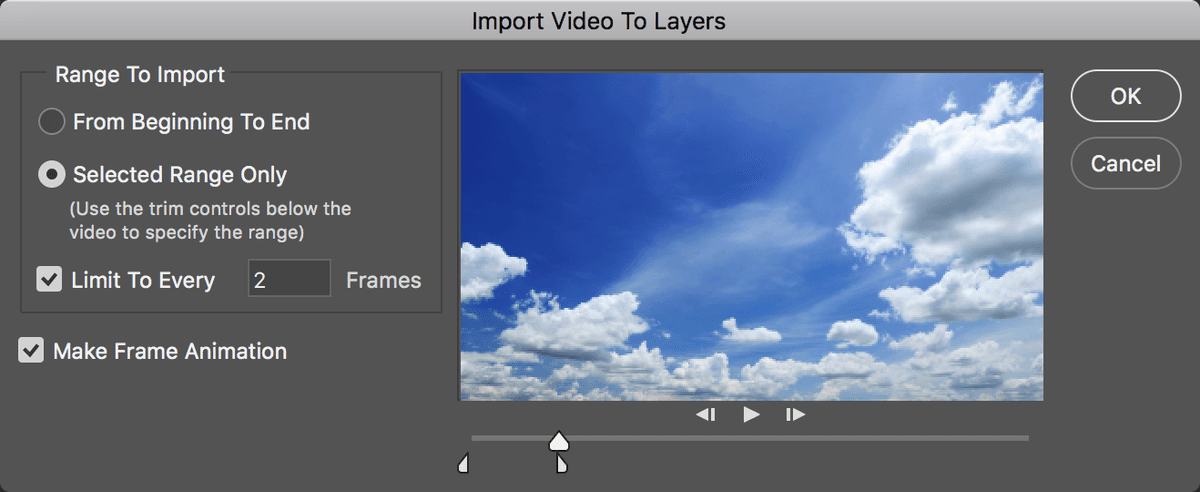
  1. In Photoshop, go to File > Import > Video Frames to Layers.

  2. Navigate into Desktop > Class Files > Animated GIFs Class > Clean Air and double–click the file iStock_000016852234HD720.mov.

  3. The complete video exceeds our requirements for email optimization. In the import dialog, choose Selected Range Only.

  4. Check Limit To Every and set it to 2 Frames.

    While we could import every frame for maximum smoothness, strategic frame reduction significantly reduces file size without noticeable quality loss. This 50% frame reduction maintains fluid motion while keeping our final GIF within email-friendly size constraints—a critical consideration for mobile email clients.

  5. Check Make Frame Animation.

    This powerful option automatically converts each imported layer into individual animation frames, eliminating manual setup. Without this setting, you'd need to manually create timeline frames for each video layer—a time-consuming process for longer sequences.

  6. Use the video preview panel to set precise start and end points for your animation. The trim controls allow frame-accurate selection, ensuring you capture only the most compelling portion of the source footage:

    import video to layers

  7. Click OK to execute the import.

Video Import Process

1

Access Import Function

Navigate to File > Import > Video Frames to Layers and select your MOV file

2

Configure Range Settings

Choose Selected Range Only and limit to every 2 frames to reduce file size while maintaining quality

3

Enable Frame Animation

Check Make Frame Animation to automatically convert video layers into timeline frames

4

Set Crop Points

Adjust the end/out point in the video preview to determine the animation duration

Adjusting the Length & Size

Even with our initial trimming, the imported sequence likely contains more frames than necessary for optimal email performance. Let's refine the animation length and dimensions.

  1. Let's establish our target length by removing frames beyond frame 30. In the Timeline panel, select frame 31 and Shift–click on the final frame.

  2. Click the trash icon trash button at the bottom of the Timeline panel.

  3. In the confirmation dialog, click Yes.

  4. Mirror this edit in the Layers panel to maintain synchronization. Select layer 31 and Shift–click on the topmost layer.

  5. Click the trash icon trash button at the bottom of the Layers panel.

  6. Confirm the deletion by clicking Yes.

  7. Thirty individual layers can quickly clutter your workspace. Group them for better project organization. Select all layers by clicking the top layer and Shift–clicking the bottom layer.

  8. Execute Layer > Group Layers or press Cmd–G (Mac) or CTRL–G (Windows).

  9. Double–click the Group 1 folder name in the Layers panel and rename it clouds for clear identification.

    Notice the 0.04-second frame delay—appropriate for full frame rate import. Since we imported every second frame, we must double this timing to maintain proper playback speed.

  10. Select all 30 frames in the timeline.

  11. Click 0.04 beneath any selected frame, then choose Other from the dropdown menu.

  12. Set the Delay to 0.08 seconds.

  13. Click OK.

    PRO TIP: Calculate frame timing mathematically for precision. Original video: 24fps. Our import: every 2nd frame = 12fps. Result: 1/12 second = 0.083 seconds per frame (rounded to 0.08).

  14. The animation timing is correct, but Photoshop imported at full video dimensions. For email optimization, resize via Image > Image Size with these settings:

    Width: 600 Pixels
    Resolution: 72 Pixels/Inch
    Resample: Check it on
  15. Click OK.

    The 600-pixel width aligns with modern email design standards, ensuring readability across desktop and mobile clients while maintaining reasonable file sizes.

  16. Fine-tune the composition by cropping the height. Navigate to Image > Canvas Size and configure:
    • Height: 300 Pixels
    • Select the top middle Anchor point to preserve the sky while cropping the lower portion
    • Click OK
    • If warned about clipping, click Proceed

Frame Delay Calculation

Original Video
24
After Import (Half Frames)
12
Required Delay (seconds)
0.08

Recommended Dimensions

600px
pixels width
300px
pixels height
72ppi
pixels per inch
30
total frames

Adding the Text

Strategic text timing is crucial for email marketing effectiveness. We'll introduce our message after the initial cloud sequence establishes visual interest.

  1. Select frame 30 and click the Duplicates selected frames button new button.

  2. With frame 31 active, select the Type tool type tool.

  3. Configure the primary headline typography in the Options bar:
    • Myriad Pro Bold (or substitute with available system font)
    • Font Size: 61 pt
    • Left align text text left align
    • Text Color: white for maximum contrast against the sky
  4. Open the Character panel (Window > Character) and set leading leading to 56 pt for optimal line spacing.

  5. Click in the upper left area of the canvas and type the power phrase:

    STOP & THINK

  6. Switch to the Move tool move tool and position the headline for maximum impact in the upper left quadrant.

  7. Return to the Type tool type tool and click below the headline to add supporting copy.

  8. Adjust the Options bar for body text: Myriad Pro Regular, 19 pt.

  9. Enter the supporting message:

    about what you can do to keep the air clean.

  10. Use the Move tool move tool to position this text strategically below the headline, ensuring it remains visible against the cloud backdrop.

  11. Create the call-to-action element using the Type tool type tool near the bottom of the canvas.

  12. Configure the event details typography: Myriad Pro Bold, 24 pt.

  13. Click the color box and set the text color to #00754F—a green that reinforces the environmental theme.

  14. Type the event information:

    Wednesday, June 26th @ 6pm

  15. Position this text in the lower left using the Move tool move tool. Don't worry about readability yet—we'll add a background shape next.

  16. Select the Rectangle tool rectangle tool from the Tools panel.

  17. Set the Fill color to white in the Options bar.

  18. Draw a rectangle spanning the full width of the canvas along the bottom edge, extending from just above the event text to the canvas bottom.
  19. In the Layers panel, drag the Rectangle layer below the Wednesday text layer to create proper layering.
  20. Set the Rectangle layer Opacity to 60% in the Layers panel, creating a subtle backdrop that maintains visual connection with the sky.

  21. If size adjustments are needed, use Edit > Free Transform, make your modifications, then press Return (Mac) or Enter (Windows) to apply.

Text Layer Specifications

FeatureElementSettings
Main HeadlineMyriad Pro Bold, 61ptWhite color, 56pt leading
Body TextMyriad Pro Regular, 19ptWhite color, standard leading
Event DetailsMyriad Pro Bold, 24pt#00754F color
Background RectangleWhite fill60% opacity
Recommended: Use consistent font family with varying weights for visual hierarchy

Animating the Text

Professional email animations reveal information progressively, building engagement through carefully orchestrated timing. Let's implement this approach.

  1. Frame 31 contains our complete layout, but notice that new layers appear across all frames—a common Photoshop behavior that requires correction for proper animation sequencing.

  2. Select the entire frame range from 1 through 31.

  3. In the Layers panel, hide all three text layers plus the Rectangle layer by clicking their visibility icons.

    This removes text from the cloud sequence, allowing us to control exactly when each element appears.

  4. Select frame 31 and click Duplicates selected frames new button to create our first text frame.

  5. With frame 32 selected, reveal the STOP & THINK layer by clicking its visibility box.

  6. Create a smooth fade-in effect by selecting frames 31 and 32.

  7. Click the Tweens animation frames button tween button at the bottom of the Timeline.

  8. Configure the Tween dialog:

    • Frames to Add: 4
    • Parameters: Keep all options checked for complete property interpolation

    Click OK.

  9. Continue building the sequence. Select frame 36 and duplicate it using Duplicates selected frames new button.

  10. On frame 37, reveal the about what you can do… text layer.

  11. Duplicate frame 37 using Duplicates selected frames new button.

  12. On frame 38, reveal both the Rectangle and Wednesday, June 26th layers simultaneously.

  13. Create one more duplicate of frame 38 for the motion animation setup.

    The final text element will slide in from below—a dynamic effect that draws attention to the call-to-action.

  14. Select frame 38 to position the starting point for our slide animation.

  15. Select both the Rectangle and Wednesday, June 26th layers in the Layers panel.

  16. With the Move tool move tool active, hold Shift and drag both layers below the canvas edge. (Arrow keys provide precise nudging if preferred.)

  17. Create the slide-in motion by selecting frames 38 and 39.

  18. Click the Tweens animation frames button tween button.

  19. Configure the motion tween:

    • Frames to Add: 4
    • Parameters: Keep all options checked

    Click OK.

Animation Sequence

Frames 1-31

Cloud Animation

Video frames 1-31 show moving clouds

Frames 31-36

Main Text Fade

STOP & THINK text fades in using tween

Frame 37

Body Text Appears

Descriptive text displays instantly

Frames 38-43

Event Details Slide

Date and rectangle slide up from bottom

Adjusting the Timing

Effective email animations balance engagement with comprehension. Strategic pauses allow viewers to process information before new elements appear—crucial for marketing effectiveness.

  1. Locate frame 31—the transition point before text introduction.

  2. Click 0.08 sec. below the frame and select 0.2 from the timing menu.

  3. Select frames 36 and 37—the pause before and after the secondary message appears.

  4. Extend their frame delay to 1 second, providing ample reading time.

  5. Select frame 43—the final frame of our sequence.

  6. Set the frame delay to 5 seconds.

    For email marketing, extended end delays are less critical since we want single-play animations rather than distracting loops.

  7. Configure professional playback behavior by setting the looping option to Once at the bottom left of the Timeline panel.

    This ensures the animation plays once when the email opens, then holds on the final frame with complete information—optimal for email marketing where repeated motion can be distracting.

Frame Delay Distribution

Cloud Frames
0.08
Before Text
0.2
Text Pause
1
Final Frame
5
Email Animation Best Practice

Set animation to play once rather than loop continuously. This prevents distraction after the initial viewing and improves user experience in email clients.

Saving the File

Proper file management ensures project preservation and optimal delivery. We'll save both the editable source and the final compressed GIF.

  1. Preserve your work with File > Save As.

  2. Set Format (Mac) or Save as type (Windows) to Photoshop.

  3. Name the file: yourname-clean-air.psd

  4. Navigate to Desktop > Class Files > Animated GIFs Class > Clean Air and click Save.

  5. Export the final deliverable via File > Export > Save for Web (Legacy).

  6. Select the 2-Up tab for side-by-side quality comparison.

  7. From the Preset menu, choose GIF 128 Dithered and optimize with these professional settings:

    • Colors: 256 (maximum color fidelity for photographic content)
    • Dither: 80% (balances quality with file size)

    PRO TIP: These settings optimize for the photographic cloud content while maintaining reasonable file sizes for email delivery. The video frames require extensive color palettes, making 256 colors essential. The 80% dither setting reduces banding artifacts common in sky gradients. Adjust dither to 100% for premium quality or remove entirely for smaller files if your email platform has strict size limits.

  8. Click Save to export.

  9. Name the file: clean-air.gif

  10. Save into Desktop > Class Files > Animated GIFs Class > Clean Air > Clean Air Email > img.

  11. Test the final integration by opening index.html (located in Desktop > Class Files > Animated GIFs Class > Clean Air > Clean Air Email) in any web browser to preview how your animated GIF performs within the complete email template.

Export Optimization Checklist

0/5

Dithering Trade-offs

Pros
Improves gradient quality in video frames
Reduces visible color banding
Creates smoother cloud transitions
Better overall visual appearance
Cons
Increases final file size
May add visual noise to solid colors
Longer processing time during export
Less compression efficiency

Key Takeaways

1Import video frames selectively by limiting to every 2nd frame to reduce file size while maintaining smooth animation quality
2Calculate proper frame delays based on original video frame rate - halving frames requires doubling the delay time
3Group video layers for better organization and easier management of complex animations with multiple elements
4Use tweening to create smooth transitions between keyframes, especially for fade-in and movement effects
5Adjust canvas size and image dimensions after import to optimize for email delivery and display
6Layer visibility can be controlled per frame, allowing text elements to appear at specific moments in the animation
7Set strategic pause times at key moments to give viewers time to absorb information before new elements appear
8Configure animations to play once rather than loop continuously for better email user experience and reduced distraction

RELATED ARTICLES