April 1, 2026Dan Rodney/11 min read

Brochure Part III: Free Photoshop Tutorial

Master Advanced Photoshop Techniques for Professional Design

Essential Skills You'll Master

Text Integration

Learn to import and manipulate text layers across multiple Photoshop documents while maintaining perfect positioning and formatting.

Advanced Layer Control

Master blending modes, opacity adjustments, and layer masking techniques for professional-quality design compositions.

Custom Shape Tools

Explore the Custom Shape tool library and learn to create professional design elements with precise control and styling.

Topics Covered in This Photoshop Tutorial:

Master the art of importing text seamlessly into Photoshop, advance your gradient application techniques, refine fill opacity control for professional results, and expand your custom shapes toolkit with practical applications.

Exercise Preview

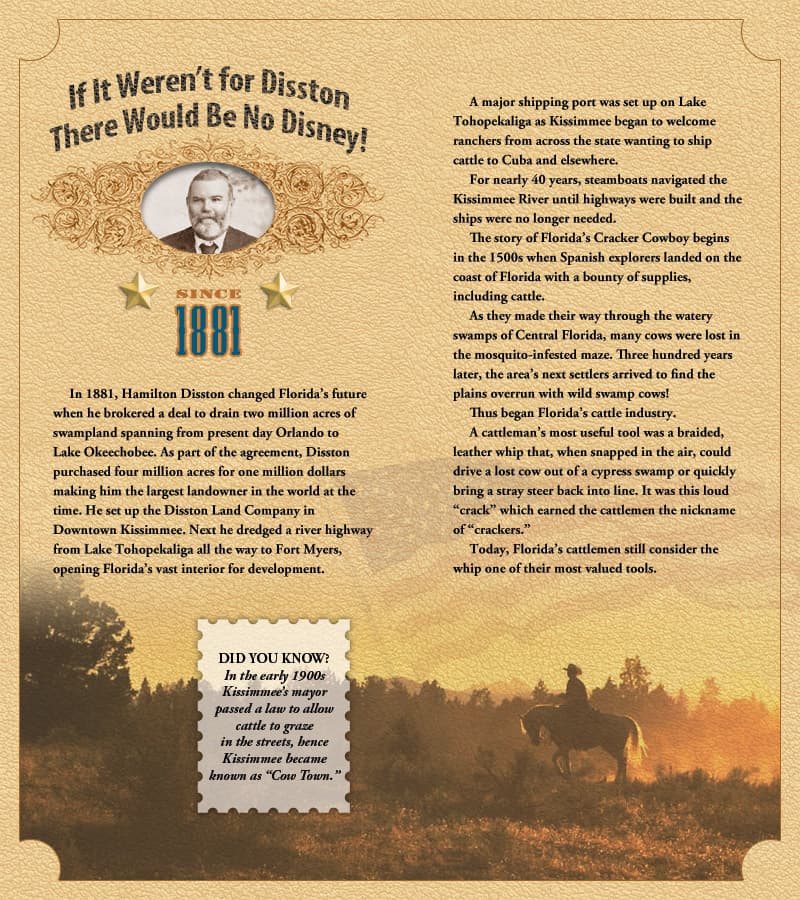
kissimmee brochure done

File Management Best Practice

Always maintain your original PSD files and use descriptive naming conventions like 'yourname-Kissimmee brochure.psd' for easy project tracking and collaboration.

Exercise Overview

This comprehensive exercise will transform your brochure from a basic layout into a polished, professional marketing piece. You'll integrate the main text content and apply sophisticated finishing techniques that give your design the visual impact needed to engage readers. By the end of this tutorial, you'll have mastered several advanced text integration workflows that are essential for modern design work.

Adding the Main Text

  1. Ensure your yourname-Kissimmee brochure.psd file remains open from the previous exercise. If you've closed it, reopen it now. For those joining at this stage without completing the prerequisites:

    • Navigate to the Photoshop Class folder, then into the Kissimmee Brochure subfolder and open Kissimmee Part 2 done.psd.
    • Immediately save this file as yourname-Kissimmee brochure.psd to maintain your personalized version.
  2. In the Layers panel, verify that the stars layer group is currently selected—this ensures proper layer hierarchy for the incoming text elements.

  3. From the Kissimmee Brochure folder, open the file main paragraphs of text.psd. This pre-formatted text file contains the body content that has been optimized for this specific layout.

  4. If Photoshop displays a dialog about updating text layers to maintain compatibility with current font rendering, click Update. This ensures consistent text appearance across different Photoshop versions.

  5. In the Layers panel, select both text layers simultaneously by clicking the first, then holding Shift while clicking the second. This multi-selection technique is crucial for efficient layer management.

  6. Press Cmd–G (Mac) or CTRL–G (Windows) to group these layers together, creating a logical organizational structure that simplifies future edits.

  7. In the Layers panel, double-click the default Group 1 name and rename it main text. Descriptive layer names are essential for professional workflow efficiency.

  8. To transfer the layer group to your Kissimmee brochure while preserving exact positioning—a critical step for maintaining design integrity—follow this precise sequence:

    • With the main text group still selected, execute Edit > Copy.
    • Switch back to yourname-Kissimmee brochure.psd using the document tab at the top of your workspace.
    • Resist using the standard paste shortcut! Instead, go to Edit > Paste Special > Paste in Place to maintain the exact positioning coordinates from the source file.
  9. Close the main paragraphs of text.psd file without saving changes, as it was only needed as a text source.

  10. Back in your yourname-Kissimmee brochure.psd file, ensure the Move tool move tool is active for the positioning adjustments that follow.

  11. The banner ornament, title, date, and other header elements may require repositioning to create optimal visual hierarchy above the new text content. In the Layers panel, locate and select the If It Weren't for Disston There Would Be No Disney! type layer, which appears near the middle of your layer stack.

  12. Hold Shift and click on the stars layer group to select all header elements. This should encompass all layers except the foundational elements: bg color, leather, page border, and main text.

  13. Press Cmd–G (Mac) or CTRL–G (Windows) to group these elements, creating a cohesive header unit that can be positioned as a single element.

  14. Double-click the default Group 1 name and rename it title and banner for clear identification.

  15. Reposition the title and banner layer group to achieve optimal visual balance with the new main text content. Consider whitespace, readability, and the overall flow of information.

Text Import and Positioning Workflow

1

Prepare Source File

Open the main paragraphs text file and group the text layers for organized transfer

2

Copy with Precision

Use Edit > Paste Special > Paste in Place to maintain exact positioning from source document

3

Organize Layers

Group related elements and use descriptive names like 'title and banner' for efficient workflow

Professional Paste Technique

Never use regular paste (Ctrl+V) when transferring positioned elements. Always use Paste in Place to preserve exact coordinates and alignment.

Adding a Cowboy

Now we'll integrate a thematic cowboy image that reinforces the historical Western character of Kissimmee while maintaining professional design standards.

  1. In the Layers panel, select the main text layer group to establish the proper insertion point for the decorative element.

  2. From the Kissimmee Brochure folder, open the file cowboy.tif—a pre-processed image optimized for this specific design application.

  3. Select the entire image by pressing Cmd–A (Mac) or CTRL–A (Windows).

  4. Copy the selection using Cmd–C (Mac) or CTRL–C (Windows).

  5. Close the source file and return to yourname-Kissimmee brochure.psd to continue the integration process.

  6. Paste the cowboy image using Cmd–V (Mac) or CTRL–V (Windows). The image will appear as a new layer in your document.

  7. Double-click directly on the generic Layer 1 name and rename it cowboy for clear layer identification.

  8. If rulers aren't visible, enable them through View menu > Rulers. Ensure they display inches by CTRL–clicking (Mac) or Right–clicking (Windows) on the ruler and selecting Inches from the contextual menu.

  9. Hold Shift to constrain movement to straight lines, then drag the cowboy layer vertically until its top edge aligns at approximately 5.5 inches on the ruler. This positioning creates proper visual hierarchy with the text content.

  10. In the Layers panel, change the blending mode from Normal to Multiply. This blend mode allows the cowboy image to integrate naturally with the underlying textures while maintaining contrast.

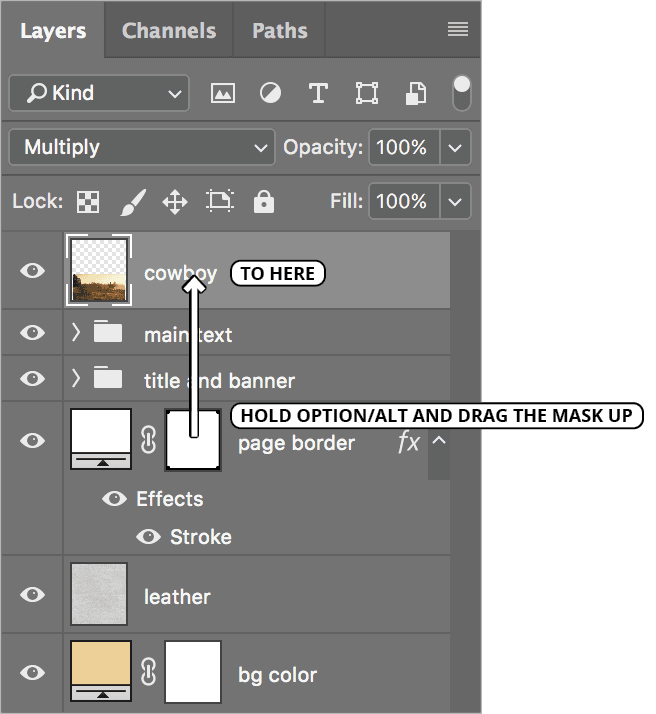
  11. The cowboy layer requires the same masking treatment as the page border to maintain consistent edge treatment. To duplicate this mask efficiently, hold Option (Mac) or ALT (Windows) while dragging the page border layer mask thumbnail up to the cowboy layer as demonstrated below:

    page border copy

  12. In the Layers panel, reduce the Opacity to approximately 70%. This creates a subtle, non-intrusive background element that supports rather than competes with the text content.

  13. To create a professional fade effect where the cowboy image blends seamlessly into the background, select the Gradient tool gradient tool.

  14. In the Options bar, click the dropdown arrow gradient panel arrow beside the gradient preview and double-click the second thumbnail in the top row—the Foreground to Transparent gradient, which is ideal for creating natural fade effects.

  15. In the Layers panel, click on the layer mask thumbnail (not the layer thumbnail) to target your gradient application to the mask.

  16. Verify that your foreground color is set to black, which will create a fade-to-transparent effect when applied to the mask.

  17. Position your cursor at the top edge of the cowboy photo, hold Shift to constrain the gradient to a perfectly vertical line, and drag downward approximately one inch to the 6.5-inch mark on the ruler. This creates a smooth, professional transition.

  18. Click on the cowboy layer thumbnail (not the mask) to exit mask editing mode and return to normal layer operations.

Image Integration Process

Step 1

Import and Position

Import cowboy.tif and position at 5.5 inches using rulers for precision

Step 2

Apply Blending

Change to Multiply blend mode and reduce opacity to 70% for natural integration

Step 3

Add Gradient Mask

Use Foreground to Transparent gradient on layer mask for smooth blending

Adding a Flag

The American flag element will add patriotic context while reinforcing the historical theme of your Kissimmee brochure design.

  1. Navigate to File > Place Embedded to import the flag graphic as a Smart Object, which preserves image quality during transformations.

  2. From the Kissimmee Brochure folder, select flag silo.tif and click Place to begin the import process.

  3. Position your cursor near any corner of the imported image until it transforms into the rotation handles cursor rotation handles, indicating rotation mode is active.

  4. Rotate the flag to approximately −25° (negative 25 degrees). Monitor the precise angle in the Options bar transform angle for accuracy. Press Return (Mac) or Enter (Windows) to confirm the transformation.

  5. Change the blending mode from Normal to Multiply in the Layers panel. This ensures the flag integrates naturally with the background textures.

  6. Reduce the Opacity to approximately 7%—this creates an extremely subtle patriotic watermark effect that adds thematic depth without overwhelming the design.

  7. Select the Move tool move tool for final positioning adjustments.

  8. Position the flag so it appears to be "flying" above the cowboy figure, partially behind the right column of text. Allow the right edge of the flag to extend beyond the page border for a dynamic, less constrained feeling.

Blend Mode Effects Comparison

FeatureNormal ModeMultiply Mode
Opacity ImpactDirect transparencyColor multiplication
Background IntegrationOverlays completelyBlends naturally
Best Use CaseSolid graphicsPhoto overlays
Recommended: Use Multiply mode at low opacity (7%) for subtle photo overlays that maintain background detail.

Adding a Stamp & Some Text

This final section will add an engaging "Did You Know?" callout that provides historical context while demonstrating advanced custom shape integration techniques.

  1. Scroll to view the bottom portion of your design, ensuring you can see the area from the main text down to the bottom margin.

  2. Select the Custom Shape tool custom shape tool, which provides access to Photoshop's extensive library of vector shapes.

  3. In the Options bar, confirm these critical settings:

    • Ensure Shape is selected in the first dropdown menu (it may default to Path).
    • Click the shape thumbnail icon next to Shape to access the shape libraries.
  4. Navigate through Legacy Shapes and More > All Legacy Default Shapes > Objects to access the comprehensive shape collection.
  5. Locate the Stamp 1 shape stamp shape (select the solid version, not the outlined variant) and double-click to confirm your selection.

  6. Press X to swap foreground and background colors, setting your foreground to white for the stamp shape.

  7. Hold Shift while dragging to constrain proportions and create a stamp shape that fills the available space below the left text column—this maintains professional proportions.

  8. In the Layers panel, rename the generic Shape 1 to stamp for clear layer identification.

  9. Locate the Fill opacity control (distinct from regular opacity) near the top right of the Layers panel and reduce it to 70%. This creates a subtle background element that won't overpower the text content.

  10. Click the Add a layer style button adjustment layer fx and select Drop Shadow from the menu to add dimensional depth.

  11. Configure the drop shadow with these professional settings:

    Distance: 0 px
    Spread: 0%
    Size: 7 px
  12. Click OK to apply the shadow effect, which creates subtle depth without harsh edges.

  13. Select the Horizontal Type tool type tool to begin adding the callout text.

  14. Press D to reset to default colors, ensuring black foreground for optimal text readability.

  15. Zoom in on the stamp area to facilitate precise text placement and formatting.

  16. To create a text box within the stamp shape while avoiding path-based text complications:
    • Hold Shift as you begin dragging to create the initial text box inside the stamp boundaries.
    • Release Shift after starting the drag to allow rectangular text box creation.
  17. In the Options bar, configure the text formatting: Adobe Garamond Pro, Bold, 10 pt, and activate the Center text alignment text center.

  18. Access the Character panel (Window > Character) and verify that Leading leading is set to Auto for optimal line spacing.

  19. Open the Paragraph panel (Window > Paragraph) and confirm Indent first line indent first line icon is set to 0 for consistent formatting.

  20. Type the heading: DID YOU KNOW?

  21. Press Return (Mac) or Enter (Windows) to create a new paragraph for the body text.

  22. In the Options bar, modify the font styling to Adobe Garamond Pro, Bold Italic for the descriptive text.

  23. Enter this engaging historical fact:

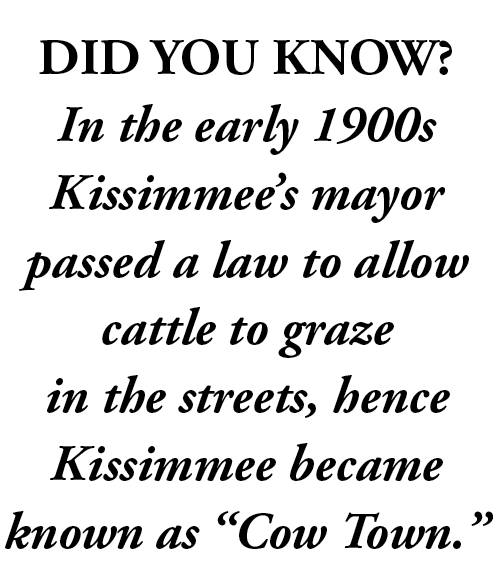
    In the early 1900s Kissimmee's mayor passed a law to allow cattle to graze in the streets, hence Kissimmee became known as "Cow Town."

  24. Notice how the text automatically wraps within your defined text box boundaries. While holding Option (Mac) or ALT (Windows), drag a corner resize handle to adjust the text box dimensions for optimal text flow as shown below. If necessary, place your cursor between "graze" and "in" and press Shift–Return (Mac) or Shift–Enter (Windows) to create a manual line break.

    kisssimmee did you know text

  25. In the Layers panel, select the stamp layer to prepare for final sizing adjustments.

  26. Press Cmd–T (Mac) or CTRL–T (Windows) to initiate Free Transform mode.

  27. Hold Shift–Option (Mac) or Shift–ALT (Windows) while dragging a corner handle to resize the stamp proportionally from its center point, ensuring it complements the text content.

  28. Drag within the stamp boundaries to reposition, or use Arrow keys for precise micro-adjustments to achieve perfect alignment.

  29. Press Return (Mac) or Enter (Windows) to confirm the transformation.

  30. Select both the stamp and "Did you know" type layer using Shift–click to prepare for grouping.

  31. Press Cmd–G (Mac) or CTRL–G (Windows) to create a cohesive group.

  32. Rename the default Group 1 to stamp for clear identification.

  33. Use the Move tool move tool to position the complete stamp group optimally below the main text content.

  34. Excellent work! Save your file—you've successfully created a professional, engaging brochure that demonstrates advanced Photoshop techniques.

    Custom Shape and Text Integration

    1

    Access Shape Library

    Navigate to Legacy Shapes > All Legacy Default Shapes > Objects to find professional stamp shapes

    2

    Create Shape Foundation

    Use white foreground color and Shift-drag to maintain proportions while creating the stamp shape

    3

    Apply Professional Styling

    Reduce Fill opacity to 70% and add drop shadow with 7px size for realistic depth effect

    4

    Add Formatted Text

    Use text box with Adobe Garamond Pro, proper leading, and paragraph formatting for professional typography

    Text Box Creation Tip

    Hold Shift when starting to drag a text box inside custom shapes to prevent text from following the shape path and ensure rectangular text areas.

Optional Advanced Techniques (For Further Skill Development)

If you've completed the exercise ahead of schedule, consider experimenting with these enhancement techniques to further refine your design:

  • Apply a subtle drop shadow to the page border layer to increase dimensional depth and separation from the background.
  • Incrementally increase the page border layer's Fill opacity to strengthen the frame effect while maintaining sophistication.
  • Experiment with the Fill Color of the bg color layer to modify the underlying leather texture tone—consider warmer browns or cooler grays to match different brand personalities.

Key Takeaways

1Use Paste in Place when transferring positioned elements between Photoshop documents to maintain exact coordinates and professional alignment
2Multiply blending mode at low opacity creates natural photo overlays that preserve background details while adding visual interest
3Layer masking with gradients provides smooth transitions and professional blending effects between images and backgrounds
4Custom Shape tools in Legacy Shapes library offer extensive professional design elements for brochures and marketing materials
5Proper text formatting with Adobe Garamond Pro and controlled leading creates professional typography that enhances readability
6Fill opacity adjustments (70%) combined with drop shadows (7px) create realistic depth effects for design elements
7Organized layer grouping with descriptive names like 'title and banner' and 'main text' streamlines complex design workflows
8Ruler guides and precise positioning (5.5 inches) ensure consistent alignment and professional layout standards throughout the design

RELATED ARTICLES