April 1, 2026Dan Rodney/7 min read

Using Layer Masks for Silhouettes

Master Professional Photo Editing with Layer Masks

Core Photoshop Skills You'll Master

Layer Masks

Learn non-destructive editing techniques that preserve your original images while allowing unlimited flexibility in post-processing.

Magnetic Lasso Tool

Master advanced selection techniques for complex subjects with varying contrast and focus levels.

Cross-Platform Integration

Understand proper file formats and workflows for seamless integration between Photoshop and InDesign.

Topics Covered in This Photoshop Tutorial:

Master the Magnetic Lasso Tool, advance your Layer Masks expertise, leverage the powerful Refine Edge Dialog, and implement Color Fill Layers for professional compositing workflows

Exercise Preview

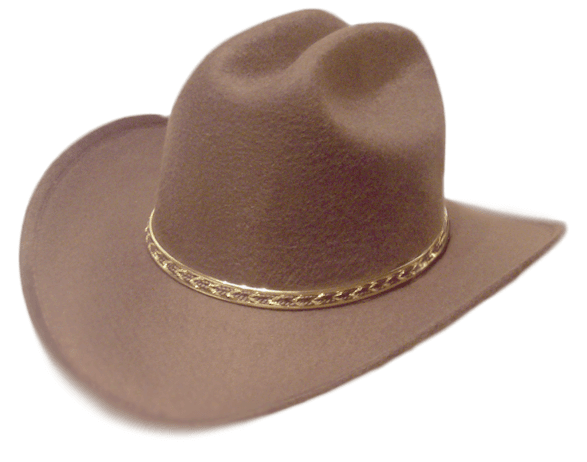
hat done

Exercise Overview

In this comprehensive exercise, you'll master advanced background removal techniques using Layer Masks to isolate a complex subject—a hat with challenging edges and color similarities to its background. Layer Masks remain the gold standard for professional image editing because they offer maximum flexibility while maintaining non-destructive workflows that preserve your original image data.

This tutorial seamlessly integrates with InDesign, demonstrating real-world production workflows used by design professionals. While you can complete most techniques without InDesign, the full exercise requires it to demonstrate proper file preparation for layout applications—a critical skill in today's integrated design environment.

Non-Destructive Workflow Benefits

Layer Masks offer the most editing flexibility and are completely non-destructive, meaning your original image data remains intact throughout the entire editing process.

Selecting the Hat

We'll begin with the foundational selection process, using Photoshop's intelligent Magnetic Lasso tool to handle this challenging silhouetting task.

  1. From the Photoshop Class folder, open the image hat.tif.

    Take a moment to analyze this challenging image: notice how the hat's brim exhibits shallow depth of field with out-of-focus areas, while portions of the background share similar tonal values with the hat itself. These conditions often intimidate beginners, but with professional selection techniques and layer mask refinement, even complex extractions become manageable.

  2. Select the Magnetic Lasso tool magnetic lasso tool.

    The Magnetic Lasso excels at detecting edge contrast, making it ideal for objects with well-defined boundaries against contrasting backgrounds.

  3. In the Options bar, configure these optimal settings for this particular image:

    Feather: 0 px
    Width: 10 px
    Contrast: 10%
    Frequency: 57

    These settings balance precision with automation—the 10px width provides enough edge detection range while the moderate contrast setting prevents over-sensitivity to minor tonal variations.

  4. Click once along the hat's brim to establish your starting anchor point. Remember: single clicks create anchor points; avoid click-and-drag motions.

  5. Guide your cursor methodically along the hat's perimeter. The Magnetic Lasso will automatically place selection points as it detects edge contrast. Professional techniques include:
    • Manual point placement at corners or areas where automatic detection struggles—simply click to override the tool's automation
    • Use Delete (Mac) or Backspace (Windows) to remove incorrectly placed points and backtrack along your selection path

    Work deliberately rather than rushing—precision at this stage saves significant cleanup time later.

  6. Complete your selection by positioning the cursor over your initial starting point until you see the closure icon magnetic lasso close, then click to close the selection.
  7. In the Options bar, click the Select and Mask button to access Photoshop's sophisticated edge refinement workspace.
  8. In the Properties panel, click the thumbnail next to View and double-click On Black to preview your selection against a contrasting background.
  9. Set Opacity to 100% for maximum preview clarity.
  10. In the Edge Detection section, verify Radius remains at 0 px since we're working with clearly defined hard edges.
  11. Configure the Global Refinements section with these professional-grade settings:

    Smooth: 10
    Feather: 0.5 px
    Contrast: 0%
    Shift Edge: Approximately −40%—adjust this value while observing the preview for optimal edge tightness

    The negative Shift Edge value contracts the selection slightly, compensating for the common issue of selections that extend too far into background areas.

  12. In Output Settings, ensure Output To is set to Layer Mask to maintain non-destructive editing capabilities.
  13. Click OK to apply your refined selection.
  14. Observe the transformation in your Layers panel: the Background layer has automatically converted to Layer 0 with an attached layer mask.

    NOTE: This conversion occurs because Background layers cannot support transparency or layer masks—Photoshop intelligently handles this technical requirement for you.

  15. Double-click Layer 0 and rename it hat for better layer organization—a crucial habit in professional workflows.
  16. Click the Create new fill or adjustment layer button adjustment layer button at the bottom of the Layers panel, then select Solid Color.
  17. Choose black and click OK to create a contrasting background for edge evaluation.
  18. Drag the Color Fill 1 layer below the hat layer to position it as a background element.

Magnetic Lasso Tool Configuration

1

Set Feather to 0 px

Ensures clean, precise edges without unwanted softness in the initial selection

2

Configure Width to 10 px

Optimal detection range for most edge-finding scenarios with moderate detail

3

Apply 10% Contrast Setting

Balanced sensitivity for detecting edges in images with similar background colors

4

Set Frequency to 57

Controls how often anchor points are placed along the selection path

Selection Technique Best Practices

0/4

Cleaning up the Edges

Even the most sophisticated automated selections require manual refinement. Professional retouchers expect this phase and budget time accordingly. We'll address background bleed-through and edge inconsistencies that are invisible to automated tools but obvious to trained eyes.

  1. Double-click the Color Fill 1 layer's color thumbnail color fill thumb to access color options.

  2. Replace the black with a contrasting color using these RGB values:

    R: 0
    G: 70
    B: 100

    This dark blue background will reveal any remaining background contamination more clearly than pure black.

  3. Click OK to apply the color change.

  4. Select the hat layer's mask thumbnail hat mask thumb to enable direct mask editing.

  5. Select the Brush tool brush tool.

  6. Configure your brush with precision settings: 8px diameter with 90% hardness. This size provides excellent control for detail work while maintaining crisp edges.

    Verify both Opacity and Flow are at 100% for maximum effect with each stroke.

  7. Press D to reset to default foreground (white) and background (black) colors.

  8. Press X to swap colors, making black your active foreground color.

  9. Paint methodically over any visible background contamination around the hat's edges. Zoom to 100% or higher for precise work—this level of detail separates professional work from amateur attempts.

  10. Scale your brush size dynamically using the bracket keys [ and ] to match the detail level of different edge sections.

  11. Master these essential layer mask painting principles:
    • Paint with white to reveal portions of the hat layer
    • Paint with black to hide unwanted background areas
    • Press X to instantly switch between white and black foreground colors

    Remember: layer masks are grayscale maps where white equals full visibility and black equals complete transparency.

Refine Edge Settings for Professional Results

1

Set View to On Black, 100% Opacity

Provides clear contrast to identify edge problems and background bleed-through

2

Configure Global Refinements

Smooth: 10, Feather: 0.5px, Contrast: 0%, Shift Edge: -40% for optimal edge quality

3

Output to Layer Mask

Maintains non-destructive workflow while converting Background layer to editable layer

Layer Mask Painting Technique

Paint with black to hide unwanted background areas, paint with white to reveal parts of the subject. Use X key to quickly switch between foreground and background colors.

Finishing up

The final phase addresses the optical mismatch between the photograph's natural depth of field and the artificially crisp mask edges. Professional compositing requires this attention to optical authenticity.

  1. Select the Blur tool blur tool.

  2. Configure a medium-sized soft brush: approximately 40px diameter with 0% hardness for gradual blur application.

  3. Carefully blur the mask edges along the front and back portions of the brim where the original photograph shows natural focus falloff. This technique maintains optical consistency between the original image's depth of field and your extracted edges.

  4. Select the Color Fill 1 layer in your Layers panel.

  5. Drag it to the Trash button trash button to remove the temporary background, revealing the transparent checkerboard pattern that confirms proper alpha channel creation.

Final Enhancement Techniques

Blur Tool Application

Use 40px soft brush with 0% hardness to blur mask edges that correspond to out-of-focus areas in the original photo.

Background Layer Cleanup

Remove temporary color fill layers to reveal transparent checkerboard background for proper export compatibility.

Importing the Image into InDesign

The final stage demonstrates professional workflow integration, preparing your extracted image for layout applications with proper file format selection and transparency preservation.

  1. Navigate to File > Save As.

  2. Locate the Kissimmee Brochure folder within your Photoshop Class directory.

  3. Set Format (Mac) or Save as type (Windows) to Photoshop and name your file yourname-hat.psd. Click Save.

    NOTE: While TIFF format also supports transparency, it requires manually enabling Save Transparency—PSD format handles this automatically and remains the preferred choice for InDesign integration in 2026.

  4. Launch InDesign.

  5. From the Kissimmee Brochure folder, open Brochure-add hat.indd.

  6. Select the Selection tool selection tool.

  7. Click the empty rectangular picture frame in the bottom left of your layout.

  8. Navigate to File > Place.

  9. Select yourname-hat.psd and click Open.

  10. Access View > Display Performance > High Quality Display to enable full-resolution preview rendering.

  11. Zoom in to examine your work: notice how the semi-transparent, naturally blurred edges integrate seamlessly with the layout background. This level of optical authenticity distinguishes professional compositing work.

    Congratulations—you've completed a professional-grade background removal and layout integration. This workflow represents standard practice in contemporary design studios and advertising agencies. Close the InDesign file without saving changes, as this was a demonstration exercise.

File Format Options for InDesign

FeaturePSD FormatTIFF Format
Transparency SupportAutomaticRequires Manual Setting
Layer PreservationFull Layer SupportFlattened with Transparency
Workflow ComplexitySimple SaveMust Check Save Transparency
Recommended: PSD format is recommended for seamless InDesign integration with automatic transparency handling.

InDesign Integration Workflow

1

Save as PSD Format

Navigate to project folder and save with descriptive filename for organization

2

Place Image in InDesign

Use Selection tool to choose picture box, then File > Place to import the silhouetted image

3

Enable High Quality Display

View > Display Performance > High Quality Display reveals all transparency and edge details

Key Takeaways

1Layer masks provide non-destructive editing capabilities that preserve original image data while allowing unlimited revisions and refinements
2The Magnetic Lasso tool requires specific settings (10px width, 10% contrast, 57 frequency) for optimal edge detection on challenging subjects
3Background layers must be converted to regular layers before applying masks, which Photoshop handles automatically through the Select and Mask feature
4Manual cleanup with brush tools is essential after automated selection, using black to hide and white to reveal areas on the layer mask
5The Refine Edge dialog offers precise control over selection quality through smoothing, feathering, and edge shifting adjustments
6Blur tool application on mask edges should match the focus characteristics of the original photograph for realistic results
7PSD format is preferred over TIFF for InDesign integration due to automatic transparency handling without additional settings
8Professional silhouetting combines multiple techniques: automated selection tools, manual refinement, and format-appropriate export workflows

RELATED ARTICLES