April 1, 2026Dan Rodney/7 min read

Sharpening Techniques

Master Professional Photo Sharpening in Photoshop

Core Sharpening Techniques Covered

Smart Sharpen vs Unsharp Mask

Compare the two primary sharpening methods and understand when to use each technique for optimal results.

Luminosity Blending Mode

Prevent color saturation issues while sharpening by applying effects only to luminance information.

Smart Objects Workflow

Use non-destructive editing techniques with Smart Objects for maximum flexibility and editability.

Topics Covered in This Photoshop Tutorial:

Master advanced sharpening workflows with Smart Sharpen, leverage blending modes for enhanced detail refinement, apply selective sharpening through layer masks, and harness the power of Smart Objects for non-destructive editing.

Exercise Preview

exercise example sharpening techniques

Tutorial Requirements

This exercise requires Photoshop and uses ColorMatch RGB profile. Ensure you have the model.psd and lifestyle color shirt-done.psd files to follow along with the complete workflow.

Exercise Overview

Sharpening can dramatically enhance image detail, but excessive application often destroys the natural quality that separates professional work from amateur attempts. This exercise teaches you sophisticated techniques to achieve precise, targeted sharpening that enhances rather than overwhelms your imagery. You'll master the subtleties that distinguish compelling visual content from over-processed work that screams "digital manipulation."

Getting Started

  1. Open model.psd. A Missing Profile dialog should appear—this is your first lesson in professional color management.

  2. Select Assign profile and choose ColorMatch RGB as shown. Then click OK.
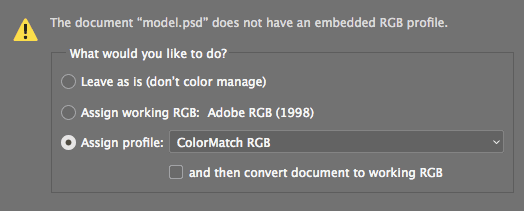
    sharpen profile set

    Professional insight: This image lacks an embedded profile—a common issue with legacy files or improperly configured capture devices. Without assignment, Photoshop defaults to your RGB workspace (typically Adobe RGB), resulting in incorrect color interpretation. Since we know this image originated in ColorMatch RGB, proper assignment is critical for accurate display and editing. While ColorMatch RGB remains a valid working space, the industry has largely standardized around sRGB for web delivery and Adobe RGB for print production. This experience underscores why embedding profiles during capture or initial processing prevents workflow disruptions and ensures color fidelity across devices and applications.

  3. Zoom to 100% and position your view to clearly see the hair and eye on the left side—these areas will serve as your primary evaluation points for sharpening effectiveness.

Color Profile Management

Always assign the correct color profile when opening images. ColorMatch RGB is used in this exercise, but embedding profiles in your original files prevents missing profile dialogs.

Comparing the Unsharp Mask & Smart Sharpen Effects

Before exploring advanced sharpening workflows, we need to establish the fundamental differences between the legacy Unsharp Mask and the more sophisticated Smart Sharpen algorithm. Understanding these distinctions will inform every sharpening decision you make in professional practice.

  1. Duplicate the background layer by pressing Cmd–J (Mac) or Ctrl–J (Windows).

  2. Create a second duplicate by pressing Cmd–J (Mac) or Ctrl–J (Windows) again.

  3. Rename the top layer unsharp mask.

  4. Rename the middle layer smart sharpen.

  5. Select the unsharp mask layer to begin our comparison.

Layer Preparation for Comparison

1

Duplicate Background Layer

Create two copies using Cmd-J (Mac) or Ctrl-J (Windows) to test both sharpening methods

2

Name the Layers

Label top layer as 'unsharp mask' and middle layer as 'smart sharpen' for organization

3

Zoom to 100%

Focus on hair and eye details on the left side to accurately assess sharpening effects

Sharpening the Image with Unsharp Mask

  1. Navigate to Filter > Sharpen > Unsharp Mask.

  2. We'll intentionally over-sharpen this image to reveal the algorithm's characteristics and limitations under extreme conditions. Apply these settings:

    Amount: 500%
    Radius: 1.5 px
    Threshold: 3
  3. Click OK to apply the filter.

  4. Hide eye hide show icon the unsharp mask layer to prepare for the Smart Sharpen comparison.

Unsharp Mask Settings Used

Amount
500
Radius
1.5
Threshold
3

Sharpening the Image with Smart Sharpen

  1. Select the smart sharpen layer.

  2. Go to Filter > Sharpen > Smart Sharpen.

  3. To ensure a fair comparison, we'll apply identical extreme settings while utilizing Smart Sharpen's advanced capabilities:

    Amount: 500%
    Radius: 1.5 px
    Reduce Noise: 0% (Disabled for comparison purposes, though this feature proves invaluable for high-ISO imagery in professional workflows.)
    Remove: Lens Blur (Critical setting: Gaussian Blur essentially replicates Unsharp Mask behavior, negating Smart Sharpen's advantages.)
  4. Click OK to apply the effect.

  5. Toggle visibility eye hide show icon of the unsharp mask layer to compare both sharpening approaches. Notice how Smart Sharpen preserves finer detail while minimizing the aggressive edge halos that plague Unsharp Mask. This superior edge detection makes Smart Sharpen the preferred choice for professional image enhancement, particularly with high-resolution imagery and detailed textures.

  6. Delete the unsharp mask layer from the Layers panel, as Smart Sharpen clearly provides superior results for our workflow.

Unsharp Mask vs Smart Sharpen Results

FeatureUnsharp MaskSmart Sharpen
Fine Detail RetentionModerateSuperior
Edge HaloingMore ExaggeratedMinimal
Overall SubtletyLess RefinedMore Professional
Noise HandlingBasicAdvanced Options
Recommended: Smart Sharpen provides better fine detail retention with reduced haloing artifacts, making it the preferred choice for professional work.

Sharpening & the Luminosity Blending Mode

Sharpening fundamentally increases local contrast around edges, and enhanced contrast inevitably boosts color saturation. While this effect might appear subtle, it can compromise color accuracy in professional work. Here's an essential technique that eliminates unwanted color shifts during sharpening.

  1. Change the smart sharpen layer's blend mode to Luminosity. Observe the subtle but important reduction in color cast, particularly visible in the model's hair strands where sharpening-induced saturation is most apparent.

  2. Reduce the layer Opacity to achieve appropriate sharpening levels—typically between 60-80% for most professional applications.

This technique becomes crucial when working with skin tones, product photography, or any imagery where color accuracy is paramount. The Luminosity blend mode ensures that sharpening affects only the brightness information while preserving original color relationships.

Why Use Luminosity Blending Mode

Sharpening increases contrast around edges, which adds color saturation. Luminosity mode applies sharpening only to brightness values, preventing unwanted color shifts while maintaining edge enhancement.

Selectively Applying Sharpening with a Layer Mask

Indiscriminate sharpening across an entire image is the hallmark of amateur processing. Professional work demands selective application—sharpening only enhances meaningful details like eyes, hair texture, and defined edges while avoiding smooth gradations like skin and sky areas.

  1. With the smart sharpen layer selected, navigate to Layer > Layer Mask > Hide All.

  2. Select a large, soft brush and set the foreground color to white.

  3. Paint strategically on the mask to reveal sharpening only where it enhances the image—focus on the eyes, select hair strands, defined edges, and textural elements. Avoid areas like smooth skin, out-of-focus backgrounds, and gradual tonal transitions.

    Professional tip: Experiment with Flow settings between 20-40% and paint with various gray tones for nuanced sharpening control. This approach allows you to build up sharpening gradually in critical areas while maintaining complete creative control.

  4. Close the file without saving to proceed to the next exercise.

Selective Sharpening Workflow

1

Create Hide All Mask

Add a black layer mask to hide all sharpening effects initially

2

Paint with White Brush

Use a large soft white brush to reveal sharpening only in specific areas like eyes and hair

3

Control Intensity

Adjust brush flow or use gray tones for varying levels of sharpening intensity

Using Smart Objects

Smart Objects represent one of Photoshop's most powerful features for professional workflows, enabling non-destructive editing and infinite revisability—essential qualities for client work and iterative creative processes.

  1. Open lifestyle color shirt-done.psd.

  2. When the Embedded Profile Mismatch dialog appears, leave Use the embedded profile (instead of the working space) selected and click OK. This image uses ColorMatch RGB, which remains perfectly viable for our workflow without conversion.

  3. Save the file as yourname-lifestyle smart objects.psd using File > Save As.

  4. Click on the top layer, color shirt.

  5. Shift-click the Background layer to select all layers.

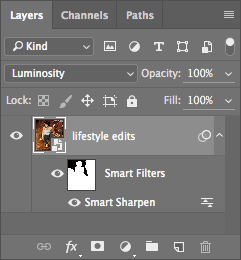
  6. Navigate to Filter > Convert for Smart Filters.

    Accept any Smart Object conversion messages by clicking OK.

  7. Rename the new Smart Object layer to lifestyle edits for better project organization.

  8. Go to Filter > Sharpen > Smart Sharpen.

  9. Apply these moderate, realistic settings:

    Amount: 70%
    Radius: 1 px
    Reduce Noise: 13%
    Remove: Lens Blur
  10. Click OK to apply the Smart Filter.

  11. Click on the Smart Filters layer mask in the Layers panel.

  12. Paint with black to hide sharpening in areas where it's unnecessary or potentially harmful, such as smooth skin areas or soft background elements.

Smart Objects for Sharpening

Pros
Non-destructive editing preserves original image data
Filter effects remain editable with Smart Filters
Layer masks can selectively hide sharpening effects
Easy to modify filter settings without reapplying
Cons
Larger file sizes due to embedded original data
Slightly more complex workflow for beginners
Requires understanding of Smart Object behavior

Editing the Smart Object

Here's where Smart Objects demonstrate their true power—the ability to edit source content while automatically updating all applied filters and adjustments. This workflow proves invaluable for client revisions and creative experimentation.

  1. Double-click the lifestyle edits layer thumbnail to open the Smart Object for editing.

    Acknowledge any editing messages by clicking OK.

  2. In the Embedded Profile Mismatch dialog, maintain Use the embedded profile (instead of the working space) and click OK.

  3. Double-click the color shirt layer thumbnail (not the layer mask) to access the adjustment properties.

  4. In the Properties panel, experiment with Hue, Saturation, and Lightness values to create a dramatically different shirt color—this demonstrates real-world client revision scenarios.

  5. Save your changes with File > Save once you're satisfied with the new color.

  6. Close the Smart Object editing window.

    Notice how the main document automatically updates with your color changes while preserving all applied sharpening and masking—this is the power of non-destructive Smart Object workflows.

Smart Object Benefits

Changes made inside a Smart Object automatically update in the main document. This allows you to edit underlying adjustments while maintaining all applied filters and effects.

Changing the Smart Sharpen Blending Mode

The final step in our professional sharpening workflow involves setting the Smart Filter to Luminosity mode, ensuring color fidelity while maximizing detail enhancement.

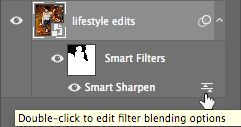
  1. Locate and double-click the Edit filter blending options icon edit filter blend icon at the far right of the Smart Sharpen filter entry:

    edit smart filter

  2. Set the Mode to Luminosity and click OK.

    While the visual change appears subtle, this adjustment eliminates any color shifts introduced by the sharpening process—a critical consideration for professional color-critical work.

  3. Save and close the file to complete the exercise.

You've now mastered a complete professional sharpening workflow that combines technical precision with creative control. These techniques—Smart Sharpen over Unsharp Mask, Luminosity blending modes, selective masking, and Smart Object workflows—form the foundation of professional image enhancement that enhances rather than overwhelms your visual content.

Final Sharpening Checklist

0/5

Key Takeaways

1Smart Sharpen produces superior results compared to Unsharp Mask, with better fine detail retention and reduced haloing artifacts around edges.
2Luminosity blending mode prevents color saturation issues by applying sharpening effects only to brightness values, not color information.
3Selective sharpening using layer masks allows precise control over which areas receive enhancement, focusing on eyes, hair, and important details.
4Smart Objects enable non-destructive sharpening workflows where filter settings remain editable and underlying adjustments can be modified.
5Proper color profile management is essential when opening images to ensure accurate display and consistent results across different workflows.
6Over-sharpening for comparison purposes helps identify the differences between techniques, but real-world applications require more moderate settings.
7Smart Filters provide flexibility by allowing adjustment of blending modes and opacity after the sharpening effect has been applied.
8Professional sharpening combines multiple techniques including appropriate filter selection, blending modes, selective application, and Smart Object workflows.

RELATED ARTICLES