April 1, 2026Dan Rodney/8 min read

Photoshop for Design: Adding a Title & Layer Styles

Master Photoshop text effects and professional design techniques

Essential Photoshop Skills Covered

Layer Styles Mastery

Learn to apply stroke effects, outer glow, and manage transparency settings for professional text treatments.

Gradient Creation & Management

Create custom gradients with multiple color stops and save presets for efficient workflow management.

Print Design Setup

Configure CMYK documents at proper resolution for professional print materials like magazine advertisements.

Topics Covered in This Photoshop Tutorial:

Master the fundamentals of professional design composition by creating a file with photo and text integration, applying sophisticated effects including stroke and outer glow treatments, understanding the critical distinction between fill and opacity controls, and developing custom gradient presets for consistent branding across projects.

Exercise Preview

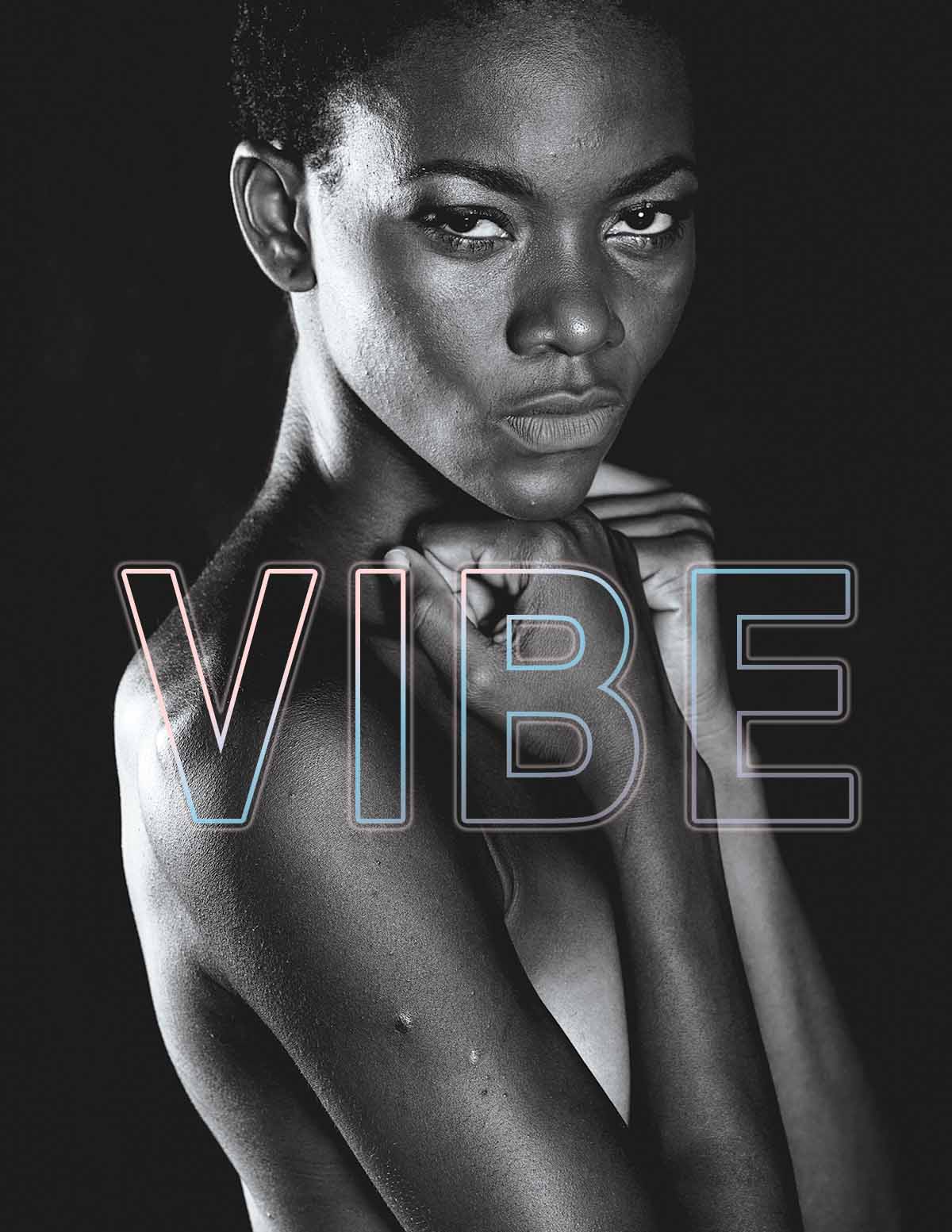
preview magazine ad

Photo from Engin_Akyurt on Pixabay

Project Goal

This tutorial creates a magazine advertisement using photo placement, typography, and layer effects. The techniques apply to any design project including web graphics, print materials, and digital marketing assets.

Exercise Overview

This comprehensive exercise will guide you through creating a professional magazine advertisement that showcases essential Photoshop design principles. The techniques you'll master here form the foundation for all digital design work—whether you're creating web graphics, print materials, social media content, or brand assets. By the end of this tutorial, you'll have developed skills in precision layout, advanced typography effects, and custom gradient creation that are directly applicable to client work and professional design projects.

Creating the Properly Sized Document

  1. Go to File > New.
  2. At the top, click the Print tab to access professional print presets.

    • Click once on the Letter (8.5 X 11 in @ 300 ppi) preset.
    • On the right of the window set Color Mode to CMYK Color for optimal print reproduction.
    • Set Background Contents to Black to create dramatic contrast for our design.
  3. Click Create.
  4. Immediately establish proper file management with File > Save As and configure the following:

    • Set Format (Mac) or Save as type (Windows) to Photoshop to preserve all layers and effects.
    • Navigate into the Photoshop Class folder.
    • Name it yourname-magazine ad.psd and hit Save.

Now that we have our professional document foundation established, we'll begin building the visual hierarchy with our primary image element.

Document Setup Process

1

Create New Document

Select Letter size preset at 300 ppi resolution for high-quality print output

2

Set Color Mode

Choose CMYK Color mode for accurate print color reproduction instead of RGB

3

Configure Background

Set background to black and save as PSD format for maximum editing flexibility

Placing the Main Photo

  1. Choose the Move tool move tool to enable precise positioning controls.
  2. Go to File > Place Embedded to maintain image quality and avoid broken links.
  3. In the Photoshop Class folder, double–click on 6B Model.jpg to choose it.
  4. In the Options bar, set these precise positioning values for optimal composition:

    • W & H: 92% (maintains aspect ratio while leaving space for design elements)
    • X: 1444 px
    • Y: 2050 px
  5. Double–click inside the image to commit the transformation and lock in your positioning.

With our hero image positioned strategically, we'll now add the typography that will serve as the focal point of our design.

Precise Positioning

Use specific pixel coordinates and percentage scaling for exact placement. Set width and height to 92% with X: 1444px, Y: 2050px for optimal composition.

Adding the Main Title Text

  1. In the Tools panel, choose the Horizontal Type tool type tool.
  2. In the Options bar, establish your initial typography settings:

    • Set size text size to 150 pt as a starting point
    • Click the Center text button text center for balanced alignment.
    • Click the color swatch to define your brand color:

      Facebook post click color swatch

    • In the color picker that opens, set it to #b79ee9 (a sophisticated purple tone) and click OK.

  3. Click in the middle of the photo and type VIBE in all capital letters for maximum impact.
  4. Choose the Move tool move tool to access alignment controls.
  5. In the Options bar notice the alignment buttons are grayed out—this indicates you need to make a selection first.
  6. Choose Select > All to enable alignment relative to the canvas.
  7. In the Options bar, click the Align horizontal centers button align horizontal centers.

    This ensures pixel-perfect horizontal centering—crucial for professional layouts.

  8. Press Cmd–D (Mac) or CTRL–D (Windows) to deselect and return to normal editing mode.

  9. In the Layers panel, double–click on the layer thumbnail to the left of the VIBE layer name.

    This efficient technique instantly selects all text in the layer for rapid formatting changes.

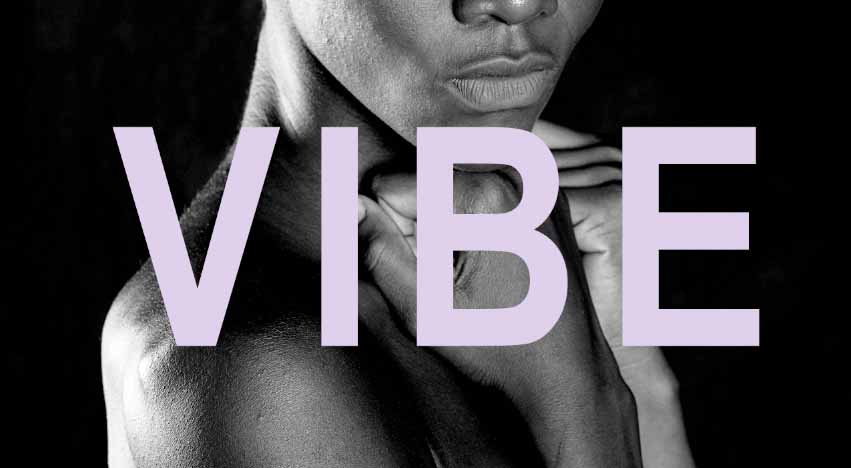
  10. In the Options bar choose a narrow/condensed font that's bold (thick letters) similar to the one shown below such as Arial Narrow Bold. Bold, condensed fonts create stronger visual impact and are more readable at distance.

    poster font

  11. In the Properties panel, set tracking text tracking to 80 to add elegant letter spacing that improves readability and creates a more premium appearance.
  12. In the Options bar hover over the size icon text size until you see the hand slider cursor hand slider, then drag right/left to dynamically resize. Scale the type until it achieves strong presence without overwhelming the image (ours ended up around 220 pt):

    poster title sized

  13. Choose the Move tool move tool to finalize positioning.
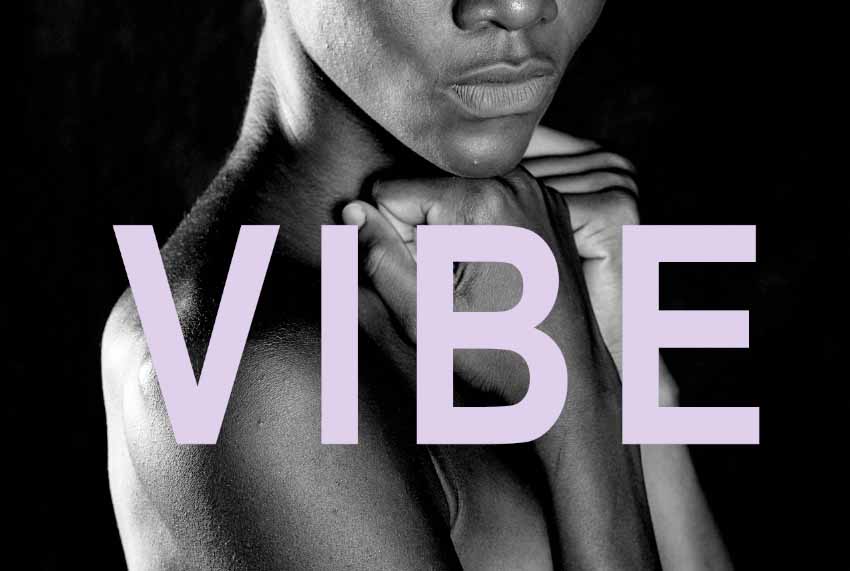
  14. Hold Shift while dragging to constrain movement to vertical only, positioning the VIBE text below the chin to create visual balance between the model and typography:

    poster title positioned

Now we'll elevate our typography with professional effects that add depth and visual interest while maintaining readability.

Typography Setup Checklist

0/5

Adding a Stroke Effect & Changing Fill Opacity

  1. In the Layers panel make sure the VIBE layer is still selected.
  2. At the bottom of the Layers panel, click the Add a layer style button adjustment layer fx and from the menu, choose Stroke to begin creating dimensional typography effects.

  3. Configure the stroke with these professional settings:

    • Size: 13 px (provides substantial outline without overpowering)
    • Position: Outside (preserves original letter forms)
    • Fill Type: Gradient (adds sophisticated color transitions)
    • To the right of the Gradient thumbnail click the down arrow to access preset libraries.
    • In the panel that opens, expand the Purples folder, and double–click on the 4th gradient (in the top row) Purple_04. Pause over gradients to see their names.
    • Angle: -63° (creates dynamic directional flow)

    Click OK to apply these settings.

  4. Near the top right of the Layers panel, locate the Fill slider. Hover over it until the cursor transforms into a hand slider hand slider, then drag to adjust opacity.

    Notice how reducing fill opacity affects only the text interior, leaving effects untouched—a crucial distinction from overall layer opacity.

  5. Set Fill to 0% to create a striking outline-only effect where the stroke defines the letterforms while maintaining complete transparency in the interior.

Next, we'll customize the gradient to match our design vision and save it for future projects—a workflow essential for maintaining brand consistency.

Stroke Effect Configuration

Stroke Settings

Apply 13px outside stroke with Purple_04 gradient at -63 degree angle for dynamic visual effect.

Fill Transparency

Set fill opacity to 0% to create outline-only text while preserving stroke effect visibility.

Editing a Gradient & Saving a Gradient Preset for Later Use

  1. In the Layers panel, double–click on Stroke under the VIBE layer to reopen the effect settings.
  2. To access the gradient editor, click directly on the gradient thumbnail (the color bar itself, not the dropdown arrow).

    This opens the powerful Gradient Editor where we'll craft a custom color blend.

  3. Understanding the gradient interface is crucial for professional results:

    • Below the preview are color stops gradient color stop which control the color transitions.
    • Above the preview are opacity stops gradient opacity stop which control transparency transitions.
  4. On the bottom left of the gradient preview, double-click the color stop gradient color stop.

    Set this to #e9a5a5 (a warm coral tone) and click OK.

  5. On the bottom right of the gradient preview, double-click the color stop gradient color stop.

    Set this to #aea2db (a sophisticated lavender) and click OK.

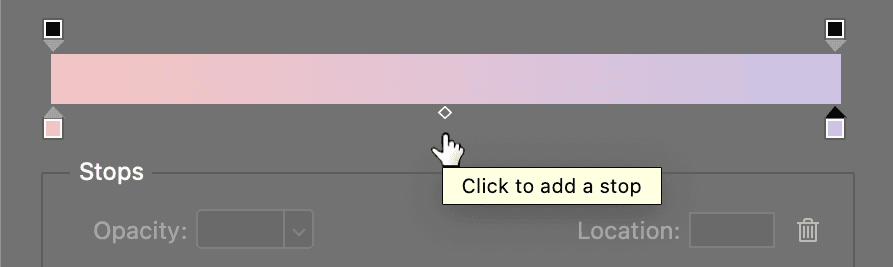
  6. To create a three-color gradient, hover below the gradient preview until you see a hand cursor, then click to add a new color stop:

    poster add color stop

  7. With the middle color stop selected, set Location to 50% at the bottom of the window for perfect centering between the outer colors.

  8. Double-click the new middle color stop gradient color stop.

    Set this to #65c0e0 (a fresh cyan blue) and click OK to complete our three-color harmony.

  9. To add subtle transparency variation, click the opacity stop gradient opacity stop at the top right above the gradient preview.

    Set Opacity to 40% to create a gentle fade effect that adds visual sophistication.

  10. Professional workflow requires saving custom assets for consistency across projects:

    • In the middle of the window set Name to yourname-VIBE for easy identification
    • Click New to add this gradient to your personal preset library.
  11. Click OK to close the Gradient Editor while keeping the Layer Style window open for our final effect addition.

To complete our sophisticated text treatment, we'll add an outer glow that creates depth and ensures readability against varying backgrounds.

Custom Gradient Creation

1

Define Color Stops

Set left stop to #e9a5a5, right stop to #aea2db, and add middle stop at #65c0e0

2

Adjust Transparency

Set right opacity stop to 40% for gradient fade effect on the edge

3

Save as Preset

Name gradient with your identifier and click New to save for future projects

Adding an Outer Glow

  1. You should still be in the Layer Style window. If not, double–click on Stroke under the VIBE layer in the Layers panel.
  2. On the left side of the window, click directly on the words Outer Glow (not just the checkbox—clicking the checkbox enables it but clicking the words opens the settings).

    This activates the glow effect and displays its controls on the right side.

  3. Set Opacity to 30% for subtle environmental lighting that won't overpower the design.
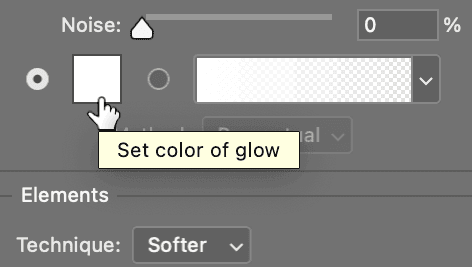
  4. Click the color swatch to customize the glow color:

    outer glow edit color

    Set it to #e7a4a4 (complementing our gradient's coral tones) and click OK.

  5. Fine-tune the glow characteristics for professional results:

    • Size: 40 px (initially hidden behind the stroke but creates foundation)
    • Spread: 60% (now the glow becomes visible, extending beyond the stroke)
    • To modify the glow's contour, click the down arrow next to the Contour thumbnail.
    • Double–click the 2nd icon in the top row to apply a custom contour shape.
    • Notice how this transforms the glow from a simple blur into a defined outline—perfect for creating separation from complex backgrounds.
  6. Click OK to finalize all effects and see your professional typography treatment in action.

  7. Save your work to preserve all layers and effects. This foundation will serve as the starting point for additional design elements in the next exercise.

Outer Glow Settings Values

Opacity
30
Size (px)
40
Spread (%)
60

Fill Vs. Opacity

Understanding the distinction between Fill and Opacity is crucial for professional layer effect workflows. This fundamental concept affects how you approach complex designs:

Opacity: Controls transparency of both layer contents AND all applied effects—use when you want the entire layer treatment to fade uniformly
Fill: Controls transparency of layer contents only, leaving effects at full strength—essential for creating outline text, ghost effects, and layered compositions

Fill vs Opacity Behavior

FeatureFillOpacity
Affects Layer ContentsYesYes
Affects Layer EffectsNoYes
Use CasePreserve effectsOverall transparency
Recommended: Use Fill when you want to maintain layer effects like strokes and glows while making the base content transparent.

Managing Gradient Presets

  1. For long-term project management, organize your custom gradients through Window > Gradients.
  2. In the Gradients panel, CTRL–click (Mac) or Right–click (Windows) on any gradient to access Rename Gradient or Delete Gradient options.

Professional tip: Create folders (groups) in this panel and drag related presets together for organized project workflows. This becomes invaluable when managing multiple clients or maintaining brand consistency across campaign materials.

Gradient Organization

Access Window > Gradients panel to rename, delete, or organize gradients into folders. Right-click any preset for management options and create folder groups for better workflow organization.

Key Takeaways

1Always set up print documents in CMYK color mode at 300 ppi resolution for professional output quality and accurate color reproduction
2Use Place Embedded rather than drag-and-drop for better file management and non-destructive photo placement with precise positioning controls
3Fill opacity affects only layer content while Opacity affects both content and effects - crucial for creating outline-only text designs
4Custom gradients with multiple color stops and transparency variations create more sophisticated visual effects than standard presets
5Saving gradient presets with descriptive names improves workflow efficiency and maintains design consistency across projects
6Layer styles like Stroke and Outer Glow can be combined and customized extensively for unique typography treatments
7Proper text alignment using Select All and alignment tools ensures precise positioning rather than visual approximation
8Contour settings in layer effects can dramatically change the appearance from simple glows to complex outline effects

RELATED ARTICLES