April 1, 2026Dan Rodney/5 min read

Modifying Light & Shadows

Master Professional Photo Enhancement Through Light Manipulation

Core Skills You'll Develop

Advanced Selection Techniques

Learn to isolate highlight areas using channels and luminance selections for precise control over specific tonal ranges.

Non-Destructive Color Grading

Master adjustment layers and blending modes to enhance photographs while preserving original image data.

Professional Photo Enhancement

Transform dull images into vibrant, professional-quality photographs using industry-standard techniques.

Topics Covered in This Photoshop Tutorial:

Adding Warmth to a Photograph, Selecting Highlight Areas of an Image, Making More Selections Using Channels

Technique Versatility

This warm-tinting technique works equally well for adding life to contemporary photos and creating authentic hand-tinted effects on black-and-white images.

Exercise Preview

beach family light and shadows

Exercise Overview

The overall tone of this image lacks visual impact and emotional warmth—a common problem in digital photography where natural color temperature gets flattened during capture. In this exercise, we'll leverage a Curves adjustment layer set to the Color blending mode to restore authentic warmth to the photo while preserving its tonal integrity. This professional technique is invaluable for commercial photographers and retouchers, and it's equally effective for creating sophisticated hand-tinted effects on black-and-white imagery. The method we'll explore gives you precise control over color temperature without the destructive edits that plague amateur workflows.

Workflow Overview

1

Analyze Image Tonality

Identify dull, lifeless areas that need warmth and vitality enhancement

2

Create Precise Selections

Use luminance channels to isolate highlight areas where sunlight naturally occurs

3

Refine Selection Quality

Clean up alpha channels using Levels adjustments for optimal selection accuracy

4

Apply Color Enhancement

Use Curves adjustment layers in Color blend mode to add realistic warmth

Selecting the Highlights

Our first step involves creating a precise selection of the image's luminance data—specifically targeting areas where sunlight naturally falls. This channel-based approach ensures professional-grade accuracy that surpasses basic selection tools.

  1. Open yourname-BeachFamily.psd. (If you didn't complete exercises 2B–2C, open BeachFamily-2skies.psd. Save it as yourname-BeachFamily.psd.)
  2. Make sure the sky2 layer is hidden, so you see sky1.
  3. To select the image's luminance (the top 50% brightest tones from the composite channel), press Cmd–Option–2 (Mac) or CTRL–ALT–2 (Windows). This keyboard shortcut automatically generates a selection based on the brightest areas of your composite RGB channel—a technique that remains one of Photoshop's most powerful selection methods.

  4. Subtract the sky from the selection by Cmd–Option–clicking (Mac) or CTRL–ALT–clicking (Windows) on the skies group layer mask thumbnail. This step ensures we're only affecting terrestrial elements, not the sky.

  5. Choose Select > Save Selection.

  6. Name it sunlight. Click OK.

  7. Press Cmd–D (Mac) or CTRL–D (Windows) to deselect.

  8. In the Channels panel, click on the new sunlight alpha channel to make it active. You'll notice this channel appears as a grayscale representation of your selection data.

Keyboard Shortcut Power

The Cmd-Option-2 (Mac) or Ctrl-Alt-2 (Windows) shortcut instantly selects the top 50% brightest tones from the composite channel, providing a perfect starting point for highlight selections.

Highlight Selection Checklist

0/4

Cleaning up the Selection

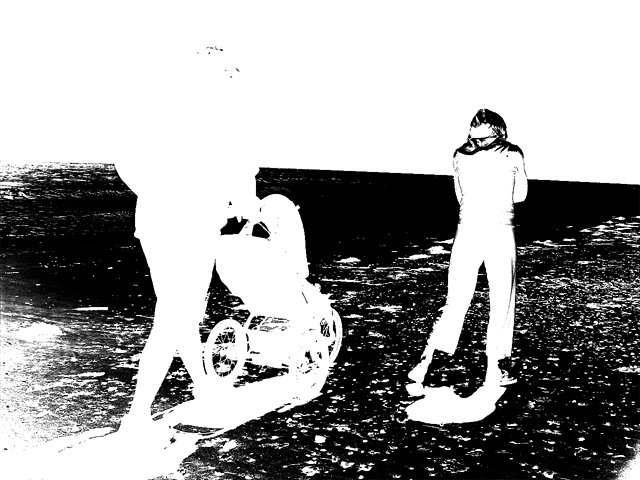
This channel resembles a black and white negative, but don't think of it as an image—think of it as selection data that defines where your color adjustments will be applied. Our goal is to achieve black areas wherever sunlight strikes objects and white areas in shadowed regions, allowing us to selectively modify the color temperature of illuminated areas. The current selection likely shows partially selected areas (represented as gray values) in transitional zones like the shadowed sides of the figures, which we need to refine for optimal results.

  1. We can push these problematic gray areas to pure white by increasing contrast on this alpha channel—a technique professional retouchers use daily. Choose Image > Adjustments > Levels (or hit Cmd–L (Mac) or CTRL–L (Windows)) to open the Levels dialog.

  2. Hold off on clicking OK until you've optimized these settings:
    • Darken the blacks by dragging the black point slider to the right—this expands the fully selected areas.
    • Lighten the whites by dragging the white point slider to the left—this creates cleaner unselected zones.
    • Move the gray point slider to the right to convert more transitional areas to black, thereby expanding your sunlit selection area.

    The objective is achieving a "good enough" selection that captures sufficient sunlit areas while protecting shadowed regions from unwanted color shifts. Perfection isn't necessary—we're after natural-looking results that enhance the image's emotional impact. Your refined selection should approximate this example:

    sunlight mask

  3. Click OK when satisfied with your adjustments.

  4. For precision work, you can fine-tune the alpha channel further using brush tools to paint in corrections—white to remove areas from selection, black to add them.

Alpha Channel Mindset

Think of the alpha channel as a selection map, not an image. Black areas represent full selection, white areas are unselected, and gray areas are partially selected.

Before vs After Channel Cleanup

FeatureOriginal ChannelCleaned Channel
Sunlit AreasLight gray (partial)Pure black (full)
Shaded AreasMedium gray (partial)Pure white (none)
Selection QualityImprecise boundariesClean, defined edges
Recommended: Use Levels adjustment to push gray values to pure black or white for cleaner selections

Altering the Color

Now we'll apply our carefully crafted selection to warm up the sunlit areas using a non-destructive adjustment layer approach that maintains professional flexibility.

  1. Press Cmd–2 (Mac) or CTRL–2 (Windows) to make RGB the active channel, returning to your color composite view.

  2. Cmd–click (Mac) or CTRL–click (Windows) on the sunlight alpha channel to load it as the current selection. You'll see the familiar "marching ants" indicating your active selection.

  3. In the Layers panel, select the skies group layer to establish proper layer hierarchy.

  4. Choose Layer > New Adjustment Layer > Curves.

  5. Name it warm up sunlight and change the Mode to Color to avoid altering luminosity values—this preserves the image's natural tonal relationships while allowing color temperature adjustments. Click OK.

  6. If needed, drag the new layer so it sits above the skies group layer in your layer stack.

  7. To achieve realistic results, analyze the environmental cues in your image—the clothing suggests comfortable weather, and the shadow angles indicate midday lighting, probably between late spring and early fall. This context matters because sunlight color temperature varies dramatically throughout the day, becoming much warmer (redder) during golden hour periods at sunrise and sunset, while maintaining more neutral tones during midday hours.

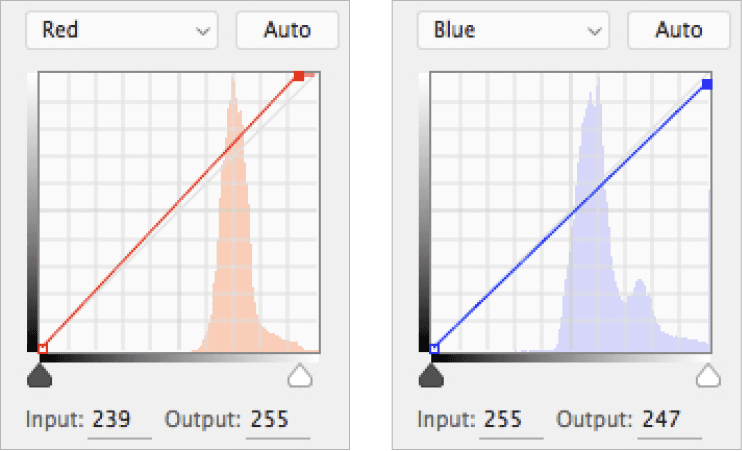
    Here are curve adjustments that work well for this scenario, though your specific image may require variations. Notice the subtle but important adjustments to both endpoint handles in the red and blue channels:

    beachfam red&blue

    For advanced applications, you could employ this same channel-based selection approach to isolate and adjust shadow areas, creating sophisticated color grading effects. This technique proves especially valuable for revitalizing images shot under flat, overcast conditions or for creating authentic hand-tinted looks on black-and-white photographs—a style that remains popular in contemporary portrait and fine art photography.

  8. When you're satisfied with your color adjustments, save and close the file. Consider saving an additional copy with adjustment layers intact for future revisions.

Color Blend Mode Advantage

Using Color blend mode preserves the original tonality while only affecting the hue and saturation, maintaining realistic lighting relationships.

Sunlight Color Matching Guidelines

Midday Sun

Neutral to slightly warm tones work best for images suggesting late spring through early fall timing.

Golden Hour Effects

Increase red and yellow channels significantly for early morning or late afternoon lighting effects.

Seasonal Considerations

Match warmth levels to clothing and shadow angles visible in the photograph for authenticity.

This Technique Assessment

Pros
Works on both color and black-and-white images
Non-destructive workflow preserves original data
Creates realistic, natural-looking enhancements
Easily adjustable and refineable after application
Professional results suitable for client work
Cons
Requires understanding of channels and selections
Time-intensive for complex images
May need fine-tuning for optimal results

Key Takeaways

1Master luminance selections using Cmd-Option-2 (Mac) or Ctrl-Alt-2 (Windows) to target the brightest 50% of image tones for precise highlight control
2Clean up alpha channels using Levels adjustments to create pure black and white areas, resulting in cleaner, more precise selections
3Use Curves adjustment layers in Color blend mode to alter hue and saturation while preserving original image tonality and lighting relationships
4Match color temperature enhancements to environmental clues like clothing, shadows, and lighting conditions for authentic, realistic results
5Save selections as named alpha channels to preserve work and enable future refinements without starting the selection process over
6This warm-tinting technique applies equally well to contemporary color correction and creating hand-tinted effects on black-and-white photographs
7Consider extending the technique to shadow areas using the same channel-based selection approach for comprehensive color grading
8The non-destructive workflow using adjustment layers allows for unlimited experimentation without damaging original image data

RELATED ARTICLES