April 1, 2026Dan Rodney/6 min read

Loading Profiles & Custom CMYK Conversions

Master Professional CMYK Color Management in Photoshop

Why CMYK Profiles Matter

Different printing presses and paper types require specific color profiles to ensure accurate color reproduction. This tutorial demonstrates how profile selection dramatically affects color separation.

Getting Started

  1. Navigate to File > Open.
  2. Open Smiling Baby-Adobe RGB.tif from the Color Management Seminar Files folder.
  3. Go to File > Save As.
  4. Set the Format to Photoshop and name it Smiling Baby-flat4printer.psd.
  5. This file contains no layers, but if your project includes multiple layers, you would flatten the image at this point using Layer > Flatten Image. This ensures optimal color conversion accuracy.

File Setup Process

1

Open Source File

Open Smiling Baby-Adobe RGB.tif from the Color Management Seminar Files folder using File > Open

2

Save Working Copy

Save as Photoshop format with filename Smiling Baby-flat4printer.psd for non-destructive workflow

3

Flatten Layers

If your file contains layers, flatten the image using Layer > Flatten Image before proceeding

Checking for Profiles

Before diving into CMYK conversion, you'll need to verify that your system has the necessary color profiles installed. Professional printers typically provide ICC profiles that precisely describe their press and paper characteristics—these profiles are essential for achieving accurate color reproduction in your final output.

  1. When working with commercial printers, always request their specific ICC profiles for the press and paper combination they'll use for your job. For this exercise, we'll use a specialized profile that may not be installed on your system. To check its availability, navigate to Edit > Color Settings.

  2. If the interface appears simplified, click More Options to reveal all available settings.

  3. Under Working Spaces, access the CMYK dropdown menu and look for Light GCR 360 UCR CMYK US Negative Proofing.

  4. Cancel out of this dialog. If you found the profile listed, skip the next section (Loading Extra Profiles) and proceed directly to creating multiple copies. If the profile is missing, continue with the installation process below.

Profile Verification Steps

0/4

Loading Extra Profiles

Installing custom color profiles correctly is crucial for accurate color management. The process differs slightly between operating systems, but the principle remains the same: profiles must be placed in your system's designated color management directory.

  1. Minimize Photoshop to access your Desktop.

  2. Navigate to Class Files > Color Management Seminar Files, then open the extra_profile folder.

  3. Select GNCMYK50.PF from within the folder.

  4. Copy the file using Cmd–C (Mac) or Ctrl–C (Windows).

  5. The installation location depends on your operating system. Follow the appropriate path below:

    Mac Users

    • Hold Opt and select Library from the Go menu in Finder.

    • Navigate to ColorSync > Profiles and paste the file into the Profiles folder.

    Windows Users

    • Access your C: drive, then navigate to Windows > System32 > spool > drivers > color.

    • Once in the color folder, press Ctrl–V to paste the profile file.

  6. Return to Photoshop. The new profile will now be available in your color settings.

Profile Installation by Operating System

FeatureMac InstallationWindows Installation
Source LocationClass Files > Color Management Seminar Files > extra_profileClass Files > Color Management Seminar Files > extra_profile
File to CopyGNCMYK50.PFGNCMYK50.PF
Destination PathHold Opt > Go > Library > ColorSync > ProfilesC: > Windows > System 32 > spool > drivers > color
Copy CommandCmd+C to copy, paste in Profiles folderCtrl+C to copy, Ctrl+V to paste in color folder
Recommended: Ensure you have administrative privileges before attempting profile installation

Making Multiple Copies so We Can Compare the Settings

To truly understand how different CMYK profiles affect color conversion, we'll create multiple versions of the same image and apply different settings to each. This side-by-side comparison will reveal the significant impact that profile selection has on your final output.

  1. Mac users only: In Photoshop, access the Window menu. If Application Frame isn't checked, select it to enable the Application Frame for better workspace management.

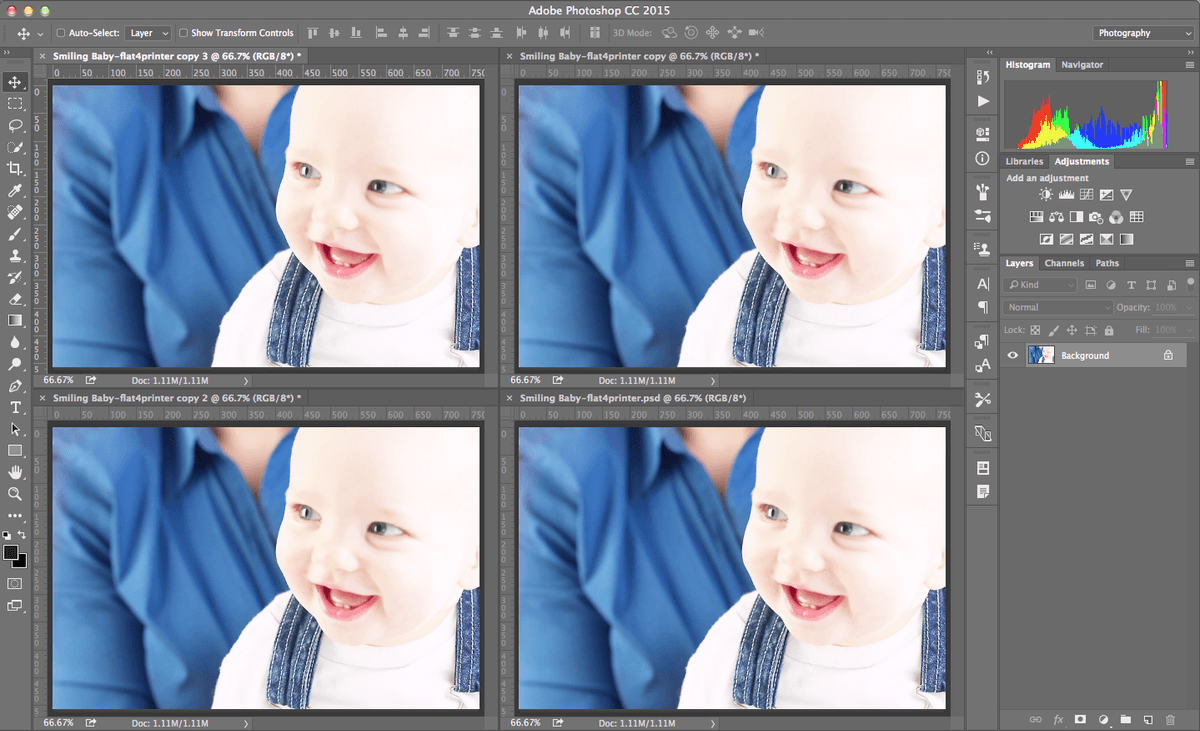
  2. Create three duplicate copies by going to Image > Duplicate three times. You'll now have four identical copies open, enabling easy comparison of different conversion methods.

  3. Arrange your workspace for optimal comparison viewing:
    • Navigate to Window > Arrange > 4-up four up.
    • Zoom out until you can see the complete image in one window pane.
    • Synchronize all views by selecting Window > Arrange > Match Zoom.

    cmyk conversion 4up

Image Duplication and Arrangement

1

Enable Application Frame

Mac users should check Application Frame in Window menu for better window management

2

Create Three Duplicates

Use Image > Duplicate three times to create four total copies for comparison

3

Arrange in 4-Up View

Go to Window > Arrange > 4-up to display all images simultaneously

4

Match Zoom Levels

Zoom out to see entire image, then use Window > Arrange > Match Zoom

Applying the Settings & Converting to CMYK

Now comes the critical phase: converting each image using different CMYK profiles. Each profile represents a different printing scenario, and the variations in output will demonstrate why choosing the correct profile for your specific printing conditions is essential for professional results.

Image 1 (on the Top Left)

  1. Begin with the top left image. Ensure you're using the Move tool move tool and click the image to activate it.

  2. Access Edit > Color Settings (shortcut: Cmd–Shift–K on Mac or Ctrl–Shift–K on Windows).

  3. Under Working Spaces, select the CMYK dropdown and choose U.S. Sheetfed Coated v2. This profile is optimized for high-quality sheetfed presses using coated paper stocks.

  4. Click OK to apply the settings.

  5. Execute the CMYK conversion by selecting Image > Mode > CMYK Color. If a confirmation dialog appears, check Don't show again and click OK.

Image 2 (on the Top Right)

  1. Click the top right image to activate it.

  2. Open Edit > Color Settings (Cmd–Shift–K on Mac or Ctrl–Shift–K on Windows).

  3. Under Working Spaces, access the CMYK menu and select U.S. Sheetfed Uncoated v2. This profile accounts for the different ink absorption characteristics of uncoated paper.

  4. Click OK to confirm.

  5. Convert to CMYK via Image > Mode > CMYK Color.

Image 3 (on the Bottom Left)

  1. Select the bottom left image to make it active.

  2. Navigate to Edit > Color Settings (Cmd–Shift–K on Mac or Ctrl–Shift–K on Windows).

  3. Under Working Spaces, choose CMYK and select U.S. Web Coated (SWOP) v2. This profile is designed for web offset printing, which typically uses different ink and paper combinations than sheetfed printing.

  4. Click OK to apply.

  5. Perform the conversion using Image > Mode > CMYK Color.

Image 4 (on the Bottom Right)

  1. Activate the bottom right image by clicking on it.

  2. Access Edit > Color Settings (Cmd–Shift–K on Mac or Ctrl–Shift–K on Windows).

  3. Under Working Spaces, select the CMYK dropdown and choose the custom profile you installed: Light GCR 360 UCR CMYK US Negative Proofing. This specialized profile demonstrates how custom printer profiles can dramatically affect color separation.

  4. Click OK to confirm the selection.

  5. Complete the conversion with Image > Mode > CMYK Color.

CMYK Profile Applications

Image 1: U.S. Sheetfed Coated v2

Top left image converted using coated paper profile. Optimized for high-quality coated paper printing with enhanced color saturation and contrast.

Image 2: U.S. Sheetfed Uncoated v2

Top right image using uncoated paper profile. Adjusted for uncoated paper absorption characteristics with modified ink densities.

Image 3: U.S. Web Coated SWOP v2

Bottom left image optimized for web offset printing. Standard web offset proofing profile for commercial printing applications.

Image 4: Light GCR 360 UCR Custom

Bottom right image using custom loaded profile. Specialized gray component replacement and undercolor removal settings for specific printing conditions.

Color Settings Shortcut

Use Cmd+Shift+K on Mac or Ctrl+Shift+K on Windows to quickly access Color Settings dialog for each image conversion.

Comparing Differences Between the Conversions

This is where the real learning begins. The differences you're about to observe illustrate why professional color management is so critical in commercial printing. Each profile has created a unique interpretation of how to separate the RGB colors into CMYK inks.

  1. With all four files now converted to CMYK, examine them for visible differences. Even at this stage, you may notice subtle variations in color rendering and tonal balance.

  2. For detailed analysis, examine each color channel individually. Navigate to the Channels panel and display only the Cyan channel across all four images. Notice the significant differences in cyan distribution—particularly compare the top two images (both sheetfed profiles). The coated version (left) shows different cyan values than the uncoated version (right), especially in the shadow areas of the woman's shirt collar. This difference accounts for how ink behaves differently on coated versus uncoated paper surfaces.

  3. Repeat this analysis for the Magenta channel across all four images. The variations here often affect skin tones and warm colors most dramatically.

  4. Continue with the Yellow and Black channels to complete your comparison. The black channel differences are particularly revealing—some profiles use more aggressive black generation strategies, which can significantly impact contrast and detail in shadow areas.

    The variations you're observing represent real-world differences in how your images would print on different presses and papers. This exercise demonstrates why obtaining and using the correct ICC profile from your printer isn't just recommended—it's essential for predictable, professional results. In 2026, with increasingly sophisticated printing technologies and substrates, this principle remains as critical as ever.

  5. When you've completed your analysis, close all files without saving changes to preserve your original working file.

Channel Analysis Workflow

0/4
Key Learning Insight

The dramatic differences between channels demonstrate why selecting the correct CMYK profile for your specific output device is crucial for accurate color reproduction and optimal print quality.

Key Takeaways

1CMYK color profiles must match your specific printing press and paper type for accurate color reproduction
2Different profiles create dramatically different color separations from the same RGB source image
3Profile installation locations vary between Mac and Windows operating systems and require proper file placement
4Coated and uncoated paper profiles produce noticeably different results, especially in shadow areas
5Comparing multiple conversions side-by-side reveals the critical importance of proper profile selection
6Channel-by-channel analysis shows how profiles affect individual color separations differently
7Custom profiles like Light GCR 360 UCR provide specialized color management for specific printing conditions
8Professional color management workflow requires flattening layers before CMYK conversion to ensure consistency

RELATED ARTICLES