April 1, 2026Dan Rodney/8 min read

Getting Started: Free Photoshop Tutorial

Master Essential Photoshop Skills with Hands-On Practice

What You'll Master

Navigation Fundamentals

Learn essential zooming and scrolling techniques to efficiently navigate images in Photoshop. Master keyboard shortcuts for faster workflow.

Core Tools

Get hands-on experience with Brush Tool and Clone Stamp Tool. Understand tool options and customization for better results.

Selection Basics

Practice fundamental selection techniques and copy-paste operations. Learn layer management and workspace organization.

Topics Covered in This Photoshop Tutorial:

Essential navigation fundamentals including zooming, scrolling, workspace navigation, core tools mastery, and efficient copying & pasting workflows

Exercise Preview

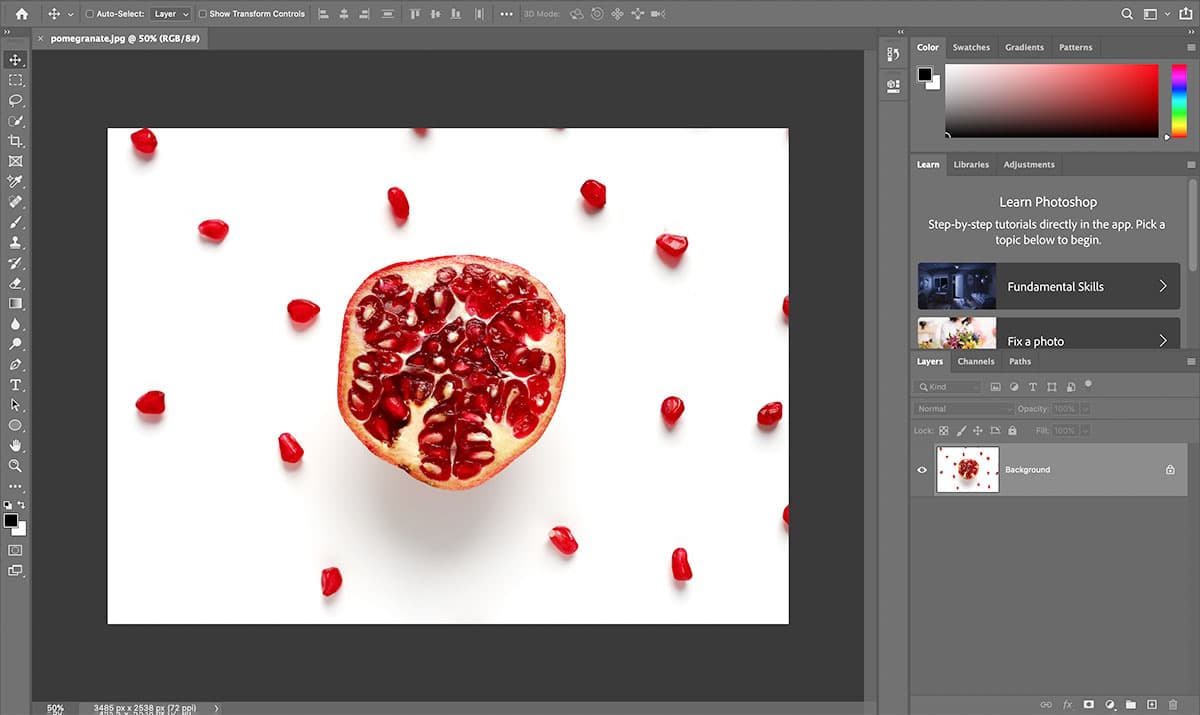
get started preview

Photo by Priyanka Singh on Unsplash

Tutorial Requirements

This tutorial uses Photoshop 2020 with pomegranate.jpg sample file. Download class files from Desktop > Class Files > Photoshop Class before starting.

Exercise Overview

This foundational exercise establishes the essential skills every Photoshop professional needs to work efficiently. You'll master image navigation techniques that separate beginners from confident users, explore core tools that form the backbone of most editing workflows, and develop muscle memory for fundamental operations. These skills serve as building blocks for advanced techniques you'll encounter in complex projects.

Getting Started

  1. Download the class files. Refer to the Downloading the Class Files page at the beginning of the workbook for complete instructions on downloading and installing the class files to your local machine.
  2. Launch Photoshop.

    NOTE: This tutorial has been tested with Photoshop 2020. If you're using a newer version (including 2021-2026 releases), the interface remains largely consistent. Older versions may have slight variations in menu locations, but core functionality remains identical.

  3. Navigate to File > Open to access the file browser.
  4. If you encounter a window for Cloud documents, click On your computer to browse local files.
  5. Navigate to Desktop > Class Files > Photoshop Class and double–click on pomegranate.jpg to open it in your workspace.

Initial Setup Process

1

Download Class Files

Access the required tutorial files and install them following the workbook instructions

2

Launch Photoshop

Open Photoshop 2020 or compatible version for best tutorial compatibility

3

Open Sample File

Navigate to File > Open and select pomegranate.jpg from the class files folder

Restoring Photoshop's Default Settings

Before diving into techniques, let's ensure your workspace matches the tutorial environment. This standardization prevents confusion and ensures consistent results across different installations.

  1. Reset Photoshop's workspace configuration by navigating to Window > Workspace > Essentials (Default). This establishes a clean, predictable panel layout.
  2. Confirm the reset by going to Window > Workspace > Reset Essentials. This eliminates any custom modifications that might interfere with the tutorial.
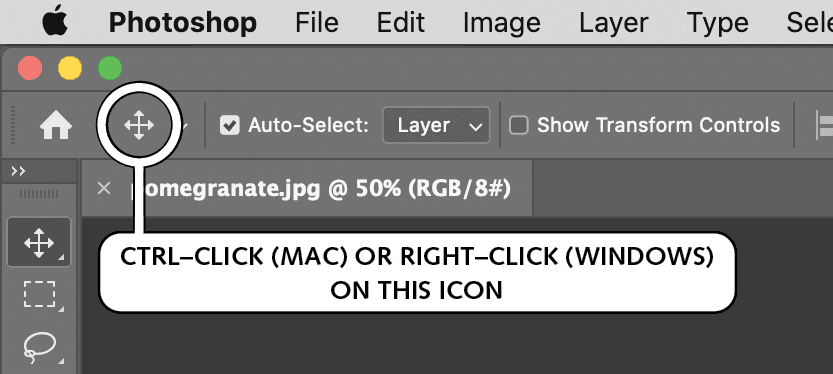
  3. Locate the Options bar at the top of your screen. To the right of the Home icon, CTRL–click (Mac) or Right–click (Windows) on the active tool icon:

    options bar show tool

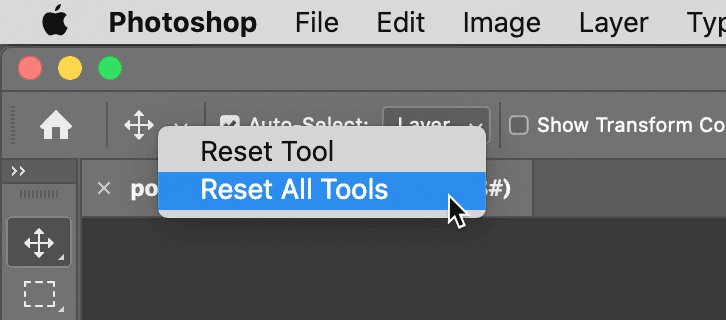
  4. From the contextual menu, select Reset All Tools. This ensures all tools return to their default settings, eliminating any previous customizations:

    options bar reset tools

  5. Click OK to confirm the reset. Your workspace is now standardized for optimal learning.

Workspace Reset Checklist

0/3
Why Reset Settings

Resetting ensures your Photoshop interface matches the tutorial exactly, preventing confusion with custom settings or workspace modifications.

Navigating an Image: Zooming & Scrolling

Efficient navigation separates professional workflows from amateur fumbling. Master these techniques to work confidently at any magnification level.

  1. In the Tools panel (located on the left side of your interface), select the Zoom tool zoom tool. This tool provides precise magnification control.
  2. Position your cursor over the pomegranate and click once to zoom in. Notice how Photoshop centers the zoom on your click point—this targeting precision becomes invaluable in detailed work.
  3. To zoom out, hold Option (Mac) or ALT (Windows) and click once. The cursor changes to a minus sign, indicating zoom-out mode.
  4. Explore the more dynamic Scrubby Zoom option in the Options bar at the top of your screen. This feature enables fluid, gesture-based zooming.
  5. Your Options bar will display one of two configurations:

    • If Scrubby Zoom is checked (the default setting): hover over the pomegranate and drag right to zoom in, drag left to zoom out. This method provides intuitive, variable-speed zooming.

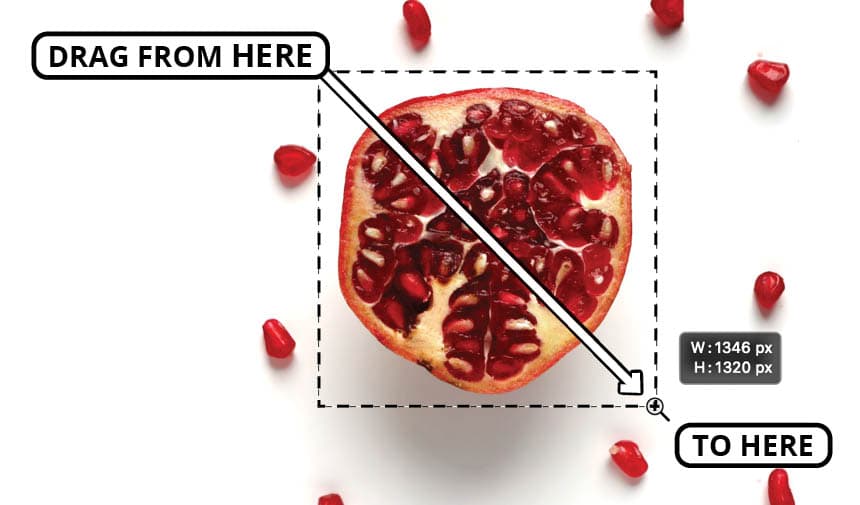
    • If Scrubby Zoom is unchecked or grayed out: drag a rectangular selection over your desired viewing area, then release. Photoshop will zoom to fit your selection perfectly:

      zoom in by dragging

  6. Return to full image view by choosing View > Fit on Screen. This command is essential for maintaining perspective during detailed edits.
  7. Professional tip: Memorize these keyboard shortcuts for lightning-fast navigation without switching tools:

    • Zoom in: Cmd–Plus(+) (Mac) or CTRL–Plus(+) (Windows)
    • Zoom out: Cmd–Minus(-) (Mac) or CTRL–Minus(-) (Windows)
  8. Zoom in several times until you see only a portion of the image. This simulates real-world editing scenarios where you'll work at high magnifications.
  9. Master the hand tool shortcut: hold the Spacebar and drag anywhere to scroll. This temporary tool access keeps your workflow fluid—release both mouse and spacebar to return to your previous tool.
  10. Reset your view with View > Fit on Screen to prepare for the next section.

Zoom Methods Comparison

FeatureMethodBest For
Zoom Tool ClickSingle click zoomPrecise zoom locations
Scrubby ZoomDrag to zoomInteractive zoom control
Keyboard ShortcutsCmd/Ctrl + Plus/MinusQuick zoom adjustments
Spacebar ScrollHold spacebar + dragImage navigation
Recommended: Combine keyboard shortcuts with spacebar scrolling for most efficient navigation workflow

Using the Brush Tool

The Brush tool represents Photoshop's digital painting capabilities. Understanding its fundamentals opens doors to retouching, artistic effects, and precision editing tasks.

  1. Select the Brush tool brush tool from the Tools panel. Notice how the cursor changes to reflect the active tool.
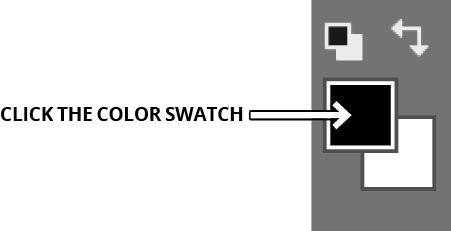
  2. At the bottom of the Tools panel, click the Foreground color swatch to access color selection:

    foreground color swatch

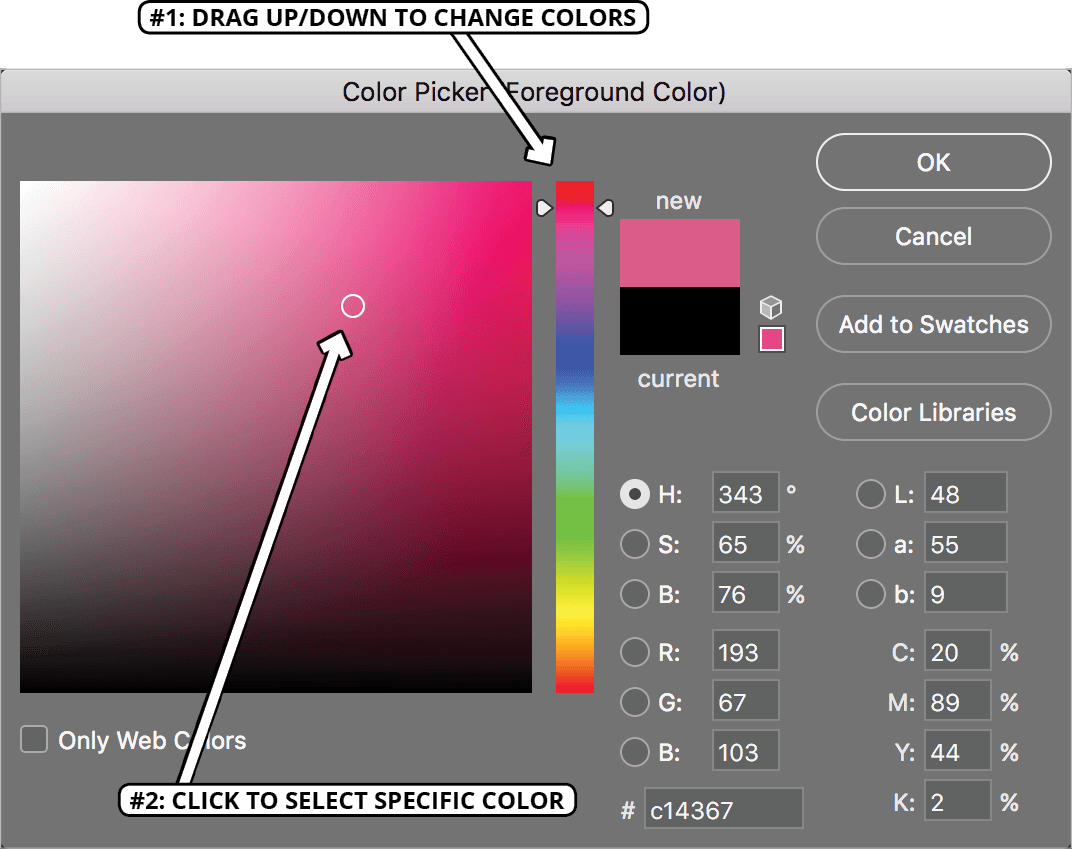
  3. The Color Picker window opens, offering multiple color selection methods. Choose any vibrant color that contrasts with the image:

    color picker

  4. Click OK to confirm your color choice.
  5. Drag anywhere on the image to paint. Notice the smooth brush strokes and how the paint interacts with the underlying image. This demonstrates Photoshop's sophisticated brush engine.
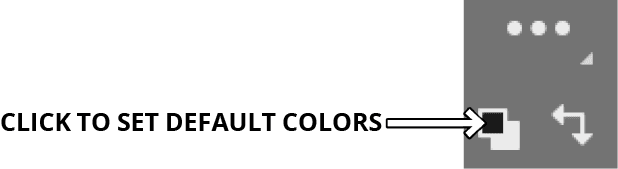
  6. Reset to standard colors by clicking the Default Colors icon default colors near the bottom of the Tools panel. This sets foreground to black and background to white—the most common color combination in professional workflows:

    set default colors

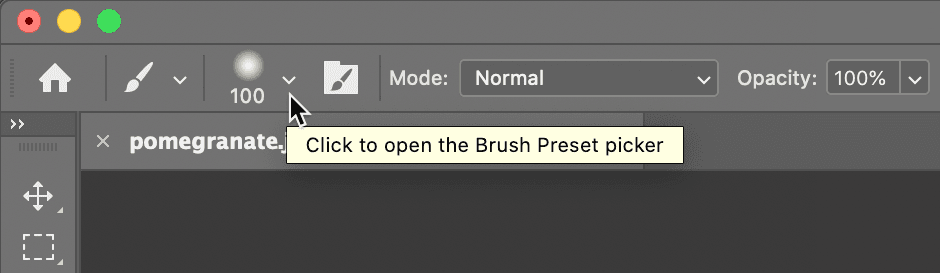
  7. Customize your brush characteristics using the Brush Preset picker in the Options bar:

    brush preset picker

  8. Experiment with the Size and Hardness sliders. Size controls brush diameter, while Hardness determines edge softness—crucial parameters for different editing scenarios.
  9. Paint with your customized brush to feel the difference. Hard brushes create sharp edges ideal for precise work, while soft brushes blend naturally for retouching and artistic effects.
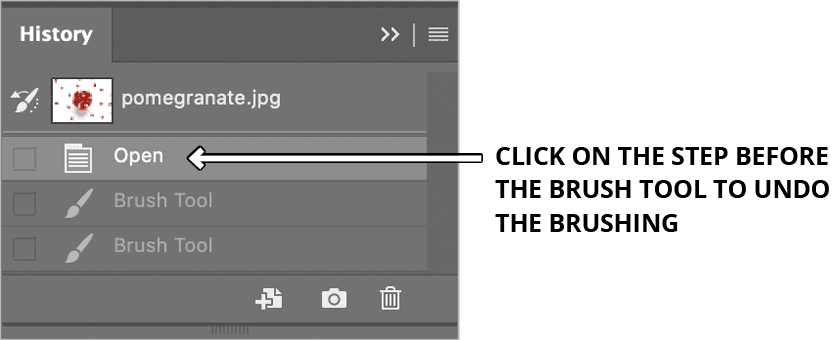
  10. Explore Photoshop's robust history system: Edit > Undo reverses your last action, but the History panel (Window > History) provides access to your last 50 steps by default, enabling complex workflow management.
  11. Click on any step before your Brush Tool entries to revert to that state, effectively undoing all painting:

    history panel

Brush Tool Workflow

1

Select Brush Tool

Choose Brush tool from Tools panel and click foreground color swatch to select painting color

2

Customize Brush Settings

Access Brush Preset picker in Options bar to adjust Size and Hardness parameters

3

Paint and Manage History

Paint on image and use History panel to track and undo up to 50 previous steps

Default Colors Shortcut

Click the Default Colors icon to quickly reset Foreground to black and Background to white, or use the 'D' keyboard shortcut.

Basic Selections & Copy/Paste

Selections form the foundation of targeted editing. Master these concepts to control exactly where your edits apply, enabling surgical precision in complex compositions.

  1. Choose the Rectangular Marquee tool rectangular marquee tool from the Tools panel. This fundamental selection tool creates precise rectangular and square selections.
  2. Drag a selection box (marquee) around any individual pomegranate seed. The "marching ants" border indicates your active selection—only this area will be affected by subsequent operations.
  3. Switch to the Move tool move tool. This tool handles object positioning and layer management.
  4. In the Options bar, uncheck Auto-Select. This prevents accidental layer switching when clicking different image areas—essential for maintaining control in complex documents.
  5. Drag within your selection to move the pomegranate seed. Notice how only the selected content moves, demonstrating the power of targeted editing.
  6. Observe the Layers panel on the right side of your screen. Currently, you'll see only a Background layer, but this will change as we create copies.
  7. Execute Edit > Copy to place the selected content in your clipboard. This non-destructive operation preserves your original while preparing for duplication.
  8. Execute Edit > Paste to create a new layer containing your copied content. This fundamental workflow appears throughout professional retouching and compositing.
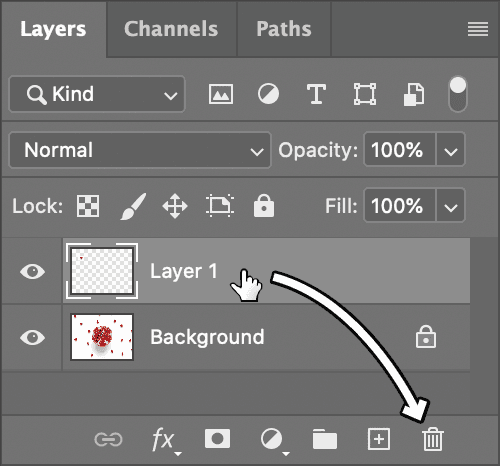
  9. Check the Layers panel—you'll now see a new Layer 1. This demonstrates Photoshop's automatic layer creation during paste operations, maintaining editing flexibility.
  10. Drag the pasted seed to a new position. The copy moves independently, proving successful duplication. This technique scales to complex compositing workflows.
  11. Clean up by deleting the duplicate layer: drag Layer 1 to the Trash button trash button at the bottom of the Layers panel:

    deleting a layer

    TIP: Alternative deletion method—ensure no active marquee selection (Select > Deselect), then press the Delete key to remove the currently selected layer(s) from the Layers panel.

Selection and Copy Process

Step 1

Create Selection

Use Rectangular Marquee tool to select pomegranate seed

Step 2

Move Original

Switch to Move tool and drag selection to new position

Step 3

Copy and Paste

Use Edit > Copy then Edit > Paste to create new layer

Step 4

Layer Management

New Layer 1 appears in Layers panel for independent editing

Auto-Select Setting

Uncheck Auto-Select in Move tool options to prevent accidentally selecting different layers while working.

Using the Clone Stamp Tool

The Clone Stamp tool revolutionizes retouching by enabling pixel-perfect content duplication within the same layer. Professional retouchers rely on this tool for seamless object removal, texture matching, and detail enhancement.

  1. Select the Clone Stamp tool clone stamp tool from the Tools panel. This powerful retouching tool works by sampling source pixels and painting them elsewhere.

  2. Position your cursor over your desired source content—in this case, an attractive pomegranate seed that you want to duplicate. Precision in source selection determines the quality of your final result.

  3. Option–click (Mac) or ALT–click (Windows) to define this area as your clone source. The cursor briefly changes to a target symbol, confirming successful sampling.

  4. Release the ALT/Option key and move to your destination area—a blank section of the background where you want to paint the new seed.

  5. Notice the sophisticated preview overlay showing exactly what pixels will be painted. This real-time feedback enables precise positioning before committing to the edit.

  6. Drag to paint the cloned seed into its new location. The crosshair shows your active sampling point, while your brush cursor indicates where pixels are being placed. This visual relationship helps maintain accurate cloning alignment.

  7. Excellent work completing your first Photoshop navigation and tool exploration. Close the image without saving changes to preserve the original for future practice sessions.

Clone Stamp Technique

1

Select Clone Stamp Tool

Choose Clone Stamp from Tools panel for same-layer copying functionality

2

Set Source Point

Alt-click (Windows) or Option-click (Mac) on area to be copied as source

3

Paint Clone

Move to destination area and drag to paint cloned content with live preview

Professional Application

Clone Stamp is a powerful retouching tool used professionally for removing unwanted elements and duplicating textures seamlessly.

Key Takeaways

1Always reset Photoshop workspace and tools to default settings before starting tutorials to ensure consistent interface behavior
2Master keyboard shortcuts for zooming (Cmd/Ctrl + Plus/Minus) and scrolling (Spacebar + drag) for efficient image navigation
3Scrubby Zoom provides interactive zoom control by dragging right to zoom in and left to zoom out when enabled in Options bar
4Brush Tool customization through Brush Preset picker allows precise control over size and hardness for different painting effects
5History panel tracks up to 50 previous steps by default, enabling selective undo operations for non-destructive editing workflow
6Copy and Paste operations create new layers automatically, visible in Layers panel for independent object manipulation
7Move Tool's Auto-Select option should be unchecked to prevent accidental layer selection during precise positioning work
8Clone Stamp Tool offers same-layer copying functionality with Alt/Option-click source selection and live preview during application

RELATED ARTICLES