April 1, 2026Dan Rodney/13 min read

Exporting Assets: PNG & GIF

Master PNG and GIF optimization for web

File Formats Covered

PNG-24

Millions of colors with full transparency support. Best for photos with transparent backgrounds.

PNG-8

Up to 256 colors with partial transparency. Ideal for graphics with limited color palettes.

GIF

Limited colors with all-or-nothing transparency. Smaller files but quality limitations.

Topics Covered in This Photoshop for Web Design Tutorial:

Transparent Photos, 8-bit Graphic Formats: GIF Versus PNG-8, PNG Transparency, Properly Optimizing Colors: Limited Colors Versus Gradients, Exporting 1x & 2x Graphics

Exercise Preview

preview optimizing png and gif

Exercise Overview

In this comprehensive exercise, you'll master the critical skill of optimizing graphics for web delivery. You'll learn not just the technical process of creating PNG and GIF files, but more importantly, when to choose each format based on your design requirements, transparency needs, and performance goals. These optimization techniques can significantly impact your site's load times and user experience—skills that remain essential in today's performance-conscious web environment.

Key Skills You'll Learn

0/4

Transparent Photos

JPEG's inability to support transparency creates a common challenge for web designers. When you need to display a photo with a transparent background, PNG becomes your primary solution. However, choosing between PNG-8 and PNG-24 requires understanding the trade-offs between file size and image quality. Let's explore this decision-making process.

  1. In Photoshop, close any files you have open to start with a clean workspace.
  2. Go to File > Open or hit Cmd–O (Mac) or CTRL–O (Windows).
  3. Navigate to Desktop > Class Files > yourname-Photoshop for Web Class > Graphics to Optimize and double–click iphone-hand-mockup.psd.
  4. In the Layers panel, hide the bg color layer by clicking the eye eye icon. This reveals the transparent background we'll be working with.
  5. Eliminate unnecessary transparent pixels by choosing Image > Trim. This optimization step reduces file size by removing empty space.
  6. Set Based On to Transparent Pixels.
  7. Make sure Trim Away has all sides checked on.
  8. Click OK and watch Photoshop precisely trim the image, removing wasted bytes from your final file.
  9. Choose File > Export > Save for Web (Legacy). While this tool is marked as "legacy," it still provides granular control over optimization settings that newer export options sometimes lack.
  10. On the right of the window, under Image Size, set W (width) to 400 px and hit Tab to apply it.
  11. At the top right of the window, go into the Preset menu and choose PNG-24.

    Unlike JPEG's lossy compression that sacrifices quality for file size, PNG uses lossless compression. This means you maintain perfect image fidelity without the characteristic artifacts that can plague JPEG files, especially around high-contrast edges.

  12. Hit Cmd–Plus(+) (Mac) or CTRL–Plus(+) (Windows) a few times to zoom in and examine the edge quality closely.
  13. Notice the background displays a checkerboard pattern indicating transparency, while the hand's edge blends smoothly into that transparent background—this is partial transparency in action.
  14. Now let's compare formats. At the top right of the window, go into the Preset menu and choose PNG-8 128 Dithered.

    Here's the key difference: PNG-24 supports millions of colors (24 bits of color depth), whereas PNG-8 is limited to 256 colors maximum (8 bits). This limitation significantly impacts both file size and image quality.

  15. On the right, set Colors to 256 to use the full color palette available.
  16. Examine the image carefully, noting these quality differences:

    • The colors in the hand and burger now show visible banding—flat areas where smooth gradations should be. The 256-color limitation forces Photoshop to approximate the original colors, creating these unwanted artifacts.
    • More critically, the hand's edge now displays a harsh white halo instead of blending naturally into transparency. While both PNG formats technically support partial transparency, Save for Web's PNG-8 implementation doesn't handle it properly, creating unusable results for images that require smooth transparent edges.
  17. Click Cancel to abandon this problematic export path.
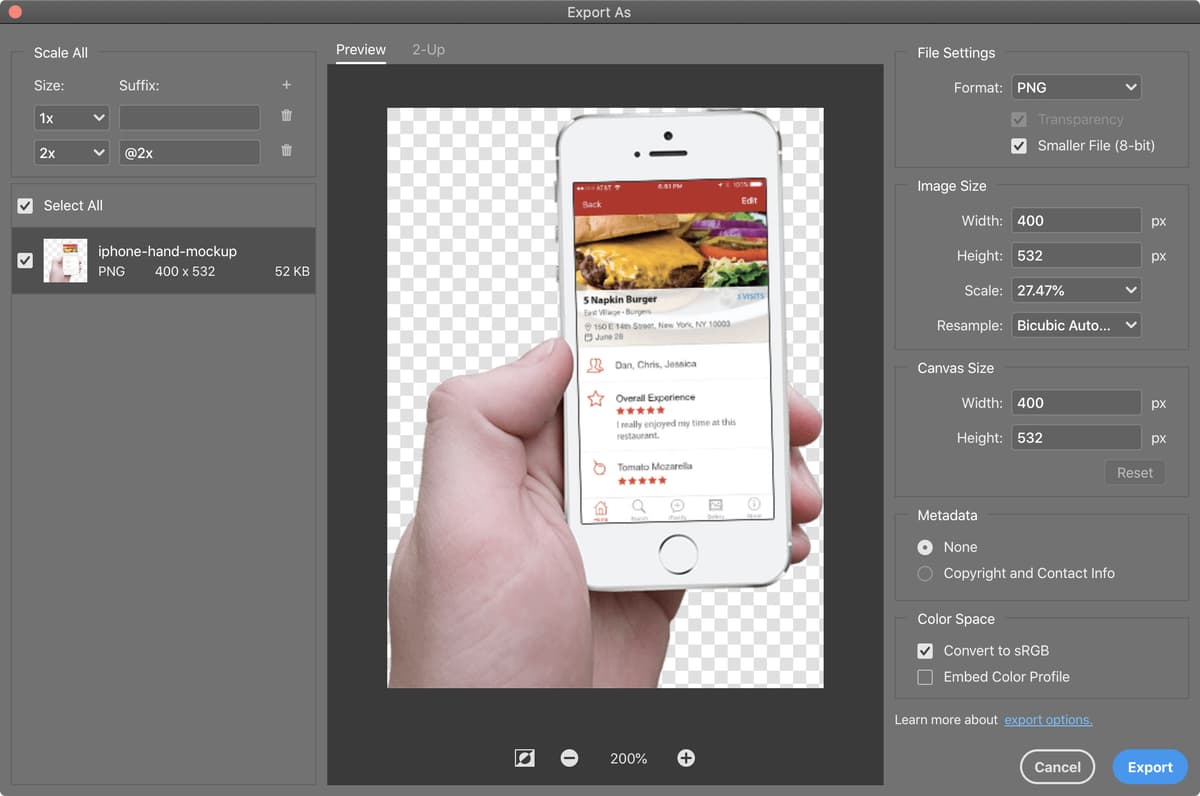
  18. Choose File > Export > Export As. This newer export dialog offers superior PNG-8 processing.
  19. At the top right, set Format to PNG.
  20. Make sure Transparency is checked on.
  21. Make sure Smaller File (8-bit) is unchecked to start with PNG-24 quality.
  22. Under Image Size, set Width to 400 and hit the Tab key to apply the change.
  23. At the bottom of the window, click the Plus (+) button several times until you can clearly evaluate the hand's edge quality.
  24. On the left side, below iphone-hand-mockup notice the file size is approximately 206 KB—substantial for a web graphic.
  25. On the right, check on Smaller File (8-bit) to see the PNG-8 alternative.
  26. Watch the file size drop to around 52 KB—a 75% reduction that could significantly improve page load times.
  27. Critically, notice that transparency rendering remains excellent. Unlike Save for Web, Export As properly handles partial transparency in PNG-8 files, giving you the best of both worlds.
  28. The color gradations also show marked improvement over Save for Web's PNG-8. While some banding remains due to the 256-color limit, Export As uses superior algorithms for color reduction and dithering.
  29. At the bottom of the window, click on the zoom percentage (between the and + buttons) to return to 100% zoom.

    At normal viewing size, the color banding becomes imperceptible, making PNG-8 the clear winner for this image. You achieve massive file size savings with virtually no visible quality loss—exactly what professional web optimization demands.

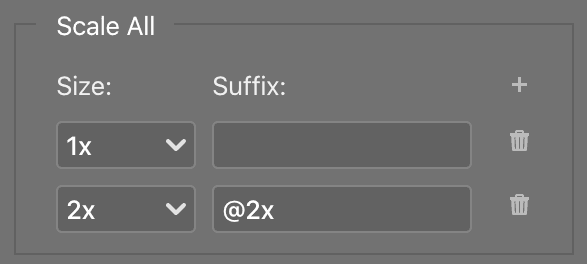
  30. This 400px width serves as our 1x baseline, but modern responsive design requires 2x assets for high-DPI displays. At the top left of the window, click the Plus (+) button to the right of Suffix.
  31. Set the second size to 2x so you end up with the following configuration:

    iphone hand 1x 2x export as

  32. Click Export to generate both resolution variants simultaneously.
  33. Navigate to Desktop > Class Files > yourname-Photoshop for Web Class > Graphics to Optimize > optimized.
  34. Click Open (Mac) or Select Folder (Windows).
  35. Save the Photoshop file and close it to maintain your organized workflow.

Now that we've mastered transparent photos, let's explore how different 8-bit formats perform with graphic elements that don't require photographic complexity.

PNG Export Methods Comparison

FeatureSave for WebExport As
PNG-8 TransparencyNot supportedFull support
Color QualityBasic reductionBetter algorithms
File Size ControlMore optionsAutomatic
Recommended: Use Export As for PNG-8 with transparency, Save for Web for fine-tuned control

File Size Comparison

206KB
PNG-24 file size
52KB
PNG-8 file size

8-Bit Graphic Formats: GIF Versus PNG-8

While SVG has become the gold standard for scalable web graphics, it faces limitations in certain environments. SVG support remains inconsistent in HTML email clients and some mobile applications, making PNG and GIF essential fallback options. Understanding when to choose each format—and how to optimize them effectively—remains crucial for comprehensive web design workflows in 2026.

  1. Go to File > Open or hit Cmd–O (Mac) or CTRL–O (Windows).
  2. Navigate to Desktop > Class Files > yourname-Photoshop for Web Class > Graphics to Optimize and double–click nyc-logo@2x.psd.
  3. Remove excess transparent pixels by going to Image > Trim. This step is especially important for graphics with irregular shapes.
  4. Set Based On to Transparent Pixels.
  5. Make sure Trim Away has all sides checked on.
  6. Click OK.

    This logo requires partial transparency to blend seamlessly with varying background colors—a common requirement in modern responsive design. The graphic's limited color palette makes it an ideal candidate for PNG-8, but only if we can preserve the transparency quality we established in the previous exercise.

  7. Go to File > Export > Export As.
  8. Maximize the window to get the best view of quality comparisons.
  9. At the bottom of the window, click the Plus (+) button until the preview fills your available screen space for detailed inspection.
  10. Before testing PNG, let's examine GIF's limitations. At the top right of the window, set Format to GIF.

    Both GIF and PNG use lossless compression, eliminating JPEG's quality degradation. However, this doesn't mean they're equivalent—the constraints of each format's color handling create distinct advantages and limitations that directly impact your design choices.

  11. In the logo's transparent areas, you should see the familiar checkerboard pattern. However, examine the edges closely—particularly the light orange and white pixels along the borders.

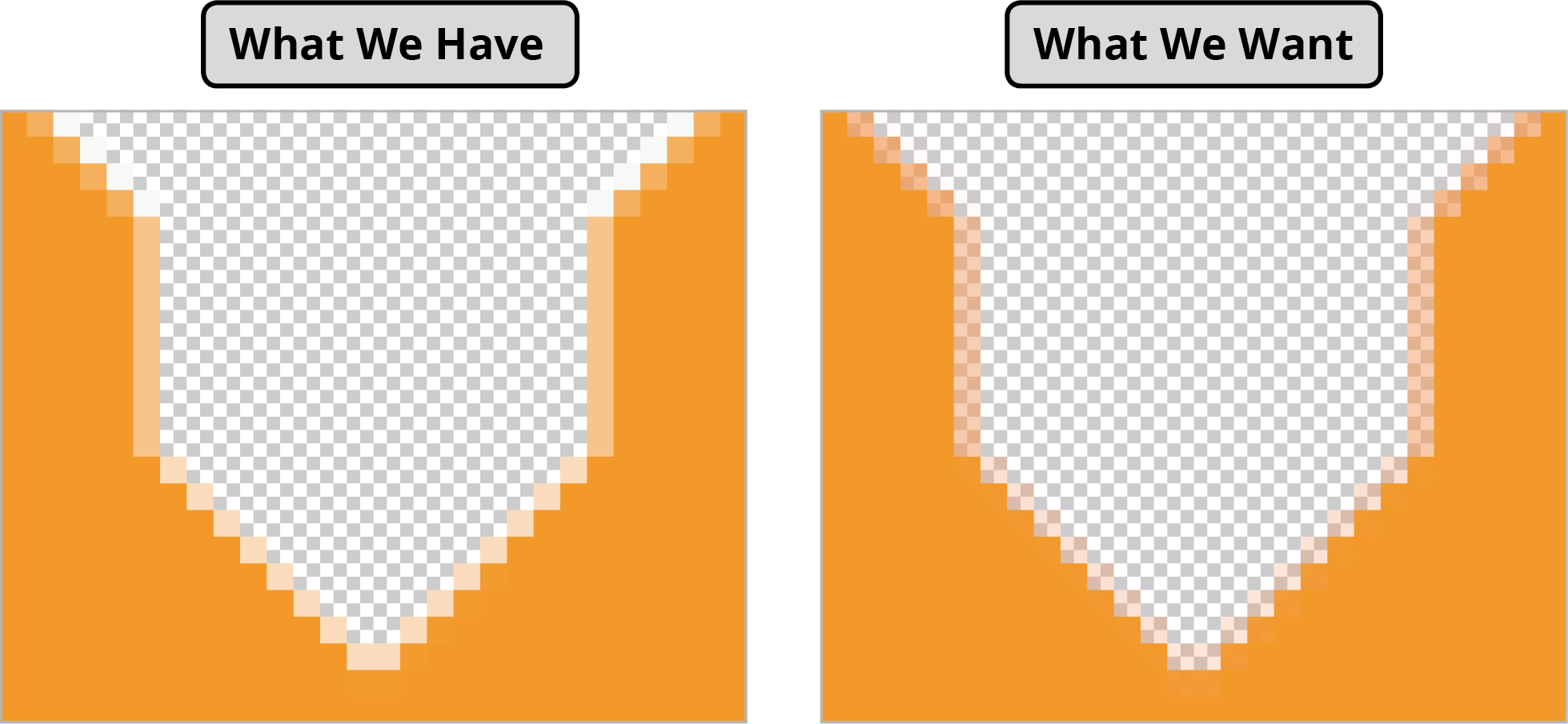
    For professional results, we need partial transparency where edge pixels gradually blend from opaque to transparent, as illustrated below:

    partial transparency example

    GIF's binary transparency approach—pixels are either completely opaque or completely transparent—destroys this subtle edge blending. The result is a harsh, artificial boundary that creates visible halos when placed over dark backgrounds. This limitation makes GIF unsuitable for logos and graphics that must integrate seamlessly across diverse background colors.

  12. If the entire graphic isn't visible, click the Minus (–) button at the bottom until you can see the complete logo.
  13. Change the Format to PNG to see the superior alternative.
  14. Compare file sizes by toggling Smaller File (8-bit) on and off while monitoring the size display on the left.

    Both variants maintain identical visual quality and proper partial transparency, but PNG-8 weighs in around 1.1KB versus PNG-24's 1.4KB. For a logo that may appear multiple times across a website, this 25% size reduction multiplies into meaningful performance gains.

  15. Ensure that Smaller File (8-bit) is checked before proceeding.
  16. Click Export.

    NOTE: This graphic demonstrates the growing trend of high-resolution-only workflows. As Retina and high-DPI displays become universal, many designers now deploy only @2x graphics, allowing the browser to scale them down for standard displays rather than maintaining separate 1x versions.

  17. Navigate into Desktop > Class Files > yourname-Photoshop for Web Class > Graphics to Optimize > optimized. Keep the suggested filename nyc-logo@2x.png and click Save.
  18. Save the Photoshop file and close it.

Our logo example demonstrated PNG's superiority for simple graphics with clean transparency. But what happens when we encounter more complex imagery with gradients and sophisticated color transitions?

GIF vs PNG-8 Analysis

Pros
Both use lossless compression
Well supported in HTML email
Good for graphics with limited colors
Smaller file sizes than PNG-24
Cons
GIF has all-or-nothing transparency
Limited to 256 colors maximum
Can show color banding in gradients
Not ideal for photographic images
GIF Transparency Limitation

GIF transparency is all or nothing. Partially transparent pixels become completely opaque, creating ugly light halos on darker backgrounds.

Optimizing a Graphic with a Gradient

Graphics with gradients present unique optimization challenges that test the boundaries of each file format. The smooth color transitions that make gradients visually appealing can create large files if handled incorrectly, while aggressive optimization can destroy the very smoothness that makes them effective. Let's explore the strategic decisions involved in gradient optimization.

  1. Go to File > Open or hit Cmd–O (Mac) or CTRL–O (Windows).
  2. If you're not still in the Graphics to Optimize folder, navigate to Desktop > Class Files > yourname-Photoshop for Web Class > Graphics to Optimize.
  3. Double–click app-store-icon@2x.psd.

    This icon doesn't require partial transparency since it's designed for white backgrounds—a constraint that actually opens up additional optimization opportunities. Without transparency requirements, we can explore more aggressive compression options while preserving the gradient's visual impact.

  4. Go to File > Export > Save for Web (Legacy). For gradient optimization, the granular controls in this dialog often outperform the simplified Export As interface.
  5. In the Optimized tab, hit Cmd–0 (Mac) or CTRL–0 (Windows) to maximize the preview for detailed quality assessment.
  6. Let's establish our quality baseline with PNG-24. At the top right of the window, go into the Preset menu and choose PNG-24.

    At nearly 24KB for this small icon, PNG-24 reveals the file size cost of supporting millions of colors. This size would be problematic for mobile users or sites loading multiple icons.

  7. Since we don't need transparency, uncheck Transparency. This reduces file size slightly, but we're still looking at an unacceptably large file for such a simple graphic.
  8. Consider JPEG as an alternative. Despite being traditionally associated with photography, JPEG can excel with graphics containing many colors and smooth gradations. Set the Preset to JPEG High.

    At approximately 12.31KB, JPEG cuts the file size by nearly 50%. The default 60 Quality setting introduces some artifacts around hard edges, but they're barely noticeable at normal viewing sizes. However, we can likely achieve even better results with other approaches.

  9. From the Preset menu choose GIF 128 Dithered.

    Dithering uses scattered pixel patterns to simulate color gradations that don't exist in the limited palette. This technique improves visual quality at the cost of increased file size, but often produces more web-friendly results than JPEG for graphic content.

  10. At the bottom left, note the file size around 8.576KB—a significant improvement over both PNG-24 and JPEG.
  11. Switch to PNG-8 128 Dithered from the Preset menu.
  12. The visual quality matches GIF, but the file size drops to approximately 6.673KB. PNG's superior compression algorithm gives it an edge even with identical color palettes.
  13. Uncheck Transparency to squeeze out additional bytes when transparency isn't needed.
  14. Test further color reduction by setting Colors to 64.

    NOTE: Export As lacks these granular color controls, which is why we're using Save for Web for gradient optimization.

  15. While this creates more visible color banding, let's optimize the color selection algorithm. Photoshop offers several approaches for choosing which colors to retain during reduction.

    From the menu that reads Selective, test Perceptual and Adaptive color reduction algorithms, monitoring both image quality and file size changes.

  16. The visual differences are subtle, but Selective produces the smallest file size. Return to Selective.

    NOTE: Perceptual, Selective, and Adaptive algorithms analyze your specific image to choose optimal colors. The other options use predetermined color palettes that rarely match your image's actual needs.

  17. Set Dither to 100% to maximize gradient smoothness.
  18. Experiment with dithering algorithms by switching from Diffusion to Pattern and then Noise.
  19. While Pattern and Noise can appear smoother, they increase file size substantially. Return to Diffusion for the best size-to-quality ratio.
  20. Hit Cmd–1 (Mac) or CTRL–1 (Windows) to view at 100% for realistic quality assessment.

    At actual size, Diffusion dithering maintains excellent gradient quality while delivering superior file compression.

  21. Test extreme color reduction by setting Colors to 32.

    The increased color banding becomes more apparent, but remains surprisingly subtle. However, the file size savings aren't dramatic enough to justify the quality loss.

  22. Return Colors to 64 for the optimal balance of quality and file size.
  23. Here's how our optimization tests compare (your exact numbers may vary slightly):

    PNG-24: "Export As", No Transparency 22.7KB
    PNG-24: "Save for Web", No Transparency 21.8KB
    JPEG: "Export As", 60% quality 12.4KB
    JPEG: "Save for Web", 60% quality 12.31KB
    PNG-8: "Export As" 10KB
    PNG-8: 256 colors, 88% Diffusion Dithering 9.893KB
    PNG-8: 64 colors, 100% Diffusion Dithering 5.451KB

    This comparison reveals a crucial optimization strategy: when transparency isn't required and your image can work with a reduced color palette, Save for Web's granular controls can achieve dramatic file size reductions. Export As prioritizes convenience and quality but can't match the compression efficiency possible with careful manual optimization.

    NOTE: The different algorithms used by Save for Web and Export As can produce varying file sizes and visual results even with similar settings. Understanding when to use each tool becomes part of your optimization expertise.

  24. At the bottom right, click Save.
  25. Navigate into Desktop > Class Files > yourname-Photoshop for Web Class > Graphics to Optimize > optimized. Maintain the filename app-store-icon@2x.png to preserve the high-resolution designation.
  26. Save the Photoshop file and close it.
  27. To review your optimized assets, browse to Desktop > Class Files > yourname-Photoshop for Web Class > Graphics to Optimize > optimized and compare the file sizes with your original PSDs.

File Size Comparison by Format

PNG-24 No Transparency
22.7
JPEG 60% Quality
12.4
PNG-8 Export As
10
PNG-8 256 Colors
9.9
PNG-8 64 Colors
5.5

Gradient Optimization Process

1

Start with PNG-24

Establish baseline quality and maximum file size

2

Test JPEG compression

Try JPEG High quality for images with many colors and gradations

3

Experiment with PNG-8

Reduce colors and adjust dithering to balance quality and file size

4

Fine-tune settings

Test different color reduction algorithms and dithering options

App Store Graphics

Apple's iOS App Store: If you plan to use App Store badges on your website, ensure compliance with Apple's current brand guidelines at tinyurl.com/ap-brand. These guidelines are regularly updated to reflect evolving design standards.

Google Play for Android: Similarly, Google Play badge usage requires adherence to Google's brand guidelines at tinyurl.com/gogl-brand. Both platforms take brand compliance seriously and may request changes to non-compliant implementations.

Brand Guidelines Required

Always follow official brand guidelines when using app store badges. Apple and Google have specific requirements for proper usage on websites.

Official Resources

Apple iOS App Store

Visit Apple's official guidelines for proper App Store badge usage and implementation requirements.

Google Play Store

Check Google's brand guidelines for correct Google Play badge usage and design specifications.

Key Takeaways

1JPEG does not support transparency, making PNG the only option for photos with transparent backgrounds
2Export As supports PNG-8 partial transparency while Save for Web does not, making Export As preferable for most transparent graphics
3PNG-8 can dramatically reduce file size compared to PNG-24 while maintaining acceptable quality for graphics with limited colors
4GIF transparency is all-or-nothing, creating halos around edges, while PNG supports partial transparency for smoother blending
5Save for Web offers more granular control over color reduction and dithering options than Export As
6For gradients and images with many colors, testing multiple formats including JPEG can reveal significant file size savings
7Reducing colors from 256 to 64 in PNG-8 can substantially decrease file size with minimal visual impact
8Always follow official brand guidelines when implementing app store badges and graphics on websites

RELATED ARTICLES