Creating New Files & Designing on a Grid System
What This Tutorial Covers
Document Setup
Resolution, color mode, and document size for design work.
Grid Systems
Column grids that drive consistent layout.
Snap & Guides
Visual aids that keep elements aligned.
Noble Desktop's Graphic Design Certificate covers Photoshop alongside Illustrator and InDesign — the complete Adobe toolkit.
Learn how to create a responsive website layout using Photoshop, including creating a new document, designing with Bootstrap’s grid, and adapting your layout to various screen sizes.
Exercise Preview
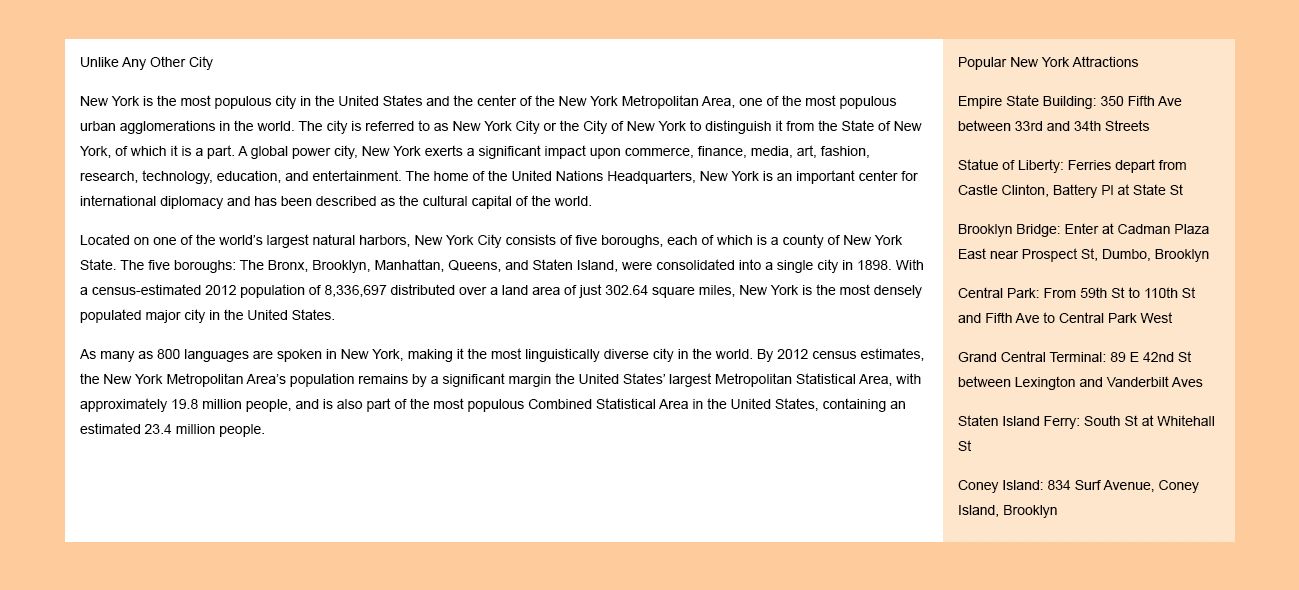
Creating a New Document
Let’s create our first file. Go to File > New or hit Cmd–N (Mac) or CTRL–N (Windows).
At the top of the dialog that opens, click on the Web tab.
Under Blank Document Presets, click the View All Presets + button.
Click once on Web Small (1280 X 800 px @ 72 ppi).
NOTE: The provided presets list the screen’s pixel width X height. We need to design for various screen sizes because our users might be browsing on a mobile phone, tablet, or desktop. In this exercise we’ll start with the desktop layout. In the next exercise, we’ll adapt our design for smaller devices like tablets and phones.
You may notice a preset called Web Most Common and wonder why we’re not choosing that. Ultimately we need to design for various screen sizes. Even though 1366 may be the most common, enough people have 1280px wide screens that we want to use it for the desktop design stage. Photoshop makes us set static file dimensions, but keep in mind that the coded website will adapt to various sizes. So don’t get too hung up on which you should choose, either could work!
- On the right, make sure Artboards is checked on.
Notice the following two settings. You do not have to change them, but we wanted to point them out as being correct.
- Resolution: 72 Pixels/Inch.
- Color Mode: RGB Color (We use RGB for on-screen graphics, as opposed to CMYK for print).
- Resolution: 72 Pixels/Inch.
Click Create.
At the moment we have one artboard at desktop size. Let’s rename it. In the Layers panel, click on Artboard 1 to select it.
Double–click the name Artboard 1, type Desktop and hit Return (Mac) or Enter (Windows).
Let’s add a new artboard. At the top of the Tools panel, select the Artboard tool
 .
.Notice the Add New Artboard buttons
 appear on each side of the artboard.
To the right of the artboard, click the Add New Artboard button
.In the Options bar at the top of the screen, notice that the Size menu is set to Web Small. (New artboards are the same size as the artboard that was selected.)
Let’s resize this artboard to a tablet size. In the Options bar, from the Size menu select iPad Mini.
NOTE: The iPad Mini preset is 1024 X 768 px. We do not want any of the other iPad sizes right now, because those presets are for Retina/HiDPI screens (which we’ll discuss later in this book).
- We’d like to use a portrait (vertical) layout for our tablet design. In the Options bar, to the right of Height click the Make Portrait button
 .
. - Let’s rename the new artboard. In the Layers panel, double–click the name Artboard 1, type Tablet and hit Return (Mac) or Enter (Windows).
- To the right of the Tablet artboard, click the Add New Artboard button . If you don’t see it, make sure the Tablet artboard is selected in the Layers panel, and scroll over so you can see the empty space to the right of the Tablet artboard.
- We want this artboard to be a phone size. In the Options bar, change the Size to Mobile Design.
- In the Layers panel, double–click the name Artboard 1, type Phone and hit Return (Mac) or Enter (Windows).
Go to View > Fit on Screen to compare the 3 artboards.
Designing with Bootstrap’s Grid
The typical grid systems used by web developers have specific gutter amounts and column widths for specific screen sizes. If the developer you’ll be working with is using a particular grid system, it’s best to use a matching grid. For our design we want to use the popular 12-column Bootstrap grid. While the file we just created is similar, the sizing is slightly different. We should create our design using Bootstrap’s specific grid settings. If you want to learn more about Bootstrap and its grid, visit getbootstrap.com/docs/4.5/layout/grid
- Close the document and do not save changes.
- Go to File > Open.
- Go to Desktop > Class Files > yourname-Photoshop for Web Class > Bootstrap 4 Grid Template for Photoshop, by Dan Rodney > 1x Size and double–click on Bootstrap 4 Grid Simple Template.psd.
Notice there are artboards (and Bootstrap’s grid) for Phone, Tablet, and Desktop.
Dan Rodney, a Noble Desktop instructor, created this grid template specifically for this training. It’s also available for download from his website danrodney.com/blog/Photoshop-bootstrap4-grid where you’ll be able to find future updates (if needed). For more info about Bootstrap’s different grid sizes, see the sidebar at the end of this exercise.
- In the Layers panel, select the Desktop artboard.
The guides for the desktop artboard should be visible. If you do not see the guides, go to View > Show > Guides to turn them on.
Page Versus Container Width
Bootstrap’s grid (onto which we place content) is 1140 pixels wide for desktops. 1280 pixel wide screens are common, but you don’t want the content to fill the entire 1280px. You need some space for scrollbars and most designs have empty space around the content. A content area of 1140px fits comfortably into a 1280px wide screen.
Notice the following:
- This 12-column grid is similar to the one you just created, but it has a gray highlight for each column. This helps us visually separate where content goes (the gray areas) so we leave empty space (gutter) between the columns of content.
- This grid has an extra guide in the middle of the gutters. The gutters are 30 pixels, so there’s 15px from the gray content column to the center gutter guide. The center gutter guides will help us create the backgrounds (color, photo, etc.) for content sections, which you’ll do in a moment.
- Look in the Layers panel and under the Desktop artboard, find the columns layer.
- Hide the columns layer by clicking the eye
 next to that layer.
 - In the Layers panel, show the columns layer by clicking the empty box where the eye was. This layer is handy when we need it, and easy to hide when we don’t.
- Before we go any further, let’s save the file. Go to File > Save As.
- If you get a message about saving to your computer or cloud documents, check on Don’t show again and click Save on your computer.
- We’ll want to continue working in a layered file with no compression. For the Format (Mac) or Save as type (Windows) make sure Photoshop (.psd) is selected.
- Navigate into Desktop > Class Files > yourname-Photoshop for Web Class > NYC.
- Name it yourname-About Page.psd and hit Save.
If a Photoshop Format Options dialog pops up, keep Maximize Compatibility checked on. Then check on Don’t show again and click OK.
Maximizing compatibility ensures that the file will be compatible with older versions of Photoshop as well as other Adobe apps.
- Let’s set a background color for an artboard. In the Layers panel, make sure the Desktop artboard is selected.
- You should see a Properties panel on the right of the screen. If you don’t, choose Window > Properties.
In the Properties panel, under Artboard background color, click the white color box to open the color picker.
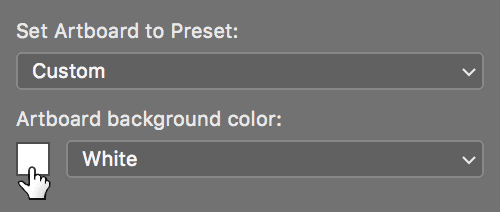
At the bottom, next to the # type ffcc99
TIP: For colors that are 3 pairs (such as ffcc99) you can shorten them to 3 characters. In this example you could simply type fc9 to save some typing!
- Click OK.
- In the Layers panel, click on the Tablet artboard to select it.
- Hold Cmd (Mac) or CTRL (Windows) and click on the Phone artboard so both artboards are selected.
- In the Properties panel, at the bottom of the Canvas section, next to Fill click the white color box to open the color picker.
With the Color Picker dialog open, we can sample other colors in the file. Click on the background color of the Desktop artboard. Be sure to aim at a place that does not have a gray column, or else you’ll pick up that color instead.
This should set the color to #ffcc99
Click OK.
Creating Colored Backgrounds for the Text
The desktop design will have two columns: a main column on the left and a sidebar column on the right. Let’s create background colors for both columns.
- In the Layers panel, select the Desktop artboard.
- Go to View > Fit Artboard on Screen.
Text and image content should align with the gray columns. Backgrounds (such as colors, patterns, or photos) should align at the midpoint between those columns. This template has guides marking those midpoints.
The gutters (empty space between the grid’s 12 columns) are 30 pixels, so there’s 15px from the gray content column to the center gutter guide. This will provide some nice padding around the content we’ll add later.
We want to create a vector rectangle, so two-thirds of the way down the Tools panel, select the Rectangle tool
 .
.NOTE: If you don’t see the tool, make sure you’re using the Graphic and Web workspace (Window > Workspace > Graphic and Web).
Towards the bottom of the Tools panel, click the Default Foreground and Background Colors button
 (or press D on the keyboard).
To the right of that, click the Switch Foreground and Background Colors button
 (or press X on the keyboard).
The foreground color should now be white.
- In the Options bar at the top of the screen, set the menu on the far left to Shape. (It may currently say Path or Pixels.)
Let’s draw a rectangle over the rightmost 3 columns. As shown below, starting near the top of the file at the rightmost blue guide (in the gutter area), draw a rectangle that spans 3 gray grid columns, aligning the left side to a center gutter guide.
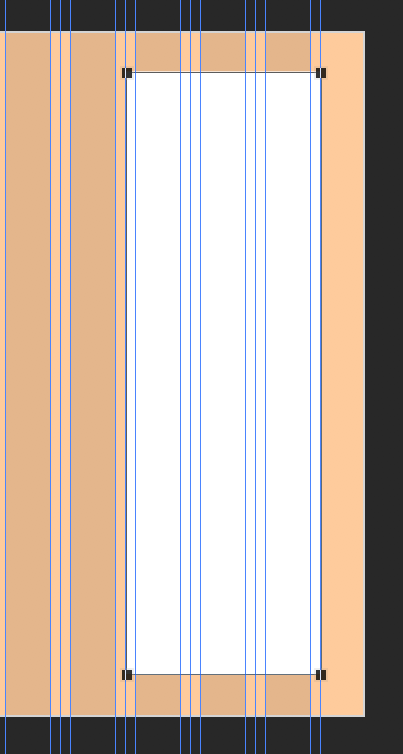
- Let’s reduce the opacity of the sidebar. With Rectangle 1 still selected, at the top of the Layers panel reduce Opacity to 50%.
Let’s create the main column on the left, filling the remaining columns. As shown below, drag out a rectangle from the edge of the sidebar, over to the leftmost blue guide:
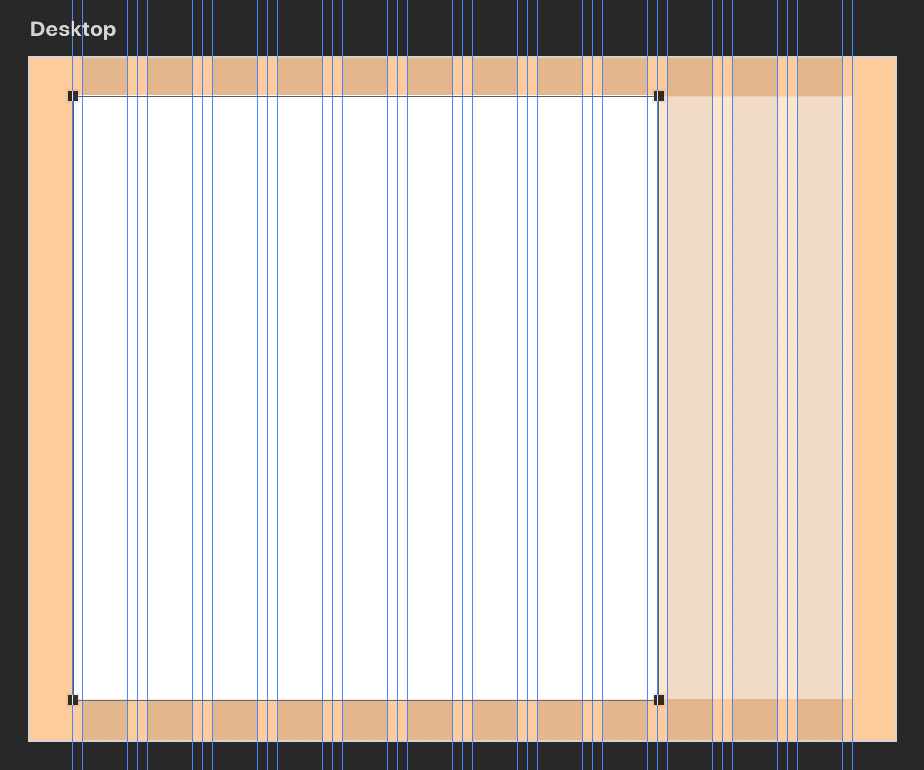
The new rectangle should be white. If the 2 background fills are not the same height, do the following:
- In the Layers panel, Rectangle 2 should be selected.
- Go to Edit > Free Transform Path.
- Drag the top or bottom resize handles to resize, and Photoshop’s pink Smart Guides should help you snap to align with the sidebar on the right.
- Hit Return (Mac) or Enter (Windows) to accept the change.
Importing & Styling Text
Now that we have our colored backgrounds, we’re ready to import the text that will go on top of them. Let’s fill the larger white main content area first.
In the Layers panel, in the Desktop artboard, drag the columns layer above both of the Rectangle layers.
We want our text to line up with these gray column guides, so we need to keep the columns layer in front (on top) so we can see the columns as we create the text.
- The next layer we create will be added above the layer that’s selected in the Layers panel. We want it to be created under the columns layer, so in the Layers panel, select the layer just below the columns layer.
- We prepared the text for you ahead of time. Hide or minimize Photoshop, so you can see the Desktop.
- On the Desktop, go into Class Files > yourname-Photoshop for Web Class > NYC and open NYC text—main.txt.
- Select all the text (Cmd–A (Mac) or CTRL–A (Windows)).
- Copy it (Cmd–C (Mac) or CTRL–C (Windows)).
- Close the file and go back to yourname-About Page.psd in Photoshop.
- In the Tools panel, select the Type tool
 .
. - Hover anywhere over the rectangle but do not click yet!
- Make sure the text cursor has a square outline
 . If it has a circle around it, hit Return (Mac) or Enter (Windows) to deselect the rectangle (so we don’t lock text into the background color shape).
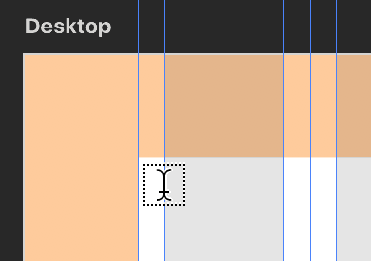
 Hover over the second blue guide (at the left of the first gray content area) and line up the small crosshair line in the middle of the text cursor with the blue guide:
Leaving a little space at the top and bottom, draw a rectangle that spans the gray grid columns over the white background. Do not go into the gutter area to the right of the last column, align with the edge of the gray column instead. Your text box should look as follows:
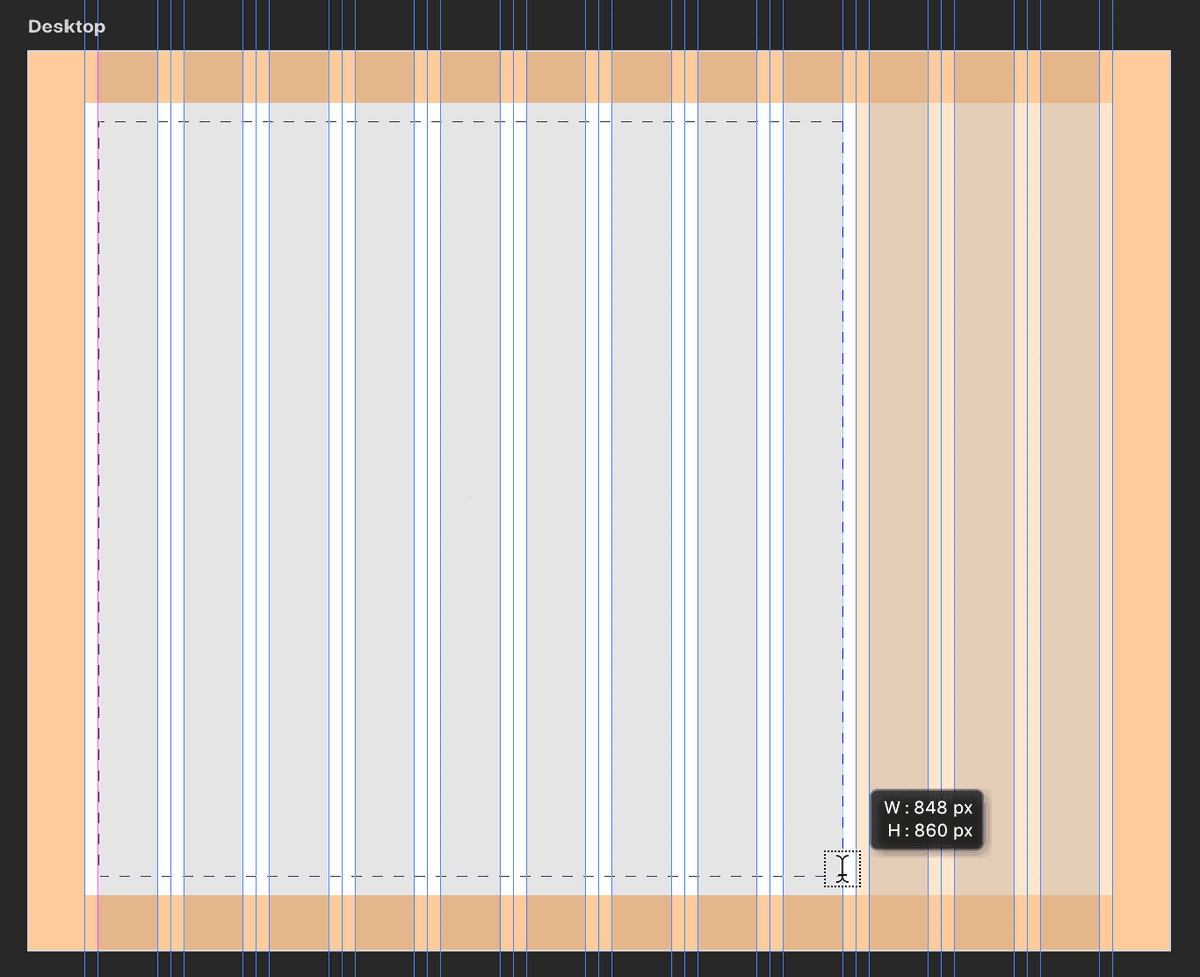
- Because we made the background slightly wider, notice that we have 15 pixels of colored background surrounding the left/right of the text box. Nice!
- Go to Edit > Paste or hit Cmd–V (Mac) or CTRL–V (Windows).
- Photoshop’s text styling defaults to whatever you last used. Let’s make sure we are all starting with the same basic styling so we’ll end up with the same results. Select all the text by hitting Cmd–A (Mac) or CTRL–A (Windows).
- Open the Paragraph Styles panel by choosing Window > Paragraph Styles.
- At the bottom of the Paragraph Styles panel, click the Clear Override button
 to reset the Basic Paragraph style to its defaults. If the button is grayed out that’s fine, it’s already correct.
 In the Character panel (at the top right of the screen), set the following options:
Font: Arial Regular Font size  :
:14 px Leading  :
:25 px - It’s hard to see where each paragraph starts and ends, so let’s add some space between paragraphs. With the text still selected, switch to the Paragraph panel (at the top right of the screen, or choose Window > Paragraph).
- Set Space after paragraph
 to 14 px. Much nicer.
 - Switch to the Move tool
 to commit the changes.
 - Do a File > Save.
- Let’s get a better sense of our design. In the Layers panel, in the Desktop artboard, click the eye to hide the columns layer.
To hide the guides and get an even better feel for the page, go to View > Show > Guides.
It’s a really basic layout right now, but we’re just getting started.
- We still need to import the sidebar text, so go back into View > Show > Guides to bring back the guides.
- In the Layers panel, show the columns layer to get a better sense of where the content areas are.
- To grab the sidebar text we prepared for you, hide or minimize Photoshop, so you can see the Desktop.
- On the Desktop, go into Class Files > yourname-Photoshop for Web Class > NYC and open NYC text—sidebar.txt.
- Select all the text and copy it.
- Close the file and switch back to yourname-About Page.psd in Photoshop.
- Select the Type tool .
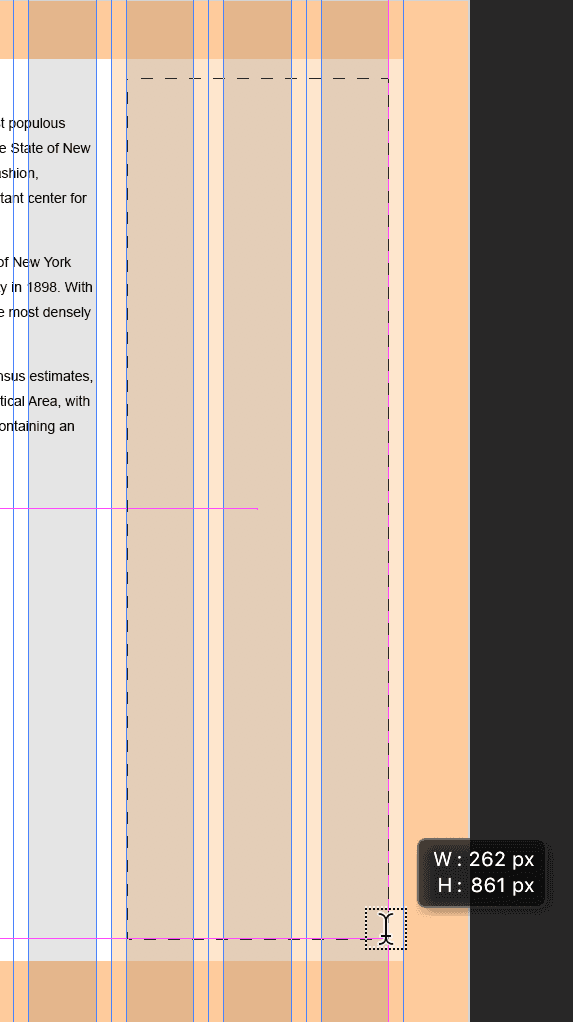
Draw a text box spanning the 3 gray columns of the sidebar. (Do not go into the left and right gutters.) Your text box should look as follows:
- Paste the text and notice that it has the same formatting as the previous text. Sweet!
- The two background rectangles are a bit tall for the text. In the Layers panel, click on Rectangle 1 to select it.
- Shift–click on Rectangle 2 so both are selected.
- Go to Edit > Free Transform Path.
- Drag the bottom resize handle up so they end a bit below the text.
Hit Return (Mac) or Enter (Windows) to apply the change.
Viewing at Accurate Size
We’ll talk more about designing for low-res and hi-res displays later, but for now we just want to ensure you’re viewing the file at the correct size. Go to View > 100%.
If you’re on a low-resolution monitor (which many people still are), you should be viewing this file at the accurate size (the size it will appear to people viewing it in a web browser).
If you’re on a high-resolution monitor (Retina display, 4,000, 5,000, etc.) 100% is too small. Go to View > 200% and now it should be the accurate size (the size it will appear to people viewing it in a web browser). It will look somewhat pixelated because it is not a hi-res graphic (which you’ll learn about in later exercises).
- Once again we want to get a better sense of the overall design. Hide the columns layer.
- Let’s hide the guides. We’ll be hiding and showing guides a lot, so let’s learn the keystroke to toggle them on/off. Hit Cmd–; (Mac) or CTRL–; (Windows).
Do a File > Save.
Bootstrap 4 Grid Sizes
Below are the sizes for Bootstrap 4’s grid across various screen sizes and devices. The Gutter Width is always 30px (15px on each side of a column).
Extra Small Devices <576px Max Container Width: None (full width of device)
Small Devices ≥576px Max Container Width: 540px
Medium Devices ≥768px Max Container Width: 720px
Large Devices ≥992px Max Container Width: 960px
Extra Large Devices ≥1200px Max Container Width: 1140px