April 1, 2026Dan Rodney/7 min read

Working with Photos & Graphics

Master InDesign Photo and Graphics Integration Techniques

What You'll Master in This Tutorial

Document Setup

Learn to configure proper document bleeds and margins for professional print layouts. Master the foundation of quality design output.

Image Integration

Combine pixel-based photos and vector graphics seamlessly. Understand the difference between image types and their applications.

Typography Control

Apply professional typographic techniques including leading, alignment, and frame positioning for polished text layouts.

Topics Covered in This InDesign Tutorial:

Master essential print design fundamentals including Document Bleed Setup, Strategic Image Placement, Professional Text & Image Integration, and High-Contrast Typography with White Type on Black Backgrounds

Exercise Preview

eyeworks done

Exercise Overview

In this hands-on exercise, you'll create a professional magazine advertisement that combines compelling photography, brand identity elements, and persuasive copy. This project demonstrates core InDesign principles used daily by graphic designers and marketing professionals to create print-ready campaigns that drive results.

Creating the File

Setting up your document correctly from the start is crucial for professional print production. We'll configure proper bleeds and margins to ensure your design prints flawlessly.

  1. From the File menu, select New > Document.

    • At the top of the dialog that opens, click on the Print tab to access print-specific presets.
    • Click once on the Letter (8.5 X 11 in) preset to establish your canvas size.
    • On the right panel, ensure Units is set to Inches for precise measurements.
    • Uncheck Facing Pages since we're creating a single advertisement, not a spread.
    • Expand the Margins section if needed, and verify the link link bleed etc. on is active to maintain uniform margins.
    • In any of the 4 Margin fields, enter 1/2 in and hit Tab. This creates professional breathing room around your content.
    • Expand the Bleed and Slug section and confirm the link link bleed etc. on is active for consistent bleed measurements.
    • In any of the 4 Bleed fields, enter 1/8 in and hit Tab. This industry-standard bleed prevents white edges during the printing process.
  2. Click Create to generate your professionally configured document.

Document Setup Process

1

Select Print Template

Choose File > New > Document, click Print tab, and select Letter (8.5 X 11 in) preset with Units set to Inches

2

Configure Margins

Uncheck Facing Pages, expand Margins section, ensure link is checked, and enter 1/2 in for all margins

3

Set Bleed Area

Expand Bleed and Slug section, check link is on, enter 1/8 in for all bleed amounts, then click Create

Professional Print Setup

Bleed areas extend beyond the final trim size to ensure no white edges appear when the document is cut. The 1/8 inch bleed is industry standard for most print applications.

Adding the Photo (a Pixel-Based Graphic)

Photography is often the hero element in advertising design. We'll create a full-bleed image that commands attention and provides a dramatic backdrop for our message.

  1. Select the Rectangle Frame tool rectangle frame tool to create a container for your image.
  2. Drag from the top left corner of the red bleed guides to the bottom right corner, ensuring your frame extends to the very edge of the bleed area. This full-bleed approach creates maximum visual impact.
  3. With the frame still selected, navigate to File > Place to import your image.
  4. In the InDesign Class folder (located in Desktop > Class Files), double-click on Eyeworks photo.jpg to select this high-resolution stock image.
  5. Since high-resolution photos often import larger than the frame, choose Object > Fitting > Fill Frame Proportionally. This command ensures the image covers the entire frame while maintaining proper proportions—critical for professional results.
  6. Switch to the Selection tool selection tool to refine your image positioning.
  7. Choose View > Zoom Out to see your work in context.
  8. To fine-tune the image crop, hover over the photo until the Content Grabber (circular donut icon) appears in the center, then click it to select the image content rather than the frame.
  9. Hold Shift while dragging the bottom right resize handle down slightly to enlarge the photo. The Shift key maintains proportional scaling, preventing distortion that would compromise your professional presentation.

    NOTE: This proportional scaling technique is essential for maintaining image quality and avoiding the amateur mistake of stretching photos.

  10. Choose View > Fit Page in Window to optimize your workspace view.

Adding the Text

Effective advertising copy must be both readable and compelling. We'll create high-contrast white text that cuts through the dark background while delivering a memorable brand message.

  1. Select the Type tool type tool to begin creating your text element.
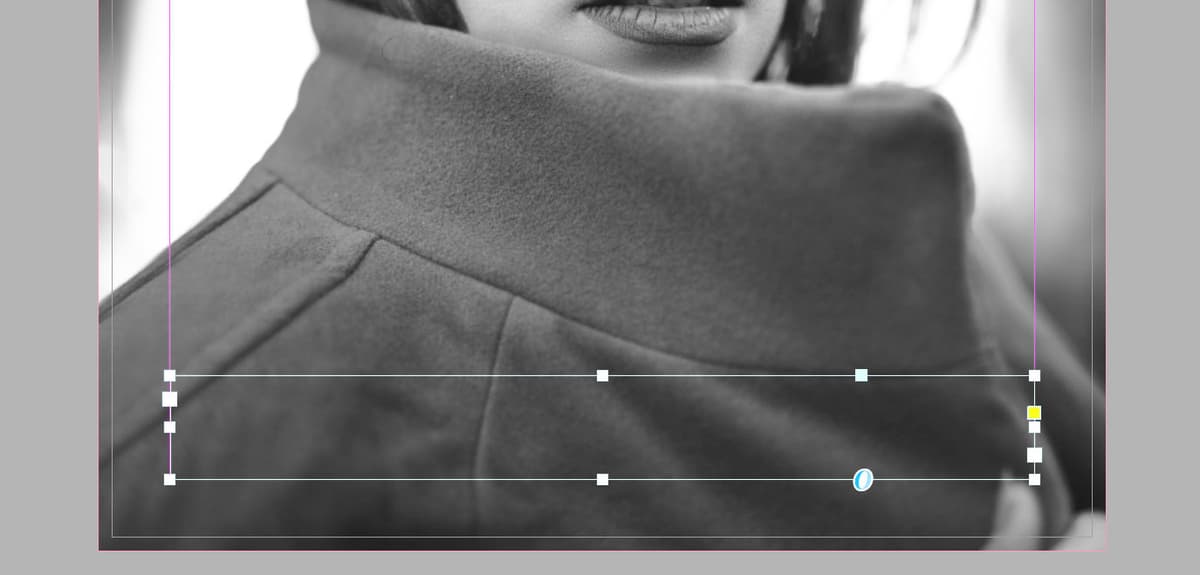
  2. Create a text frame in the bottom margin area (within the pink guides) as shown below. This positioning follows advertising best practices by placing the call-to-action where readers naturally conclude their visual journey.

    eyeworks place text frame

  3. Before typing, we'll set up white text for optimal contrast against the dark background. Open the Swatches panel by clicking its icon on the right side or choosing Window > Color > Swatches.

  4. In the Swatches panel's top left, ensure the text Fill swatch is active (in front). If not, click it to activate text color controls.

    click fill swatch text

  5. Click the [Paper] swatch to set your text color to white—a critical choice for readability over dark backgrounds.

  6. Type the following compelling ad copy on two lines:

    A face is like a work of art. It deserves a great frame. Laeyeworks.com

  7. Select all the text to apply consistent formatting.

  8. In the Control panel at the top, configure these typography settings. Switch to Character options controlpanel characterformatting if needed:

    Font: Myriad Pro Bold or Myriad Variable Concept Bold (Bold fonts command attention and improve readability)
    Size type size: 15 pt
    Leading leading: 20 pt

    NOTE: Leading controls line spacing—a term inherited from traditional typesetting when lead strips separated text lines. Proper leading dramatically improves readability and professional appearance.

    Text Setup Requirements

    0/4

Typographic Shorthand

Professional designers use efficient notation to communicate type specifications quickly and clearly.

15 pt size with 20 pt leading is written as 15/20 in industry shorthand—a time-saving convention you'll encounter throughout your design career.

  • Still in the Control panel, click the Align center button center aligned paragraph. Switch to Paragraph options controlpanel paragraphformatting if this control isn't visible. Center alignment creates visual balance and focuses attention on your message.
  • To position text at the bottom of the frame (aligning with the bottom margin guide), choose Object > Text Frame Options.
  • Under Vertical Justification, set Align to Bottom. This precise positioning demonstrates attention to detail that separates professional work from amateur attempts.
  • Click OK to apply these settings.

  • Typography History

    Leading gets its name from metal typesetting days when strips of lead were placed between lines of type. The 15/20 shorthand represents 15 pt type size with 20 pt leading spacing.

    Typography Notation Methods

    FeatureLong FormShorthand
    Size and Leading15 pt size, 20 pt leading15/20
    Professional UsageBeginner friendlyIndustry standard
    Recommended: Learn shorthand notation for efficient communication with other designers and print professionals.

    Adding the Logo (a Vector Graphic)

    Brand identity elements like logos require precise placement and alignment to maintain professional credibility. Vector graphics ensure your logo remains sharp at any size or resolution.

    1. Clear any active selections by choosing Edit > Deselect All—this prevents accidental modifications to existing elements.
    2. Navigate to File > Place to import the logo.
    3. Double-click on Eyeworks logo.eps to select this vector-based logo file. EPS format preserves crisp edges essential for professional print reproduction.
    4. Your cursor transforms into a loaded placement tool showing a logo thumbnail. Position it in the space above your text and click once to place it strategically within the composition.
    5. Focus on vertical positioning first—use the Selection tool selection tool to move the logo up or down until it's properly positioned above the text with appropriate spacing.

    6. Ensure the Eyeworks logo remains selected for the next alignment step.

    7. Open the Align panel via Window > Object & Layout > Align to access professional alignment tools that ensure pixel-perfect positioning.

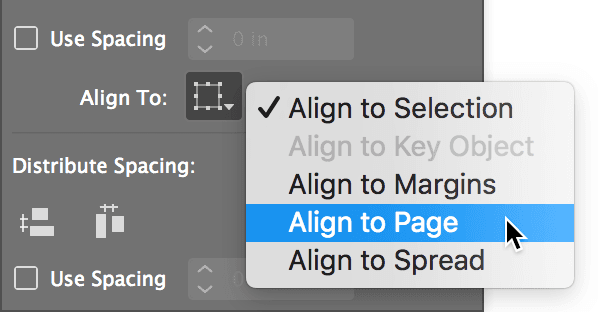
    8. Click the dropdown next to Align To and select Align to Page as shown below. This reference point ensures your logo centers perfectly within the page boundaries.

      align to page

    9. Under Align Objects, click Align horizontal centers align center forObjects to achieve perfect horizontal centering—a detail that significantly impacts professional perception.

    10. Preview your completed design by clicking and holding the Normal button normal mode at the bottom of the Tools panel, then selecting Preview from the menu.

    11. Return to Normal view by clicking and holding Preview preview mode and choosing Normal.

      TIP: Master the W key shortcut to toggle Preview mode preview mode instantly—just ensure you're not actively editing text. This workflow efficiency separates experienced designers from beginners.

    12. Save your professional work via File > Save As, naming it yourname-Eyeworks Ad.indd and storing it in the InDesign Class folder for easy access.

      NOTE: Documents containing multiple high-resolution images can impact InDesign performance. For faster workflow, switch to View > Display Performance > Typical Display during active design work, then return to View > Display Performance > High Quality Display for final review and client presentations. This performance optimization technique is standard practice in professional design environments.

    Vector Logo Placement

    1

    Clear Selection

    Go to Edit > Deselect All to ensure nothing is currently selected before placing new elements

    2

    Place Vector File

    Use File > Place, double-click Eyeworks logo.eps, then click once above text to place with loaded cursor

    3

    Center Alignment

    Open Align panel, set Align to Page, then click Align horizontal centers for perfect positioning

    Preview Mode Shortcut

    Press W to quickly toggle between Normal and Preview modes. Preview mode hides guides and frames for a clean view of your final design. Just ensure you're not editing text when using this shortcut.

    Optional Bonus: Editing the Logo in Adobe Illustrator

    InDesign's integration with Adobe Illustrator allows seamless logo customization without compromising vector quality—a powerful feature for brand adaptation and client revisions.

    1. If Adobe Illustrator is installed, hold Option (Mac) or ALT (Windows) and double-click the logo to launch Illustrator's editing capabilities.
    2. Allow Illustrator to launch and automatically open the logo file for editing.
    3. Choose Select > All to select all logo elements simultaneously.
    4. Near the bottom of the Tools panel, double-click the orange fill color icon to open color selection options.
    5. Select a color that aligns with your design vision or brand requirements, then click OK to apply the change.
    6. Save your modifications with File > Save.
    7. Switch back to InDesign to see your logo color change automatically reflected—demonstrating the seamless integration between Creative Cloud applications that streamlines professional design workflows.
    Performance Optimization

    Documents with many large graphics can slow down InDesign. Switch to View > Display Performance > Typical Display for faster work, then return to High Quality Display when needed for final review.

    Cross-Application Editing

    1

    Access Illustrator

    Hold Option (Mac) or ALT (Windows) and double-click logo to launch Adobe Illustrator with the file

    2

    Edit Color

    Select All, double-click fill color icon in Tools panel, choose new color and click OK

    3

    Update InDesign

    Save in Illustrator, then switch back to InDesign where the logo color automatically updates

    Key Takeaways

    1Proper document setup with 1/8 inch bleed and 1/2 inch margins ensures professional print output quality
    2Fill Frame Proportionally maintains image aspect ratios while fitting photos to frame boundaries
    3White text on dark backgrounds requires setting text color to Paper swatch before typing
    4Typography shorthand notation (15/20) efficiently communicates size and leading measurements
    5Content Grabber tool allows precise photo positioning and scaling within frames
    6Vector graphics (EPS files) scale infinitely without quality loss, unlike pixel-based images
    7Align panel with 'Align to Page' setting provides precise horizontal and vertical positioning
    8Cross-application editing between InDesign and Illustrator enables real-time design updates

    RELATED ARTICLES