April 1, 2026Dan Rodney/6 min read

Tables: Free InDesign Tutorial

Master Professional Table Design in Adobe InDesign

What You'll Master

Excel Integration

Import and place Excel data with formatting intact. Learn proper import settings for seamless workflow integration.

Table Formatting

Apply professional styling including fills, strokes, fonts, and spacing. Create visually appealing data presentations.

Data Organization

Reorder table cells and rows efficiently. Master drag-and-drop techniques for data restructuring.

Topics Covered in This InDesign Tutorial:

Master the art of importing Excel data into professional layouts by learning to place Excel tables with their original formatting preserved, create repeating table headers that appear on every page, apply sophisticated formatting including fills and strokes, and reorganize table content with precision drag-and-drop techniques.

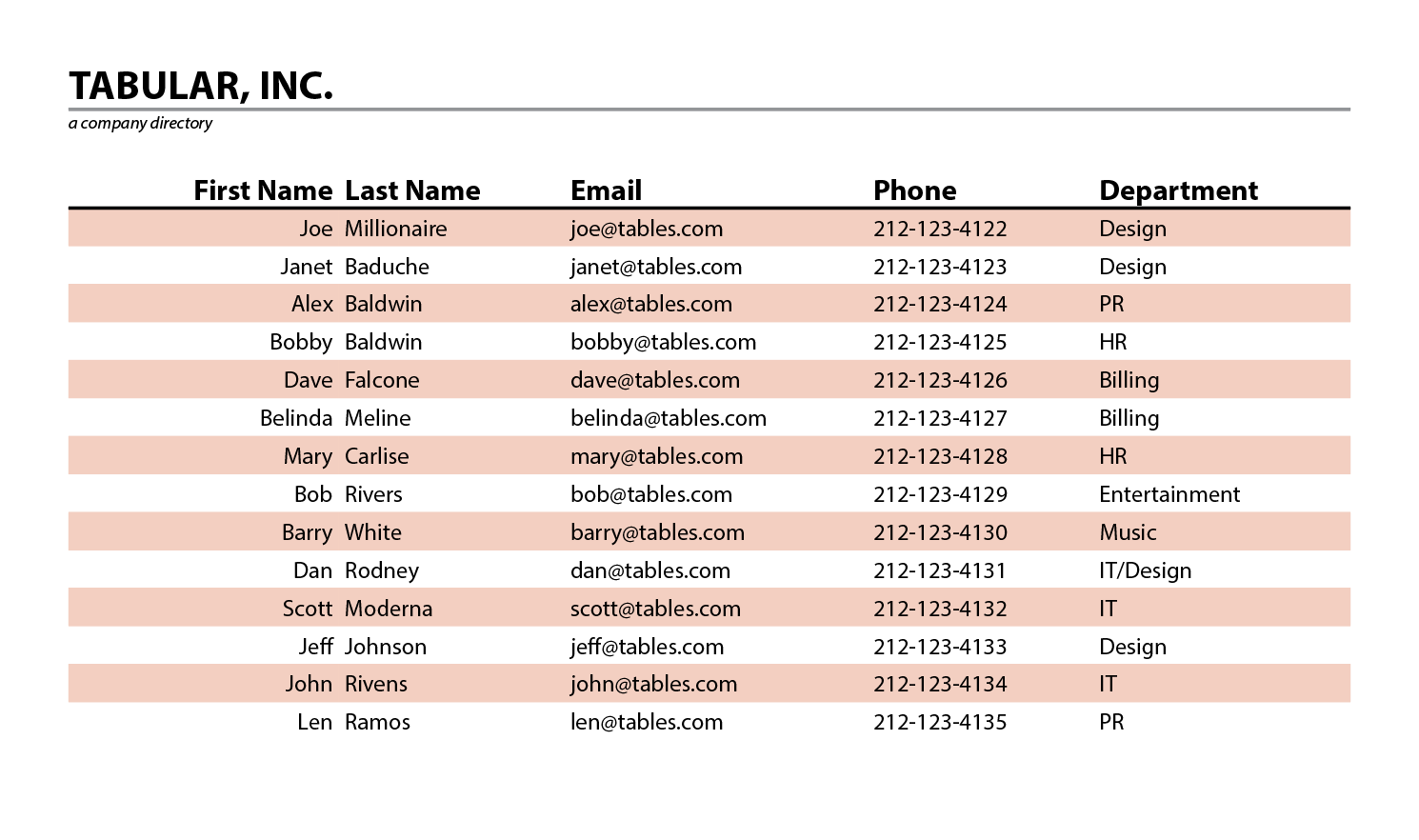
Exercise Preview

table done

Exercise Overview

In today's data-driven design environment, the ability to seamlessly integrate spreadsheet data into professional layouts is essential. In this hands-on exercise, you'll master the complete workflow of importing Excel data and transforming it into a polished, publication-ready table using InDesign's comprehensive table formatting tools. You'll learn industry best practices for maintaining data integrity while achieving visual excellence.

Tutorial Workflow

1

Import Excel Data

Use File > Place with Show Import Options enabled to import formatted tables from Excel files

2

Apply Formatting

Set fonts, spacing, and define table headers that repeat across multiple pages

3

Enhance Appearance

Add alternating fills and adjust column widths to fit within margin guides

4

Reorganize Data

Use drag-and-drop to reorder table rows for proper data sequencing

Creating the Table

  1. Begin by opening Table.indd in InDesign.

  2. Navigate to File > Place to access the import dialog and configure the following settings:
    • At the bottom of the dialog window, ensure Show Import Options is checked (Mac users may need to click the Options button to reveal these settings).
    • Locate and select the Excel file named Table-company-directory.xls.
    • Click Open to proceed to the import options.
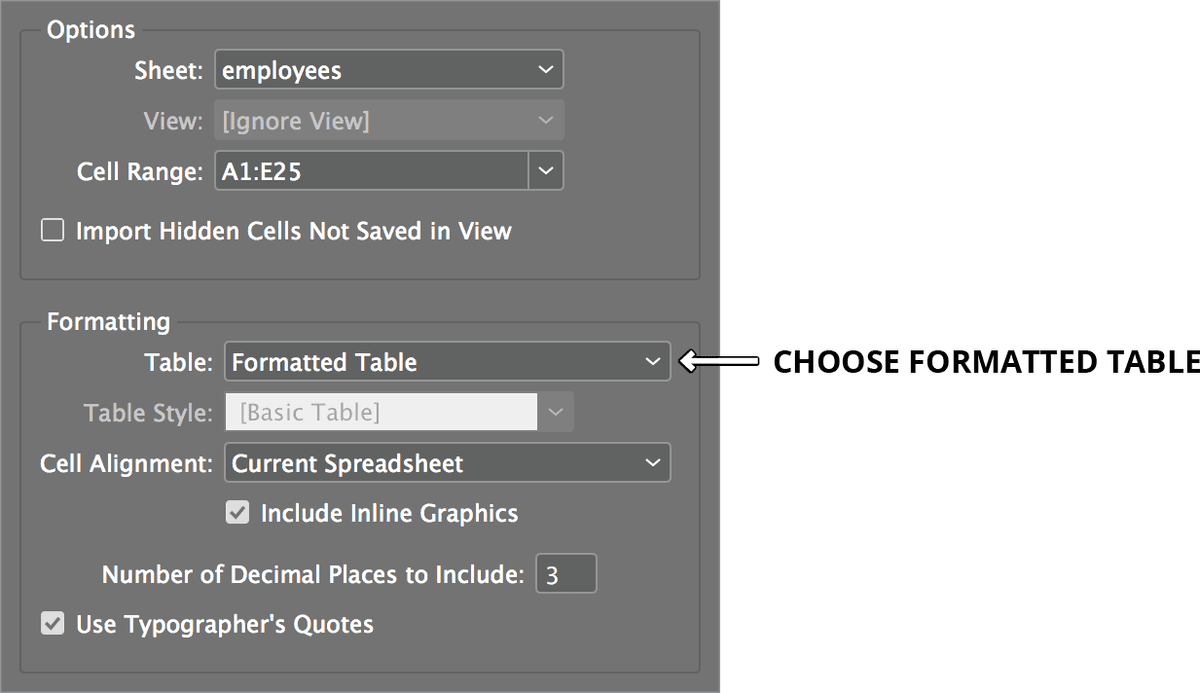
  3. The Microsoft Excel Import Options dialog will appear, allowing you to control how your data is interpreted. Configure the settings as shown in the image below, ensuring that the Formatting option is set to Formatted Table to preserve the original Excel styling. Click OK to continue.

    table import options

    NOTE: If InDesign displays missing font warnings, simply click Close. We'll be applying custom typography in the next section.

  4. Your cursor will now display a loaded text icon, indicating the table data is ready to place. Position the cursor over your primary text frame and click once to flow the content. Notice how InDesign intelligently fills the text frame with the tabular data and automatically generates additional pages to accommodate overflow content—a powerful feature for handling large datasets.

Import Setup Checklist

0/4
Font Warning Handling

If you encounter missing font messages during import, simply click Close. You'll be changing fonts as part of the formatting process anyway.

Formatting the Table & Defining Table Headers

Now that your data is placed, we'll transform it into a professional table with consistent headers and refined typography. This process ensures your table maintains readability and visual hierarchy across multiple pages.

  1. Examine the table on page 1, noting the column headers: First Name, Last Name, and other data categories at the top row.

  2. Navigate to page 2 and observe that these crucial headers are absent. For professional multi-page tables, headers must repeat on every page to maintain usability and readability.

  3. Before establishing headers, let's optimize the typography. Ensure you're using the Type tool type tool.

  4. Click anywhere within the table, then navigate to Table > Select > Table to select the entire table structure.

  5. In the Control panel, update the typography to 8 pt Myriad Pro Regular for optimal readability in table format.

  6. With the table selected, you'll notice the tight spacing between data elements. Let's add professional spacing:
    • Open the Tables panel by going to Window > Type & Tables > Table. (On larger displays, these controls may be visible in the Control panel.)
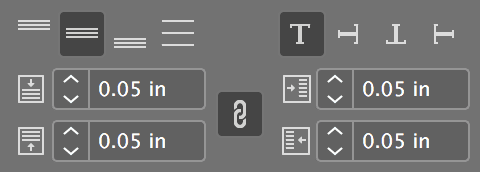
    • Configure the cell inset values as shown below. Click the link icon to maintain proportional spacing, then enter the values once:

    table options

  7. Return to page 1 to establish the repeating header functionality.

  8. Using the Type tool type tool, click anywhere in the first row containing your column headers (First Name, Last Name, etc.).

  9. Execute Table > Convert Rows > To Header to establish this row as a repeating header.

  10. Immediately check page 2 to verify that the header now appears automatically—this is one of InDesign's most powerful table features for professional document production.

  11. To optimize the table's layout within your design margins, position your cursor over the table's right border. When the cursor transforms into a double arrow table resize arrows, hold Shift and drag until the border aligns with your right margin guide.

    Professional tip: Holding Shift during this operation resizes all columns proportionally, maintaining visual balance.

  12. Fine-tune individual column widths as needed. To adjust specific columns without affecting overall table width, hold Shift while dragging individual column borders.

  13. Navigate between pages to confirm that your adjustments are applied consistently throughout the entire table structure.

  14. To establish visual hierarchy, select the header row by dragging across all header cells on the first page.

    Professional tip: If selection proves difficult, place your cursor anywhere in the table and choose Table > Select > Header Rows for precise selection.

  15. In the Control panel, enhance the header typography to 10 pt Myriad Pro Bold to create clear visual distinction.

  16. Verify your changes on page 2—the header formatting should be automatically applied, demonstrating InDesign's intelligent table management.

Header Row Functionality

Converting the first row to headers ensures column titles appear on every page of multi-page tables, maintaining readability throughout the document.

Font and Spacing Setup

1

Select Entire Table

Use Table > Select > Table to select all content for consistent formatting

2

Set Base Font

Change to 8 pt Myriad Pro Regular in the Control panel for optimal readability

3

Adjust Cell Spacing

Use the Tables panel to add appropriate spacing between table elements

More Table Formatting

Professional tables benefit from subtle visual enhancements that improve readability without compromising content clarity. We'll now apply alternating row fills—a design technique that guides the reader's eye across complex data.

  1. Return to page 1 and click anywhere within the table to activate the table formatting options.

  2. Navigate to Table > Table Options > Alternating Fills and configure the following professional settings:
    • Under Alternating Pattern, select Every Other Row for optimal readability.
    • Enable Preview in the bottom-left corner to evaluate changes in real-time.
    • Experiment with Color and Tint values, keeping in mind that subtle contrast (typically 5-15% tint) maintains professionalism while enhancing usability.
    • Click OK when satisfied with your selection.

Table Enhancement Techniques

Column Width Adjustment

Hold Shift while dragging borders to resize all columns evenly. Use Shift with individual borders to adjust specific columns without changing table width.

Header Styling

Format headers to 10 pt Myriad Pro Bold for visual hierarchy. Headers can only be edited in the first text frame where they appear.

Alternating Row Fills

Access Table > Table Options > Alternating Fills to apply Every Other Row pattern. Use Preview option to test different colors and tint amounts before applying.

Reordering Table Cells

Even the most carefully prepared data sometimes requires reorganization within the design environment. InDesign's drag-and-drop functionality allows for precise content reordering without returning to the source spreadsheet.

  1. Upon reviewing the data, you'll notice that the phone numbers aren't in proper ascending order. Specifically, Janet Baduche's phone number should appear after Joe Millionaire's for correct numerical sequence.

  2. InDesign's intuitive drag-and-drop interface makes reordering straightforward. To select Joe Millionaire's complete row, hover over the left edge of his name cell until a black selection arrow table select row arrow appears, then click.

    Professional tip: A downward-pointing arrow appears when hovering over column tops, providing the fastest method for column selection.

  3. Position your cursor anywhere within the selected row (avoiding borders) until it transforms into the drag cursor table drag and drop cursor. Click and hold—maintaining pressure throughout the following steps.

  4. While holding the mouse button, drag upward until a thick blue insertion line appears between the header row and Janet Baduche's row, as illustrated below:

    table release mouse

    Release the mouse button to complete the reordering.
  5. Execute Edit > Deselect All to clearly evaluate your organizational improvements.

  6. To view your completed work in its final presentation format, locate the Normal button normal mode at the bottom of the Tools panel. Click and hold, then select Preview from the contextual menu to see your table without guides and interface elements—exactly as it will appear in final output.

Drag and Drop Row Reordering

1

Select Target Row

Hover over the left edge of the cell until a black arrow appears, then click to select the entire row

2

Initiate Drag Operation

Click and hold anywhere in the selected cell except borders when cursor changes to move icon

3

Position and Release

Drag to desired location and release when thick blue line appears at target position

Column Selection

To select entire columns, hover over the top of any column until a downward-pointing black arrow appears, then click. This is the fastest method for column-wide operations.

Preview Your Work

Use Edit > Deselect All to see your formatting clearly. Access Preview mode by clicking and holding the Normal button at the bottom of the Tools panel for a clean view.

Key Takeaways

1Always enable Show Import Options when placing Excel files to maintain control over formatting settings
2Convert first rows to headers using Table > Convert Rows > To Header for consistent multi-page table presentation
3Use 8 pt Myriad Pro Regular for body text and 10 pt Myriad Pro Bold for headers to establish clear visual hierarchy
4Hold Shift while dragging table borders to resize all columns proportionally and maintain table structure
5Apply alternating row fills through Table Options to improve readability and create professional-looking tables
6Drag and drop functionality allows efficient reordering of table rows without recreating content
7Headers automatically appear on all pages when properly configured, ensuring consistent table structure
8Preview mode provides the clearest view of finished table formatting and overall design quality

RELATED ARTICLES