Anchored Frames
What This Tutorial Covers
Anchored Objects
Attach images and shapes to a text point.
Inline vs Custom
Two anchoring modes for different layout needs.
Text Reflow
Anchored objects move as the surrounding text changes.
Noble Desktop's Graphic Design Certificate covers InDesign alongside Photoshop and Illustrator.
Discover how to anchor frames and graphics within text in InDesign, ensuring that your images always move with the corresponding text, in this comprehensive tutorial.
Exercise Preview
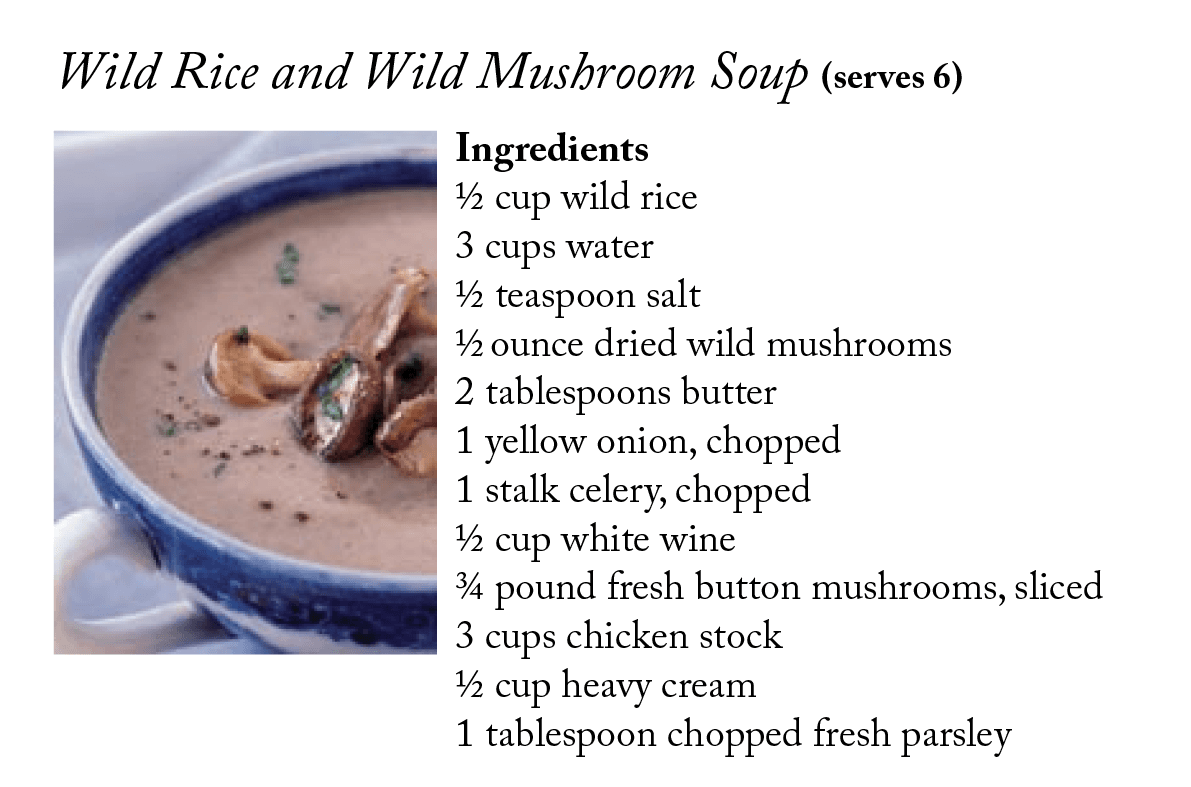
Anchoring an Icon in Recipes
We have an icon for recipes that are quick to prepare. We want the icon to stay with its particular recipe, so we’ll anchor it in the text next to the recipe name. Then we won’t have to keep an eye on it while making editorial changes.
Find the Bouillabaisse recipe (on page 19).
- Go to File > Place and:
- At the bottom of the window, make sure Show Import Options is unchecked. (Mac users may need to click the Options button.)
- Choose the picture recipe-icon-quick.eps.
As shown below, with the image loaded in the cursor, position the cursor to the right of the recipe name and click once to place the graphic.
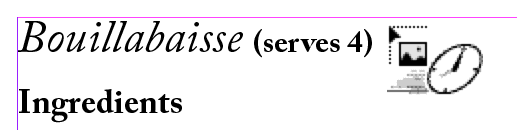
If your current preview is pixelated, go into View > Display Performance > High Quality Display to make it look better.
Choose the Selection tool
 .
.Do an Edit > Cut.
Select the Type tool
 .
.Place the cursor at the end of the recipe name line, just to the right of (serves 4).
Press the spacebar to type in one space (so the image won’t be too close to the text).
Do an Edit > Paste.
As shown below, the icon will appear on the line. The icon is larger than we would like it to be. It would look better if it was about the same height as the recipe title text. Let’s scale it down.
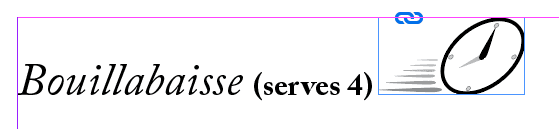
Choose the Selection tool
.Click anywhere on the image except the center to select the picture frame. You should see a blue bounding box around the image. If you see a brown bounding box instead, that means you clicked on the center of the image and selected the actual image inside instead of the picture frame.
To select it correctly, click anywhere on the page to deselect the image. Then, making sure not to click on the center of the image, click on the image again.
Hold Cmd–Shift (Mac) or CTRL–Shift (Windows) and drag the bottom right resize handle in to resize it down so it is roughly the same height as the recipe title text. Refer to the image below if necessary.
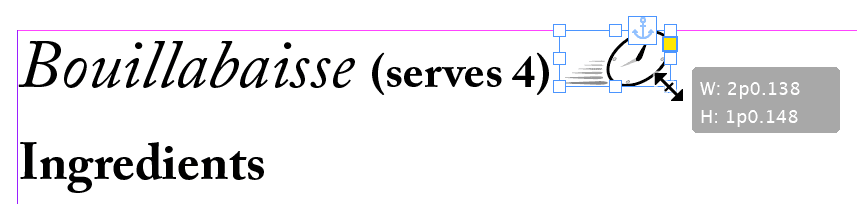
NOTE: Holding Cmd (Mac) or CTRL (Windows) lets you resize the box and the image inside at the same time. Holding Shift scales the image proportionally.
Now that the image is scaled down, let’s perfect its placement. If you are in Normal mode, press W to switch into Preview mode. This will hide all the guides on the page and make it easier to perfect the icon placement. To switch back to Normal mode, press W again. Feel free to switch between Normal and Preview mode as you see fit.
Depending on how much you scaled the image, the icon may be too high or too low. There are two different ways to move the icon up or down. We’ll start with the easiest.
Using the Selection tool
, click anywhere on the image except the center and drag the image up or down to adjust it. You can also use the Up and Down Arrow keys to move the image slightly without having to drag. Make sure you don’t click on the center of the image! If you do, you will move the image inside of its frame which is not what we want. If you accidentally did this, just do an Edit > Undo and try again.Another way to adjust the icon’s placement is to use the Type tool
to highlight the icon as though it were a character of text and then Baseline Shifting it. Let’s give this a try.Select the Type tool
.Click just to the right of the icon image and drag to the left to highlight the icon as though it were a character of text. Make sure you click to the right of the icon and not the icon itself. The cursor should look like this
 when you start to drag.
Once you have the icon highlighted, use the keyboard shortcuts below to move the image up or down:
Mac: Opt–Shift–Up Arrow or Opt–Shift–Down Arrow Windows: ALT–Shift–Up Arrow or ALT–Shift–Down Arrow TIP: You can change the amount that the keyboard shortcut adjusts the Baseline Shift by going into InDesign > Preferences > Units & Increments (Mac) or Edit > Preferences > Units & Increments (Windows). Look for Baseline Shift at the bottom of the dialog.
Adjust the placement of the image to what you think looks good.
With this icon done, we can quickly add it to other recipes. With the Type tool
still selected, highlight the icon and the space to the left of it as you would any characters of text.Copy it.
Go to another recipe such as Cold Cucumber Soup (on page 23).
Place the cursor at the end of the line where you want the icon.
Paste it.
To see why these anchored pictures are useful, change the Cold Cucumber Soup to Chilled Cucumber Soup. Notice how the icon moves with the text! This makes edits faster and the design more consistent.
Anchoring a Recipe Picture
Find the Wild Rice and Wild Mushroom Soup recipe (on page 20).
Choose the Selection tool
.Go to File > Place and choose the picture mushroom-soup.tif.
As shown below, with the image loaded in the cursor, position the cursor directly over the word Ingredients and click once. The image will come in pretty big and cover the text. Don’t worry, this is normal. We’ll fix it momentarily. Let’s start off by scaling the image.
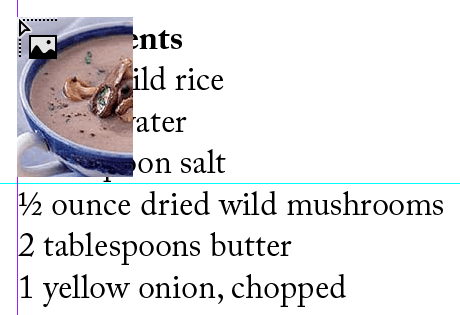
Using the Selection tool
, hold Cmd–Shift (Mac) or CTRL–Shift (Windows) and drag the bottom right resize handle in to resize it down so it’s almost as tall as the list of ingredients (about two lines shorter than the list of ingredients). Refer to the screenshot below if necessary.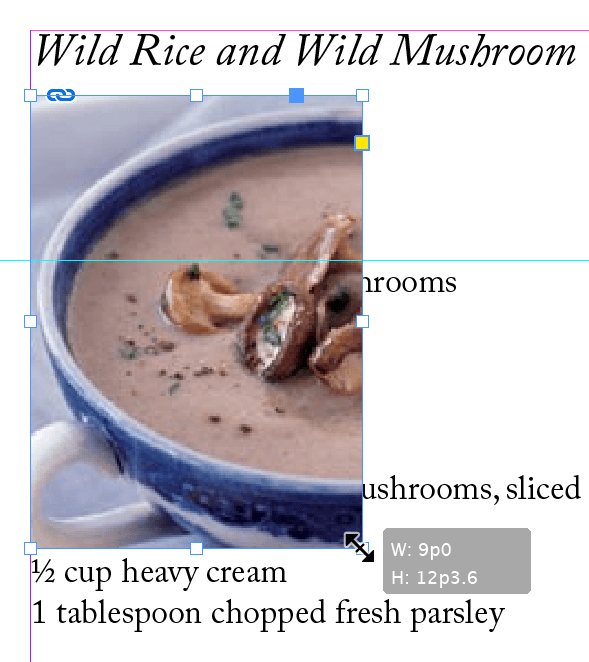
With the picture frame still selected, do an Edit > Cut.
Select the Type tool
and place the cursor just before the word Ingredients.Do an Edit > Paste. The image will be sticking up. Let’s fix that.
We want the image to go down into the Ingredients text instead of sticking up like it is currently. Using the Selection tool
, click anywhere except the center of the image and drag it down so the top of the image lines up with the top of Ingredients.We need to add a text wrap so the type won’t cover the image. Open the Text Wrap panel (Window > Text Wrap).
At the top of the panel, click the second button Wrap around bounding box
 .
.Make sure the link is NOT checked
 , and set the remaining options as shown: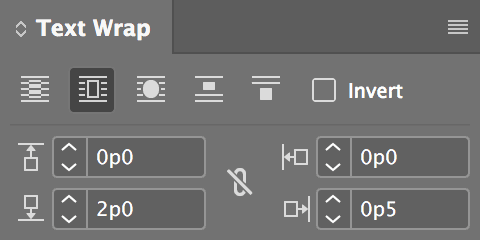
Let’s see how the image moves with the text when edits are made. In the recipe title at the top of the page, place the type cursor right before Wild Mushroom Soup.
Press Shift–Return (Mac) or Shift–Enter (Windows) (to make the text go to the next line without starting a new paragraph).
Notice how the image moved along with the text so it’s still nicely tucked into those ingredients. Yummy!
Save the file.