April 1, 2026Dan Rodney/2 min read

Viewing Notes: Free InCopy Tutorial

Master InCopy Note Management and Navigation Features

About InCopy Notes

InCopy's notes feature allows editors and writers to add comments and feedback directly within documents without affecting the main content flow.

Three Ways to View Notes in InCopy

Galley View

Inline note display with colored brackets. Best for text-heavy editing sessions where you need to see notes alongside content.

Story View

Similar to Galley view but with different formatting. Ideal for reviewing story structure while accessing notes.

Layout View

Notes appear as markers with mouse-over functionality. Perfect for design review and layout-focused editing.

Viewing Notes

InCopy's note system provides essential collaboration capabilities for editorial workflows. Understanding how to efficiently view and manage notes across different view modes will streamline your review process and enhance team communication.

Managing Note Visibility in Galley and Story Views

1

Expand Collapsed Notes

Click on the colored brackets surrounding a collapsed note to expand it and view the full text content.

2

Collapse Expanded Notes

Click on any of the colored brackets around an expanded note to collapse it and reduce visual clutter.

3

Bulk Note Management

Use Notes menu and select Expand/Collapse Notes in Story to open or close all notes simultaneously.

Efficiency Tip

Use the bulk expand/collapse feature when switching between detailed editing and overview reading to maintain optimal workflow.

Accessing Notes in Layout View

1

Locate Note Markers

Look for note markers embedded within the text that indicate the presence and location of attached notes.

2

Hover Over Marker

Position your mouse cursor over the top half of the note marker to activate the interactive functionality.

3

Click to View

When the cursor changes to a hand icon, click on the marker to open and display the note content.

Layout View Note Display

Pros
Maintains clean layout appearance
Notes don't interrupt text flow
Quick access through hover interaction
Ideal for design-focused reviews
Cons
Requires mouse interaction to view
Less visible than inline display
May slow workflow for text-heavy editing

Viewing Notes: in Galley & Story Views

  • When a note appears collapsed in your document, you'll see colored brackets notes closed brackets indicating hidden content. Click directly on these brackets to expand the note and reveal its full text—a crucial step for comprehensive content review.

    notes collapsed in story view

  • To maintain a cleaner workspace while editing, collapse expanded notes by clicking on any of the colored brackets notes closed brackets surrounding the note content. This allows you to focus on the main text while keeping annotations accessible.

  • For comprehensive review sessions or final approval stages, use the global note management feature: navigate to Notes > Expand/Collapse Notes in Story to toggle the visibility of all notes simultaneously. This is particularly valuable when reviewing documents with extensive editorial feedback.

Layout view presents a different approach to note visualization, designed to maintain the integrity of your document's visual design while preserving access to editorial feedback.

Managing Note Visibility in Galley and Story Views

1

Expand Collapsed Notes

Click on the colored brackets surrounding a collapsed note to expand it and view the full text content.

2

Collapse Expanded Notes

Click on any of the colored brackets around an expanded note to collapse it and reduce visual clutter.

3

Bulk Note Management

Use Notes menu and select Expand/Collapse Notes in Story to open or close all notes simultaneously.

Efficiency Tip

Use the bulk expand/collapse feature when switching between detailed editing and overview reading to maintain optimal workflow.

Viewing Notes: in Layout View

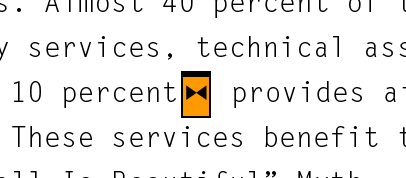
  1. In layout view, notes appear as discrete markers note marker for layout view embedded within the text flow. These markers preserve the visual integrity of your layout while clearly indicating annotation locations—essential for maintaining professional presentation standards during client reviews.

  2. To access note content, position your cursor over the upper portion of the marker note marker for layout view. The cursor will transform into a hand icon note marker with hand icon, indicating the marker is active and clickable. This interaction model ensures notes remain unobtrusive until specifically accessed.

The Notes panel provides centralized note management capabilities, offering additional efficiency for editors working with complex, heavily annotated documents.

Accessing Notes in Layout View

1

Locate Note Markers

Look for note markers embedded within the text that indicate the presence and location of attached notes.

2

Hover Over Marker

Position your mouse cursor over the top half of the note marker to activate the interactive functionality.

3

Click to View

When the cursor changes to a hand icon, click on the marker to open and display the note content.

Layout View Note Display

Pros
Maintains clean layout appearance
Notes don't interrupt text flow
Quick access through hover interaction
Ideal for design-focused reviews
Cons
Requires mouse interaction to view
Less visible than inline display
May slow workflow for text-heavy editing

Using the Notes Panel

  • Navigate efficiently through multiple annotations using the Previous and Next Note buttons located at the bottom of the Notes panel. This sequential navigation is invaluable when conducting systematic reviews or addressing editorial feedback in a structured manner, ensuring no comments are overlooked during the revision process.

Notes Panel Navigation

Previous Note Button

Located at the bottom of the Notes panel. Click to jump backward through notes in chronological or document order.

Next Note Button

Positioned alongside Previous button at panel bottom. Use to advance forward through all notes in the document.

Notes Panel Best Practices

0/3

Key Takeaways

1InCopy provides three distinct viewing modes for notes: Galley, Story, and Layout views, each optimized for different editing workflows
2Colored brackets in Galley and Story views allow quick expansion and collapse of individual notes by clicking
3The Notes menu offers bulk operations to expand or collapse all notes in a story simultaneously for better document overview
4Layout view uses subtle markers that activate on hover, maintaining clean design while providing note access
5Mouse cursor changes to a hand icon when hovering over the interactive portion of note markers in Layout view
6The Notes panel includes Previous and Next Note buttons at the bottom for sequential navigation through all document notes
7Different view modes serve different purposes: Galley and Story for text-focused editing, Layout for design review
8Efficient note management requires understanding when to use expanded vs collapsed states based on current editing task

RELATED ARTICLES