April 1, 2026Dan Rodney/10 min read

No Smoking Sign: Free Illustrator Tutorial

Master Vector Graphics with Step-by-Step Techniques

Core Illustrator Skills You'll Master

Shape Creation & Modification

Learn to use basic shape tools including ellipse, rectangle, and line segment tools with precision modifiers for perfect geometric forms.

Advanced Stroke & Fill Techniques

Master fill and stroke properties, color mixing in CMYK, and weight adjustments for professional vector graphics.

Layer Management System

Understand template layers, object grouping, and arrangement controls for organized workflow management.

Topics Covered in This Illustrator Tutorial:

Fill & Stroke, Basic Shape Tools, Grouping Objects, the Layers Panel, Working with Templates, Saving Illustrator Files: Options

Tutorial Prerequisites

0/3

Exercise Preview

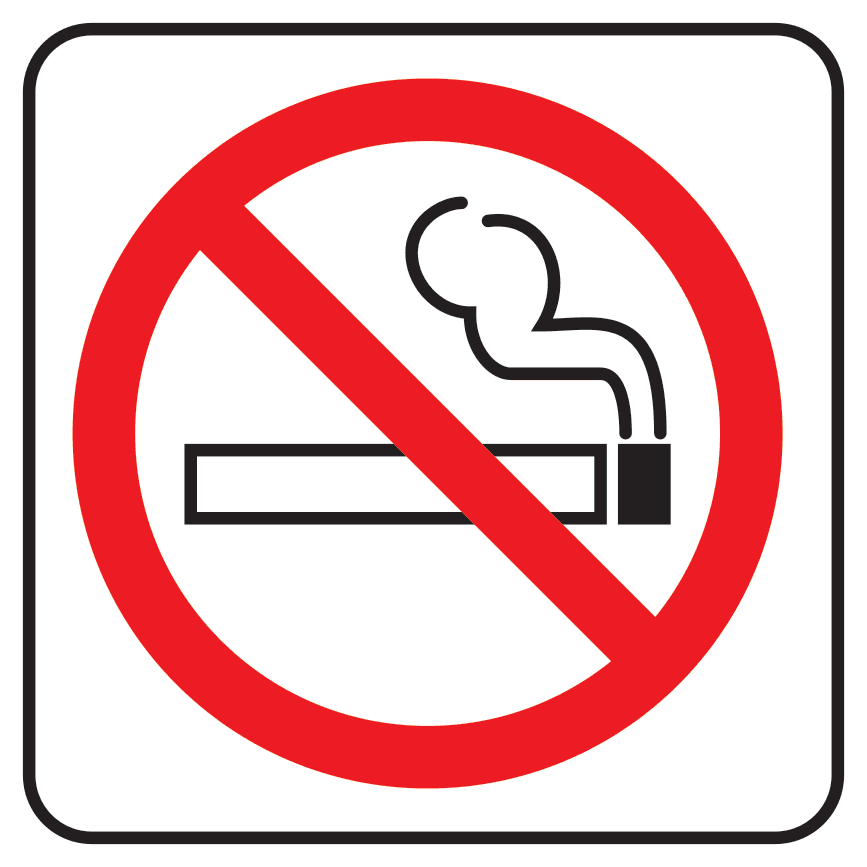
no smoking finished

Exercise Overview

This hands-on exercise will strengthen your foundation in vector drawing while introducing you to Illustrator's powerful Layers panel—a feature that separates amateur designers from professionals. You'll practice precise stroke and fill techniques, learn template-based tracing workflows, and master object organization methods that are essential for complex design projects. By the end, you'll have created a clean, professional no-smoking sign while building skills that apply to everything from icon design to complex illustrations.

Tutorial Workflow Overview

1

Document Setup

Create new print document, save with proper naming convention, and establish workspace with rulers and guides

2

Template Integration

Place template file and configure layers panel for organized tracing workflow

3

Vector Construction

Draw circle, slash line, and cigarette components using basic shape tools

4

Final Assembly

Group elements, arrange stacking order, and add finishing frame

Getting Started

First, we'll set up your workspace with the proper document settings and import the template that will guide your design process.

  1. Go to File > New to create a new document.
  2. At the top of the dialog that opens, click on the Print tab.
  3. Double–click the Letter preset.
  4. Select File > Save As, naming the document yourname-No Smoking.ai.
  5. Click Save. In the dialog that appears, leave the default options checked and click OK.
  6. Go to View > Fit Artboard in Window.
  7. Go to File > Place.
  8. In the Illustrator Class folder, click on NoSmoking.tif to select it, and then at the bottom of the window, check Template (Mac users may need to click the Options button).
  9. Click Place.
  10. In the tabs at the top right, to the right of the Properties panel name, click on the word Layers to switch to that panel. (If you can't find it, go to Window > Layers.)
  11. In the Layers panel, there are now two layers. The Template NoSmoking.tif layer holds the file you placed and is automatically locked to prevent accidental edits—a smart workflow practice that prevents costly mistakes. You'll create your vector artwork on Layer 1, which is already selected as the active layer.

  12. Go to View > Rulers > Show Rulers.

  13. From the top ruler, click and drag down a guide into the center of the circle. These guides will ensure perfect alignment—a hallmark of professional design work.

  14. From the left ruler, click and drag out another guide into the center of the circle.

  15. To make sure the guides are locked, go to View > Guides. If you see Unlock Guides, you're good to go! If you instead see Lock Guides, click that option now.

Template Layer Benefits

The template layer is automatically locked to prevent accidental editing while providing visual reference for precise tracing. This workflow technique is essential for recreating existing designs.

Essential Panel Setup

Layers Panel

Manages template reference and active drawing layers. Access via Window > Layers if not visible in default workspace.

Properties Panel

Primary interface for adjusting fill, stroke, and appearance settings. Streamlines common editing tasks.

Drawing the Circle & Slash Line

Now we'll create the fundamental elements of the no-smoking symbol using Illustrator's shape tools with precision modifiers that ensure perfect geometry.

  1. Select the Ellipse tool ellipse tool. If you don't see it, click and hold on the Rectangle tool rectangle tool to access it from the tool group.

  2. Hold down Option–Shift (Mac) or ALT–Shift (Windows), and click and drag from the center point where the guides meet to the edges of the circle.

    NOTE: This modifier combination is essential for professional work. Holding Option (Mac) or ALT (Windows) makes any shape draw from its center point rather than corner-to-corner, while Shift constrains proportions to create perfect geometric shapes. Master these modifiers—they're fundamental to efficient design workflows.

  3. We need to apply the distinctive red color that makes no-smoking signs universally recognizable. Go to the top right and click on the Properties panel name to switch to it.

  4. In the Properties panel under Appearance, click on the swatch next to Stroke.

  5. Set the color values to 100m, 100y—this creates the standard red used in warning signage. (If the Color Mixer panel isn't displaying CMYK values, access the panel menu panel menu at the upper right and choose CMYK.) Ensure both C and K values are set to 0.

  6. To close the Color Mixer panel, press Return (Mac) or Enter (Windows).

  7. With the circle still selected, return to the Properties panel and change the stroke weight from 1 pt to 19 pt using the menu to the right of the Stroke swatch.

    NOTE: Professional tip—you can also adjust stroke weight in the Control panel at the top of your screen or the dedicated Stroke panel (Window > Stroke), which offers additional options like dash patterns and cap styles for advanced stroke effects.

  8. You're currently in Preview mode, where fills can obscure your template reference. Switch to View > Outline to see the underlying template structure—this wireframe view is invaluable for precision work.

  9. Go to Select > Deselect to clear your selection before creating the next element.

  10. Select the Line Segment tool line segment tool.

  11. Hold down Option–Shift (Mac) or ALT–Shift (Windows) and click and drag from the center point to the edge of the circle, following the template's diagonal line.

    NOTE: The Shift modifier constrains lines to precise 90° or 45° angles, ensuring the diagonal slash maintains the exact angle required for effective prohibition signage.

  12. Keep the line selected and switch to Preview mode by choosing either View > GPU Preview or View > Preview.

    The line should automatically inherit the red color and 19pt thickness from your previous settings—Illustrator remembers your last-used appearance attributes, streamlining repetitive tasks.

    NOTE: GPU Preview leverages your graphics card for faster rendering and is available on most modern systems. It's particularly beneficial when working with complex artwork or effects.

  13. If you have GPU Preview available, compare both preview modes by pressing Cmd–E (Mac) or CTRL–E (Windows) repeatedly. Watch for differences in edge smoothness and overall rendering quality. The current preview mode appears in your document tab next to the filename. Choose whichever provides the best visual feedback for your system.

  14. Go to Select > Deselect to prepare for the next phase.

Modifier Key Combinations

Option/ALT draws shapes from center point. Shift constrains proportions for perfect circles and 45-degree angles. These modifiers are fundamental to precise vector construction.

Preview Mode Options

FeatureGPU PreviewCPU Preview
Rendering SpeedFasterSlower
Edge QualityVariableConsistent
System RequirementsSupported Graphics CardAny System
Recommended: Use GPU Preview for speed when available, CPU Preview for consistent quality

Drawing the Cigarette

Next, we'll create the central element that gives context to our prohibition symbol. This section demonstrates how to efficiently manage fill and stroke settings while building complex objects from simple shapes.

  1. Before drawing the cigarette, we need to reset our stroke settings. The current heavy red stroke isn't appropriate for detailed elements. In the Tools panel, click Default Fill and Stroke default fill and stroke to restore standard black stroke and white fill.

  2. Trace the cigarette using the Rectangle tool rectangle tool for both the main body and filter sections. If the Rectangle tool isn't visible, click and hold the Ellipse tool ellipse tool to access it.

    NOTE: If the Transform panel appears automatically when creating rectangles, you can disable this behavior by clicking the Transform panel menu panel menu oldstyle and unchecking Show on Shape Creation. This keeps your workspace uncluttered during rapid shape creation.

  3. Using the Selection tool selection tool, select the rectangle representing the cigarette's filter tip.

  4. In the Properties panel under Appearance, click the swatch next to Fill.

  5. Access the color swatches by clicking the Swatches button swatches icon at the top center of the Color Mixer panel. Swatches provide consistent color choices and are essential for maintaining brand standards in professional work.

  6. Apply a black fill by clicking the black swatch in the Swatches panel.

  7. Close the Swatches panel by pressing Return (Mac) or Enter (Windows).

  8. Adjust the stroke weight in the Properties panel by setting the value next to the Stroke swatch to 3 pt. This thinner stroke provides appropriate detail scaling relative to the bold circle.

  9. Select the cigarette body rectangle and apply the same 3 pt black stroke for visual consistency.

  10. Before tracing the smoke, we need to eliminate the black fill that would interfere with the curved smoke paths. Deselect all objects, then click the Fill icon and choose None no color tools panel.

  11. Switch to Outline mode using the keyboard shortcut Cmd–Y (Mac) or CTRL–Y (Windows)—this toggle is one of the most frequently used shortcuts in professional Illustrator workflows.

  12. Zoom in using the Zoom tool zoom tool or View > Zoom In so the smoke area fills more of your screen while keeping all smoke elements visible. Proper zoom levels reduce eye strain and improve accuracy during detailed work.

  13. Trace the smoke using the Pen tool pen tool. The Pen tool excels at creating smooth, flowing curves that represent organic shapes like smoke.

  14. Return to Preview mode using Cmd–Y (Mac) or CTRL–Y (Windows) to evaluate your work in context.

    NOTE: This keyboard shortcut defaults to whichever preview type (GPU or CPU) you last used within the current session, though settings don't persist across different files.

  15. Ensure both smoke paths have a 3 pt black Stroke and Fill set to None no color tools panel for consistency with the cigarette elements.

Default Fill and Stroke Reset

Always reset to default fill and stroke before drawing new elements to avoid inheriting previous styling settings that may interfere with your design.

Cigarette Construction Process

1

Reset Tool Properties

Click Default Fill and Stroke to clear previous red stroke settings before drawing cigarette components

2

Draw Rectangle Components

Use Rectangle tool for both cigarette body and tip, tracing over template reference

3

Apply Styling

Set black fill for tip, configure 3pt black stroke for both components using Properties panel

4

Add Smoke Details

Switch to outline mode, set fill to none, and trace smoke paths using Pen tool

Putting It All Together

Now we'll organize our elements using professional grouping and layering techniques that are essential for managing complex artwork and ensuring proper visual hierarchy.

  1. Use the Selection tool selection tool to select all cigarette components, including the smoke trails, by either Shift–clicking each element or dragging a selection marquee around the entire cigarette assembly.

  2. Group these elements using Object > Group. Grouping related elements is fundamental to professional workflow organization—it prevents accidental separation and enables efficient editing of complex objects.

  3. Position the cigarette group within the center of the circle.

    You'll notice the cigarette appears in front of the prohibition slash—this breaks the visual logic where the slash should appear "on top" of what's being prohibited. We'll fix this layering issue using a precise paste command.

  4. Cut the cigarette group using Edit > Cut.

  5. Select the diagonal slash line by clicking directly on the stroke path (you may need to switch to Outline mode to target it precisely, as clicking the thick stroke's edge won't select the underlying path).

  6. Choose Edit > Paste in Back. This command places the cigarette behind the slash in the stacking order while maintaining its position—a professional technique for managing complex layering without manual repositioning.

Object Stacking Order

Paste in Back places objects behind selected elements in the stacking order. This technique ensures proper visual hierarchy without manually rearranging multiple objects.

Essential Grouping Benefits

Unified Movement

Grouped objects move as single unit, maintaining relative positions and preventing accidental displacement of components.

Simplified Selection

Single click selects entire group, streamlining editing workflow for complex multi-element designs.

Adding a Frame

The final step involves creating a professional border that contains and frames our design, completing the polished appearance expected in official signage.

  1. Switch to Outline mode using Cmd–Y (Mac) or CTRL–Y (Windows) to clearly see the template boundaries.

  2. Select the Rounded Rectangle tool rounded rectangle tool (access it by clicking and holding the Rectangle tool rectangle tool if it's not visible).

  3. Hold Option (Mac) or ALT (Windows) and click once at the center of the circle. The key is a single click without dragging—this opens the precision dialog for exact measurements, a hallmark of professional design accuracy.

  4. In the dialog that appears, enter these precise measurements that ensure proper proportional relationships:

    Width: 194 pt
    Height: 194 pt
    Corner Radius: 15 pt
  5. Click OK.

  6. Return to Preview mode (Cmd–Y (Mac) or CTRL–Y (Windows)) and apply a white fill with a 3 pt black stroke to create a clean, professional frame that matches the detail stroke weight used throughout the design.

  7. The white fill currently obscures all other elements. With the rounded rectangle selected, choose Object > Arrange > Send to Back to position it as a background frame.

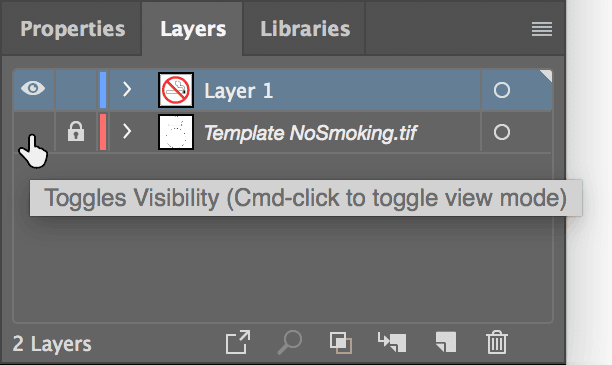
  8. The design is nearly complete, but the template overlay is still visible. In the Layers panel, locate the Template NoSmoking.tif layer and click its visibility icon (the eye symbol) to hide it, as shown below. This reveals your finished artwork without the reference template.

    no smoking ill hide template layer

  9. Clean up your workspace by going to View > Guides > Hide Guides to remove the construction guides.

  10. Excellent work! You've successfully created a professional no-smoking sign using fundamental Illustrator techniques that form the foundation of vector design work. Save your progress and print if desired—your design meets professional signage standards and demonstrates mastery of essential tools and workflows.

Precise Shape Creation

Clicking once with shape tools while holding Option/ALT opens dialog for exact measurements. This method ensures pixel-perfect dimensions for professional results.

Frame Specifications

Width
194
Height
194
Corner Radius
15

Final Assembly Steps

1

Create Rounded Frame

Use Rounded Rectangle tool with precise measurements: 194pt x 194pt with 15pt corner radius

2

Apply Frame Styling

Set white fill and 3pt black stroke, then send to back to serve as background element

3

Clean Up Workspace

Hide template layer visibility and guides for final presentation view

Key Takeaways

1Master essential Illustrator shape tools including ellipse, rectangle, line segment, and pen tools for precise vector construction
2Understand modifier keys: Option/ALT draws from center, Shift constrains proportions for perfect geometric shapes
3Learn proper layer management using template layers for reference tracing and active drawing layers for construction
4Configure fill and stroke properties using Properties panel, including CMYK color mixing and stroke weight adjustments
5Utilize object grouping and arrangement controls for managing complex multi-element designs and stacking order
6Practice switching between outline and preview modes for different stages of the design process
7Apply professional workflow techniques including precise shape creation using dialog boxes for exact measurements
8Implement proper file management with appropriate naming conventions and save settings for vector graphics projects

RELATED ARTICLES