Layers, Artboards, & Recoloring Artwork
What This Tutorial Covers
Layer Organization
Structured layers that scale across complex designs.
Multiple Artboards
Variations and sizes managed in a single document.
Recolor Artwork
Adjust entire color palettes with one tool.
Noble Desktop's Graphic Design Certificate covers Illustrator alongside Photoshop and InDesign.
Learn how to use layer and group editing in isolation, recolor artwork, apply different versions using Illustrator's multiple artboards feature, and more in this comprehensive Illustrator tutorial.
Exercise Preview
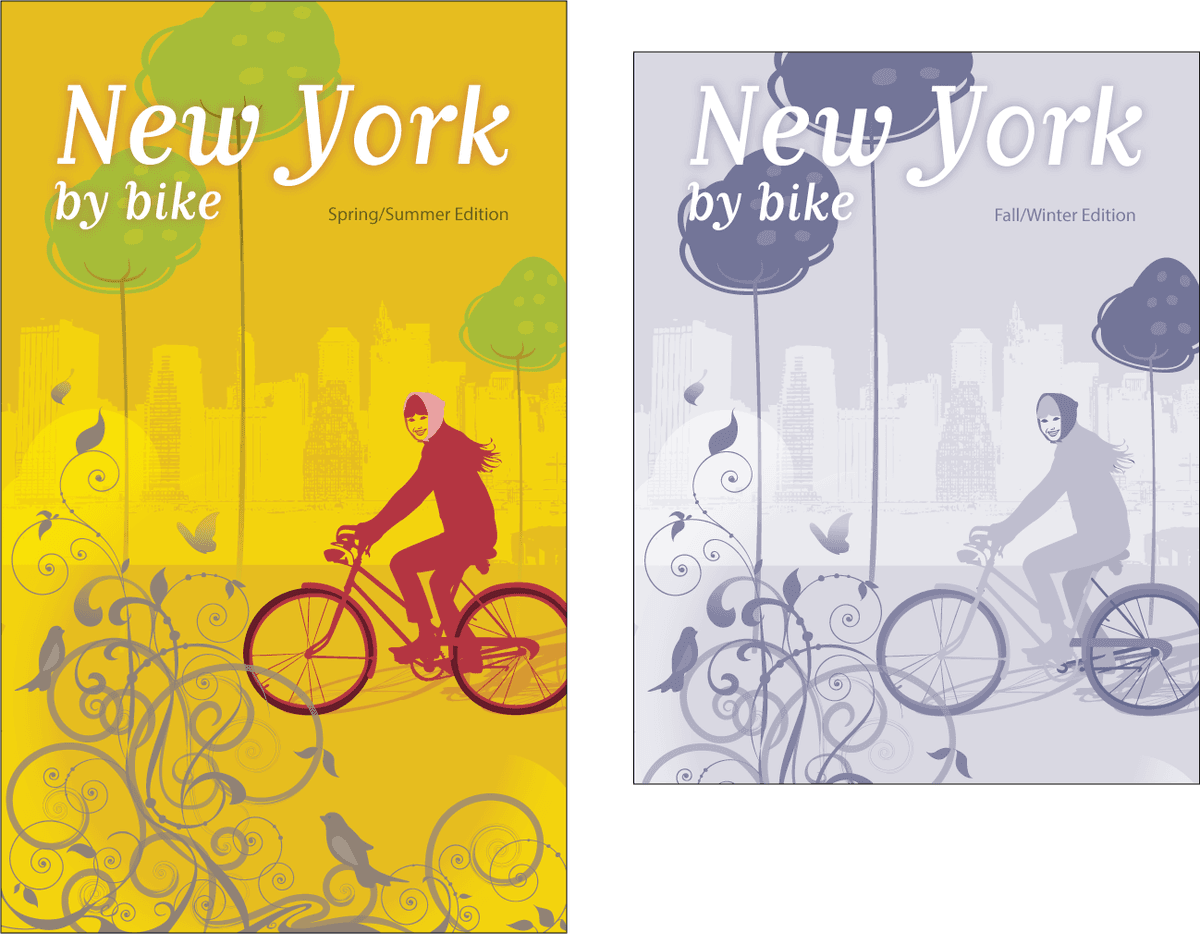
Setting up the Template
From the Illustrator Class Files folder, open the file Bike NY.ai
Save the file as yourname-Bike NY.ai
In the dialog that appears, leave the default options checked and click OK.
Go to File > Place.
From the Illustrator Class folder, select bikeTemplate.psd, and make sure to check the Template option on (Mac users may need to click the Options button).
Click Place.
If the Layers panel isn’t already active, go to Window > Layers.
Double–click the Template bikeTemplate.psd layer and rename it Template. Hit Return (Mac) or Enter (Windows) to apply.
To the left of the Template layer name, click the Lock
 to unlock the layer.
With the Selection tool
 , click on the gray template art.
If it’s not already visible, open the Align panel (Window > Align).
At the bottom right of the Align panel, click the Align To button
 and choose Align to Artboard
  . (If you don’t see the Align To button , go into the panel menu
  and choose Show Options.)
In the Align panel, click Horizontal Align Center
 .
.Click Vertical Align Center
 as well.
In the Layers panel, next to the Template layer, click in the empty box where the Lock
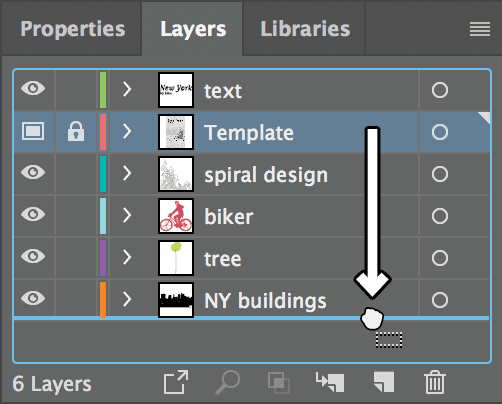
was to re-lock the layer.As shown below, drag the Template layer below the other layers.
Arranging the Artwork
Scroll to the right of the artboard and notice the provided graphics. Using the Selection tool
, drag the black building artwork into place over the template.Click the Eye
 to hide the NY buildings layer. This will keep it out of your way while you arrange the rest of the artwork.
Drag the tree artwork into place over the leftmost tree on the template.
Hold down Option (Mac) or ALT (Windows) and drag off a copy of the tree artwork to make the middle tree.
Position the copy so its leaves line up with the leaves of the middle tree on the template.
Switch to Outline mode (Cmd–Y (Mac) or CTRL–Y (Windows)).
The trunk in the template is a little longer than the tree artwork we pasted over it.
Choose the Direct Selection tool
 and drag a marquee over the bottom two points of the middle tree’s trunk to select them. Resize the trunk by dragging the two points down to match the template.
- Switch back to Preview mode (Cmd–Y (Mac) or CTRL–Y (Windows)).
- Switch back to the Selection tool .
- Select the first tree again.
Option–drag (Mac) or ALT–drag (Windows) a copy of the tree to the right side of the artboard for the third tree.
With the third tree still selected, hold Shift to maintain the correct proportions and use the bounding box to scale it down to match the smaller tree in the template.
Use the Selection tool
to drag the remaining elements to the right of the artboard into place over the template. Once you get them close, you can use the Arrow keys on the keyboard to nudge the selected objects into place.In the Layers panel menu
choose New Layer.Name it background, then click OK.
Drag the background layer to the bottom, just above the Template layer.
Choose the Rectangle tool
 and click once outside of the artboard.
In the dialog that opens, set the following:
Width: 8.5 in Height: 14 in Click OK.
With the new rectangle selected, if you can’t see the align options in the Control panel at the top of the screen, go into the Align panel.
In the Control panel (or the pop-up Align panel) click Horizontal Align Center
and Vertical Align Center to position it in the middle of the artboard.With the rectangle still selected, go into the Properties panel and under Appearance, click on the swatch next to Fill.
Make sure you are in the Swatches
 . (Click the button if you aren’t.)
Go into the Swatches panel menu
 and choose Small List View to easily see the names of the swatches.
Change the Fill color to the Gold Background swatch color.
To close the Swatches panel, press Return (Mac) or Enter (Windows).
Switch to the Layers panel and show
the NY buildings layer.As shown below, click in the space at the right edge of the layer to select all the art on the NY buildings layer.
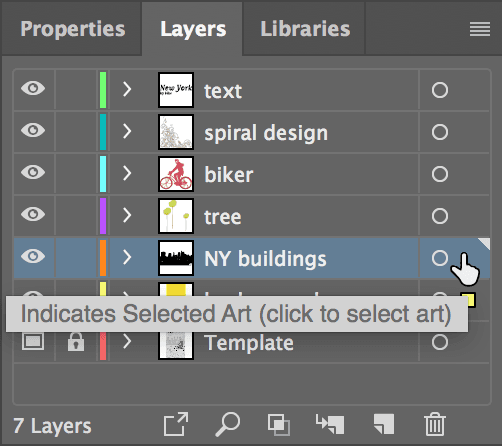
Switch to the Properties panel, change the Fill color to white, and press Return (Mac) or Enter (Windows).
In the Properties panel or the Control panel at the top of the screen, set the Opacity to 35%.
We no longer need the template. Switch to the Layers panel, select the Template layer, and click the Delete button
 at the bottom of the panel.
It will ask if you want to delete the layer. Click Yes.
Altering the Trees
The trees look too similar, so we need to give them some individuality. In the Layers panel select the tree layer.
In the Layers panel menu
, choose Lock Others so we don’t change something else by accident.With the Selection tool
, double–click on the second (middle) tree to enter Group Isolation Mode. This is an easy way to edit the individual components of a group without ungrouping them.Select the treetop (the green shape and the spots).
Go to the Effect menu and under Illustrator Effects, choose Warp > Shell Lower.
Check on Preview.
Make sure Horizontal is selected, then set the following:
Bend: 23% Horizontal: 4% Vertical: –9% Click OK.
Click the Arrow
 at the top left of the window two times to leave Isolation Mode.
Double–click the smallest tree on the right to enter Group Isolation Mode.
Select the treetop and go to the Effect menu. Under Illustrator Effects, choose Warp > Squeeze.
Make sure Horizontal is selected, then set the following:
Bend: 12% Horizontal: 18% Vertical: 28% Click OK.
Double–click outside the artboard to exit Isolation Mode.
Adding a Gradient to the Trunks
- Choose the Group Selection tool
 .
. - Select one of the tree trunks.
- Go to Select > Same > Fill & Stroke. Illustrator will select all the objects in the document with the same attributes as the object you have selected. In this case, that’s just the three tree trunks.
- With the trunks still selected, open the Gradient panel (Window > Gradient).
- In the top left of the panel, click the black and white gradient fill.
- In the Gradient panel, set the Type to Linear
 (the first icon).
 - Double–click the white color stop (circle) on the bottom left of the gradient slider to activate it.
- In the panel that pops up, make sure you’re in the Swatches . Click the Gold Background swatch to replace the white swatch in the gradient.
- Press Return (Mac) or Enter (Windows) to close the pop-up panel.
- Double–click the black color stop (circle) on the bottom right of the gradient slider.
Apply the brown Tree Trunks swatch and press Return (Mac) or Enter (Windows) to see the gradient should now flow from gold to brown.
- Deselect it all, then use the Group Selection tool to select the left tree trunk.
- Choose the Gradient tool
 .
. - Click and drag from the base of the tree trunk toward the treetop to make the trunk flow to brown seamlessly from the background.
Repeat this for the other two tree trunks:
- Use the Group Selection tool to select the tree trunk.
- Using the Gradient tool , drag from the trunk’s base toward the treetop.
- Use the Group Selection tool
Adjusting the Type
- In the Layers panel menu choose Unlock All Layers.
- With the Selection tool , click on the New York text group.
- Switch to the Properties panel, change the Black Fill color to white, and click outside the pop-up panel to close it.
- Go to the Effect menu and under Illustrator Effects, choose Stylize > Outer Glow.
- Set Mode to Normal.
- To the right of Mode, click the Color Picker thumbnail box.
- Click the Color Swatches button.
- Choose the Biker Red swatch.
- Click OK once.
Set the other options shown below:
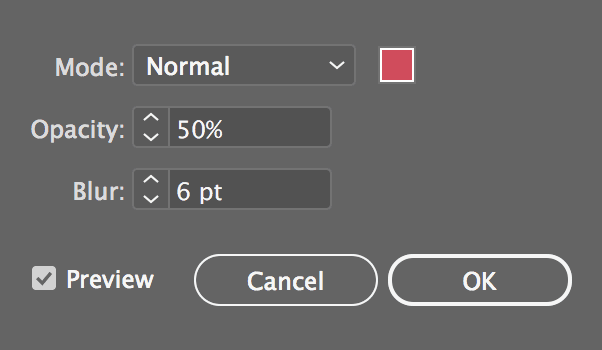
Click OK to apply it and close the dialog. This is a subtle effect, so look closely to make sure that it worked.
Choose the Type tool
 .
.To place text, click to the right of the by bike text and under the k in New York.
In the Properties panel’s Character section, style the Lorem Ipsum text as follows:
Font: Myriad Pro Regular Size  :
:20 pt Go to the Properties panel’s Paragraph section and click Align right
 .
.Type out Spring/Summer Edition (we’ll fine-tune the position in a moment).
Choose the Selection tool
. The type you just added should become selected.Let’s change the color of the text using the Appearance panel. If it isn’t already open, go to the bottom right of the Properties panel’s Appearance section and click the Open the Appearance panel button
 , or go to Window > Appearance.
In the Appearance panel, double–click Characters, then change the Fill color to the Treetops green swatch.
Make sure that the rulers are visible. If not, go to View > Rulers > Show Rulers.
To make sure the guides are visible, go to View > Guides. If you see Hide Guides, you’re good to go! If you instead see Show Guides, click that option now.
Go to View > Actual Size so that you can place the guides accurately.
Drag out a guide from the top ruler to the baseline of the by bike text.
With the Selection tool
, drag the Spring/Summer Edition text so that its baseline rests on the guide you just made. The easiest way to do this is to drag the text by its baseline until the cursor is just over the guide. The cursor should turn white when the text is precisely aligned.With the type still selected, Shift–click the New York text group to add it to the selection.
Click once on New York to make it the key object (it’ll get a thicker highlight).
In the Control panel at the top of the screen or the Properties panel’s Align section, click Horizontal Align Right
 .
.Go to View > Guides > Hide Guides.
Adding the Finishing Touches
We’re going to add another fill to the biker and distort it so that it looks like a cast shadow. With the Selection tool
, click on the biker.Go to the Appearance panel menu
and choose Add New Fill.In the Appearance panel, drag the new fill below the Contents as shown below.
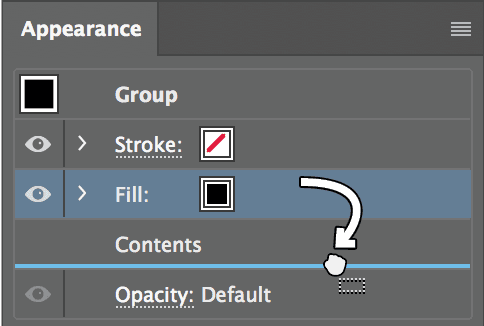
Change the Fill color to the Biker Red swatch.
Make sure the Fill is selected in the Appearance panel, and then go to Effect > Distort & Transform > Free Distort.
In the Free Distort dialog, drag the top two points of the bounding box down and to the right, roughly as shown below. You’ll have to move the points one at a time. (This will be the biker’s shadow!)
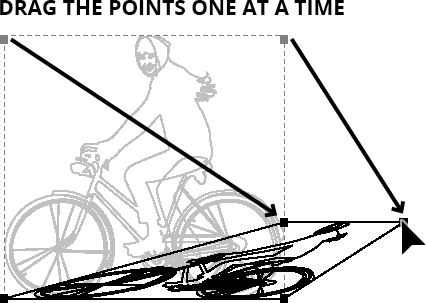
Click OK.
In the Appearance panel, expand the Fill so you can see its options. Click on Opacity and set it to 25%.
We also need to add some last touches to the spiral designs in the foreground. With the Selection tool
, click on the spiral design.Switch to the Layers panel, click its panel menu
, and choose Duplicate “spiral design”.Double–click the new layer, name it glow, and then hit Return (Mac) or Enter (Windows).
Go to the Layers panel menu
again and choose Lock Others so we don’t make any inadvertent changes.- Click the Eye to hide the spiral design layer.
- Deselect everything (Select > Deselect).
- Choose the Group Selection tool .
- Shift–click to select both the unattached leaf and butterfly at the top of the glow layer.
- Press Delete to remove them.
- Press Cmd–A (Mac) or CTRL–A (Windows) to select everything on the glow layer.
- Go to the Pathfinder panel (Window > Pathfinder) and click Unite
 .
. With everything still selected, go to Object > Path > Offset Path and set:
Offset: 45 pt Joins: Round Miter limit: 4 - Click OK.
- Press Cmd–A (Mac) or CTRL–A (Windows) to select everything in the glow layer.
- In the Pathfinder panel, click Unite . The shape is only one path now and should look like a big gray blob!
- With the shape still selected, in the Appearance panel, set the Fill color to the Soft White Vignette swatch (this is a white to transparent radial gradient).
- In the Appearance panel, click on the bottommost Opacity and set it to 45%.
- In the Layers panel, drag the glow layer below the spiral design layer.
- Show the spiral design layer again.
Go to the Layers panel menu
and choose Unlock All Layers.
Copying Artwork to a New Artboard
Go to File > Save to retain a copy of your original layered file.
We can use Illustrator’s multiple artboards to easily create and keep track of different versions of the same piece, all within the same Illustrator file. Before we do that, let’s hide the art that spills off the page so we can get a better preview of the final piece.
Go to File > Save As and change the filename to yourname-Bike NY Flat.ai.
Go to the Layers panel menu
and choose Flatten Artwork to condense the artwork back to just one layer.NOTE: We are doing this because in a moment we’ll be using a Clipping Mask which puts everything onto the same layer, so we may as well flatten our file.
Rename the new layer Final Art.
With the Selection tool
, click on the gold rectangle in the background.Copy the rectangle.
Go to Select > Deselect.
Go to Edit > Paste in Front to put a copy of the background rectangle in front of the artwork. Since the background rectangle is already the same size as the artboard, we can reuse it to make a clipping mask.
Press Cmd–A (Mac) or CTRL–A (Windows) to select all.
Go to Object > Clipping Mask > Make. Much cleaner looking!
Choose the Artboard tool
 .
.In the Properties panel’s Artboards section, make sure Move Artwork with Artboard is checked.
Opt–Shift–drag (Mac) or ALT–Shift–drag (Windows) the artboard to the right to make a new copy of it.
With the new artboard on the right still selected, in the Properties panel or Control panel, set X: 14 in and Y: −5.5 in to perfectly position the artboard.
Choose the Selection tool
to exit Artboard mode.
Recoloring the Artwork
Click once on the second copy of the art that you just made to select it.
- We want to change some of the colors used throughout this art. At the bottom of the Properties panel, click the Recolor button.
In the dialog that opens, under Current Colors, click on the Gold bar to select it.
Next to the color sliders at the bottom of the dialog, click on the panel menu
 and choose CMYK.
Enter the following CMYK values for our new desired color: 52c, 11m, 14y, 0,000.
Choose the Green bar (directly below the Gold bar).
At the bottom, enter in these CMYK values: 78c, 14m, 60y, 5,000.
Select the Burgundy bar next.
Change it to 97c, 91m, 47y, 25,000.
Leave the Pink color as is, and scroll down and select the Red bar.
Make it 100c, 80m, 25y, 0,000.
Click OK. Wow, it was so easy to change the entire color scheme!
Let’s update the text for this new edition. Choose the Type tool
.On the new artboard, change the text to Fall/Winter Edition.
Making a Third Version
We want to make one more version that is not as tall and will print as a 1 color job (using one Pantone color).
- Choose the Artboard tool once again.
- Select the first Artboard (01) and Opt–Shift–drag (Mac) or ALT–Shift–drag (Windows) off another copy, this time dragging anywhere into the space below the first artboard.
In the Properties panel, do the following:
- Change the height from 14 in to 11 in.
- Uncheck Move Artwork with Artboard.
- Hover inside the third artboard (not near an edge), so a move cursor
 appears. Click and hold down Shift, then drag the artboard up or down to crop the artwork to what looks best at the new size.
 - Choose the Selection tool to exit Artboard mode.
- Double–click the art on the third artboard to enter Group Isolation Mode.
- Click on the very edge of the artwork to select the clipping mask.
- In the Properties panel’s Transform section, click the link
 between width and height so the unconstrained option
  is displaying.
 - Change height to 11 in.
- In the Align panel, click the Vertical Align Center button .
- Double–click outside the artboard to leave Isolation Mode.
Do a File > Save.
Recoloring Artwork: Converting CMYK Art to Spot Colors
- Click once on the artwork of the third (bottom) artboard to select it.
- At the bottom of the Properties panel, click the Recolor button.
- From the Preset menu, choose 1 color job.
- In the dialog that appears, click the Library button
 and in the menu choose PANTONE+ Solid Coated.
 - Click OK.
- By default, Illustrator may have chosen a yucky brown. To change that, in the first bar under Current Colors, drag the last red color square onto the New color box to the right.
- You’ll see the artwork recolored in various tints of that red swatch. Double–click the New color box to see the Pantone color Illustrator automatically chose for you from a library of options. (Choose a different Pantone color if you desire.)
- Click OK until both dialogs are closed. That’s it! You’re finished!
Printing & Placing Artboards
Illustrator’s Print Dialog
Illustrator treats each artboard as a separate page, and you can specify whether to print all pages or a range of pages. To print all the artboards on a single sheet of paper, check on Ignore Artboards. Then Illustrator will print all the artboards (just like they’re arranged in the file) on one page.
Placing.ai Files into InDesign
To choose the artboard you wish to place into an InDesign layout, in InDesign go to File > Place. Check on Show Import Options and choose your .ai file. Click Open and another dialog will appear. There you can select your desired artboard.