April 1, 2026Dan Rodney/8 min read

3D Shapes: Milk Duds Box

Master 3D Box Creation with Adobe Illustrator

Core Skills You'll Master

3D Extrude & Bevel

Transform flat 2D artwork into realistic three-dimensional objects with professional depth and perspective.

Symbol Mapping

Convert artwork to symbols and map them onto 3D surfaces for product packaging visualization.

Lighting Control

Adjust lighting, shadows, and shading to create photorealistic 3D renders in Illustrator.

Topics Covered in This Illustrator Tutorial:

3D Extrude & Bevel, Creating Symbols from Artwork, Mapping Symbols onto 3D Objects, Lighting & Shadows for 3D Objects

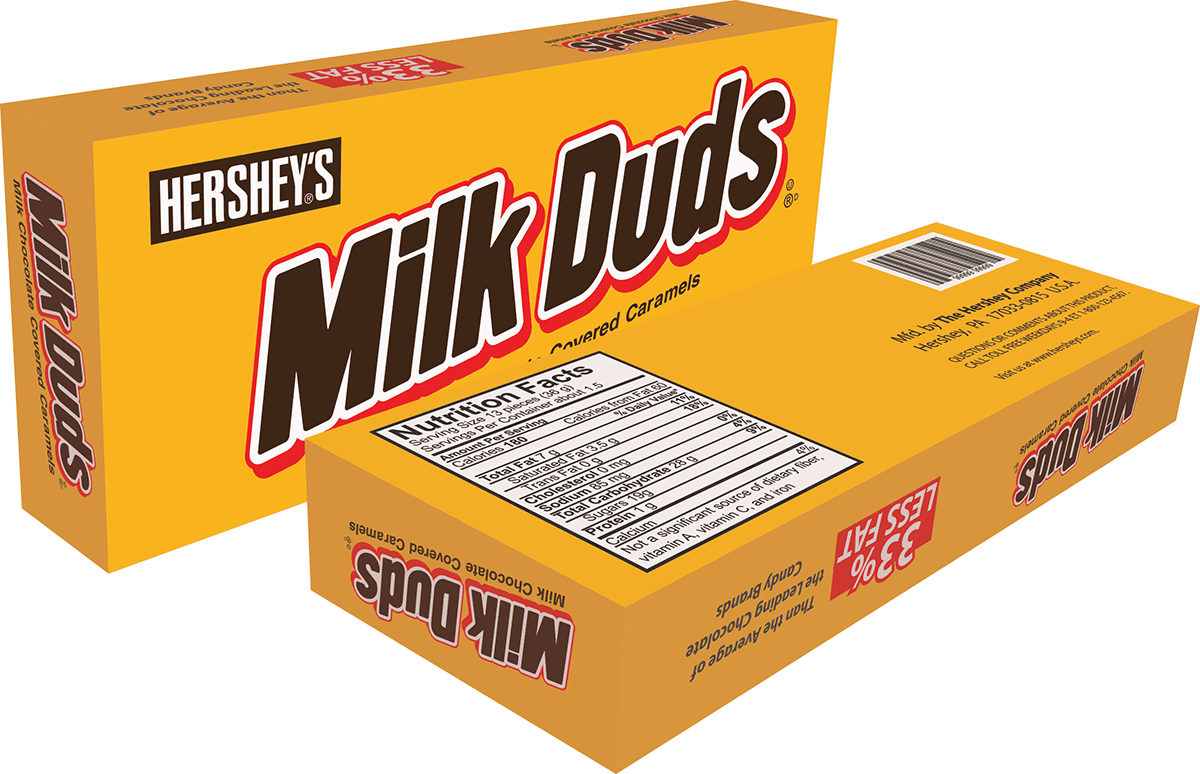
Exercise Preview

milk duds finished

File Setup Requirements

Before starting, ensure your document units are set to inches and save your work with a personalized filename to track your progress.

Exercise Overview

Master the art of transforming flat artwork into compelling 3D product mockups—a skill that's essential for modern packaging design and brand visualization. By the end of this exercise, you'll have created professional-grade 3D packaging using Illustrator's powerful dimensioning tools. This technique remains fundamental to product design workflows across industries, from consumer goods to tech packaging.

Let's begin by setting up your workspace and establishing the proper document parameters for optimal 3D rendering.

  1. In the Illustrator Class folder, open the file MilkDuds.ai.

  2. Navigate to File > Document Setup to configure your workspace parameters.

  3. Ensure Units are set to Inches—this maintains consistency with standard packaging dimensions and prevents scaling issues during the 3D transformation process.

  4. Click OK to confirm your settings.

  5. Select File > Save As and name it yourname-MilkDuds.ai to preserve the original template.

Converting to Symbols

Before applying 3D effects, we must convert each panel of artwork into symbols. This critical step allows Illustrator to map graphics onto three-dimensional surfaces with precision. Think of symbols as reusable assets that maintain their quality regardless of how they're transformed or applied.

  1. Select the front cover of the Milk Duds box artwork (the large central panel that will serve as your primary brand face).

  2. At the bottom of the Properties panel in the Quick Actions section, click the Save as Symbol button. This modern workflow streamlines symbol creation compared to traditional methods.

  3. Name it front and click OK. The artwork is now converted into a reusable symbol that can be mapped onto 3D surfaces without quality degradation.

  4. Open the Symbols panel (Window > Symbols) to verify that a thumbnail of this artwork appears in your symbol library—this confirms successful conversion.

  5. Select the top panel (positioned above the front panel you just converted).

    Strategic thinking saves time here: since packaging tops and bottoms often share identical designs, we'll create one versatile symbol and reuse it for both surfaces.

  6. Press F8 (or fn–F8 depending on your system preferences) as an efficient keyboard shortcut to create a New Symbol.

  7. Name it top-bottom and click OK to add this dual-purpose symbol to your library.

  8. Apply the same conversion process to the remaining panels:
    • Select each piece of artwork individually.
    • Press F8 to create a New Symbol.
    • Name the left side: left-right (another reusable symbol for opposing faces)
    • Name the nutrition info side: back
  9. With all artwork successfully converted to symbols, we can clear the artboard of the original flat elements. Select all content by pressing Cmd–A (Mac) or CTRL–A (Windows).

  10. Press Delete to remove everything. Don't worry—your symbols are safely stored in the Symbols panel and ready for 3D mapping.

Symbol Creation Workflow

1

Select Front Panel

Choose the main artwork and click Save as Symbol in Properties panel Quick Actions

2

Create Top-Bottom Symbol

Use F8 shortcut to convert artwork that will be reused on multiple surfaces

3

Convert Remaining Panels

Create left-right and back symbols, then delete original artwork to clean workspace

Keyboard Shortcut

Press F8 as a quick shortcut to create new symbols instead of using the Properties panel button.

Making the Box

Now we'll construct the foundation geometry that will become our 3D package. Precision in these initial measurements ensures professional results in the final render.

  1. Select the Rectangle tool rectangle tool from your toolbar.

  2. Hold Option (Mac) or ALT (Windows), then click once in the document center. This modifier key allows precise dimensional input rather than drawing freehand. Enter the following specifications:

    Width: 6.5 in
    Height: 2.5 in
  3. Click OK to generate your base rectangle with exact dimensions.

  4. In the Properties panel, fill the shape with the yellow swatch named Box Color, and ensure no stroke is applied. This base color will show through any transparent areas in your mapped artwork.

  5. With the rectangle selected, navigate to Effect > 3D > Extrude & Bevel. Configure the following parameters carefully—these settings create the specific perspective and dimensionality for realistic product visualization:

    • Check on Preview (at the bottom) to see real-time changes as you adjust settings.
    • Extrude Depth: Enter 1 in (this determines the physical width of the box sides)
    • Rotation around the X axis 3D X axis: −24°
    • Rotation around the Y axis 3D y axis: −41°
    • Rotation around the Z axis 3D z axis: 14°
    • Perspective: 80°

    Don't click OK yet—we need to map your symbols first.

  6. Reposition the 3D Extrude & Bevel Options window so you can see the entire 3D box preview on your artboard.
  7. Click the Map Art button to begin the surface mapping process.
  8. Arrange the Map Art window to maintain visibility of your 3D box while working.
  9. From the Symbol dropdown menu, choose front. Notice how Illustrator automatically maps this artwork onto the red-outlined surface.
  10. Click the Next Surface button to cycle through available faces:

    3D next surface

  11. Observe that Illustrator now highlights the back surface with a red outline, indicating it's ready for artwork assignment.
  12. From the Symbol menu, select back to apply the nutrition information panel.
  13. Click Next Surface to proceed to the side panel.
  14. Choose left-right from the Symbol menu.

    Here's where spatial awareness becomes crucial: the symbol appears sideways because the 3D surface (represented by the gray rectangle) is oriented differently than your original artwork. We need to rotate the symbol to achieve proper alignment.

  15. Click and drag the symbol downward until the white bounding box handles become visible in the top corners.

  16. Position your cursor over the upper left bounding box handle until you see the rotation cursor cursor rotation handles.

  17. Hold Shift and drag clockwise to rotate exactly 90°. The Shift key constrains rotation to perfect increments. The artwork will appear upside down initially—this is expected.

  18. Drag the symbol to reposition it until it completely covers the gray rectangle outline, ensuring full surface coverage.

  19. Click Next Surface to continue mapping.

  20. Complete the mapping process for the remaining surfaces using this reference:

    Surface 4: top-bottom (maintain the inverted orientation—it's correct for this viewing angle)
    Surface 5: left-right (apply the same 90° clockwise rotation as before)
    Surface 6: top-bottom (keep the upside-down orientation for consistency)
  21. With all artwork successfully mapped, check Shade Artwork at the bottom of the window. This crucial setting applies realistic lighting and shadow effects to your mapped graphics, creating depth and authenticity.

  22. Click OK to return to the main 3D Extrude & Bevel Options dialog.

Box Dimensions

65 inches
Rectangle Width
25 inches
Rectangle Height
1 inch
Extrude Depth

3D Rotation Settings

X-axis Rotation
-24
Y-axis Rotation
-41
Z-axis Rotation
14
Perspective
80

Light Settings

Professional product visualization depends heavily on lighting quality. These adjustments will transform your 3D box from a basic render into a market-ready product mockup.

  1. The initial render may appear too dark for commercial presentation. Access the lighting controls by clicking More Options if the lighting section isn't visible.

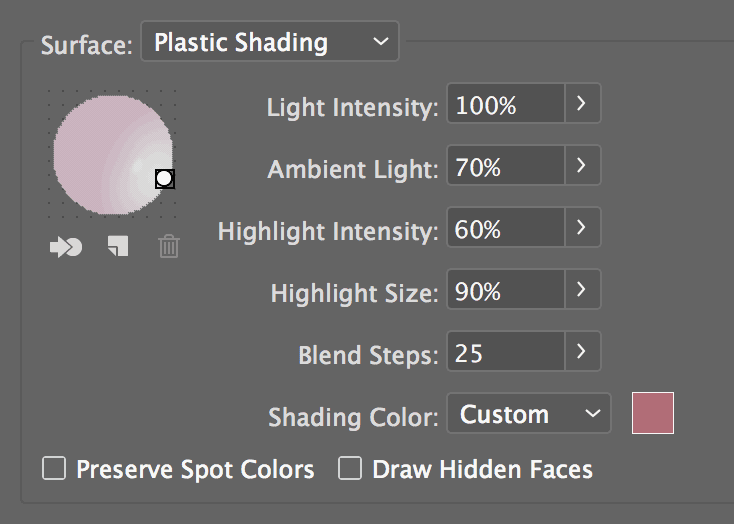
  2. Before proceeding, study the lighting setup below. Drag the light direction indicator on the spherical preview to match the position shown, then configure the accompanying settings:

    3D settings milkduds

    Hold off on clicking OK—we need to customize the shadow color first.

  3. Verify that Shading Color is set to Custom, then click the color box that appears adjacent to the Custom option.

  4. In the Color Picker window, click Color Swatches to access your document's color library.

  5. Select the Shadow Color swatch—this ensures your shadows harmonize with the overall color scheme rather than defaulting to generic black shadows.

  6. Click OK to confirm the shadow color selection, then OK once more to apply all lighting adjustments.

Lighting Optimization Steps

0/3
Common Issue

If your box appears too dark, the lighting settings need adjustment. Don't click OK until all lighting options are properly configured.

Double Time

Creating multiple viewing angles showcases your product's complete design and adds professional polish to client presentations. This technique is standard practice in packaging design and e-commerce product photography.

  1. Select the Selection tool selection tool from your toolbar.

  2. With the completed box selected, hold Option (Mac) or ALT (Windows) while dragging to the right. This modifier creates a perfect duplicate with all effects intact.

  3. Select the duplicated box, then navigate to the Properties panel's Appearance section. Click the 3D Extrude & Bevel (Mapped) effect next to the Effect icon effects icon to modify this copy independently.

  4. Configure a dramatically different viewing angle using these rotation values:

    • Ensure Preview is checked to see changes in real-time.
    • Rotation around the X axis 3D X axis: 129°
    • Rotation around the Y axis 3D y axis: 48°
    • Rotation around the Z axis 3D z axis: –155°

    Don't click OK yet—we need to address a mapping issue first.

  5. You'll notice the back artwork appears to face inward—this occasionally happens when Illustrator recalculates surface orientations after dramatic rotation changes. Click Map Art to fix this.

  6. Click Next Surface until you reach Surface 2, which should now be highlighted in red.

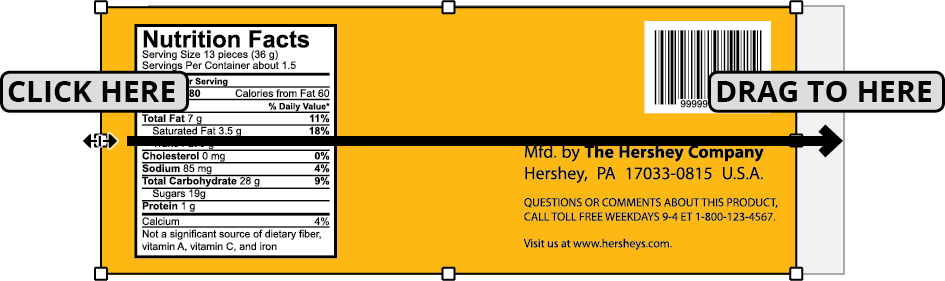
  7. Drag the symbol slightly left while keeping the left bounding box handle visible.

  8. Drag the left center handle across to the right side until it aligns with the right edge of the gray preview box:

    3D flip symbol

  9. Now drag the repositioned left handle back to align with the left edge of the gray box. This action horizontally flips the artwork, correcting the inward-facing orientation.

    Pro tip: Since the graphics were designed to precisely fit this box dimension, complete coverage of the gray preview area confirms proper scaling and proportion.

  10. Click OK to confirm the mapping correction.

  11. If the lighting appears inconsistent between the two boxes, return to adjust the light settings until both renders share similar illumination quality.

  12. Click OK to finalize all adjustments.

  13. Position the second box closer to the first to create a compelling product family display. You've now created professional-grade 3D packaging mockups that rival commercial visualization work.

  14. Select File > Save to preserve your work, then close the file.

Box Rotation Comparison

FeatureFirst BoxSecond Box
X-axis-24°129°
Y-axis-41°48°
Z-axis14°-155°
Recommended: Different rotation angles create varied perspectives for dynamic product displays
Artwork Mapping Issue

When changing rotations, Illustrator may place back artwork facing inwards. Use Map Art to manually adjust symbol positioning and fix reversed graphics.

Key Takeaways

1Convert all artwork elements to symbols before applying 3D effects to enable proper surface mapping
2Use precise measurements (6.5 x 2.5 inches) and 1-inch extrude depth for realistic box proportions
3Apply specific rotation angles (-24° X, -41° Y, 14° Z) and 80° perspective for optimal viewing angle
4Map symbols systematically across all six surfaces, rotating artwork 90° when needed for proper orientation
5Enable Shade Artwork option and use custom shadow colors for cohesive brand appearance
6Adjust lighting direction and intensity to prevent overly dark rendering of 3D objects
7Create multiple box variations by duplicating and changing rotation values for dynamic product displays
8Troubleshoot reversed artwork by adjusting symbol positioning in Map Art dialog using bounding box handles

RELATED ARTICLES