April 1, 2026Dan Rodney/10 min read

Preflight: Absolute URLs, Alt Text, & Preheader

Master HTML Email Optimization Before Launch

Preflight Essentials

Before sending any HTML email campaign, these technical and marketing steps ensure your email performs as expected across different clients and devices.

Topics Covered in This HTML Email Tutorial:

Converting Local Image Paths to Absolute URLs, Adding ALT Text, Styling ALT Text, Adding a Preheader Message

Key Email Optimization Areas

Image URLs

Convert relative paths to absolute URLs for proper server hosting. Essential for images to display correctly in email clients.

Alt Text Implementation

Add and style alternative text for images. Critical for accessibility and when images are blocked by default.

Preheader Optimization

Create compelling preview text and fallback links. Improves open rates and provides backup viewing options.

Exercise Preview

jive ALT

Exercise Overview

Before launching any HTML email campaign, savvy marketers know that proper "preflight" preparation separates amateur efforts from professional campaigns. This exercise guides you through the critical final steps that ensure your email performs flawlessly both technically and strategically. You'll master the art of converting image paths to absolute URLs, implementing effective ALT text strategies, styling ALT text for maximum visual impact when images are blocked, and crafting compelling preheaders that boost open rates.

These aren't just technical checkboxes—they're the difference between emails that get results and those that get deleted. In 2026's competitive inbox environment, every detail matters for deliverability and engagement.

  1. We'll be using a fresh set of provided files for this exercise, containing the same Jive Factory email from previous lessons. Close any open files in your code editor to maintain focus and avoid file confusion.
  2. In your code editor, open events-issue21-summer.html from the Jive Factory Ready for Preflight folder. Double-check you're in the correct directory—this is crucial for the exercise to work properly.

Preflight Process Overview

1

Setup Environment

Open the correct project files and close any conflicting documents in your code editor

2

Convert Image Paths

Transform local relative paths to absolute server URLs using find and replace

3

Implement Alt Text

Add descriptive alternative text and apply CSS styling for better visual impact

4

Add Marketing Elements

Include preheader message and browser viewing link for better engagement

Converting to Absolute Image URLs

Currently, your image paths reference local files using relative links—a setup that works perfectly during development but fails catastrophically in live email campaigns. HTML emails require absolute URLs pointing to images hosted on accessible web servers. Without this conversion, your carefully crafted visuals will appear as broken image icons in recipients' inboxes.

We've pre-uploaded all images to our remote server, so now we need to update every image path efficiently. The Find and Replace function is your best friend here—it's fast, accurate, and eliminates the tedious manual work that often introduces errors.

  1. Access your code editor's Find and Replace functionality (menu locations vary by editor):

    • In Visual Studio Code: navigate to Edit > Replace
    • For most other editors: use Cmd–F (Mac) or CTRL–F (Windows)
  2. Let's transform the image paths systematically. Enter the following search and replace parameters (labels may vary in your specific editor):

    Find: images/
    Replace: http://thejivefactory.com/nl/images/

    Professional Tip: Notice the nl folder structure in our URL. This stands for "newsletter" and represents a best practice for organizing email assets separately from main website files. This separation prevents email assets from cluttering your primary site structure and makes campaign management significantly easier as your email program scales.

  3. Execute Replace All. You should see exactly 7 replacements completed—if this number differs, stop and double-check your syntax.
  4. Save your file and preview the newsletter in a browser to verify all images load correctly.

    If images don't appear, you likely have a typo in your replacement string. Return to your editor, use Edit > Undo to revert the changes, then repeat the Find and Replace process, carefully checking your spelling and syntax.

Implementing Strategic ALT Text

ALT text serves a dual purpose in email marketing that many developers underestimate. While its primary function is accessibility—ensuring visually impaired users and those with images disabled can understand your content—it's also a powerful marketing tool. With many email clients blocking images by default (including popular platforms like Outlook and Gmail in certain configurations), ALT text often becomes your first and only chance to communicate your message.

Smart email marketers treat ALT text as prime real estate for messaging. Rather than generic descriptions, effective ALT text maintains brand voice, conveys key information, and encourages engagement even when images fail to load.

Not every image requires ALT text—decorative elements can often be skipped. Focus your efforts on images containing text, logos, calls-to-action, or other elements critical to your message's success. For this exercise, we'll add strategic ALT text to the main banner and both event section headers.

  1. Return to your code editor and locate the work area.

  2. Find the banner image (approximately line 61) and add this ALT attribute:

    <img src="http://thejivefactory.com/nl/images/banner.jpg" height="224" width="644" ALT="The Jive Factory Event Calendar">
  3. Locate the events-this-week image (around line 69) and insert the ALT attribute shown in bold:

    <img src="http://thejivefactory.com/nl/images/events-this-week.jpg" height="52" width="644" ALT="Events This Week">
  4. Find the events-next-week image (approximately line 135) and add the ALT attribute:

    <img src="http://thejivefactory.com/nl/images/events-next-week.jpg" height="52" width="644" ALT="Events Next Week">
  5. Save your file to preserve these changes.
  6. To test ALT text visibility, we need to simulate the blocked-images experience that many recipients encounter. Keep this page open and create a new Chrome tab for the next steps.
  7. Click Chrome's Settings menu chrome settings menu in the upper-right corner and select Settings.
  8. In the Search Settings field at the top, type image to filter relevant options.
  9. Click on Site Settings from the filtered results.
  10. Select Images from the site settings menu.
  11. Toggle off the Show all (recommended) option to disable image loading.
  12. Keep this settings tab open but switch back to your email preview tab.
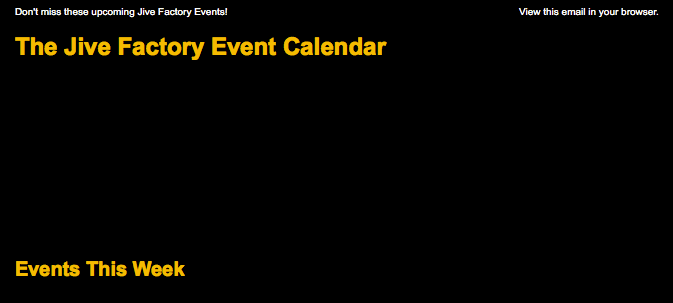
  13. Refresh the page to see your ALT text in action. You should now see the banner ALT text The Jive Factory Event Calendar displayed clearly. The section header ALT text might not be visible yet due to default styling—we'll address this in the next section with custom CSS formatting.

Styling ALT Text for Maximum Impact

Default ALT text styling is notoriously underwhelming—typically small, black text that blends into the background. Professional email marketers know that styled ALT text can transform a potentially disappointing blocked-images experience into an opportunity for brand reinforcement and continued engagement.

We'll create custom CSS rules that make ALT text visually appealing, brand-consistent, and impossible to ignore. This approach ensures your message remains compelling even when images don't load.

  1. Return to your code editor to begin styling implementation.
  2. Above the existing .event td rule, add this new CSS rule for logo styling:

    .logo {
       font-family: Arial, Helvetica, sans-serif;
       font-weight: bold;
       font-size: 24px;
       color: #fcb802;
    }.event td {
       padding: 20px 15px 10px;
    }
  3. Around line 67, add the logo class to the banner image element:

    <img class="logo" src="http://thejivefactory.com/nl/images/banner.jpg" height="224" width="644" ALT="The Jive Factory Event Calendar">
  4. Save your changes and preview the results.
  5. Return to Chrome and refresh the page with images still disabled.
  6. The banner ALT text should now display with professional styling—larger, bolder, and in brand colors. This creates a much stronger visual hierarchy and maintains brand recognition even without images loaded. Now let's apply similar treatment to the section headers.
  7. Return to your code editor to create section-specific styling.
  8. Duplicate the .logo rule by copying and pasting it directly below the original:

    .logo {
       font-family: Arial, Helvetica, sans-serif;
       font-weight: bold;
       font-size: 24px;
       color: #fcb802;
    }.logo {
       font-family: Arial, Helvetica, sans-serif;
       font-weight: bold;
       font-size: 24px;
       color: #fcb802;
    }
  9. Modify the duplicate rule to create section-specific styling (changes highlighted in bold):

    .logo {
       font-family: Arial, Helvetica, sans-serif;
       font-weight: bold;
       font-size: 24px;
       color: #fcb802;
    }
    .section-img {
       font-family: Arial, Helvetica, sans-serif;
       font-weight: bold;
       font-size: 20px;
       color: #fcb802;
    }
  10. Apply the .section-img class to the first section image (around line 81):

    <img class="section-img" src="http://thejivefactory.com/nl/images/events-this-week.jpg" height="52" width="644" ALT="Events This Week">
  11. Apply the same class to the second section image (approximately line 147):

    <img class="section-img" src="http://thejivefactory.com/nl/images/events-next-week.jpg" height="52" width="644" ALT="Events Next Week">
  12. Save your file and test the complete styled ALT text experience.
  13. Return to Chrome and refresh the page to see your professionally styled ALT text in action. The email now maintains visual appeal and clear information hierarchy even without images—a crucial advantage in today's varied email client landscape.

    Important Note: ALT text styling support varies significantly across email clients. Webmail platforms like Gmail, Yahoo Mail, and Outlook.com generally offer better support than desktop clients such as various Outlook versions. Always test across your primary target clients to understand the experience your audience will receive.

  14. Since we've completed ALT text testing, let's re-enable images for continued development. Switch back to your Chrome Settings tab.
  15. Toggle the image setting back to Show all (recommended).
  16. Return to your email tab and refresh to restore normal image display.
  17. Confirm that both images and styled ALT text work correctly—this dual functionality ensures optimal performance across all viewing scenarios.

ALT Text Styling Support

FeatureWebmail ClientsDesktop Clients
Support LevelBetter SupportLimited Support
ExamplesGmail, Yahoo MailOutlook Versions
RecommendationStyle with confidenceTest thoroughly
Recommended: Webmail clients generally provide more consistent ALT text styling support than desktop email clients.

Adding a Strategic Preheader & "View Online" Link

The preheader represents one of email marketing's most underutilized opportunities. This snippet of text appears alongside your subject line in most inbox previews, essentially giving you additional real estate to convince recipients to open your message. In 2026's crowded inbox environment, the preheader often determines whether your email gets opened or ignored.

Traditional approaches placed a "View this email online" link at the very top of emails—functional but uninspiring. Modern email marketing best practices combine the essential online viewing link with strategic preheader content that enhances your subject line and provides compelling preview text.

We'll implement a sophisticated two-column approach: engaging preheader content that amplifies your subject line's appeal, paired with the crucial online viewing option for recipients experiencing display issues.

  1. Return to your code editor to begin preheader implementation.
  2. Open the prepared preheader code snippet: content-preheader.html (located in Jive Factory Ready for Preflight > snippets).

    This preheader structure uses a clean two-column table layout. The left column contains the strategic preheader message designed to enhance your subject line, while the right column provides the essential "view online" functionality for accessibility and troubleshooting.

  3. Select all content in the snippet file and copy it (Cmd–C on Mac or CTRL–C on Windows).
  4. Close the snippet file to avoid confusion and return to events-issue21-summer.html.
  5. Position your cursor for strategic placement: the preheader should be the first content recipients see, located inside the main wrapper table (which provides the black background) but above the header table.
  6. Paste the preheader code around line 69, positioning it as shown:

    <td align="center" bgcolor="#00,000">
       <table class="preheader" width="644" cellpadding="0" cellspacing="0" border="0">
          <tr>
             <td align="left" width="400">
                <p>Don't miss these upcoming Jive Factory Events!</p>
             </td>
             <td align="right" width="244">
                <p><a href="https://thejivefactory.com/nl/events-issue21-summer.html" target="_blank">View this email in your browser.</a></p>
             </td>
          </tr>
       </table>
       <table width="644" cellpadding="0" cellspacing="0" border="0" align="center">
          <tr>
             <td align="left">
                <a href="https://thejivefactory.com/index.html" target="_blank">
                   <img class="logo" src="http://thejivefactory.com/nl/images/banner.jpg" height="224" width="644" ALT="The Jive Factory Event Calendar">
                </a>
  7. Add appropriate styling for the preheader text. Insert this CSS rule above the existing .footer rule:

    .preheader p {
       font-size: 10px;
    }.footer {
  8. Save and preview your file in Chrome to see the preheader in action.

    For the final professional polish, we need to address the white margin that appears around the email body. While this margin won't appear in actual email sends, it creates an unprofessional appearance in the browser version that recipients might access via the "view online" link.

  9. Return to your code editor for the final styling adjustment.
  10. Add a body margin reset rule at the top of your CSS, above the h1 rule:

    <style>
       body {
          margin: 0;
       }
       h1 {
          font-family: Arial, Helvetica, sans-serif;
  11. Save your file and refresh in Chrome to see the clean, professional presentation without distracting white space.
  12. Test the complete user experience by clicking the "View this email in your browser" link in the top-right corner. We've uploaded a finished version to the server, so you can verify the link functionality and see how recipients will experience the online version.

ALT Text Length Optimization for Webkit

Webkit-based browsers and email clients (including Safari, Apple Mail, and Chrome) have a specific limitation: they only display ALT text that fits within a single line based on the image's width. If your audience includes a significant percentage of Webkit users, consider testing your ALT text length and potentially shortening it to ensure complete visibility. This is particularly important for mobile users, where screen real estate is even more limited.

Key Takeaways

1Convert all relative image paths to absolute URLs using find and replace before sending HTML emails
2Add ALT text only to images containing words or useful information, not purely decorative elements
3Style ALT text with CSS to create more engaging content when images are blocked by email clients
4Webmail clients like Gmail support ALT text styling better than desktop clients like Outlook
5Include a preheader message to improve open rates by providing compelling preview text in the inbox
6Always provide a 'View this email in your browser' link as a fallback for HTML display issues
7Organize email files in separate server folders to avoid confusion with website content
8Webkit browsers only display ALT text that fits within one line based on the image width constraints

RELATED ARTICLES