April 1, 2026Dan Rodney/6 min read

Optimizing & Exporting HTML

Master HTML Email Export and Image Optimization

Core Image Format Options

JPEG Format

Best for photos and graphics with thousands of colors. Offers variable quality settings from 0-100 with corresponding file size trade-offs.

PNG-8 Format

Ideal for graphics with limited colors. Supports up to 256 colors with excellent compression for text and simple graphics.

GIF Format

Traditional format similar to PNG-8 but typically produces larger file sizes. Best tested against PNG-8 for comparison.

Topics Covered in This HTML Email Tutorial:

Optimizing Slices As GIF, PNG, or JPEG, Exporting HTML & Images

Exercise Preview

export optimize

Exercise Overview

With your slices created and properly named, you're ready to tackle the optimization phase—a critical step that separates professional email developers from amateurs. Each slice will export as an individual file, making optimization decisions crucial for both performance and deliverability. In this exercise, you'll master the art of choosing between GIF, PNG, and JPEG formats while balancing the eternal trade-off between file size and visual quality.

Understanding format selection is essential: JPEGs excel with photographic content and complex gradients, PNG-8 handles graphics with limited color palettes efficiently, while GIFs remain viable for simple animations and legacy compatibility. After optimizing each slice to perfection, you'll export a complete HTML file with all associated images—creating a foundation that's ready for email client testing.

  1. If you completed the previous exercise (B1), yourname-Lunch Menu.psd should remain open in your workspace. If you closed it, reopen it now. If you're joining at this stage, navigate to your yourname-HTML Email Class folder, enter the Lunch Menu directory, and open Lunch Menu-optimize.psd.

  2. Navigate to File > Save As and rename the file: yourname-Lunch Menu-optimize.psd

  3. If Photoshop prompts about maximizing compatibility, click OK to proceed.

Preparation Workflow

1

Open Working File

Access yourname-Lunch Menu.psd from previous exercise or open Lunch Menu-optimize.psd as starting point

2

Save Working Copy

Use File > Save As to create yourname-Lunch Menu-optimize.psd for this optimization exercise

3

Launch Export Dialog

Navigate to File > Export > Save for Web (Legacy) and select Optimized tab for real-time preview

Optimizing Slices As GIF, PNG, or JPEG

Now you'll dive into the technical heart of email optimization. The decisions you make here directly impact load times, inbox deliverability, and user experience across dozens of email clients.

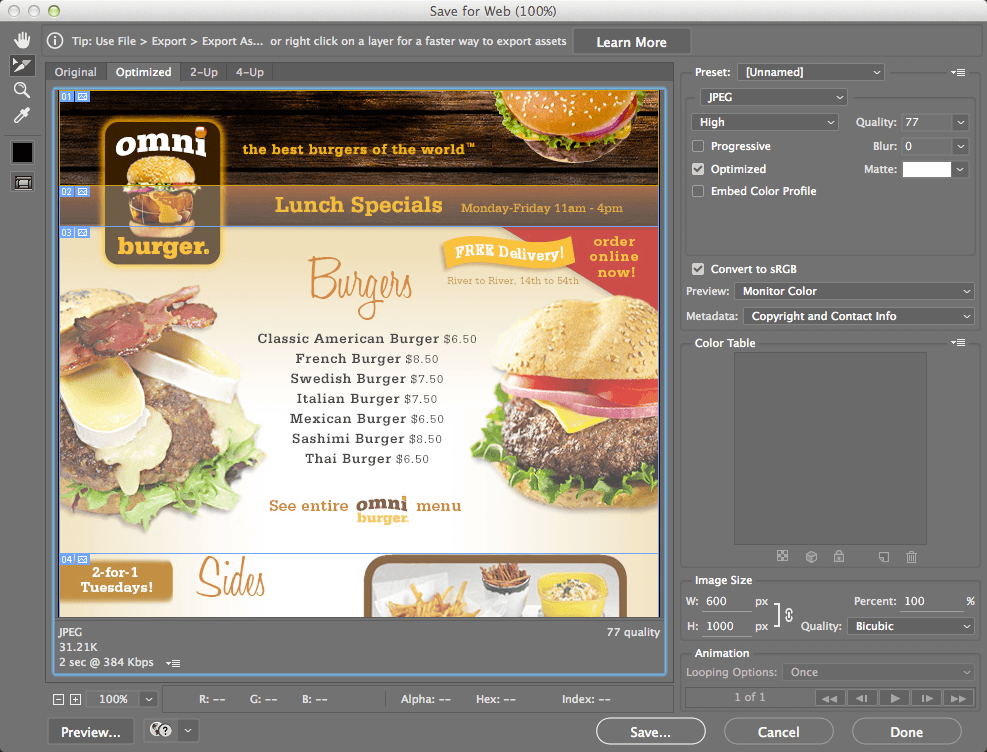
  1. Access File > Export > Save for Web (Legacy). In older Photoshop versions, choose File > Save for Web instead.

  2. Ensure the Optimized tab is selected at the dialog's top. This preview shows your slices with current compression settings applied—your real-time quality assessment tool.

  3. Select the Slice Select tool slice select tool from the left panel.

  4. Click to select the top wood slice.

  5. In the settings panel, locate the format dropdown menu below the Preset menu and select JPEG.

    JPEG compression excels with photographic content and complex gradients containing thousands of colors. Its lossy compression algorithm efficiently reduces file sizes while maintaining acceptable visual quality for detailed imagery.

  6. Set the Quality slider to 100 in the settings panel.

  7. This represents maximum quality with minimal compression. Check the file size indicator in the bottom-left corner—it should display approximately 70KB. While this ensures pristine quality, the file size may impact email load times, particularly on mobile connections.

  8. Drag the Quality slider to 0 to see the opposite extreme.

  9. At minimum quality, compression artifacts become obvious—blurring, color banding, and pixelation dominate. The file size drops to roughly 4KB, but visual quality becomes unacceptable for professional communication.

  10. The sweet spot lies between these extremes. Gradually adjust the slider until you achieve optimal balance. For this wood texture slice, quality settings between 60-70 typically provide excellent results while maintaining reasonable file sizes—a compromise your recipients will appreciate.

  11. Select the Lunch Specials slice to continue optimization.

  12. Verify that JPEG remains selected in the format dropdown menu.

  13. Fine-tune the Quality slider for this specific content. Text-heavy slices often require slightly higher quality settings to maintain readability.

  14. Apply this JPEG optimization process to all remaining photographic slices in the main content area. Skip the footer for now—those elements require different treatment.

  15. In the footer section, select the left slice containing the building imagery.

  16. Change the format dropdown to PNG-8.

    PNG-8 format achieves compression by intelligently reducing the color palette rather than degrading image quality. With support for up to 256 colors, it excels with graphics containing limited color ranges—logos, illustrations, and simple photographic elements.

  17. Experiment by setting Colors to 16 in the settings panel. Notice how this severe limitation creates obvious color posterization.

  18. Increase Colors to 128. The image improves significantly, though you may still observe subtle color banding in gradient areas where smooth transitions become stepped.

  19. Set Colors to 256 for optimal results. At maximum color depth, the image maintains professional quality while benefiting from PNG-8's efficient compression algorithm.

  20. From the palette dropdown menu adjacent to Colors, select Perceptual.

    Adaptive, Selective, and Perceptual algorithms analyze your specific image content to build optimal color palettes. Perceptual prioritizes colors that human vision perceives as most important, often yielding the best balance between file size and visual fidelity. The preset palettes rarely deliver optimal results for real-world content.

  21. Enable Diffusion dithering from the dropdown below Perceptual. Dithering strategically scatters pixels to simulate intermediate colors, smoothing transitions in gradients and subtle tonal variations. While it slightly increases file size, the visual improvement typically justifies the trade-off.

JPEG Quality vs File Size Impact

Quality 0
4,000
Quality 60-70
35,000
Quality 100
70,000
Optimization Sweet Spot

Quality settings between 60-70 provide the best balance of visual quality and file size for most photographic content in HTML emails.

PNG-8 Color Optimization Process

1

Start with 16 Colors

Begin with minimal colors to see baseline quality and identify insufficient color depth

2

Test 128 Colors

Increase to 128 and check for color banding or abrupt shade changes in gradients

3

Optimize at 256 Colors

Maximum PNG-8 colors typically provide clean results for complex graphics

4

Apply Perceptual Palette

Choose Perceptual color selection for best file size with minimal visual difference

Comparing GIF to PNG-8

Both GIF and PNG-8 utilize similar palette-based compression, but PNG represents the more modern standard. While PNG typically produces smaller files, testing both formats ensures optimal results for your specific content.

  1. Record the current PNG file size from the preview panel.
  2. Switch the format setting from PNG-8 to GIF.

  3. Compare the file sizes—GIF typically produces larger files with identical settings. In professional practice, PNG-8 files average 5-25% smaller than equivalent GIFs. However, simple text graphics occasionally favor GIF compression, making comparative testing essential.

  4. Revert to PNG-8 for optimal compression.

  5. Apply PNG-8 optimization to the remaining footer slices. These elements likely contain fewer colors than the building image, potentially allowing you to reduce the color count below 256 while maintaining quality—further reducing file sizes.

PNG-8 vs GIF Performance

FeaturePNG-8GIF
Compression TechnologyModern algorithmLegacy algorithm
File Size5-25% smallerTypically larger
Color SupportUp to 256 colorsUp to 256 colors
Text GraphicsUsually betterSometimes smaller
Browser SupportUniversal modernUniversal legacy
Recommended: Test both formats for each graphic, but PNG-8 typically delivers better compression results.
Format Testing Strategy

Always compare file sizes between GIF and PNG-8 with identical settings, as performance can vary depending on the specific graphic content and color complexity.

Exporting HTML & Images

With optimization complete, you're ready to export your professionally-tuned email template. Photoshop will generate an HTML file containing all slices, URL links, and ALT text—creating a solid foundation for further development and testing.

  1. Click Save in the dialog's bottom-right corner.

  2. Navigate to Class Files > yourname-HTML Email Class > Lunch Menu > lunch-menu-email.

  3. Set the Format dropdown to HTML and Images.

  4. Confirm Slices is set to All Slices to ensure complete export.

  5. Enter lunch-menu.html as the filename and click Save.

  6. Save your work and close Photoshop.

  7. Launch your preferred web browser for preview testing.

  8. Use Cmd–O (Mac) or Ctrl–O (Windows) to open files, then navigate to Desktop > Class Files > yourname-HTML Email Class > Lunch Menu > lunch-menu-email.

  9. Double-click lunch-menu.html to preview your optimized email template.

    Your exported template provides an excellent starting point, but professional email development requires additional refinements. You'll need to convert image paths to absolute URLs for email client compatibility, implement proper table centering, establish fallback background colors, and style ALT text for optimal accessibility. These post-export modifications transform Photoshop's output into production-ready email code that performs reliably across diverse email environments.

HTML Export Configuration

1

Set Export Format

Choose 'HTML and Images' format to generate both the HTML structure and optimized image files

2

Configure Slice Selection

Ensure 'All Slices' is selected to export every optimized slice with proper naming and organization

3

Define File Structure

Save to organized folder structure with descriptive filename like lunch-menu.html for easy identification

Post-Export HTML Modifications

0/4
HTML Flexibility Limitation

Photoshop-generated HTML files are not flexible for ongoing edits. Design changes typically require returning to Photoshop and re-exporting the entire email structure.

Key Takeaways

1JPEG format works best for photographic content with thousands of colors, with quality settings between 60-70 providing optimal file size to quality ratio
2PNG-8 format excels for graphics with limited color palettes, supporting up to 256 colors with superior compression compared to GIF
3File size optimization requires balancing quality settings against bandwidth constraints, with dramatic differences between minimum and maximum quality levels
4PNG-8 typically produces 5-25% smaller files than GIF with identical settings, making it the preferred choice for most graphics
5Perceptual color palettes provide the best file size optimization for PNG-8 images while maintaining visual quality
6Photoshop's HTML export includes slice organization and metadata but requires manual modifications for production email deployment
7Post-export HTML modifications are essential, including absolute URL conversion, table centering, and ALT text styling for email client compatibility
8Different image content requires format-specific testing, as optimal settings vary based on color complexity and graphic characteristics

RELATED ARTICLES