April 1, 2026Dan Rodney/11 min read

Starting a New Site & CSS Background Images

Master CSS background images for stunning web designs

Core CSS Background Properties

background-image

Sets the image source using url() function. Forms the foundation of visual backgrounds.

background-position

Controls horizontal and vertical placement using keywords, pixels, or percentages.

background-size

Defines scaling behavior with values like cover, contain, or specific dimensions.

Topics Covered in This HTML & CSS Tutorial:

Setting a Default Font, Removing Default Page Margin, Linking to an External Style Sheet, CSS Background Images, Background-position, Background-repeat, Background-size

Exercise Preview

preview bg images

Exercise Overview

This exercise launches the first chapter of a comprehensive project where you'll build a sophisticated coffee subscription site from the ground up. You'll begin by crafting the home page's hero section—a critical component that sets the visual tone for the entire user experience. This deep dive into CSS background properties will give you the expertise to create compelling, responsive hero sections that captivate visitors from their first glance. The techniques you'll master here form the foundation for modern web design patterns used across the industry.

Project Context

This tutorial builds a coffee subscription site's hero section, providing hands-on experience with CSS background images in a real-world context.

Getting Started

  1. In your code editor, close any files you may have open to ensure a clean workspace.
  2. For this exercise we'll be working with the Hipstirred Hero folder located in Desktop > Class Files > Web Dev Class.

    TIP: Professional developers always work with full project visibility. Most modern code editors support this workflow seamlessly. If you're using Visual Studio Code, go to File > Open (Mac) or File > Open Folder (Windows), navigate to Class Files > Web Dev Class > Hipstirred Hero and hit Open (Mac) or Select Folder (Windows). This gives you immediate access to all project files and enhances your development efficiency.

  3. In your code editor, open index.html from the Hipstirred Hero folder.

  4. Give your page a compelling title by editing the code as follows:

    <title>Artisanal Coffee Curators—Hipstirred</title>

Project Setup Process

1

Open Project Folder

Navigate to Desktop > Class Files > Web Dev Class > Hipstirred Hero and open the entire folder in your code editor

2

Configure Page Title

Edit the title tag to 'Artisanal Coffee Curators—Hipstirred' for proper page identification

3

Set Up Live Preview

Open index.html in Chrome and keep it open for real-time development feedback

Coding up the Sections

Modern web architecture relies on semantic structure and clear content hierarchy. The home page will feature a header for navigation, a prominent hero section where headings overlay an image background, a main content section that describes the product offering, and a footer containing copyright and social media links. This structure follows current best practices for both SEO and accessibility.

  1. Inside the body tag, add the following semantic sectioning tags with placeholder content (highlighted in bold):

    <body>
       <header>header</header>
       <div class="hero">hero image</div>
       <main>main content</main>
       <footer>footer</footer>
    </body>

    NOTE: We're using a div element for the hero section because there's no semantic HTML tag specifically for hero content. In modern web development, divs remain the appropriate choice when semantic meaning doesn't clearly apply.

  2. Save the file and preview index.html in Chrome (we'll leverage Chrome's powerful DevTools throughout this exercise). While the page appears minimal now, this foundation allows us to build and style each section systematically.

    Keep index.html open in Chrome throughout this exercise—you'll reload frequently to see your changes take effect in real-time.

  3. Return to your code editor to begin the transformation.

  4. Open main.css from the Hipstirred Hero folder. You'll find this file completely empty, giving you a clean slate to build professional-grade styles from scratch.

  5. Establish foundational typography by creating the following rule in main.css:

    body {
       font-family: sans-serif;
    }
  6. Modern web design demands pixel-perfect control over spacing. Most browsers default to rendering the body element with 8px of margin, creating unwanted space between the browser edge and your content. Professional developers always reset this to maintain complete layout control. Add the following property to the body rule:

    body {
       font-family: sans-serif;
       margin: 0;
    }
  7. Save main.css.
  8. Return to index.html and link your stylesheet to activate your styles:

    <head>
       <meta charset="UTF-8">
       <meta name="viewport" content="width=device-width, initial-scale=1">
       <title>Artisanal Coffee Curators—Hipstirred</title>
       <link rel="stylesheet" href="main.css">
    </head>
Semantic HTML Choice

Using a div element for the hero section is appropriate since there's no specific semantic tag for this type of promotional content overlay.

Adding the Hero Content

The hero section represents your most valuable digital real estate—it's what visitors see first and often determines whether they stay or leave. Effective hero design combines compelling imagery with clear, action-oriented messaging. Your hero should immediately communicate your brand's value proposition while creating visual intrigue that encourages deeper engagement.

  1. Still in index.html, locate the <div class="hero"> on line 11. Replace the placeholder text with content that captures the brand's premium positioning:

    <div class="hero">
       <h1>Curated Coffee</h1>
       <h2>A monthly subscription to sustainable coffees</h2>
    </div>
  2. Save index.html.

Creating a Hero Style

  1. Return to main.css in your code editor.
  2. Transform your hero section into a visual statement. You'll center the text for maximum impact, scale the heading for commanding presence, add strategic padding for breathing room, and establish a temporary background color to visualize your working area. Create the following rules below the body rule:

    h1 {
       font-size: 95px;
    }.hero {
       text-align: center;
       padding: 30px;
       color: #fff;
       background-color: #520;
    }
  3. Save main.css.
  4. Return to Chrome and reload the page. You should see your headings prominently displayed against the background color. The spacing may need refinement later, but this foundation allows us to focus on implementing the background graphics that will define the visual character of your hero section.

Default vs Custom Styling

FeatureBrowser DefaultCustom Styling
Body Margin8px0px
Font FamilyTimes/serifsans-serif
Heading Size~32px95px
Recommended: Remove browser defaults to gain full control over layout and typography

Adding a CSS Background-Image

CSS background images offer powerful advantages over HTML img tags for hero sections—they provide superior positioning control, seamless scaling options, and the ability to layer text directly over imagery. Before implementing your main hero photo, let's explore how background images create patterns using a simple 60px square graphic.

pattern

  1. Return to main.css in your code editor.
  2. Add the following property to the .hero rule to see how background repetition works:

    .hero {

    Code Omitted To Save Space

    background-color: #520;
       background-image: url(images/pattern.png);
    }

    NOTE: Notice we're maintaining the background color? This follows professional best practices—the background image renders on top of the color, but the color serves as a fallback during image loading, ensuring text remains readable throughout the loading process.

  3. Save main.css.
  4. Return to Chrome and reload the page. Observe how the 60px square graphic displays at its native size and automatically tiles to fill the entire hero area. This default behavior demonstrates CSS's built-in pattern generation capabilities.
  5. Resize your browser window to see how the pattern dynamically crops to fit the containing div while maintaining consistent tile size. This responsive behavior is fundamental to how CSS background images work.
  6. Now let's implement the actual hero image. Return to main.css in your code editor.
  7. In the .hero rule, swap the pattern for your hero photograph:

    .hero {

    Code Omitted To Save Space

    background-image: url(images/hero.jpg);
    }
  8. Save main.css.
  9. Return to Chrome, reload the page, and analyze the result:

    The large photo displays only its top-left portion by default. Here's the complete image for reference as you work through the positioning exercises:

    hero lightened for book

    Like the pattern before it, the photo renders at native size and repeats to fill available space. On ultra-wide monitors, you may notice repetition on the right edge—we'll address this shortly with proper background controls.

Background Color Fallback

Keep the background-color even when adding background-image. The color displays while the image loads, ensuring white text remains readable.

Modifying Background-Position

  1. Background positioning gives you precise control over which portion of your image appears within the hero container. Let's use Chrome's DevTools for real-time positioning adjustments. In Chrome, CTRL–click (Mac) or Right–click (Windows) on the hero section and choose Inspect.

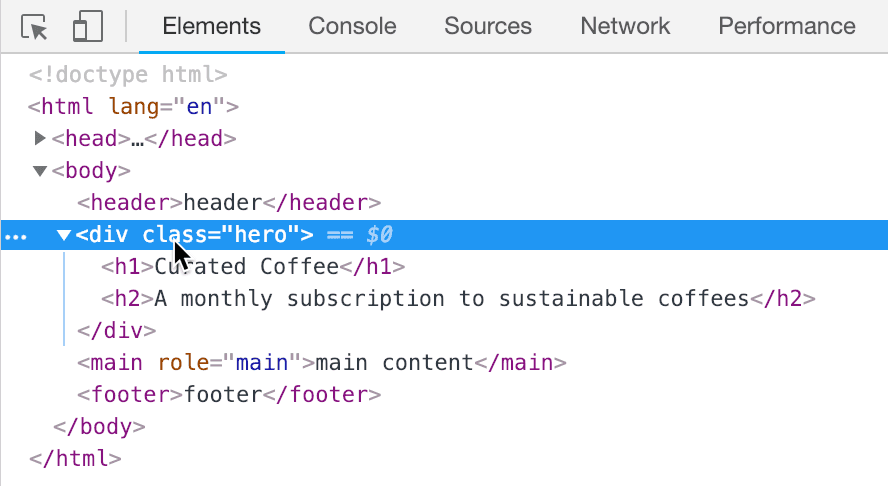
  2. In the Elements panel, select the hero div (you'll see it highlighted in the browser):

    hipstirred hero devtools

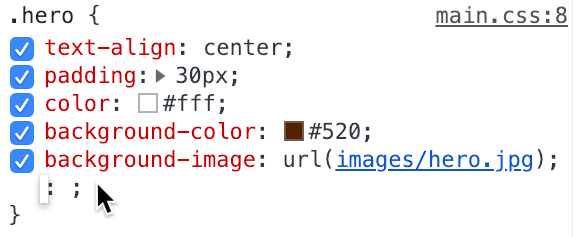
  3. Locate the .hero rule in the Styles tab on the right side of the DevTools window. Click at the bottom of the property declarations stack for the .hero rule. The blinking cursor indicates you're ready to add a new property:

    hipstirred editing hero

  4. Type background-position: right bottom into the DevTools:
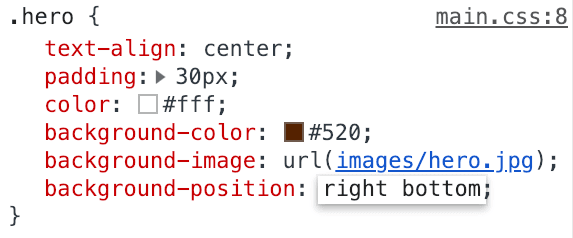
    hipstirred hero right bottom

  5. Watch the image shift behind your headings as you modify the CSS in real-time. This immediate visual feedback makes DevTools invaluable for fine-tuning designs.

    NOTE: The background-position property accepts two values: X position (horizontal offset) and Y position (vertical offset) separated by a space. The default is left top. You can use keywords (top, bottom, left, right, center), absolute pixel values, or percentages for precise control.

  6. Click on the right bottom value and change it to center. The image centers both horizontally and vertically within the hero section, often creating the most balanced composition.

Background Position Values

Keywords

Use top, bottom, left, right, center for common positioning needs.

Pixels

Absolute positioning with specific pixel offsets from top-left corner.

Percentages

Relative positioning that adapts to container size changes dynamically.

Proportional Sizing for the Hero Section

Responsive design requires flexible spacing that adapts gracefully across devices. Fixed 30px padding creates usability issues—it consumes excessive space on 320px mobile screens while appearing insignificant on 1440px desktop displays. Modern web development prioritizes proportional measurements that scale intelligently with screen size.

  1. Return to main.css in your code editor.

  2. Replace the fixed padding with a percentage-based value that adapts to screen width:

    .hero {
       text-align: center;
       padding: 10%;
       color: #fff;
       background-color: #520;
       background-image: url(images/hero.jpg);
    }
  3. While you're editing, add the background positioning you tested in DevTools:

    background-image: url(images/hero.jpg);
       background-position: center;
    }

    NOTE: When you specify one keyword for background-position, the other defaults to center, so background-position: center; is equivalent to center center.

  4. Save main.css.
  5. Return to Chrome, reload the page, and test responsive behavior by resizing the browser window. Notice how the padding scales proportionally—tighter on narrow windows, more generous on wide displays.

    The positioning and scaling look professional, but you may still notice background repetition on ultra-wide monitors. Let's eliminate this unwanted effect.

Fixed vs Responsive Padding

Feature30px Fixed10% Responsive
320px Mobile30px (9.4%)32px (10%)
768px Tablet30px (3.9%)77px (10%)
1440px Desktop30px (2.1%)144px (10%)
Recommended: Use percentage values for padding that scales proportionally across all device sizes

Background-Repeat

  1. In Chrome, CTRL–click (Mac) or Right–click (Windows) on the hero section and choose Inspect.
  2. In the Elements panel, select the hero div.
  3. In the Styles tab, locate the .hero rule.
  4. Click on the center value of the background-position property and change it to 400px 150px.

    This offset clearly reveals the background repetition behavior that we need to control. Photos should never tile like patterns—each image should appear exactly once.

  5. Return to main.css in your code editor.
  6. Add precise repeat control to the .hero rule:

    background-image: url(images/hero.jpg);
       background-position: center;
       background-repeat: no-repeat;
    }

    NOTE: Alternative repeat values include repeat-x (horizontal repetition only) and repeat-y (vertical repetition only), useful for creating decorative borders or patterns.

  7. Save main.css.

Background Repeat Options

repeat (default)

Image tiles in both directions to fill the entire container space.

no-repeat

Image appears once only, ideal for hero photos and single graphics.

repeat-x / repeat-y

Creates horizontal rows or vertical columns of repeated images.

Setting the Background-Size

Image scaling represents one of the most critical aspects of responsive hero design. Without proper scaling, your 1280px-wide image creates gaps on larger displays, revealing the background color and breaking the immersive experience. The background-size property provides sophisticated scaling options that maintain image quality while ensuring complete coverage across all screen sizes.

  1. Add intelligent scaling to your .hero rule:

    background-image: url(images/hero.jpg);
       background-position: center;
       background-repeat: no-repeat;
       background-size: 100% auto;
    }

    Background-size accepts width (first value) and height (second value) separated by a space. You can specify fixed pixel dimensions, percentages relative to the containing element, or use auto to maintain aspect ratio. This setting scales the image to fill the hero's full width while preserving proportions.

  2. Save main.css.
  3. Return to Chrome and reload the page. Test the scaling by resizing your browser window. Wide windows display beautifully, but narrow windows reveal a limitation—the image height doesn't adapt, creating gaps filled with the background color.
  4. Return to main.css in your code editor.
  5. Attempt to fill the height by forcing both dimensions to 100%:

    background-size: 100% 100%;
    }
  6. Save main.css.

  7. Return to Chrome and reload the page. Resize the window again. The image now stretches unnaturally to fit the hero area, distorting the aspect ratio and creating an unprofessional appearance.
  8. Return to main.css in your code editor.
  9. Implement the professional solution using CSS's intelligent scaling keyword:

    background-size: cover;
    }
  10. Save main.css.
  11. Return to Chrome and reload the page. Test different window sizes.

    The cover value represents the gold standard for hero images—it scales the image proportionally to completely fill the container, cropping edges when necessary rather than stretching or leaving gaps. This maintains image quality while ensuring visual consistency across all devices.

Background-Size: Cover vs Contain

Pros
Cover ensures complete container fill
Maintains aspect ratio integrity
Crops intelligently when needed
Works across all screen sizes
Cons
May crop important image areas
Less control over visible portions
Can hide key visual elements
Requires careful image selection

Perfecting the Background-Position

Fine-tuning image position ensures the most important visual elements remain visible across different screen sizes. For this coffee hero image, the cup represents the focal point that should stay prominent on wider displays where more of the image becomes visible.

  1. Widen your browser window to see more of the image area.
  2. CTRL–click (Mac) or Right–click (Windows) on the hero section and choose Inspect.
  3. In the Elements panel, select the hero div.
  4. Locate the .hero rule in the Styles tab.
  5. Click on the center value of the background-position property and change it to center 0%
  6. Highlight just the 0% value.
  7. Hold Shift and press the Up Arrow key to increase the value in 10% increments. Find the optimal position that showcases the cup behind your header text. Values around 70-80% typically work well for this image.

    NOTE: Percentage values relate to the background positioning area where 0% 0% equals left top, 100% 100% equals right bottom, and 50% 50% equals center. Setting Y offset to 75% moves the image upward, revealing more of the image's lower portion where the cup is located.

  8. Return to main.css in your code editor to make this adjustment permanent.

  9. Update the background-position property in your .hero rule:

    background-position: center 75%;
       background-repeat: no-repeat;
       background-size: cover;
    }
  10. Save main.css.
  11. Return to the browser, reload the page, and admire your professionally crafted hero section. You've now mastered the essential CSS background properties that power modern web design.

DevTools Live Editing

Use Shift + Arrow keys in DevTools to increment percentage values by 10% for quick background-position adjustments.

Background Position Reference

0% (top/left)
0
25%
25
50% (center)
50
75% (optimal)
75
100% (bottom/right)
100

Key Takeaways

1Remove browser default margins and set custom fonts to gain full control over page layout and typography
2CSS background-image property uses url() function and should be paired with a fallback background-color for loading states
3Background-position accepts keywords, pixels, or percentages with two values for X and Y positioning
4Use percentage-based padding instead of fixed pixels to create responsive designs that adapt to different screen sizes
5Set background-repeat to no-repeat for hero images to prevent unwanted tiling across large containers
6Background-size: cover scales images to fill containers completely while maintaining aspect ratio through intelligent cropping
7Chrome DevTools allows real-time CSS editing with Shift + Arrow keys for quick value adjustments
8Position hero backgrounds around 75% vertically to showcase important visual elements while maintaining text readability

RELATED ARTICLES