April 1, 2026Dan Rodney/6 min read

Coding Links: Absolute & Relative URLs

Master HTML linking fundamentals for modern web development

Core Concepts You'll Master

Anchor Tags & HREFs

Learn the fundamental structure of HTML links and how the href attribute creates functional hyperlinks between web resources.

Link Types & Navigation

Understand the difference between absolute links to external sites and relative links within your website structure.

User Experience Control

Master the target attribute to control how links open, enhancing navigation flow and user interaction patterns.

Topics Covered in This HTML & CSS Tutorial:

Anchor Tags & Hrefs, Linking to Other Websites, Linking to Pages Within a Website, Opening a Link in a New Browser Window/tab

Exercise Preview
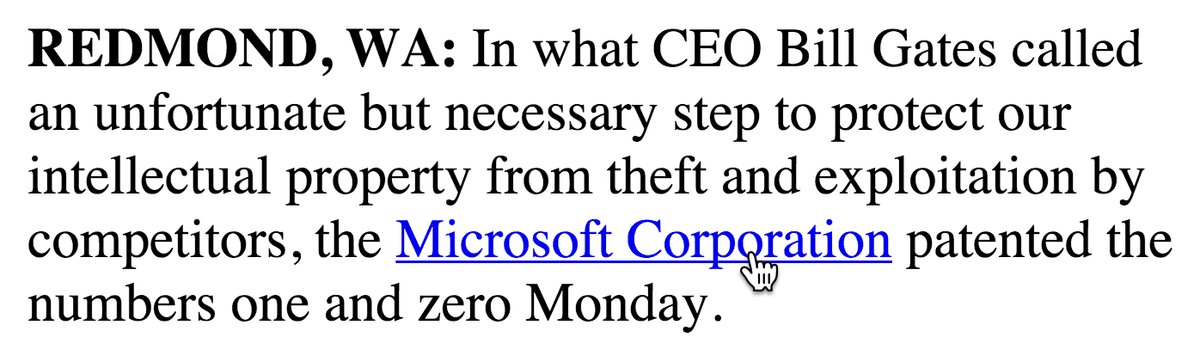
coding links

Exercise Overview

Links are the fundamental building blocks that make the web truly interconnected. Without them, websites would exist as isolated islands of content. In this hands-on exercise, you'll master the essential skill of creating both external links that connect to other websites and internal links that navigate users seamlessly through your own site's pages. Understanding proper link implementation is crucial for creating professional, user-friendly web experiences that meet modern accessibility and SEO standards.

  1. If you completed the previous exercise, Microsoft.html should still be open in your code editor, and you can skip the following sidebar. If you closed Microsoft.html, re-open it now (from the News website folder). We strongly recommend completing the previous exercise (1A) before proceeding, as it establishes the foundation markup we'll be enhancing. If you haven't finished it, follow the instructions in the sidebar below.

    Foundation Building

    This exercise builds essential linking skills that form the backbone of web navigation. Every modern website relies on these fundamental techniques for user experience and site architecture.

If You Did Not Do the Previous Exercise (1A)

  1. Close any files you may have open.
  2. In your code editor, open Microsoft-ready-for-links.html from the News website folder.
  3. Do a File > Save As and save the file as Microsoft.html, replacing the older version in your folder.

Quick Setup Process

1

Close Current Files

Ensure your workspace is clean by closing any files currently open in your code editor.

2

Open Template File

Navigate to the News website folder and open the Microsoft-ready-for-links.html file in your code editor.

3

Save As New Version

Use File > Save As to save the template as Microsoft.html, replacing any older version in your project folder.

The Anchor Tag & HREF Attribute

Now that your file is ready, let's dive into creating your first hyperlink. The anchor tag is one of HTML's most powerful elements, transforming static text into interactive pathways that connect users across the vast landscape of the internet.

  1. In the first paragraph, wrap an <a> tag (which stands for anchor) around Microsoft Corporation, as shown below in bold:

    <p><strong>REDMOND, WA:</strong> In what CEO Bill Gates called an unfortunate but necessary step to protect our intellectual property from theft and exploitation by competitors, the <a href="https://www.microsoft.com"> Microsoft Corporation</a> patented the numbers one and zero Monday.</p>

    NOTE: The anchor tag is powerless without the href attribute—this is what transforms ordinary text into a clickable link. "Href" stands for hyperlink reference, and its value contains the destination URL (uniform resource locator). This attribute tells the browser exactly where to navigate when a user clicks the link, making it the essential bridge between your content and the broader web.

  2. Take a moment to carefully review your code for any typos or syntax errors. Remember that attributes are exclusively added to opening tags and follow this precise format: <tag attribute="value">. Attention to detail here prevents broken links that frustrate users and hurt your site's credibility.
  3. Save the file using your editor's keyboard shortcut (typically Ctrl+S or Cmd+S) to ensure your changes are preserved.
  4. Preview Microsoft.html in a browser to see your link in action.

    The anchor tag wouldn't do anything without the href attribute. Href stands for hyperlink reference.
    Understanding the critical relationship between HTML elements and their attributes is fundamental to effective web development.

    Absolute vs Relative Links

    FeatureAbsolute LinksRelative Links
    URL Structurehttps://www.microsoft.comwall-street.html
    Use CaseExternal websitesInternal site pages
    PortabilityFixed destinationRelative to current file
    Recommended: Use absolute links for external sites, relative links for internal navigation to maintain flexibility.

Browser Preview Shortcuts

If you're using Visual Studio Code with the open in browser extension installed, hit Option–B (Mac) or ALT–B (Windows) to instantly open the saved HTML document in your default browser. If prompted to choose a browser, select Google Chrome, which remains the industry standard for web development testing due to its excellent developer tools and market dominance (holding over 65% market share as of 2026).

  • Click the link to verify it functions correctly and navigates to Microsoft's official website. Links that include the complete web address (including the https://www protocol) are called absolute links—they provide the full roadmap to reach any destination on the internet.
  • Return to Microsoft.html in your code editor. Now you'll create another external link, this time to The Onion's website. Add this code in the last paragraph, just before the closing body tag:

    <p>Wall Street reacts to MS Patent News. <em>Read more…</em></p>
       <p>This report was written by <a href="https://www.theonion.com"> The Onion</a></p>
    </body>
  • Save the file and maintain your workflow momentum.
  • Preview Microsoft.html in your browser and test the new link to ensure it navigates properly.

    Excellent work on mastering external links! But professional websites need more than just connections to outside sources. Internal navigation is equally critical for user experience and SEO performance. Let's create a link to another page within your own site. We've prepared a companion page called wall-street.html that resides in the same folder as your current page.

  • Return to Microsoft.html in your code editor and add an internal link below the bulleted list by incorporating the code shown in bold:

    <p>Wall Street reacts to MS Patent News. <a href="wall-street.html"><em>Read more…</em></a></p>
       <p>This report was written by <a href="https://www.theonion.com">The Onion</a></p>
    </body>

    This demonstrates a relative link—notice how it doesn't include the full web address. Relative links are "relative" to the current HTML file's location in your site's folder structure. In this case, the browser will search for wall-street.html in the same directory as Microsoft.html. Relative links are preferred for internal navigation because they're more portable and efficient, automatically adapting when you move your site between development and production environments.

  • Save the file to preserve your progress.
  • Preview Microsoft.html in your browser and test all three links thoroughly. If your browser is already displaying the page, simply click the reload button or press F5 to see your latest changes.

  • Development Efficiency Shortcuts

    Visual Studio Code

    Use Option-B (Mac) or ALT-B (Windows) with the open in browser extension for instant preview of your HTML documents.

    Browser Recommendation

    Choose Google Chrome as your default testing browser due to its widespread adoption and comprehensive developer tools.

    Development Workflow

    Establish a consistent save-and-preview cycle to catch errors early and see your changes in real-time as you build your web pages.

    Opening a Link in a New Browser Tab/Window

    User experience considerations sometimes require links to open in new browser tabs or windows, particularly when linking to external sites. This keeps users on your site while still providing access to external resources. Let's implement this professional touch using the target attribute.

    1. Return to Microsoft.html in your code editor to implement this enhanced functionality.
    2. In the first paragraph, add the target attribute to the Microsoft.com link as demonstrated below. Remember that multiple attributes must always be separated by space characters for proper HTML validation:

      <p><strong>REDMOND, WA:</strong> In what CEO Bill Gates called an unfortunate but necessary step to protect our intellectual property from theft and exploitation by competitors, the <a href="https://www.microsoft.com" target="_blank">Microsoft Corporation</a> patented the numbers one and zero Monday.</p>
    3. Apply the same enhancement to The Onion link in the last paragraph:

      <p>This report was written by <a href="https://www.theonion.com" target="_blank">The Onion</a></p>
    4. Save the file to commit these user experience improvements.
    5. Preview Microsoft.html in your browser and test both external links. Click the Microsoft Corporation and The Onion links—they should now open in new browser tabs or windows (depending on the user's browser preferences), while keeping your original page accessible for easy return navigation. This approach is considered a best practice for external links as it maintains user engagement with your primary content.
    6. Return to your code editor and close any open files to maintain a clean workspace. You're now ready to tackle the next exercise with a solid foundation in link creation and management.

    Target Attribute Implementation

    0/4
    Professional Practice

    Using target='_blank' for external links is a standard web development practice that improves user retention and creates intuitive navigation patterns.

    Key Takeaways

    1Anchor tags with href attributes form the foundation of web navigation and must be properly structured with quotes around attribute values
    2Absolute links include the full URL with protocol and domain, making them ideal for linking to external websites and resources
    3Relative links reference files within your website structure, providing flexibility and portability for internal site navigation
    4The target='_blank' attribute opens links in new browser tabs or windows, improving user experience for external link navigation
    5Multiple HTML attributes must be separated by space characters to maintain valid syntax and proper functionality
    6Browser preview shortcuts like Option-B or ALT-B in Visual Studio Code significantly improve development workflow efficiency
    7Google Chrome serves as the recommended testing browser due to its widespread usage and comprehensive developer tools
    8Consistent save-and-preview cycles during development help identify errors early and provide immediate visual feedback on code changes

    RELATED ARTICLES