April 1, 2026Dan Rodney/13 min read

Normalize.css, Default Box Model, & More

Master CSS fundamentals with normalize and box model

Core Concepts in This Tutorial

Normalize.css Integration

Learn to implement normalize.css for consistent cross-browser rendering instead of aggressive CSS resets.

CSS Box Model Mastery

Understand margin, padding, and border properties using Chrome DevTools for visual debugging.

Responsive Image Handling

Create fluid, hi-resolution images that scale properly across different screen sizes and pixel densities.

Topics Covered in This HTML & CSS Tutorial:

This comprehensive tutorial covers essential modern CSS techniques: implementing Normalize.css for cross-browser consistency, grouping CSS selectors with comma separators for efficient code organization, creating fluid and high-resolution responsive images, constraining content width for optimal readability, mastering Chrome DevTools for visualizing the box model (margin, padding, and border), resolving common spacing issues around images, and utilizing CSS shorthand properties for the background property to write cleaner, more maintainable code.

Exercise Preview

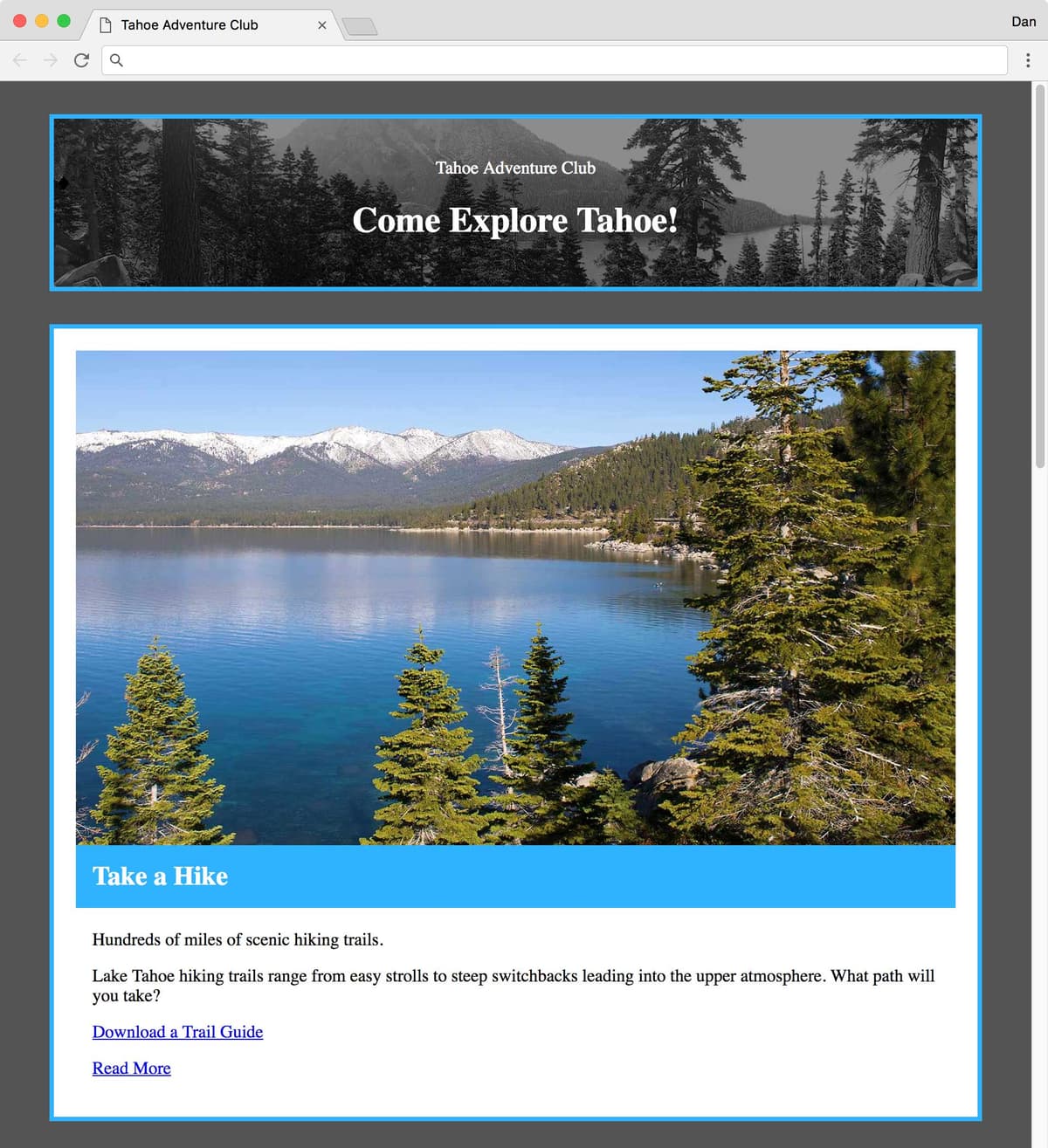
preview minimalist box model

Exercise Overview

This foundational exercise launches a comprehensive series focused on professional CSS styling techniques. You'll master normalize.css implementation, gain deep understanding of the CSS Box Model (width, height, padding, margin, and borders), create fluid layouts that perform excellently across all device sizes, and develop the debugging skills essential for modern web development. These techniques form the backbone of professional front-end development and are crucial for creating maintainable, scalable websites.

Getting Started

Before diving into the CSS concepts, let's establish our development environment and examine the starter files.

  1. Launch your preferred code editor (Visual Studio Code, Sublime Text, or similar modern editor). If you're in a Noble Desktop class, launch Visual Studio Code.
  2. Navigate to the Tahoe Starter folder located at Desktop > Class Files > Advanced HTML CSS Class > Tahoe Starter. For optimal workflow, open this entire folder in your code editor if it supports project folders (Visual Studio Code and most modern editors do).
  3. Open index.html from the Tahoe Starter folder to examine the HTML structure.
  4. Preview index.html in Chrome. We're specifically using Chrome because we'll leverage its powerful DevTools for debugging and box model visualization.
  5. Analyze the current state of the page:

    • The page lacks styling entirely, resulting in basic browser default rendering that appears unprofessional.
    • You'll likely notice a horizontal scrollbar at the bottom when your browser window is smaller than the images. This occurs because the high-resolution images don't scale responsively to fit within the browser window constraints—a critical issue we'll resolve.
  6. Keep index.html open in your browser throughout this exercise, refreshing after each code change to observe the progressive improvements.

Project Setup Process

1

Launch Code Editor

Open Visual Studio Code or your preferred editor and navigate to the Tahoe Starter folder

2

Open Project Files

Access index.html from the Tahoe Starter folder and preview in Chrome browser

3

Identify Issues

Note the unstyled appearance, horizontal scrollbar, and non-responsive images

Understanding and Implementing Normalize.css

Professional web development requires addressing browser inconsistencies from the start. Every browser applies its own default styles to HTML elements, creating inconsistent user experiences across different platforms. Developers have traditionally used reset style sheets to address these discrepancies, but many reset approaches are overly aggressive, completely removing useful browser defaults like heading weights and list bullets.

We recommend normalize.css as a superior alternative because it takes a measured approach to browser standardization. Rather than aggressively stripping all default styles, normalize.css preserves useful defaults while eliminating inconsistencies. As its creator explains, it "makes browsers render all elements more consistently and in line with modern standards, precisely targeting only the styles that need normalizing." This philosophy results in more maintainable code and fewer unexpected styling issues. You can learn more about normalize.css or download the latest version from necolas.GitHub.io/normalize.css

  1. Switch back to your code editor to begin implementation.
  2. Open normalize.css from the css folder within your Tahoe Starter directory.
  3. Examine the comprehensive comments throughout the code that explain each rule's purpose. Pay particular attention to these key normalizations:

    • html rule: The text-size-adjust property prevents iOS and other mobile browsers from automatically enlarging text, giving you precise control over typography scaling. The line-height ensures consistent vertical rhythm across all browsers. Notice that line-height uses no unit (such as px)—this unitless approach creates proportional line spacing that scales with font size changes.
    • body rule: Removes the page's default margins, providing a clean slate for custom spacing.

    While most normalize rules maintain browser defaults while ensuring consistency, removing body margins represents one of the few opinionated decisions in normalize.css. Most professional websites require custom margin control, making this override practical despite technically deviating from the "preserve defaults" philosophy.

  4. Now let's connect our HTML page to normalize.css. Switch back to index.html in your code editor.
  5. Add the normalize.css link as shown in bold below. Professional tip: If your code editor includes Emmet (like Visual Studio Code), type link and press Tab to generate the base link tag, then simply fill in the href attribute:

    <head>
       <meta charset="UTF-8">
       <meta name="viewport" content="width=device-width, initial-scale=1">
       <title>Tahoe Adventure Club</title>
       <link rel="stylesheet" href="css/normalize.css">
    </head>
  6. Save index.html to apply the changes.
  7. Switch back to Chrome and reload index.html. The changes appear subtle but significant: images and text now extend to the browser window edges because the body's default margins have been removed.

    While the visible changes seem minimal for this particular page, normalize.css contains numerous cross-browser fixes and best practices that prevent future styling inconsistencies. It's professional practice to include it in every project.

  8. Return to index.html in your code editor to add our custom stylesheet.

    The css folder contains an empty file called main.css where we'll write all custom CSS rules. The order of stylesheet links is critical: main.css must come after normalize.css so our custom styles can override normalize rules when necessary.

  9. Add the main.css link as shown in bold:

    <link rel="stylesheet" href="css/normalize.css">
       <link rel="stylesheet" href="css/main.css">
    </head>

    CRITICAL NOTE: Stylesheet order determines style precedence. Browsers process stylesheets from top to bottom, so later rules override earlier ones when specificity is equal. For example, if two class selectors target the same element, the class from the later stylesheet wins. Always place normalize.css first to allow custom overrides in your main stylesheet.

  10. Save the file to establish our CSS architecture.

Creating Fluid, High-Resolution Images

The oversized images demonstrate an important concept in modern web development: high-resolution image optimization. We're using images specifically designed for high-pixel-density displays, commonly called HiDPI (high dots per inch) or Retina displays (Apple's marketing term). These screens contain significantly more pixels in the same physical space compared to standard displays—typically twice the pixel density.

High-resolution displays first appeared in smartphones and tablets but are now standard on laptops and desktop monitors. Standard-resolution images appear pixelated or blurry on these displays because there aren't enough image pixels to fill the available screen pixels crisply. The solution is creating images with pixel dimensions twice the size we'll display them at—these are called 2x images. A 2x image contains four times as many pixels as its 1x counterpart (twice the width × twice the height), providing the pixel density needed for crisp display on high-resolution screens.

  1. Open the currently empty main.css file from the css folder to begin solving the image sizing issue.
  2. Add this essential rule that makes all images responsive:

    img {
       max-width: 100%;
    }

    The max-width: 100% property creates truly responsive images: they never exceed their container's width (eliminating horizontal scrollbars), never scale larger than their native pixel dimensions (preventing pixelation), yet scale down smoothly to fit smaller viewports. This single rule is fundamental to responsive web design.

  3. Save main.css to apply the responsive image behavior.
  4. Return to Chrome and test the responsive behavior:

    • Reload index.html to see the changes.
    • Drag the browser window narrower—images now shrink to fit within the window.
    • Expand the browser window wide—notice how the resulting long lines of text become difficult to read. We'll address this readability issue next.

With our images now responsive, let's focus on creating an organized, readable layout structure.

Styling the Sections with Borders, Margins, and Padding

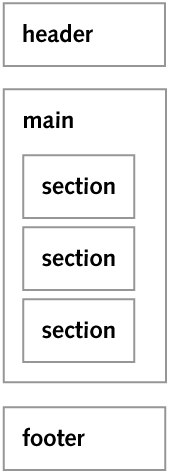
The index.html file contains three primary semantic elements: header, main, and footer. Within the main element, three section elements organize the content. Understanding this hierarchy is crucial for effective styling:

tahoe simple page structure

We'll create visual consistency by styling the header and all three sections identically, using CSS selector grouping for efficient code organization.

  1. Return to main.css in your code editor.
  2. Below the existing img rule, add this grouped selector rule:

    header, section {
       border: 4px solid #2fb3fe;
       margin: 30px;
    }

    PROFESSIONAL TIP: Commas in CSS selectors create selector lists—multiple selectors sharing identical styles. This doesn't increase specificity; we're simply combining two separate tag selectors into one rule for code efficiency and maintainability.

  3. Save main.css to apply the borders and spacing.
  4. Switch to Chrome and reload index.html.

    You now see four distinct content areas outlined in blue with consistent spacing between them—the foundation of our layout structure.

  5. Return to main.css to enhance the visual hierarchy.
  6. Above the img rule, add this body styling:

    body {
       background: #555;
    }

    EFFICIENCY NOTE: We're using the background shorthand property instead of the more verbose background-color. Shorthand properties reduce code volume and improve maintainability.

  7. Enhance the section contrast by adding a white background:

    header, section {
       border: 4px solid #2fb3fe;
       margin: 30px;
       background: #fff;
    }
  8. Save main.css, return to Chrome, and reload index.html.

    The page now displays a dark gray background with four distinct white content areas featuring blue borders. However, the content appears cramped against the borders. We need to add internal spacing (padding) to complement our external spacing (margins).

  9. Return to main.css to add internal spacing.
  10. Add padding to create breathing room inside each section:

    header, section {
       border: 4px solid #2fb3fe;
       margin: 30px;
       background: #fff;
       padding: 20px;
    }
  11. Save main.css, return to Chrome, and reload index.html.

    The content now has appropriate internal spacing, but on wide screens the text lines become uncomfortably long and difficult to read. Let's implement optimal line length constraints.

Constraining Content Width for Optimal Readability

By default, block-level elements like header and section expand to fill 100% of their parent container's width. While this flexibility is useful for responsive design, unlimited text width severely impacts readability. Typography research consistently shows that optimal line length for comfortable reading falls between 45-75 characters per line, with 66 characters being ideal for print and slightly shorter for screen reading.

  1. Return to main.css in your code editor.
  2. Add a maximum width constraint to ensure readable line lengths:

    header, section {

    Code Omitted To Save Space

    padding: 20px;
       max-width: 800px;
    }
  3. Save main.css, return to Chrome, and reload index.html.
  4. Test the responsive behavior by resizing your browser window. The layout now expands fluidly until reaching the 800-pixel maximum, then maintains that width for optimal readability on larger screens.

Centering Content with Auto Margins

With width constraints in place, our content needs proper centering to create balanced, professional layouts. Block-level elements center horizontally using automatic margins—a fundamental CSS technique every professional developer must master.

Auto margins work by calculating available space in the parent container, dividing it equally, and applying it to both sides of the element. This creates perfect centering regardless of viewport width, as long as the element has a defined width or max-width.

  1. Switch back to main.css to implement auto margin centering.
  2. Modify the margin property to maintain vertical spacing while centering horizontally:

    header, section {
       border: 4px solid #2fb3fe;
       margin: 30px auto;

    SHORTHAND EXPLANATION: When margin has two values, the first applies to top and bottom, the second to right and left. This syntax is more efficient than writing four separate margin properties.

  3. Save main.css, return to Chrome, and reload index.html. Observe the behavior:

    • When the browser window is wider than 800 pixels, the content column centers perfectly.
    • When you narrow the browser window, the content touches the viewport edges without any buffer space—this needs improvement.
  4. Return to main.css to add page-level margins.
  5. Add breathing room around the entire page:

    body {
       background: #555;
       margin: 30px;
    }
  6. Save main.css, return to Chrome, and reload index.html. The layout now maintains appropriate spacing at all viewport sizes, with gray buffer space visible when the window is narrower than the content.

Mastering the Box Model with Chrome DevTools

Understanding the CSS Box Model is fundamental to professional web development. Every element on a webpage is essentially a rectangular box with four components: content, padding, border, and margin. Chrome DevTools provides powerful visualization tools that make the often-abstract box model concept tangible and debuggable.

  1. Let's create visual cohesion between images and headings. Switch back to main.css in your code editor.
  2. After the img rule, add styling for the h2 headings:

    h2 {
       background: #2fb3fe;
       color: #fff;
    }
  3. Save main.css and apply the changes.
  4. Switch back to Chrome and reload index.html. The blue background reveals that headings are block-level elements that expand to fill their container's full width.
  5. The heading text appears cramped within the blue backgrounds. Return to main.css to add internal spacing.
  6. Add padding to create comfortable internal spacing:

    h2 {
       background: #2fb3fe;
       color: #fff;
       padding: 15px;
    }
  7. Save main.css and reload index.html in Chrome.

    The internal spacing (padding) looks much better, but there's excessive space above each heading, preventing the desired flush alignment with the images above. This spacing issue is likely caused by default margins that we need to investigate using DevTools.

  8. Activate Chrome's powerful debugging tools by Ctrl-clicking (Mac) or right-clicking (Windows) on the "Take a Hike" h2 heading and selecting Inspect.
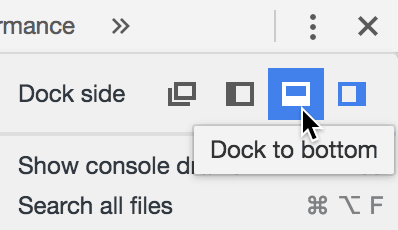
  9. For optimal workflow, ensure DevTools dock to the bottom of your browser window. If DevTools appear on the right side, click the chrome devtools menu menu button in the top-right corner of the DevTools panel and choose Dock to bottom:

    chrome dock to bottom icon

  10. In the DevTools right panel, click the Computed tab to access the box model visualizer.

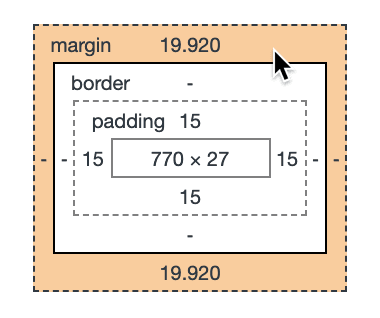
  11. Hover over the margin section in the box model diagram. Chrome highlights the element's margins in orange directly on the page, making the invisible spacing visible:

    dev tools inspect h2 margin

    The 19.920 pixels of margin represents the browser's default spacing, which is proportional to the heading's font size. These default margins ensure readable spacing in unstyled documents but often interfere with custom designs.

  12. Let's eliminate the problematic top margin. Switch back to main.css.
  13. Remove the default top margin:

    h2 {
       background: #2fb3fe;
       color: #fff;
       padding: 15px;
       margin-top: 0;
    }
  14. Save main.css, return to Chrome, and reload index.html. Despite removing the heading's top margin, a gap still exists between the image and heading. The issue must lie elsewhere.
  15. Investigate the image spacing by Ctrl-clicking (Mac) or right-clicking (Windows) on an image, selecting Inspect, and examining the Computed tab. You'll discover the image has no margins, so what's creating the space below it?

Resolving Image Spacing Issues

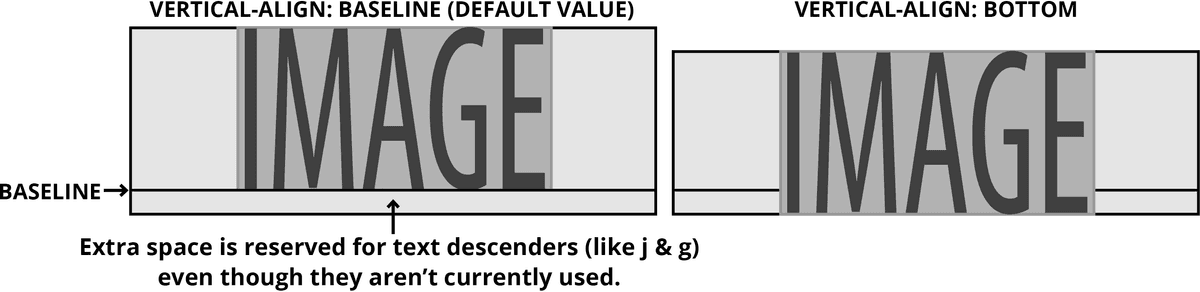
Images in HTML have a quirky default behavior that often surprises developers: they're treated as inline elements, similar to text characters. By default, images align to the text baseline—the invisible line that letters sit on when writing on lined paper.

This baseline alignment makes sense for text, especially for characters with descenders like 'j', 'g', and 'y' that extend below the baseline. However, images don't have descenders, so aligning to the baseline creates unwanted empty space below them—space reserved for descenders that don't exist. The solution is changing the vertical alignment from baseline to bottom.

vertical align property example

  1. Switch back to main.css in your code editor.
  2. Fix the image alignment issue by adding vertical-align to the img rule:

    img {
       max-width: 100%;
       vertical-align: bottom;
    }
  3. Save main.css to apply the fix.
  4. Switch back to Chrome and reload index.html. The unwanted space below images disappears, creating the desired flush connection between images and headings.
  5. Close Chrome's DevTools to maximize your viewing area—we'll return to these powerful debugging tools throughout your development career.

Fine-tuning Paragraph Spacing

To complete our layout, we need to align paragraph spacing with our heading design. Since the headings have 15 pixels of internal padding, we'll apply consistent 15-pixel margins to paragraphs for visual harmony.

  1. Switch back to main.css in your code editor.
  2. Below the h2 rule, add paragraph spacing that aligns with the heading design:

    section p {
       margin: 15px;
    }

Spacing Consistency

15px
Pixels of padding used in headings
15px
Pixels of margin applied to paragraphs

Key Takeaways

1Normalize.css provides consistent cross-browser rendering without the aggressive overrides of traditional CSS resets, making it ideal for modern web development
2The max-width: 100% property on images creates fluid, responsive layouts that prevent horizontal scrollbars while maintaining image quality across screen sizes
3CSS selector grouping with commas allows efficient styling of multiple elements without increasing specificity, reducing code redundancy
4The CSS box model consists of margin (outside), border, padding (inside), and content, which can be visualized and debugged using Chrome DevTools
5Auto margins on left and right sides automatically center block-level elements by distributing available space equally on both sides
6Images have default baseline vertical alignment that creates unwanted space below them, fixed by setting vertical-align to bottom
7CSS shorthand properties like margin and background reduce code while providing flexibility for future modifications and enhancements
8Hi-resolution images should be created at 2x the display size to ensure crisp rendering on high-density displays while using CSS to scale them appropriately

RELATED ARTICLES