Intro to SVG (Scalable Vector Graphics)
What This Tutorial Covers
Vector Format
Crisp graphics at any size — ideal for logos and icons.
SVG in HTML
Inline SVG, <img>, and CSS background usage.
Styling SVG
CSS and JavaScript can modify SVG elements directly.
Noble Desktop's Front-End Web Development Certificate teaches HTML, CSS, and JavaScript — the complete front-end foundation.
Delve into the world of SVG in this comprehensive HTML & CSS tutorial where you will learn how to add SVG to a webpage, size it correctly, and understand the nuances of configuring a.htaccess file for SVG and gzip.
Topics Covered in This HTML & CSS Tutorial:
Adding SVG to a Webpage, Sizing SVG, Web Servers: Configuring A.htaccess File for SVG & Gzip
Exercise Preview
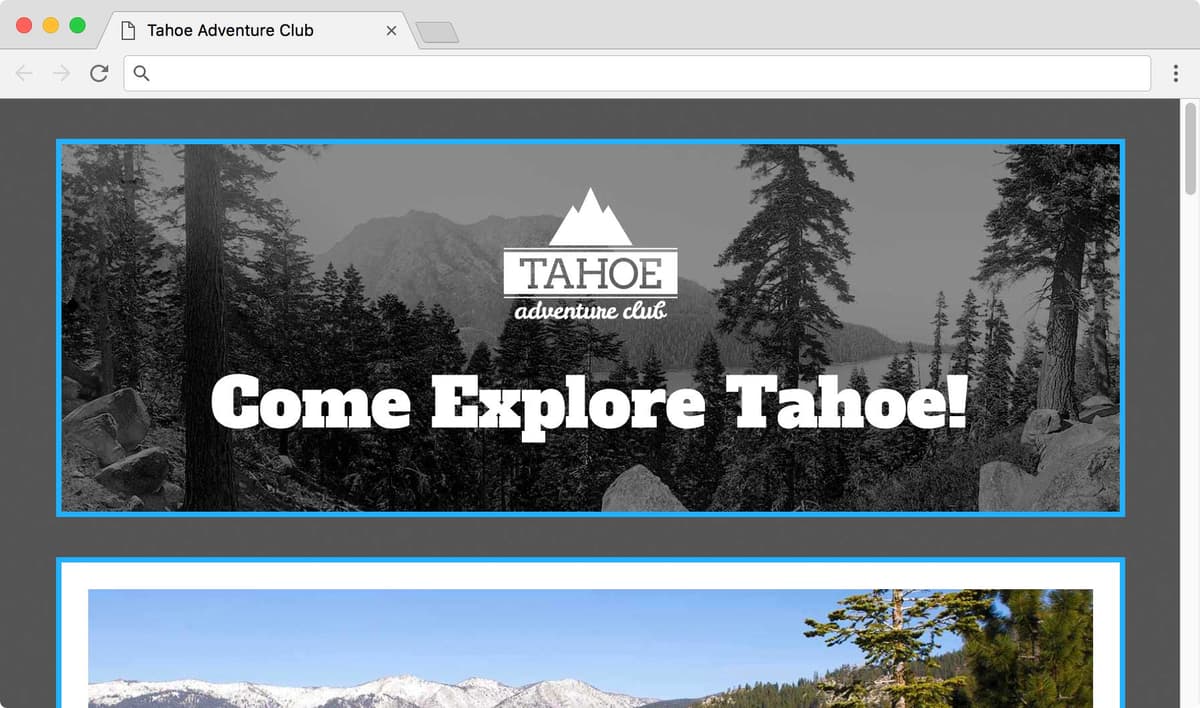
Exercise Overview
In this exercise you’ll learn about SVG (scalable vector graphics). High resolution pixel-based graphics can have large file sizes. Vector graphics typically have smaller file sizes. With SVG we can use vectors natively in webpages! While not everything is vector-based (photos are still best as pixel-based files), graphics such as icons and logos are best created as vectors, and therefore saved as SVG.
Getting Started
The files for this exercise are very similar to where the previous exercise left off, but we’ve added some new files.
- In your code editor, close any files you may have open.
- For this exercise we’ll be working with the Tahoe SVG folder located in Desktop > Class Files > Advanced HTML CSS Class. You may want to open that folder in your code editor if it allows you to (like Visual Studio Code does).
- Open index.html from the Tahoe SVG folder.
- Preview index.html in a browser.
- Notice at the top of the page it says Tahoe Adventure Club. We want to replace this with the company logo.
Adding SVG to a Webpage
We created two different versions of the company’s logo. Let’s see how both look in the page. We can put an SVG into a page using a standard img tag.
- Return to your code editor.
On line 15, replace the text with an img tag, as shown below in bold:
<header> <p> <img src="img/tahoe-logo.svg" ALT="Tahoe Adventure Club"> </p>- Save the file.
- Preview index.html in a browser to see the logo is there. That was as easy as adding any image. The main difference is that this is vector instead of pixels, so we could make it any size without losing quality (and it looks great on any resolution screen)!
- Keep the page open in the browser, but return to your code editor.
To switch to the other logo we made, on line 15, add -white to the filename as shown below in bold:
<img src="img/tahoe-logo-white.svg" ALT="Tahoe Adventure Club">- Save the file.
Preview index.html in a browser to see the logo is there, but this time it’s huge!
Even though the logo is bigger than we designed it, the edges are still crisp (on any resolution screen) because it’s made of vectors.
Resize the browser to see the logo scales down or up to always fill the header (which has some padding so the content doesn’t touch the blue border).
Sizing SVG
When exporting SVG from Adobe Illustrator, there’s a Responsive option that controls the size. When Responsive is not checked it codes a width and height into the SVG file (as you saw with the first color logo that came in at the size we created it). When Responsive is checked it does not include the width and height code (as you saw with the large white logo) so the SVG scales to fill whatever it’s inside. That can be undesirable for two reasons:
- Microsoft Edge sometimes has issues when no width and height are in the SVG.
- We always have to code a size, instead of it defaulting to the size it was created at.
Because of those issues, when exporting SVG files from Illustrator we typically recommend you uncheck the Responsive option. For this logo we can edit the SVG code to add the width and height, instead of resaving it with Illustrator.
NOTE: Sketch and code width and height into SVG files.
- Return to your code editor.
Let’s look at the SVG code. In your code editor, open tahoe-logo-white.svg from the img folder.
Don’t be overwhelmed by the wall of code! It’s mostly coordinates for all the vector points. We’re only going to be concerned with one small part of this file.
NOTE: SVG files are text files coded with XML (EXtensible Markup Language). XML and HTML are both markup languages with many similarities, so the syntax should not look completely foreign. While you’ll typically create SVG files using a graphics app, you could hand code them.
In the first tag (svg) find the viewBox=“0 256 195.13” part, which tells us the SVG is 256 pixels wide by 195.13 pixels tall.
NOTE: The numbers are coordinates. The top-left corner of the box starts at 0 from the left and 0 from the top and the bottom-right corner ends at 256 pixels from the left and 195.13 pixels from the top.
We need to add width and height attributes, so add the folding bold code:
viewBox="0 256 195.13" width="256" height="195.13">- Save tahoe-logo-white.svg and close it.
Return to the browser and reload index.html. The logo should now be smaller, which is the size it was created in Illustrator.
If this was the size we wanted, we’d be done. We can override the original size though, so let’s see how.
- Return to your code editor.
- Open main.css from the css folder.
There are no other images in the header so that will make it easier to target it wth CSS. Near the bottom of the file, after the header rule, add the following new rule:
header img {
   width: 130px;
}
Save main.css and reload index.html in the browser. Notice the logo is even smaller.
With SVG files you can set any width you want, smaller or larger, pixel or percentage, etc. without losing quality. That’s the beauty of vectors!
Creating SVG Files
Any good web design app will let you export an SVG file. Here are things to know about a some ones:
- Adobe Illustrator: For detailed tips on saving SVG files in Illustrator visit tinyurl.com/ai-save-svg
- Adobe XD: When exporting set Styling to Presentation Attributes and check on Optimize File Size (Minify).
- Sketch: Use the standard method of exporting.
Web Servers: Configuring A.htaccess File for SVG & Gzip
SVG files will display locally, but on some web servers they may not work on the live site. Apache is a very common web server, and it may not be configured properly for SVG files. If you upload your files and the SVG files do not display on the live site, you’ll need to fix the configuration of Apache servers using an .htaccess file. This file is typically invisible on Unix based computers (such as Macs) but most code editors will let you create, see, and edit it.
There are many things you can control with an.htaccess file, and HTML5 Boilerplate has a starter.htaccess file with all the code we need! We visited html5boilerplate.com and clicked the Source Code button to go to their GitHub page. In the dist folder is a .htaccess file from which we copied two relevant sections and saved the code into a file for you.
- In your code editor, open the .htaccess file inside the Tahoe SVG folder.
On line 12 notice the AddType image/svg+XML svg svgz code.
This tells the server about SVG files, so it will serve them properly. You don’t have to change anything here, we just wanted to point out the code.
Starting on line 17, notice there’s a section to enable compression.
When gzip compression is enabled, the web server will compress certain types of files, send them to the browser, and the browser will decompress them. This means smaller files and faster downloads. Most browsers support gzip, so most people will benefit. If the browser does not support gzip, the server will send the normal uncompressed files, so you’re fine either way!
This can save a lot of file size for text files such as HTML, CSS, JS, and SVG! Pixel-based graphics like JPEGs do not get gzipped (they were already compressed). If you have an SVG file that is larger than a hi-res PNG, it will probably end up being smaller once gzip is enabled.
You’ll need to upload the .htaccess file to your server, so keep the following in mind:
If you’re on a Mac you can’t see invisible files such as.htaccess on the Desktop, unless you hit Cmd–Shift–Period(.) to toggle the display of invisible files. (Hit the keystroke again to hide invisible files.)
FTP apps that have a two-pane view (local and remote files) often show invisible files, so you should be able to see it there. If not, you may have to enable them with a preference.
FTP apps that have a single-pane view (such as Cyberduck), typically have an upload feature (such as File > Upload). There you can usually show hidden files.
About HTML5 Boilerplate
HTML5 Boilerplate bills itself as “The web’s most popular front-end template”. It is a template for front-end development that was originally created by Paul Irish and Divya Manian. This open source project combines the knowledge and effort of many developers.
It contains many best practices, and in the past we used it as a starting point for our initial website folder (containing index.html, js, css, etc.). Now we cherry-pick only a few parts that we want. If you would like to investigate HTML5 Boilerplate, visit html5boilerplate.com