Hipstirred: Hi-Res Images
What This Tutorial Covers
srcset Attribute
Serve different image sizes per device.
Retina Display
Provide @2x assets for high-DPI screens.
Performance
Balance image quality with page load speed.
Noble Desktop's Front-End Web Development Certificate teaches HTML, CSS, and JavaScript — the complete front-end foundation.
Dive into the intricacies of high-resolution image design with our tutorial that covers topics such as Retina or HiDPI graphics, HTML and CSS sizes, and the difference between code pixels and hardware pixels.
Topics Covered in This HTML & CSS Tutorial:
Retina or HiDPI Graphics (@2x Images), Setting HTML & CSS Size to Half the Image’s Native Size, Code Pixels Vs. Hardware Pixels
Exercise Preview
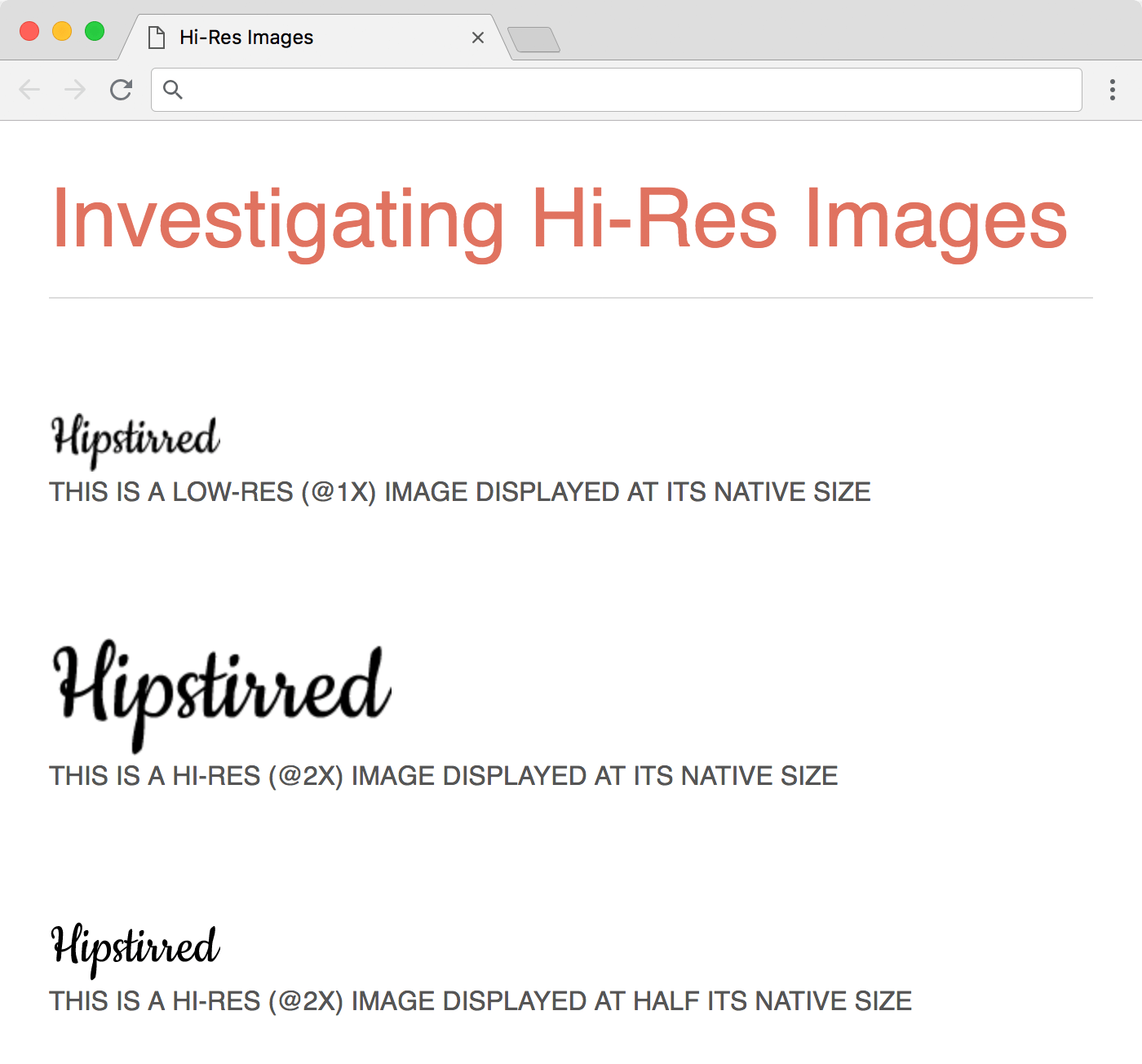
Exercise Overview
Some screens have a higher pixel density (smaller, more tightly packed pixels) than others. These screens—which Apple calls Retina, but are also known as HiDPI (high dots per inch)—pack at least twice the number of pixels into a given screen size (compared to low-res screens). To provide crisp images for HiDPI/Retina devices, we have to use higher-resolution images.
- We’ll be using a new folder of provided files for this exercise. Close any files you may have open in your code editor to avoid confusion.
- For this exercise we’ll be working with the Hipstirred Hi-Res Images folder located in Desktop > Class Files > Web Dev Class. You may want to open that folder in your code editor if it allows you to (like Visual Studio Code does).
- Open hi-res-demo.html from the Hipstirred Hi-Res Images folder.
- Preview hi-res-demo.html in a browser. As the headings explain, we’ll be placing both a low-res (@1x) and a high-res (@2x) version of an image in the browser to do some comparison testing.
Sizing Things up
- Return to hi-res-demo.html in your code editor.
Add the following image just above the first h2, as follows:
<img src="images/logo.png" height="36" width="105">
<h2>This is a low-res (@1x) image displayed at its native size</h2>
Save the file and preview it in a browser. You are viewing this logo at its native width of 105 pixels.
- If you’re on a standard/low-res screen, it looks fine.
- If you’re on a Retina/HiDPI screen, you may notice that it’s a bit fuzzy and/or pixelated (if your eyesight is good enough).
To create sharper images for users with hi-res screens, web designers create images at twice the size at which they are intended to be displayed. Because these images have 2 pixels for every 1 pixel in a low-res image, they are called 2x images. A hi-res 2x image occupies the same amount of physical screen space as a low-res 1x image, but because there are more, smaller pixels packed into the same space it contains more details and appears sharper. As an industry-standard practice, hi-res images are saved with @2x at the end of their file name so developers know they are hi-res. Let’s take a look at a @2x version of the logo image.
- Return to your code editor.
Add the following @2x image just above the second h2, as follows:
<img src="images/logo@2x.png" height="72" width="210">
<h2>This is a hi-res (@2x) image displayed at its native size</h2>
Save the file and preview it in a browser. It’s twice as big, but still fuzzy and/or pixelated. We actually want the 2x image to take up half as much space, so it ends up being the same size as the 1x above.
Code Pixels Vs. Hardware Pixels
Not all pixels are the same size. While measurements like inches and millimeters are always the same physical size, a pixel can be any physical size (depending on the pixel density of the screen).
When HTML and CSS were invented, 1 pixel in code equaled 1 pixel of hardware. With hi-res screens, 1 pixel in code may equal 2 (or more) pixels of hardware. Luckily we don’t have to worry about how many hardware pixels a user’s screen has. The web browser automatically translates coded pixels into hardware pixels. For example, the original iPhone was 320px wide in both code and hardware. The first Retina iPhone was still 320px wide in code (because the screen was the same physical size), but 640px of hardware.
- Let’s see this in action. Return to your code editor.
As shown below, add the @2x image again just above the third h2, but this time with the same size as the 1x:
<img src="images/logo@2x.png" height="36" width="105">
<h2>This is a hi-res (@2x) image displayed at half its native size</h2>
We set the pixel size in the code to half the image file’s native size. This will end up displaying at the size we want, but at high resolution (more pixels are packed into the space). The logo will appear the same size on all screens, but it will look sharper on HiDPI screens.
Save the file and preview it in a browser.
- If you’re on a hi-res screen: The bottom hi-res @2x logo will look sharper than the other logos. Success!
- If you’re on a low-res screen: The bottom hi-res @2x logo will not appear sharper, because of the limitations of your screen. (Think of it like trying to view a color photo on a black and white screen. The black and white screen is simply not capable of displaying color.)
- We can also use CSS to modify the size of a Retina or HiDPI image. Return to hi-res-demo.html in your code editor.
In the bottom version of the @2x image (above the third h2), completely delete the height and width, so you end up with the following:
<img src="images/logo@2x.png"> <h2>This is a hi-res (@2x) image displayed at half its native size</h2>- Save the file and preview it in a browser. The image is now rendering at its native width once more. Let’s use CSS to set our desired size.
- Return to hi-res-demo.html in your code editor.
Add the following class to the second version of the @2x image:
<img src="images/logo@2x.png" class="logo">At the bottom of the style tag (in the head of the file), add the following new rule:
.logo {
      width: 105px;
   }
</style>
Save the file and preview it in a browser. This also works, so you can use CSS or HTML to set the size.
Replacing Low-Res Images with @2x Versions in Hipstirred
- Return to your code editor.
- Open index.html from the Hipstirred Hi-Res Images folder.
Let’s replace the logo with the provided @2x image. In the header tag near the top, edit the logo image as follows:
<img src="images/logo@2x.png" class="logo" height="36" width="105" ALT="Hipstirred">Let’s also replace the social media icons in the footer. Scroll down to the footer and add @2x to the images (as shown below). TIP: Good code editors let you create multiple cursors. In Visual Studio Code you can hold Option (Mac) or ALT (Windows) as you click into all 3 places, and then you can add this code to all of them at once!
<a href="https://www.facebook.com">
   <img src="images/facebook@2x.png" width="24" height="24" ALT="Facebook">
</a>
<a href="https://twitter.com">
   <img src="images/twitter@2x.png" width="28" height="23" ALT="X (formerly known as Twitter)">
</a>
<a href="https://www.instagram.com">
   <img src="images/instagram@2x.png" width="24" height="24" ALT="Instagram">
</a>
Save the file and preview it in a browser. If you’re working on a standard, low-res screen, there will be no visible change but if you are working on a hi-res screen (or your users have a hi-res screen) the logo and social media icons will look sharper!
Leave index.html open in the browser, so you can reload the page as you make changes to the code.
- Now for the background image for the hero section. We’ve also a provided @2x version of this image as well. Return to your code editor.
- Open main.css from the Hipstirred Hi-Res Images folder.
Find the rule for .hero (near the bottom) and edit the background-image value as follows:
background-image: url(images/hero@2x.jpg);- Save the file.
- Return to index.html in the browser and reload the page. Nice! But how do you know this is actually a retina image, particularly if you’re working on a standard/low-res screen? It works too seamlessly. Let’s investigate.
- Return to main.css in your code editor.
In the rule for .hero, comment out the background-size property as follows:
/*background-size: cover;*/NOTE: A comment in HTML or CSS is ignored by the web browser. We often use it to leave a note or providing information about the code to other developers (or ourselves). It can also be used to temporarily disable code for testing purposes.
Comments in CSS are written like this:
Comments in HTML are written like this:/* this is a comment */<!—this is a comment—>In most code editors (like Visual Studio Code), you can select code you wish to comment and hit Cmd–/ (Mac) or CTRL–/ (Windows) to toggle comments on or off. The editor will know if you’re in CSS or HTML and write the appropriate comment.
- Save the file.
- Return to index.html in the browser and reload the page. Woah, that’s a big hero image… it must be the 2x size.
- Return to main.css in your code editor.
In the rule for .hero, uncomment the background-size property to make the browser render it properly again:
background-size: cover;- Save the file.
Return to index.html in the browser and reload the page. This page is Retina optimized!