April 1, 2026Dan Rodney/12 min read

Fun with Fonts: Free HTML & CSS Tutorial

Master Custom Typography with Google Fonts Integration

What You'll Master in This Tutorial

Google Fonts Integration

Learn to embed custom web fonts from Google's extensive library into your HTML pages. Master the proper linking techniques for optimal performance.

Font Stack Strategy

Understand how to create safe fallback fonts that ensure your design remains consistent even when custom fonts fail to load.

Typography Optimization

Discover how to improve text legibility through proper line-height, margins, and spacing adjustments for professional results.

Topics Covered in This HTML & CSS Tutorial:

Master Google Fonts integration, implement bulletproof font stack fallbacks, and optimize line-height and margin properties for superior text readability and user experience.

Exercise Preview

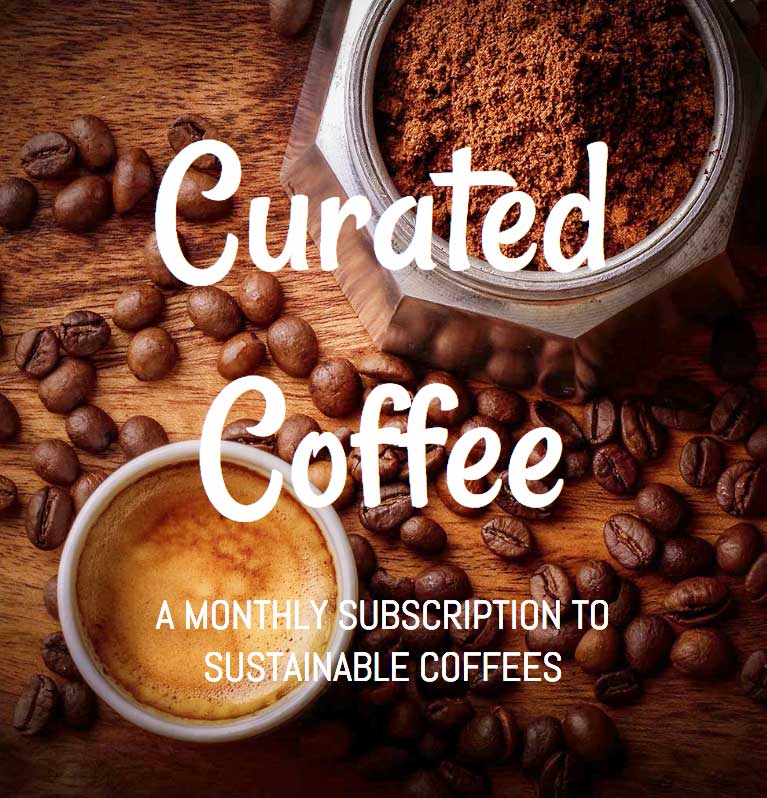
preview fun with fonts

Exercise Overview

In this exercise, we'll elevate the Hipstirred site from generic to professional by implementing custom web typography. While system fonts serve a purpose, they won't differentiate your brand or create memorable user experiences. We'll leverage Google Fonts—the web's largest repository of free, production-ready typefaces—to transform our site's visual hierarchy and readability. Google's CDN hosting ensures reliable delivery and optimal performance across global audiences.

  1. Before we begin, close any open files in your code editor. Working with a clean slate prevents confusion when switching between project directories.
  2. Navigate to the Hipstirred Font Fun folder located in Desktop > Class Files > Web Dev Class. If your code editor supports project folders (like Visual Studio Code, Sublime Text, or Atom), open the entire directory for streamlined file management.

Tutorial Setup Process

1

Close Existing Files

Close any open files in your code editor to avoid confusion with multiple projects

2

Navigate to Exercise Folder

Open the Hipstirred Font Fun folder located in Desktop > Class Files > Web Dev Class

3

Load Project in Editor

Open the entire folder in your code editor like Visual Studio Code for easier file management

Limiting the Text Content's Width

Before diving into typography, we need to establish proper content width and spacing. Research consistently shows that optimal reading experiences occur with line lengths between 45-75 characters per line.

  1. Open index.html from the Hipstirred Font Fun folder in your code editor.
  2. Preview index.html in your browser and observe the current layout issues:

    • New text content has been added to the main tag, plus a copyright footer.
    • Text extends edge-to-edge, creating uncomfortably long line lengths that strain readability. This violates fundamental UX principles for content consumption.
  3. Return to your code editor to address these layout concerns.
  4. Open main.css from the Hipstirred Font Fun folder.
  5. Add this new rule below the existing .hero rule:

    main {
       max-width: 850px;
       padding: 25px;
    }

    The 850px maximum width ensures optimal reading line length while the padding provides essential breathing room around content.

  6. Save main.css and test your changes.
  7. Reload index.html in your browser. Notice the improved readability, though the content needs proper centering for visual balance.
  8. Return to main.css in your code editor.
  9. Add these centering properties to the main rule:

    main {
       max-width: 850px;
       padding: 25px;
       margin-right: auto;
       margin-left: auto;
    }

    Auto margins on left and right create perfect horizontal centering for block-level elements.

  10. Save main.css and verify the changes.
  11. Reload index.html in your browser.

    Excellent—now we have a properly structured layout foundation for typography experimentation. The footer's left alignment will be addressed in a subsequent exercise focused on footer design patterns.

Optimal Reading Width

Setting max-width to 850px creates an ideal line length for readability. Lines that are too long strain the reader's eyes and reduce comprehension.

CSS Properties for Content Layout

max-width: 850px

Limits content width for optimal readability. Prevents text lines from becoming too long on wide screens.

margin: auto

Centers the content horizontally within its container. Works with left and right auto margins.

padding: 25px

Adds breathing room around content. Prevents text from touching browser edges on mobile devices.

Experimenting with Google Fonts

Google Fonts has revolutionized web typography since its 2010 launch, now serving over 1 trillion font requests monthly. Its fonts are optimized for web delivery with multiple format support and intelligent subsetting.

  1. Open a new browser tab and navigate to fonts.google.com

    This Google service provides over 1,500 open-source font families, all licensed for commercial use without restrictions. The fonts are professionally designed and optimized for both screen and print applications.

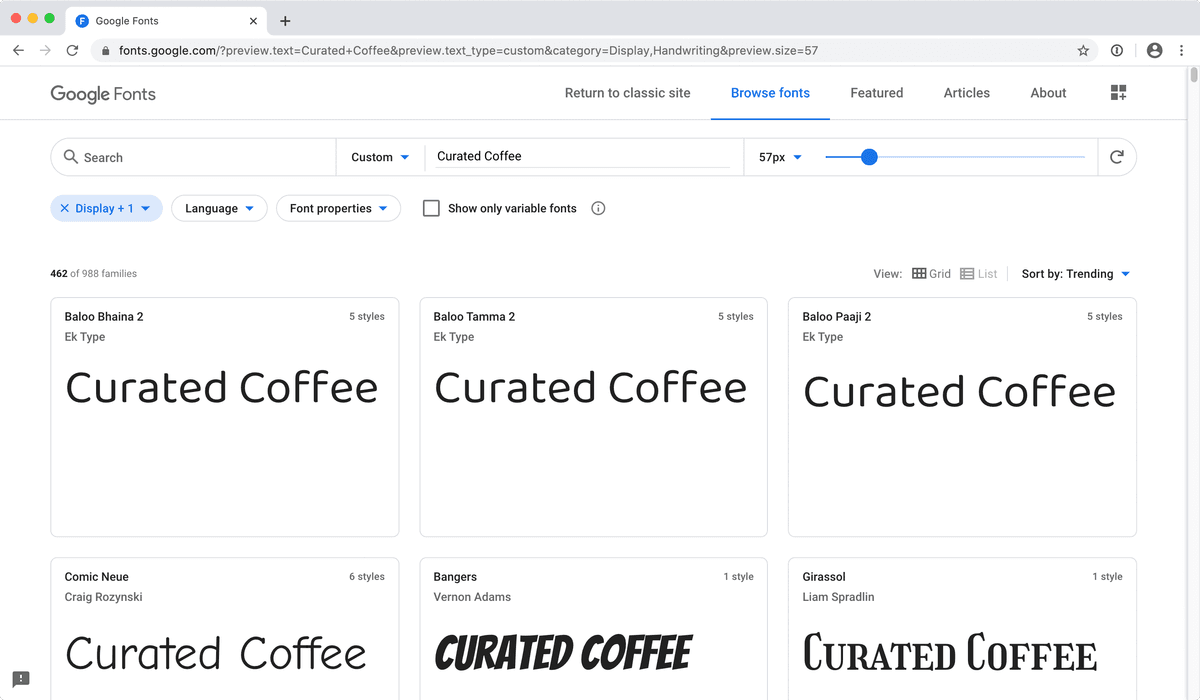
  2. Customize the preview text by clicking Type something at the top and entering Curated Coffee. This allows you to evaluate fonts using your actual content rather than generic samples.
  3. Scroll through the available typefaces to get familiar with the range of options—from traditional serifs to modern sans-serifs and decorative display faces.
  4. Let's evaluate three specific fonts for our project. Search for Medula in the search field.
  5. Click on Medula One to view its details.
  6. Notice this font offers only Regular 400 weight.

    Web font weights use numerical values: 100-300 (thin to light), 400 (normal), 500-600 (medium to semi-bold), 700 (bold), 800-900 (extra-bold to black). This standardization ensures consistent rendering across platforms.

  7. Click + Select this style on the right.

    The Selected families panel should appear on the right side, beginning your font collection for this project.

    NOTE: If this panel closes, reopen it using the Google fonts view family sidebar button at the top right.

  8. Add our second candidate font:

    • Click Browse fonts at the top of the page.
    • Search for Rancho.
    • Select Rancho from the results.
    • Click + Select this style to add it to your collection.
  9. Add the third font to complete our selection:

    • Click Browse fonts again.
    • Search for Abel.
    • Select Abel from the results.
    • Click + Select this style to add it.

    PERFORMANCE TIP: Each additional font weight increases page load time and bandwidth usage. In 2026's mobile-first environment, only select weights you'll actually implement. Users on slower connections or limited data plans will appreciate your restraint.

Google Fonts Selection Process

1

Preview with Your Content

Type 'Curated Coffee' in the preview field to see how fonts will look with your actual text

2

Search Specific Fonts

Search for and select Medula One, Rancho, and Abel fonts to compare different typography styles

3

Choose Font Weights Carefully

Select only the font weights you'll actually use, as each style increases file size and load time

Adding Fonts to Our Page

Now we'll implement the technical integration between Google's font servers and your webpage using modern preloading techniques.

  1. Ensure the Selected families panel is visible on the right. If not, click the Google fonts view family sidebar button to open it.
  2. Verify all three fonts appear in your selection: Abel, Medula One, and Rancho.
  3. Copy the provided embed code that handles font loading from Google's global CDN:

    <link rel="preconnect" href="https://fonts.googleapis.com"> 
    <link rel="preconnect" href="https://fonts.gstatic.com" crossorigin> 
    <link href="https://fonts.googleapis.com/css2?family=abel&family=medula+one&family=rancho&display=swap" rel="stylesheet">
  4. Keep the Google Fonts tab open—you'll reference it throughout the styling process.
  5. Switch to index.html in your code editor.
  6. Insert the font links above your main.css link, following this hierarchy:

    <title>Artisanal Coffee Curators | Hipstirred</title>
    <link rel="preconnect" href="https://fonts.googleapis.com"> 
    <link rel="preconnect" href="https://fonts.gstatic.com" crossorigin> 
    <link href="https://fonts.googleapis.com/css2?family=abel&family=medula+one&family=rancho&display=swap" rel="stylesheet">
    <link rel="stylesheet" href="main.css">

    PERFORMANCE NOTE: Placing Google Fonts links before your CSS enables earlier font discovery and download initiation. The display=swap parameter ensures text remains visible during font load using fallback fonts, preventing the "flash of invisible text" (FOIT). The preconnect directives establish early connections to Google's font servers, reducing connection overhead.

  7. Save the file to implement the font loading infrastructure.

Font Loading Optimization

The rel='preconnect' lines tell the browser to connect to Google's font domains early, speeding up font downloads. The display=swap parameter ensures text remains visible during font loading.

Applying the Fonts to Content

With fonts successfully loaded, we can now apply them strategically to create visual hierarchy and enhance the user experience.

  1. Return to the Google Fonts tab in your browser.
  2. In the CSS rules to specify families section, copy the Abel font declaration:

    font-family: 'Abel', sans-serif;
  3. Switch to main.css in your code editor.
  4. Update the body rule to establish Abel as the base typography:

    body {
       font-family: 'Abel', sans-serif;
       margin: 0;
    }

    Setting font-family on the body element cascades to all child elements, establishing consistent typography foundation.

  5. Save main.css and test the changes.
  6. Reload index.html in your browser. The new typeface should now appear throughout the page, though the size needs optimization.
  7. Return to main.css in your code editor.
  8. Enhance the body rule with improved font sizing:

    body {
       font-family: 'Abel', sans-serif;
       font-size: 19px;
       margin: 0;
    }

    19px provides excellent readability on modern displays while accounting for various viewing distances and device types.

  9. Save the changes and reload to verify the improved text size.
  10. Now let's create visual impact with our headline typography. Return to Google Fonts in your browser.
  11. Copy the Medula One font family declaration:

    font-family: 'Medula One', cursive;
  12. Switch back to main.css in your code editor.
  13. Apply Medula One to the main heading:

    h1 {
      font-family: 'Medula One', cursive;
      font-size: 95px;
    }
  14. Save and reload index.html to preview the new headline font.

You'll notice the browser is artificially emboldening the font since Medula One doesn't include a bold weight, and browsers default to bold for h1 elements. This creates suboptimal rendering that doesn't represent the font designer's intentions.

  1. Return to main.css to correct this typography issue.
  2. Add proper font-weight control to the h1 rule:

    h1 {
       font-family: 'Medula One', cursive;
       font-size: 95px;
       font-weight: 400;
    }

    Using 400 (equivalent to 'normal') prevents artificial bold rendering and displays the font as designed. This maintains typographic integrity and optimal legibility.

  3. Save and reload to see the authentic font rendering.

    While Medula One displays correctly, its style may be too similar to our body text for effective hierarchy. Let's test our third option for better contrast.

  4. Return to Google Fonts and copy the Rancho font declaration:
  5. Copy the Rancho CSS rule:

    font-family: 'Rancho', cursive;
  6. Return to main.css and update the h1 rule.
  7. Replace Medula One with Rancho:

    h1 {
       font-family: 'Rancho', cursive;
       font-size: 95px;
       font-weight: 400;
    }
  8. Improve the fallback font stack for better compatibility:

    font-family: 'Rancho', sans-serif;

    Since reliable cursive fallbacks don't exist across all platforms, sans-serif provides better consistency when custom fonts fail to load.

  9. Save main.css and test the updated typography.
  10. Reload index.html to see Rancho in action—this creates much better contrast and brand personality!

Font Weight Understanding

FeatureWeight NumberDescription
100-300Thin to LightVery subtle, minimal
400Normal/RegularDefault body text weight
500-600Medium to Semi-boldSubtle emphasis
700+Bold to BlackStrong emphasis
Recommended: Use 400 for body text and 700 for headings as your primary weights

Removing an Unused Font

Optimization is crucial in modern web development. Unused fonts waste bandwidth, slow page loads, and consume mobile users' data allowances unnecessarily.

  1. Switch to index.html in your code editor.
  2. Remove the unused Medula One reference from your Google Fonts link:

    <link href="https://fonts.googleapis.com/css2?family=abel&family=rancho&display=swap" rel="stylesheet">

    This eliminates the &family=Medula+One parameter, preventing unnecessary font downloads.

  3. Save the file to implement the optimization.

Performance Impact

Unused fonts slow down page loading and waste mobile users' data. Always remove font families from your Google Fonts link when you stop using them in your CSS.

Styling the Subheading

Effective typography hierarchy guides users through content logically, establishing clear information architecture.

  1. Our subheading needs refinement to support the main headline without competing for attention.
  2. Return to main.css in your code editor.
  3. Add this new rule below the h1 rule:

    h2 {
       font-size: 20px;
       font-weight: normal;
       text-transform: uppercase;
    }

    The smaller size creates clear hierarchy, while uppercase transformation adds sophistication and complements the decorative headline font.

  4. Save and reload index.html to see the improved subheading treatment.

    The typography improvements are working, but the spacing between headlines needs adjustment for optimal visual relationships.

H2 Styling Techniques

Font Size Reduction

Setting font-size to 20px creates proper hierarchy. Subheadings should be smaller than main headings but larger than body text.

Text Transform

Using text-transform: uppercase gives subheadings a modern, professional appearance without changing HTML content.

Improving Margins & Line-Height

Professional typography requires careful attention to white space relationships. Proper spacing creates breathing room and establishes clear content relationships.

  1. Switch to main.css to refine the headline spacing.
  2. Reduce the bottom margin on the main headline:

    h1 {
       font-family: 'Rancho', sans-serif;
       font-size: 95px;
       font-weight: 400;
       margin-bottom: 10px;
    }
  3. Eliminate the top margin on the subheading for tighter grouping:

    h2 {
       font-size: 20px;
       font-weight: normal;
       text-transform: uppercase;
       margin-top: 0;
    }
  4. Save and reload to see the improved headline relationship.

    The headlines now form a cohesive unit, but we need to balance the top margin of the main headline for symmetrical spacing.

  5. Return to main.css for the final spacing adjustment.
  6. Add controlled top margin to the h1 rule:

    h1 {
       font-family: 'Rancho', sans-serif;
       font-size: 95px;
       font-weight: 400;
       margin-top: 10px;
       margin-bottom: 10px;
    }
  7. Save and test with various browser window widths.
  8. Make your browser window wide to see the headlines in their optimal single-line layout.
  9. Narrow the browser until "Curated" and "Coffee" wrap to separate lines—you'll notice excessive line spacing that disrupts readability:

    curated coffee large line height

  10. Return to main.css to optimize line spacing.
  11. Add precise line-height control to the h1 rule:

    h1 {
       font-family: 'Rancho', sans-serif;
       font-size: 95px;
       line-height: 90px;
       font-weight: 400;
       margin-top: 10px;
       margin-bottom: 10px;
    }

    The 90px line-height creates optimal vertical rhythm when text wraps, maintaining visual cohesion across different viewport widths.

  12. Save and thoroughly test the line-height across various browser widths to ensure consistent rendering.
  13. Now let's enhance the h3 section headings to improve content organization and scannability.
  14. Add this comprehensive h3 rule below the h2 rule:

    h3 {
       font-size: 28px;
       border-bottom: 1px solid #d17e32;
       padding-bottom: 10px;
       margin-top: 40px;
       margin-bottom: 10px;
    }

    The border-bottom creates visual separation, while increased top margin provides clear section breaks. The warm orange border color complements the coffee theme.

  15. Save and reload to see the improved section organization.
  16. Let's optimize paragraph spacing and readability with professional typography standards.
  17. Add this paragraph rule below the h3 rule:

    p {
       line-height: 32px;
       margin-top: 0;
       margin-bottom: 20px;
    }

    The 32px line-height provides comfortable reading rhythm, while consistent margins create predictable content flow.

  18. Save the changes and preview the enhanced typography system.
  19. Reload index.html to see the complete typography transformation. One final refinement will perfect the design.
  20. Return to main.css for a subtle contrast adjustment.
  21. Soften the text color for improved reading comfort:

    body {
       font-family: 'Abel', sans-serif;
       font-size: 19px;
       color: #555;
       margin: 0;
    }

    The dark gray (#555) reduces harsh black-on-white contrast while maintaining excellent accessibility standards.

  22. Save the final changes.
  23. Return to your browser and reload index.html to see the completed professional typography system.

Typography Spacing Checklist

0/4

Testing Custom Web Fonts (Such As Google Fonts)

Always test your custom fonts across multiple devices, browsers, and network conditions. During development, you might install fonts locally on your system, which can mask loading failures since browsers fall back to installed versions. This creates a false sense of security—you won't discover font loading issues until testing on devices without the fonts installed. In 2026's diverse device ecosystem, cross-platform testing is essential. Also verify performance on slower 3G connections, as font loading can significantly impact perceived performance in bandwidth-constrained environments.

Cross-Device Testing Essential

Always test custom fonts on devices that don't have the fonts installed locally. Your computer might display fonts correctly even if the web embedding fails, masking potential issues.

Google Fonts May Be Blocked

Corporate firewalls, government restrictions, and privacy-conscious users may block Google Fonts. China, for instance, blocks Google services entirely, meaning users there will see your fallback fonts. GDPR compliance concerns have also led some organizations to block external font requests. While Google Fonts reach most global users, always ensure your fallback fonts provide acceptable branding and readability. Consider self-hosting critical fonts for maximum control and compliance with data privacy regulations.

Font Accessibility Considerations

Corporate Firewalls

Company networks often block external font services. Ensure your fallback fonts maintain design integrity when custom fonts fail.

Geographic Restrictions

Countries like China block Google services entirely. Your international users will see fallback fonts instead of your custom typography.

Using Google Fonts in Design Apps

Modern design tools have streamlined Google Fonts integration significantly. Figma automatically loads Google Fonts in their web interface, making design-to-development handoffs seamless. For desktop applications like Adobe XD or Sketch, you'll need local font installation for accurate design representation.

FontBase remains an excellent solution for managing Google Fonts locally. This free application provides one-click installation of Google's entire font library, plus advanced font management features for professional workflows. The 2026 version includes improved performance and better integration with design tools. Download it at https://fontba.se

PRO TIP: When designing for web, always verify your chosen fonts render consistently across your target browsers and operating systems, as font rendering engines can produce subtle but noticeable differences.

Design App Font Integration

FeatureApplicationGoogle Fonts Support
FigmaAutomatic loadingBuilt-in Google Fonts access
Adobe XDManual installationDownload and install required
SketchManual installationUse FontBase for easier management
Recommended: Figma offers the smoothest Google Fonts workflow for web design

Key Takeaways

1Limit content width to 850px maximum for optimal text readability and user experience across different screen sizes
2Use Google Fonts' preview feature with your actual content text to make informed typography decisions before implementation
3Include preconnect links and display=swap parameter to optimize font loading performance and prevent invisible text during loading
4Remove unused fonts from your Google Fonts link to reduce page load time and conserve mobile users' data bandwidth
5Set appropriate line-height values (like 90px for 95px font) to prevent cramped text appearance when content wraps to multiple lines
6Always test custom fonts on multiple devices and browsers, as fonts installed locally can mask web embedding failures
7Consider geographic and corporate restrictions that may block Google Fonts, ensuring your fallback fonts maintain design quality
8Use tools like FontBase to easily install Google Fonts locally when working with design applications like Adobe XD or Sketch

RELATED ARTICLES