April 1, 2026Dan Rodney/10 min read

Font-Weight, Font-Style, & Unitless Line-Height

Master Typography with Custom Fonts and Modern CSS

Core Typography Concepts

Custom Web Fonts

Load and implement professional fonts from Google Fonts to enhance visual design and brand consistency.

Font Properties

Control font-weight and font-style to create visual hierarchy and emphasis in your content.

Unitless Line-Height

Use dynamic line spacing that scales proportionally with different font sizes for optimal readability.

Topics Covered in This HTML & CSS Tutorial:

Adding Custom Web Fonts from Google Fonts, Using Font-weight & Font-style, Unitless Line-height

Exercise Preview

preview typography

Exercise Structure

This tutorial builds upon previous work with typography refinements, adding custom webfonts and improving line spacing for better readability.

Exercise Overview

Typography is the foundation of exceptional web design. In this exercise, you'll transform a basic webpage into a typographically sophisticated interface by implementing custom web fonts from Google Fonts, mastering font-weight and font-style properties, and discovering the power of unitless line-height for responsive typography. These techniques are essential for creating professional, accessible websites that scale beautifully across devices.

Getting Started

We've prepared exercise files that build upon the previous lesson, with a few font sizes pre-configured to streamline your workflow. This allows you to focus on the advanced typography concepts we'll be exploring.

  1. In your code editor, close any files you may have open to start with a clean workspace.
  2. For this exercise we'll be working with the Tahoe Typography folder located in Desktop > Class Files > Advanced HTML CSS Class. If you're using Visual Studio Code or a similar editor, consider opening the entire folder to enable better file navigation and IntelliSense support.
  3. Open index.html from the Tahoe Typography folder.
  4. Preview index.html in a browser. Notice how the current typography lacks visual hierarchy and character. Our design calls for custom web fonts and improved line spacing to create a more engaging user experience.
  5. Keep index.html open in the browser as you work, so you can reload the page to see your changes in real-time. This live preview workflow is essential for fine-tuning typography.

Setup Process

1

Close Existing Files

Clear your workspace in the code editor to focus on the typography exercise files.

2

Open Project Folder

Navigate to Desktop > Class Files > Advanced HTML CSS Class and open the Tahoe Typography folder.

3

Launch Files

Open index.html in both your code editor and browser for live preview of changes.

Loading Custom Web Fonts from Google Fonts

Google Fonts remains the gold standard for web typography in 2026, offering over 1,400 font families optimized for web performance. We'll implement a strategic font pairing that balances readability with visual impact.

  1. In a new browser tab, go to fonts.Google.com
  2. We'll be implementing two complementary font families: Alfa Slab One for commanding headlines and Open Sans for optimal body text readability. In the search field at the top of the page, search for Alfa.
  3. Click on Alfa Slab One.
  4. On the right, click on + Select this style.

    A column should appear on the right of the page listing the Selected family. This sidebar tracks your font selections and provides the embed code you'll need.

    NOTE: If you close this panel, you can reopen it by clicking the Google fonts view family sidebar button at the top right of the page.

  5. Now let's add our body text font:

    • At the top of the page click Browse fonts.
    • Search for Open.
    • Click on Open Sans in the search results.
  6. Strategic font weight selection is crucial for performance. On the right, click on + Select this style next to these 3 carefully chosen styles:

    • Light 300 - Perfect for subtle text like footers
    • Regular 400 - Your primary body text weight
    • Bold 700 italic - For emphasized content that needs to stand out
  7. You should see a column on the right of the page listing the Selected families. If you don't see it, open it by clicking the Google fonts view family sidebar button at the top right of the page.
  8. Verify that 2 fonts are listed: Alfa Slab One (with 1 style) and Open Sans (with 3 styles).

    Remember: each additional font style increases your site's payload and impacts Core Web Vitals. Only load the weights and styles you'll actually use in your design.

  9. Copy the optimized font loading code from Google's servers:

    <link rel="preconnect" href="https://fonts.googleapis.com"> 
    <link rel="preconnect" href="https://fonts.gstatic.com" crossorigin> 
    <link href="https://fonts.googleapis.com/css2?family=alfa+slab+one&family=open+sans:ital,wght@0,300;0,400;1,700&display=swap" rel="stylesheet">
  10. Keep this page open, but return to index.html in your code editor.
  11. Paste the font loading code below the title tag, as shown below in bold:

    <title>Tahoe Adventure Club</title>
    <link rel="preconnect" href="https://fonts.googleapis.com"> 
    <link rel="preconnect" href="https://fonts.gstatic.com" crossorigin>
    <link href="https://fonts.googleapis.com/css2?family=alfa+slab+one&family=open+sans:ital,wght@0,300;0,400;1,700&display=swap" rel="stylesheet">
    <link rel="stylesheet" href="css/normalize.css">
  12. Save the file.

    NOTE: Strategic placement matters. Positioning Google Fonts links before other CSS files initiates font downloads immediately, reducing perceived load times. The display=swap parameter ensures text remains visible during font loading, preventing the dreaded "flash of invisible text" (FOIT). For deeper insights into font loading optimization, read css-tricks.com/font-display-masses

    The rel="preconnect" directives are performance optimizations that establish early connections to Google's font servers, reducing latency when the actual font files are requested.

Font Selection Strategy

Alfa Slab One25%
Open Sans Light25%
Open Sans Regular25%
Open Sans Bold Italic25%
Performance Consideration

Each font style increases download size and slows page loading. Only select styles you'll actually use in your design.

Adding Fonts to the Page

With our fonts loaded, it's time to create a typographic hierarchy. We'll establish Open Sans as our base font and reserve Alfa Slab One for headings to create clear visual distinction.

  1. Return to Google Fonts in the browser.
  2. Under CSS rules to specify families, copy the code for the Open Sans font:

    font-family: 'Open Sans', sans-serif;
  3. Keep this page open, but return to your code editor.
  4. Open main.css from the css folder.
  5. Apply Open Sans to all body text by adding it to the body rule as shown below:

    body {
       background: #555;
       margin: 30px;
       font-family: 'Open Sans', sans-serif;
    }
  6. Create a combined selector for our headings to establish consistent styling. Above the existing h1 rule, add this new rule:

    h1, h2 {
    
    }
  7. Return to Google Fonts in the browser.
  8. Under CSS rules to specify families, copy the code for the Alfa Slab One font:

    font-family: 'Alfa Slab One', cursive;
  9. Close the Google Fonts browser tab.
  10. You should still have index.html open in the browser. Keep it open for live preview as you implement these changes.
  11. Return to main.css in your code editor.
  12. Add the heading font to the h1, h2 rule:

    h1, h2 {
       font-family: 'Alfa Slab One', cursive;
    }
  13. Let's improve the font fallback strategy. The generic cursive fallback isn't ideal for readability. Edit the font stack to use better fallbacks:

    font-family: 'Alfa Slab One', 'Open Sans', sans-serif;

    This ensures that if Alfa Slab One fails to load, headings will gracefully fall back to Open Sans rather than an unpredictable cursive font.

  14. Save main.css, switch back to the browser, and reload index.html to see the dramatic transformation.
  15. You'll notice the headings appear artificially thick, especially around the X in "Come Explore." This happens because browsers apply font-weight: bold to headings by default, but Alfa Slab One only comes in regular weight (400). The browser is attempting to "fake" bold by rendering the font heavier, creating an undesirable effect.

Font Implementation Process

1

Apply Base Font

Set Open Sans as the default font-family for the entire body element.

2

Style Headings

Create a combined h1, h2 rule to apply Alfa Slab One font to all heading levels.

3

Optimize Fallbacks

Replace cursive fallback with Open Sans and sans-serif for better font stack reliability.

Font-Weight & Font-Style

Understanding font-weight is crucial for professional typography. Let's fix our heading weights and create emphasis where needed.

  1. Return to main.css in your code editor.
  2. Reset the heading font-weight to display Alfa Slab One as intended:

    h1, h2 {
       font-family: 'Alfa Slab One', 'Open Sans', sans-serif;
       font-weight: normal;
    }
  3. Save main.css, switch back to the browser, reload index.html, and observe the improvements:

    • The headings now display the correct thickness and character of Alfa Slab One.
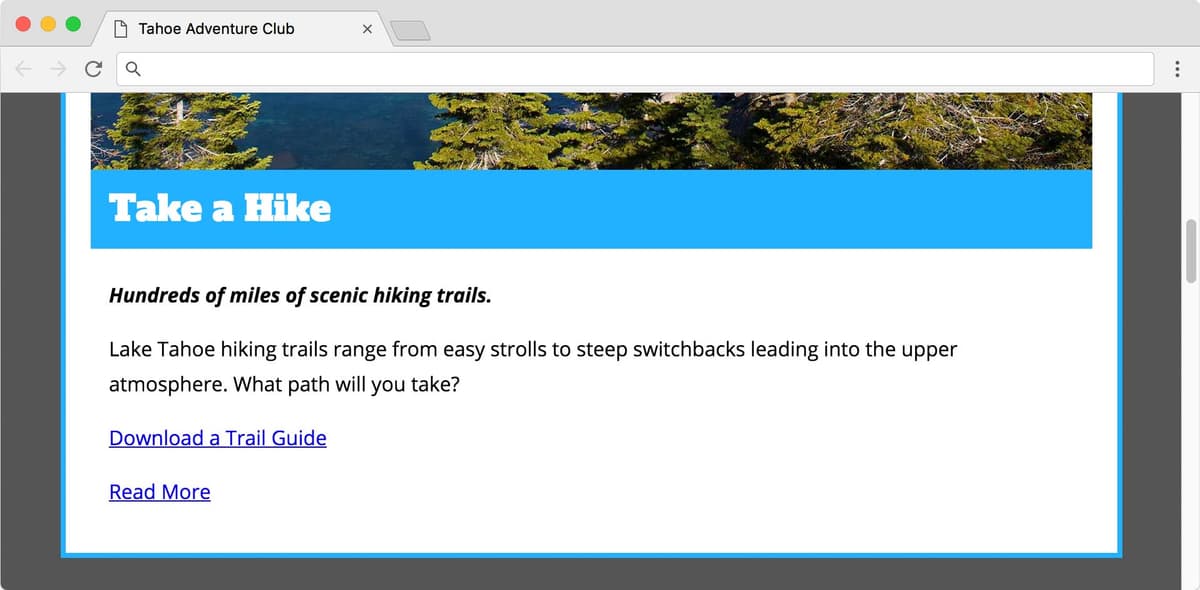
    • Notice how each h2 is followed by paragraphs, with the first paragraph serving as a tagline. We'll use this semantic relationship to create visual hierarchy.
  4. Return to main.css in your code editor.
  5. Below the h2 rule, add this adjacent sibling selector to target tagline paragraphs:

    h2 + p {
       font-weight: 700;
    }

    NOTE: The adjacent sibling selector (+) targets only the first paragraph that immediately follows an h2. We're using the numeric value 700 instead of the keyword bold to precisely match the font weight we loaded from Google Fonts. For fonts with limited weights, browsers map 100–500 to normal and 600–900 to bold. Learn more at tinyurl.com/moz-fw

  6. Since we loaded the bold italic variant, let's use it to create distinctive taglines:

    h2 + p {
       font-weight: 700;
       font-style: italic;
    }

    NOTE: The font-style property accepts normal, italic, or oblique. When a true italic font is available (as in our case), the browser uses it. Otherwise, it creates a faux italic by slanting the regular font, which is less elegant.

  7. Save main.css and reload index.html in the browser. The taglines following each blue heading should now appear in bold italic, creating clear visual hierarchy.

Font Weight Values

FeatureKeywordNumeric
Normalnormal400
Boldbold700
Lightlight300
Recommended: Use numeric values (700) for precision when working with custom fonts that have specific weights.
Adjacent Sibling Selector

The h2 + p selector targets only the first paragraph immediately following an h2, perfect for styling taglines differently from body text.

Unitless Line-Height

Line-height is one of the most critical factors in readability, yet it's often misunderstood. Let's explore why unitless values are superior for responsive typography.

  1. Resize the browser window smaller so the Come Explore Tahoe! heading breaks onto multiple lines. Notice how the paragraph text feels cramped. Proper line spacing dramatically improves readability and user experience.
  2. Return to main.css in your code editor.
  3. Add a pixel-based line-height to see why this approach is problematic:

    body {
       background: #555;
       margin: 30px;
       font-family: 'Open Sans', sans-serif;
       line-height: 28px;
    }
  4. Save the file and reload index.html in the browser. The paragraphs look better, but the headings (especially Come Explore Tahoe!) are now uncomfortably tight.

    Here's the problem: CSS inheritance passes the exact 28px value to all child elements. A 28px line-height works for 16px body text, but it's far too small for a 50px heading, creating poor readability and unprofessional appearance.

    While we could apply line-height individually to each element, there's a more elegant solution using relative values.

  5. Return to main.css in your code editor.
  6. Let's try a percentage approach:

    body {
    

    Code Omitted To Save Space

    line-height: 175%;
    }

    NOTE: This percentage represents our desired ratio: 28px (line-height) ÷ 16px (default font-size) = 1.75 or 175%.

  7. Save the file and reload index.html in the browser. The problem persists because percentages still compute to absolute values that get inherited.

    The solution is unitless line-height – one of CSS's most powerful but underutilized features. When you omit the unit, the browser multiplies the value by each element's individual font-size, creating proportional spacing that scales perfectly.

  8. Return to main.css in your code editor.
  9. Convert to unitless line-height – notice there's no unit specified:

    body {
    

    Code Omitted To Save Space

    line-height: 1.75;
    }

    This creates dynamic spacing: 16px body text gets 28px line-height (16 × 1.75), while 50px headings get 87.5px line-height (50 × 1.75). Each element maintains optimal proportional spacing.

  10. Save the file and reload index.html in the browser and notice the transformation:

  • Body text maintains perfect readability.
  • Headings have appropriate spacing, though they could be slightly tighter for better visual cohesion.

    NOTE: Unitless line-heights are considered best practice because they're inherently responsive and maintain typographic relationships across different screen sizes and zoom levels. We'll use them exclusively from this point forward.

  1. Return to main.css in your code editor.
  2. Fine-tune the heading line-height for optimal visual hierarchy:

    h1, h2 {
       font-family: 'Alfa Slab One', sans-serif;
       font-weight: normal;
       line-height: 1.2;
    }

    A tighter line-height (1.2) for headings creates more cohesive text blocks while maintaining readability.

  3. Save the file and reload index.html in the browser. The typography now has professional polish and hierarchy.

Line-Height Approaches

FeatureFixed UnitsUnitless
InheritanceStatic valueDynamic calculation
FlexibilitySame for all elementsScales with font-size
Example28px1.75
Recommended: Always use unitless line-height values for responsive, scalable typography that adapts to different font sizes.

Line-Height Calculation Example

Body Text (16px)
28
H1 Text (50px)
87.5
H2 Text (30px)
52.5

Optional Bonus: More Practice

Let's add one final refinement to demonstrate the subtle power of font-weight variations.

  1. Scroll to the copyright line at the bottom of the page.

    Footer text benefits from being visually de-emphasized while remaining legible. Since we loaded Open Sans Light (300 weight), we can create this subtle hierarchy.

  2. Return to main.css in your code editor.
  3. Apply the light font weight to reduce visual prominence:

    footer {
       color: #ccc;
       text-align: center;
       font-weight: 300;
    }

    The Light 300 weight creates subtle hierarchy without sacrificing readability – perfect for supplementary content like copyright notices.

  4. Save main.css.
  5. Switch back to the browser and reload index.html to see the refined footer text. Notice how this small change contributes to the overall typographic sophistication of the page.

Typography Enhancement Checklist

0/5

Key Takeaways

1Custom web fonts from Google Fonts enhance visual design but should be loaded selectively to maintain performance
2Font-weight and font-style properties provide precise control over typography appearance and visual hierarchy
3Unitless line-height values create responsive spacing that scales proportionally with font size changes
4The adjacent sibling selector (h2 + p) allows targeted styling of specific content relationships
5Font fallback stacks should prioritize reliability over theoretical font categories like cursive
6Preconnect links to Google Fonts domains improve loading performance by establishing early connections
7Numeric font-weight values (300, 400, 700) provide more precision than keyword equivalents
8Strategic font loading order and selective weight inclusion optimize both design quality and page speed

RELATED ARTICLES