April 1, 2026Dan Rodney/10 min read

Creating a Fixed Navbar & RGBA Color

Master fixed navigation with RGBA transparency techniques

Key Technologies Covered

CSS Media Queries

Learn responsive design principles using min-width and max-width breakpoints. Essential for creating layouts that adapt to different screen sizes.

RGBA Color Values

Master transparent backgrounds with RGBA color notation. Control opacity levels for modern, layered design effects.

Fixed Positioning

Implement sticky navigation bars that remain visible during scroll. Critical for improving user experience on content-heavy sites.

Topics Covered in This HTML & CSS Tutorial:

Creating a Fixed Navbar on Wider Screens, RGBA Color

Exercise Preview

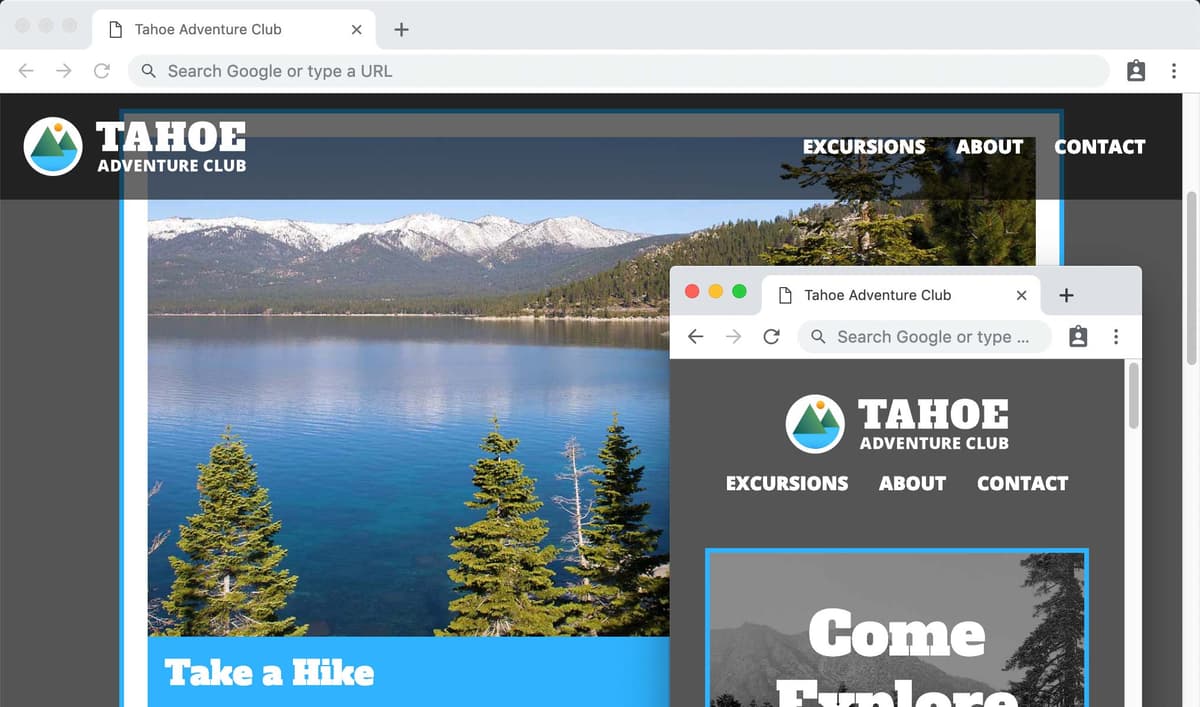
preview fixed navbar

Exercise Overview

In this exercise, you'll master the art of creating a responsive fixed navigation bar—a cornerstone technique in modern web development. Fixed navbars have become ubiquitous across the web because they provide constant access to navigation without sacrificing user experience. However, the key to implementing them effectively lies in understanding when and how to apply this pattern.

We'll employ a mobile-first approach, ensuring our navbar remains unobtrusive on smaller screens while leveraging the additional real estate available on desktop displays. Through strategic use of media queries, you'll learn to create a navigation solution that adapts intelligently to different viewport sizes, demonstrating responsive design principles that remain essential in 2026's multi-device landscape.

Mobile-First Development Approach

This tutorial follows mobile-first development principles, starting with mobile styles and progressively enhancing for larger screens. This approach ensures optimal performance and user experience across all devices.

Getting Started

  1. In your code editor, close any open files to maintain a clean workspace.
  2. Navigate to the Tahoe Fixed Navbar folder located at Desktop > Class File > Advanced HTML CSS Class. If your editor supports folder-based workflows (like Visual Studio Code, WebStorm, or Sublime Text), open the entire folder to access the full project context.
  3. Open index.html from the Tahoe Fixed Navbar folder.
  4. Launch index.html in Chrome and activate the development environment:

    • CTRL–click (Mac) or Right–click (Windows) anywhere on the page and select Inspect to open Chrome's DevTools.

    • Click the Toggle device toolbar button devtools device mode icon in the upper left of the DevTools panel to enter responsive design mode.

    • From the device dropdown menu, select iPhone 6/7/8 to simulate a common mobile viewport.

    • Refresh the page using Cmd–R (Mac) or CTRL–R (Windows) to ensure styles load correctly in the simulated environment.

  5. We'll implement a mobile-first development strategy, starting with the constraints of smaller screens before progressively enhancing for larger displays. This approach, now considered best practice in responsive design, ensures optimal performance and user experience across all devices.

    Keep your browser and DevTools open as we'll be testing our changes iteratively throughout the development process.

Environment Setup Process

1

Open Project Files

Navigate to Desktop > Class File > Advanced HTML CSS Class and open the Tahoe Fixed Navbar folder in your code editor

2

Launch Browser Preview

Open index.html in Chrome and access DevTools using CTRL-click or Right-click, then select Inspect

3

Enable Mobile View

Click Toggle device toolbar in DevTools upper left, select iPhone 6/7/8 from device menu, and reload the page

Overriding Default List Styles

Navigation menus should be semantically structured as lists for accessibility and SEO benefits, but visually, we need to override the browser's default list styling to create a clean, professional appearance.

  1. Open main.css from the css folder within your project directory.
  2. Add the following rule below the h2 + p selector to reset the list's default styling:

    nav ul {
       list-style-type: none;
       margin: 0;
       padding: 0;
    }

    This CSS reset eliminates the browser's default bullet points, margins, and padding that interfere with our custom navigation design.

  3. Save the file and reload the page in Chrome to see the cleaned-up list structure.

    With the visual clutter removed, we'll now transform the vertical list into a horizontal navigation bar—the standard pattern users expect from website navigation.

  4. Return to main.css in your code editor.
  5. Below the nav ul rule, add this declaration to arrange list items horizontally:

    nav li {
       display: inline;
    }

    The inline display property removes the line breaks between list items, creating a single row of navigation links.

  6. Save and reload to verify that your navigation links now appear in a horizontal line.

    The layout is improving, but we need to center the navigation elements for better visual balance on mobile devices.

  7. Return to main.css and prepare to center the navigation container.
  8. Above the nav ul rule, add the following to center all navigation content:

    nav {
       text-align: center;
    }

    This centers both the logo and navigation links, creating a balanced mobile layout that works well on smaller screens.

  9. Save and reload to see the centered navigation.

    Now we'll style the navigation links themselves to create a polished, professional appearance.

  10. Return to your CSS file to add link styling.
  11. Below the nav li rule, add comprehensive styling for the navigation links:

    nav ul a {
       color: #fff;
       font-weight: 800;
       text-transform: uppercase;
       padding: 11px;
       display: inline-block;
    }

    The display: inline-block property is crucial here—it allows the links to sit horizontally like inline elements while respecting padding and margin like block elements, giving us precise control over the clickable area.

  12. Save and reload to see your styled navigation links.

    Your mobile navigation should now look clean and professional. Next, we'll enhance it for larger screens where we have more flexibility in layout and positioning.

Display Property Comparison

Featureinlineinline-block
Horizontal LayoutYesYes
Padding SupportLimitedFull
Width/Height ControlNoYes
Use CaseSimple textStyled buttons
Recommended: Use inline-block for navigation links to enable proper padding and styling control
Semantic HTML Best Practice

Navigation links are coded as lists for semantic HTML structure, then styled with CSS to remove default list appearance while maintaining accessibility benefits.

Creating a Fixed Navbar on Larger Screens

Fixed navigation bars excel on larger screens where they provide persistent access to site navigation without overwhelming the content area. However, they can consume precious vertical space on mobile devices, so we'll implement this feature selectively using media queries.

  1. Exit device simulation mode by clicking the Toggle device toolbar button devtools device mode icon again.
  2. Close the DevTools and expand your browser window to simulate a desktop environment.
  3. Ensure your browser window is reasonably wide to test the desktop experience.
  4. Switch back to main.css to implement the responsive behavior.
  5. At the bottom of your stylesheet, add this media query to target screens 600px and wider:

    @media (min-width: 600px) {
       nav {
          position: fixed;
       }
    }

    The 600px breakpoint represents a common threshold between mobile and tablet/desktop experiences, though modern responsive design often uses more nuanced breakpoint strategies.

  6. Save main.css and reload index.html to test the fixed positioning.
  7. Scroll through the page to observe the fixed navbar behavior, but notice these issues we need to address:

    • The fixed navbar has collapsed to its minimum required width instead of spanning the full viewport
    • The main content has shifted upward because the navbar no longer occupies space in the document flow

    These are typical challenges when working with fixed positioning that we'll resolve with proper positioning coordinates and background styling.

  8. We'll solve both issues by adding positioning coordinates and a semi-transparent background that maintains readability as content scrolls beneath it.

    Return to main.css to enhance the fixed navbar styling.

  9. Expand the media query rule with these additional properties:

    @media (min-width: 600px) {
       nav {
          position: fixed;
          background: rgba(0,0,0,.6);
          top: 0;
          left: 0;
          right: 0;
       }
    }

    Here we're introducing RGBA color values—a more flexible alternative to traditional hex codes. RGBA (Red, Green, Blue, Alpha) allows precise control over transparency. The values represent: Red (0-255), Green (0-255), Blue (0-255), and Alpha (0-1 for transparency). Our value rgba(0,0,0,.6) creates a black background at 60% opacity, ensuring content remains visible beneath while maintaining text readability.

    While modern CSS supports 8-digit hex values for transparency, RGBA enjoys broader browser support and remains the preferred method for transparent colors in 2026.

  10. Save and reload to see the full-width navbar with its semi-transparent background.

    • Scroll up and down to observe how underlying content shows through the transparent navbar
    • Notice that the page header content is now hidden behind the fixed navbar—we'll fix this by adding appropriate spacing
  11. Add top margin to the body element to push content below the fixed navbar. Insert this rule at the beginning of your media query:

    @media (min-width: 600px) {
       body {
          margin-top: 130px;
       }
       nav {

    The 130px margin accounts for the navbar height plus additional breathing room, ensuring the main content is never obscured on page load.

  12. Save and reload to test the improved spacing:

    • The main heading should no longer hide behind the navbar
    • Resize your browser window to narrow widths to confirm the navbar remains static on mobile devices

    Your responsive navigation now adapts intelligently to different screen sizes, but we can refine the desktop layout further.

Screen Size Breakpoint Strategy

Mobile (< 600px)
599
Desktop (600px+)
600

Fixed Navigation Analysis

Pros
Always accessible navigation improves user experience
Reduces scrolling effort for users
Maintains site navigation context
Professional appearance on desktop screens
Cons
Consumes valuable screen real estate on mobile
Can obstruct content on small screens
Requires careful positioning implementation
May cause content overlap without proper margins

RGBA Color System Breakdown

RGB Values (0-255)

Red, Green, Blue channels each range from 0 to 255. All zeros create black, all 255s create white, combinations produce other colors.

Alpha Transparency (0-1)

Alpha channel controls opacity from 0 (fully transparent) to 1 (fully opaque). Decimal values like 0.6 create 60% opacity effects.

Browser Compatibility

RGBA has superior browser support compared to newer hex alpha values. Recommended for production websites requiring transparency.

Refining the Navbar Appearance on Larger Screens

Desktop screens offer horizontal space that we can leverage for a more sophisticated navigation layout. Instead of stacking the logo above the links, we'll create a professional layout with the logo on the left and navigation links on the right—a pattern users recognize and expect from modern websites.

Rather than overriding the centered text alignment in our desktop media query, we'll restructure our CSS to be more maintainable by making the centered alignment specific to mobile screens only.

  1. Locate the nav rule containing text-align: center; in your stylesheet (this should be outside of any media queries).
  2. Select and cut the entire nav rule—we'll relocate it to be more semantically organized.
  3. Create a new mobile-specific media query above your existing desktop media query:

    @media (max-width: 599px) {
    
    }
    @media (min-width: 600px) {

    Notice the deliberate 1-pixel gap between media queries (599px vs 600px). This prevents style conflicts at the exact breakpoint width, ensuring only one set of rules applies at any given screen size.

  4. Paste the nav rule inside the mobile media query:

    @media (max-width: 599px) {
       nav {
          text-align: center;
       }
    }
    @media (min-width: 600px) {

    This approach makes our responsive behavior explicit and easier to maintain.

  5. Save and reload to verify that navigation remains centered on mobile and left-aligned on desktop.

    Test this by resizing your browser window to observe the alignment change at the breakpoint.

  6. Return to main.css to implement the horizontal layout for desktop screens.
  7. Within the desktop media query, add a rule to float the navigation links to the right:

    @media (min-width: 600px) {
       body {
          margin-top: 130px;
       }
       nav {

    Code Omitted To Save Space

    }
       nav ul {
          float: right;
       }
    }

    The float property creates the classic left-logo, right-navigation layout found on countless professional websites.

  8. Save and reload in a wide browser window to see the new layout:

    • The logo should appear on the left with navigation links aligned to the right
    • Add some padding to prevent elements from touching the viewport edges
  9. Return to your code editor to add the finishing touches.
  10. Add padding to the navbar within the desktop media query:

    nav {
       position: fixed;
       background: rgba(0,0,0,.6);
       top: 0;
       left: 0;
       right: 0;
       padding: 20px;
    }

    This padding creates professional spacing around the navbar content and provides adequate touch targets for interactive elements.

  11. Save and reload to see the polished result.

    Your navigation bar now demonstrates professional responsive design principles, adapting gracefully from mobile to desktop screen sizes while maintaining usability across all breakpoints.

Media Query Pixel Gap Strategy

Using 599px for max-width and 600px for min-width prevents style conflicts. If both used 600px, styles would overlap at exactly 600 pixels wide, causing unpredictable behavior.

Navbar Layout Transformation

1

Remove Center Alignment

Move text-align: center from global nav rule into max-width media query for mobile-only application

2

Float Navigation Links

Add float: right to nav ul within desktop media query to position links on the right side

3

Add Padding Buffer

Include padding: 20px in desktop nav rule to prevent logo and links from touching browser edges

Optional Bonus: Add a Hover State to the Nav Links

Interactive feedback enhances user experience on devices that support hover states. While mobile users won't see hover effects, desktop users benefit from the visual confirmation that elements are interactive. We'll also include focus states to ensure keyboard navigation remains accessible.

  1. Return to your code editor to add interactive states.
  2. Below the nav ul a rule (in the main stylesheet, not within a media query), add hover and focus styling:

    nav ul a:hover, 
    nav ul a:focus {
       background: #2fb3fe;
    }

    We're using a multi-line selector format for better readability—CSS treats comma-separated selectors as a single rule regardless of line breaks. The :focus pseudo-class ensures that keyboard users receive the same visual feedback as mouse users, maintaining accessibility compliance.

  3. Save and reload to test the interactive states:

    • Hover over navigation links to see the blue background appear
    • Use Tab to navigate through links with your keyboard to verify focus states work correctly

    These subtle interactive details contribute to a polished, professional user experience that users have come to expect from modern websites.

Accessibility Enhancement

Using both hover and focus selectors ensures keyboard navigation users receive the same visual feedback as mouse users, improving overall accessibility compliance.

Final Implementation Checklist

0/5

Key Takeaways

1Mobile-first development approach ensures optimal performance by starting with mobile styles and progressively enhancing for larger screens
2CSS media queries with careful pixel boundaries (599px max-width, 600px min-width) prevent style conflicts at breakpoint transitions
3RGBA color notation provides superior browser compatibility for transparent backgrounds compared to hex alpha values
4Fixed positioning removes elements from normal document flow, requiring body margin adjustments to prevent content overlap
5Display inline-block is essential for navigation links to support proper padding and styling while maintaining horizontal layout
6Semantic HTML list structure for navigation maintains accessibility benefits while allowing complete visual customization with CSS
7Combining hover and focus pseudo-selectors ensures consistent user experience across mouse and keyboard navigation methods
8Responsive navigation design balances screen real estate conservation on mobile with enhanced usability on desktop platforms

RELATED ARTICLES