Attribute Selectors
Attribute Selector Patterns
[attr]
Matches any element with that attribute, regardless of value.
[attr="value"]
Exact match. input[type="email"] targets just email inputs.
[attr^="x"]
Starts with. a[href^="https://"] selects external links.
[attr*="x"]
Contains. img[src*="icon"] grabs all icon-named images.
Noble Desktop's Full-Stack Web Development Certificate covers HTML, CSS, JavaScript, and the modern web stack.
Improve your HTML & CSS skills with this tutorial covering topics such as adding link icons with attribute selectors, using "Ends with", "Begins with", and "Contains" attribute selector, and more.
Topics Covered in This HTML & CSS Tutorial:
Adding Link Icons with Attribute Selectors, “Ends With” Attribute Selector, “Begins With” Attribute Selector, “Contains” Attribute Selector
Exercise Preview
Exercise Overview
In this exercise, you’ll learn how to use attribute selectors to add icons so users can know what kind link they will be clicking.
Getting Started
- We’ll be switching to a new folder of prepared files for this exercise. In your code editor, close all open files to avoid confusion.
- For this exercise we’ll be working with the Tahoe Attribute Selectors folder located in Desktop > Class Files > Advanced HTML CSS Class. Open that folder in your code editor if it allows you to (like Visual Studio Code does).
- Open index.html from the Tahoe Attribute Selectors folder.
Preview index.html in a browser. This is where we left off in the previous exercise. The links at the bottom of each column go to a different type of destination:
- Click Download a Trail Guide to open a PDF in a new tab. (This is a single page dummy PDF file.)
- Click Watch a video to go to a youtube.com video in a new tab.
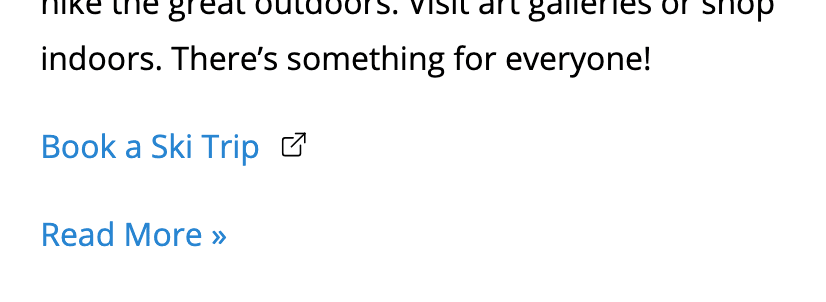
- Click Book a Ski Trip to go to a website in a new tab.
Let’s add icons to tell users what kind of links these are.
Leave the page open in the browser.
Looking at the Links
- Return to index.html in your code editor.
Near the end of each section tag, find the link above Read More and note the href for each:
href="downloads/trail-guide.pdf"href="https://www.youtube.com/watch?v=4zlzh3zwdgi"href="https://www.skilaketahoe.com"
Adding the Link Icons
We’ll be adding the icon as a background image on the link. We’ve provided the icons in the img folder. To make things simpler, the icons are designed to be displayed at the exact same size: 16px by 16px.
Let’s start out writing some very general rules and get more specific as we progress.
- Open main.css from the css folder.
Let’s write a general rule for anchor tags to give them a background image. Above the .book-now-btn rule, add the following new rule:
a {
   background: url(../img/icon-pdf.png);
}
NOTE: We already have a rule for anchor tags, but we’ll be getting more specific with this in a moment so we’re making a new rule.
- Save the file, then reload the page in your browser.
- The background image is showing up behind the links, but it’s repeating by default. Let’s change that.
- Return to main.css in your code editor.
Add the bold code shown:
a { background: url(../img/icon-pdf.png) no-repeat; }- Save the file, then reload the page in your browser.
- The icon is no longer repeating behind the links. It only appears once.
Let’s move the icon to the right of each link. Go to main.css and add the bold code:
a { background: url(../img/icon-pdf.png) no-repeat right center; }- Save the file, then reload the page in your browser.
We want to display the icons at 16 X 16px. Go to main.css and add:
a {
   background: url(../img/icon-pdf.png) no-repeat right center / 16px;
}
Save the file and reload the page in the browser.
So the size looks good, but the icon is hard to see behind the text. This is because we’re putting it behind the anchor tag which is an inline element. Inline elements are only as wide as they need to be by default. In order to make space for the icon to the right of the links, we need to give the anchor tag some padding on the right.
Go to main.css and add:
a {
   background: url(../img/icon-pdf.png) no-repeat right center / 16px;
   padding-right: 24px;
}
Save the file and reload the page in the browser. Looks great!
Targeting with Attribute Selectors
Now that we’ve gotten the icon styled correctly, we need to apply the appropriate icon to each type of link. What’s the best way to do this? We could use a class, but that requires manually adding extra code to every link. A better way is to use attribute selectors.
Attributes are settings we add to an element’s HTML opening tag (for example href, ALT, and target). We want the PDF icon to only appear next to the link for the trail guide PDF, so we can target the link’s href attribute.
- Switch back to main.css.
Add
[href="downloads/trail-guide.pdf"]to the a selector as shown below:a[href="downloads/trail-guide.pdf"] { background: url(../img/icon-pdf.png) no-repeat right center / 16px; padding-right: 24px; }Save the file and reload the page in the browser. Now the PDF icon only shows next to the Download a Trail Guide link.
This code isn’t reusable because it only applies to this specific link. We’d like to use this icon anytime we link to a PDF, so there’s a better way. We can target href attributes that end with .pdf
Go to main.css and edit the selector as follows:
a[href$=".pdf"] {
   background: url(../img/icon-pdf.png) no-repeat right center / 16px;
   padding-right: 24px;
}
When using the
=sign, the target must match exactly what is between the quotes. Using$=targets anything that ends with what is within the quotes. So with the above code, we are targeting any link with an href attribute that ends with .pdfSave the file and reload the page in the browser. Everything looks the same but now our code is more versatile because it works for all PDF links.
Adding the External Link Icon
Next we need to target external links such as Book a Ski Trip. For this we can target links with an href that starts with http.
- Return to your code editor.
Copy the rule we just wrote and paste a duplicate directly below:
a[href$=".pdf"] {
   background: url(../img/icon-pdf.png) no-repeat right center / 16px;
   padding-right: 24px;
}
a[href$=".pdf"] {
   background: url(../img/icon-pdf.png) no-repeat right center / 16px;
   padding-right: 24px;
}
Edit the copy as shown in bold:
a[href$=".pdf"] {
   background: url(../img/icon-pdf.png) no-repeat right center / 16px;
   padding-right: 24px;
}
a[href^="http"] {
   background: url(../img/icon-external-link.svg) no-repeat right center / 16px;
   padding-right: 24px;
}
Using
^=targets anything that begins with what is in the quotes. So the above code targets any link with an href that starts with http (and give them a background image of icon-external-link.svg).Save the file and reload the page in the browser. Look at the Book a Ski Trip link to see that the external links icon appears next to it.
Adding the YouTube Icon
- Notice that the external link icon appears next to the Watch a Video link as well because that is also a link that starts with http. It’s true that this is an external link but we’d like it to have a YouTube icon instead.
- Go to main.css in your code editor.
Again, copy the rule we previously wrote and paste a duplicate directly below:
a[href^="http"] {
   background: url(../img/icon-external-link.svg) no-repeat right center / 16px;
   padding-right: 24px;
}
a[href^="http"] {
   background: url(../img/icon-external-link.svg) no-repeat right center / 16px;
   padding-right: 24px;
}
We want to give all YouTube links a YouTube icon, so we can target anything that has a string that contains “youtube.com”. Edit the code as shown in bold:
a[href^="http"] {
   background: url(../img/icon-external-link.svg) no-repeat right center / 16px;
   padding-right: 24px;
}
a[href*="youtube.com"] {
   background: url(../img/icon-youtube.svg) no-repeat right center / 16px;
   padding-right: 24px;
}
Using
*=targets anything that contains the content within the quotes. The*is a wildcard symbol that means the target content can appear anywhere, surrounded by any other characters.Save the file and reload the page in the browser. Check out the YouTube icon next to the Watch a Video link!
NOTE: You may be wondering why the external link icon isn’t appearing next to the YouTube link anymore, even though the link starts with http. Both the http and youtube selectors have the same amount of specificity, so the later rule (youtube) overrides the earlier rule (http).