Tween Control
What This Tutorial Covers
Play, Pause, Reverse
Control tween playback at any point.
Time Scaling
Speed up or slow down tween playback.
Seeking
Jump to specific positions in a tween's timeline.
Noble Desktop's JavaScript Development Certificate teaches modern JavaScript — the foundation behind GSAP and other animation libraries.
Learn how to create interactive animations using GreenSock's TweenLite, including controlling the direction of rotation, using the set() method to change an element’s position, and utilizing the play() and reverse() methods for user interaction.
Exercise Preview
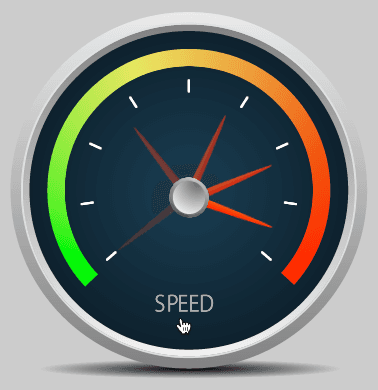
Examining the DOM Structure
In a code editor, open start.html from the Tween Control folder.
Look at the code from lines 34–37 to get familiar with the basic DOM structure.
<div id="speedGauge">
   <img id="pointer" src="img/pointer.png" height="9" width="89">
   <img id="center" src="img/disc.png" height="41" width="40">
</div>
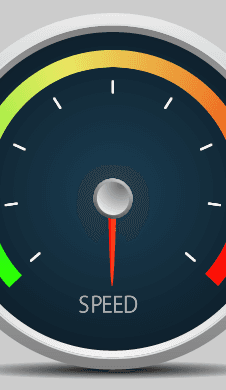
There are two images within the speedGauge div. The one we’ll be rotating has an ID of pointer. The image with an ID of center is the gray, circular center of the speed gauge. The rest of the gauge is a background image in the speedGauge div.
Preview start.html in a browser. There is no animation yet.
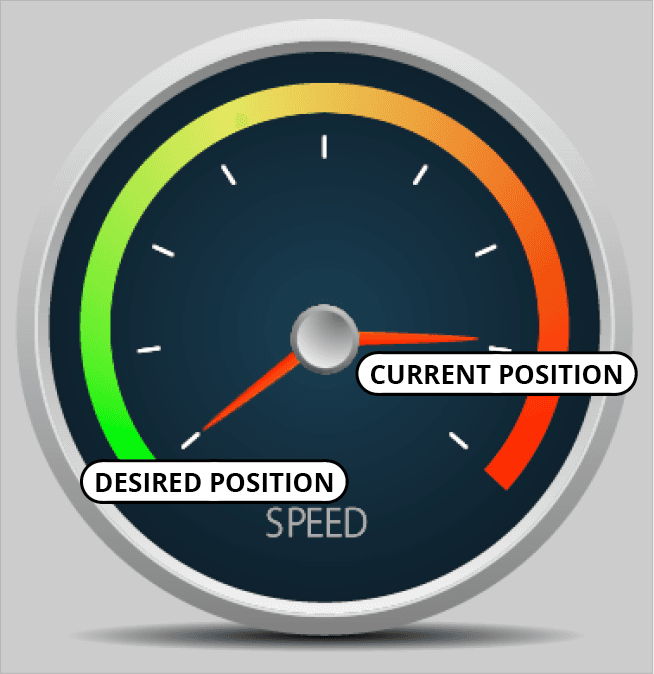
As you can see in the screenshot below, the pointer that we will animate is in the wrong starting position. Before we can animate, we’ll need to move the pointer to its proper start value: the first notch on the left.
Using Set() to Change an Element’s Position
Back in your code editor, look around lines 50–51 and notice the following two variables as shown in bold. We’ll animate the first one. The second is the trigger.
$(document).ready(function() {

   var $gauge = $("#speedGauge"),
       $pointer = $("#pointer");
Before we start tweening, let’s strategize what to do next. We want to rotate the
$pointer object to the left when we mouse over the$gauge, but we do not want it to animate yet. In the old days, you’d be spending a while writing a ton of CSS for the rotation, adding the necessary vendor-prefixes. GSAP has come to the rescue—now you can do all of that with a single line of code! Let’s test it out.The set() method essentially creates a tween that happens instantly and has no duration. After the
$pointer variable, hit Return (Mac) or Enter (Windows) twice to give yourself some space. Then add the following bold code:$pointer = $("#pointer"); TweenLite.set($pointer, {rotation:90});As you can see, the basic syntax is almost exactly the same as the to() and from() methods, except there’s no duration between the target and vars object.
Save the file and preview the page. As shown below, the pointer rotated 90° but looks pretty funky because it rotated around its center.

The TransformOrigin Property
By default, the rotation originates at the center of the object we are tweening. To fix this we need to define a transformOrigin property which will allow us to control the point around which the element will rotate.
Return to your code editor and add the following bold transformOrigin to the set() method:
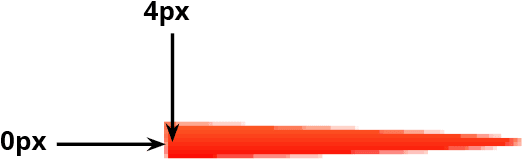
TweenLite.set($pointer, {rotation:90, transformOrigin:"0px 4px"});The string values in quotations are the horizontal and vertical positions respectively. This transformOrigin specifies that the pointer should rotate around a point 0px from the left edge and 4px down from the top, as shown below.
Save the file and preview the page in a browser. The rotation of 90° places the pointer in the less-than-ideal six o’clock position, but the pointer is rotated from the ideal spot. The transformOrigin is spot on!
Return to your code editor.
TransformOrigin values can be any CSS units but pixels and percentages are most common. Take a moment to examine the possibilities listed in the sidebar below. If you have time, feel free to experiment in the file and preview in a browser.
Transform Origin Values
The string value in quotations describes the horizontal and vertical positions. You can define values for the transform-origin property using the following:
- Keywords (left, right, or center for the horizontal position and top, bottom, or center for the vertical position) such as (
"right bottom") - Percentages:
"100% 100%"is the same as the previous example. - Pixel values:
"100px"is 100 pixels from both the top and left. This approach is the most exact. - A combination of these approaches such as
"50% bottom"for 50% horizontal at bottom.
- Keywords (left, right, or center for the horizontal position and top, bottom, or center for the vertical position) such as (
Before moving on, make sure your code reads as follows:
TweenLite.set($pointer, {rotation:90, transformOrigin:"0px 4px"});To place the pointer exactly where we want it, in your code editor, change the rotation for the set() method to 142, as shown below in bold:
TweenLite.set($pointer, {rotation:142, transformOrigin:"0px 4px"});Save the file and preview the page in a browser. Sweet, the
$pointer has assumed its starting position at the bottom left!
Controlling the Direction of Rotation
Now that we’ve set the starting rotation of the pointer, it’s ready to be animated. The first issue to consider is the direction of the rotation. Let’s give it a try.
In your code editor, after the TweenLite.set() method, type the following TweenLite.to() method:
TweenLite.set($pointer, {rotation:142, transformOrigin:"0px 4px"});

TweenLite.to($pointer, 1, {rotation:20, ease:Power1.easeIn});
Note the following:
- We did not have to specify the transformOrigin for the second rotation tween. It will use the previous value for transformOrigin by default.
- We are using one of the Power eases that come packaged with TweenLite—no EasePack needed. While we have also loaded EasePack into our file, this tween would work without it!
Save the file and preview the page in a browser. The rotation ends up where we want it to, but it’s moving in the wrong direction. Oh no!
Thankfully GSAP gives you control of the direction of the rotation! Return to your code editor.
Add the bold code shown below to the to() method:
TweenLite.to($pointer, 1, {rotation:"20_cw", ease:Power1.easeIn});When rotating, GSAP will most often pick the direction of the shortest distance. The cw suffix in this string forces the rotation to go clockwise. For more ways to control a rotation property, read the sidebar below.
Rotation Specifiers
There are three ways to handle rotation:
_cwRotates an element clockwise _ccwRotates an element counterclockwise _shortRotates an element by the shortest distance Save the file and preview the page in a browser. Cool, this animation is headed in the right direction!
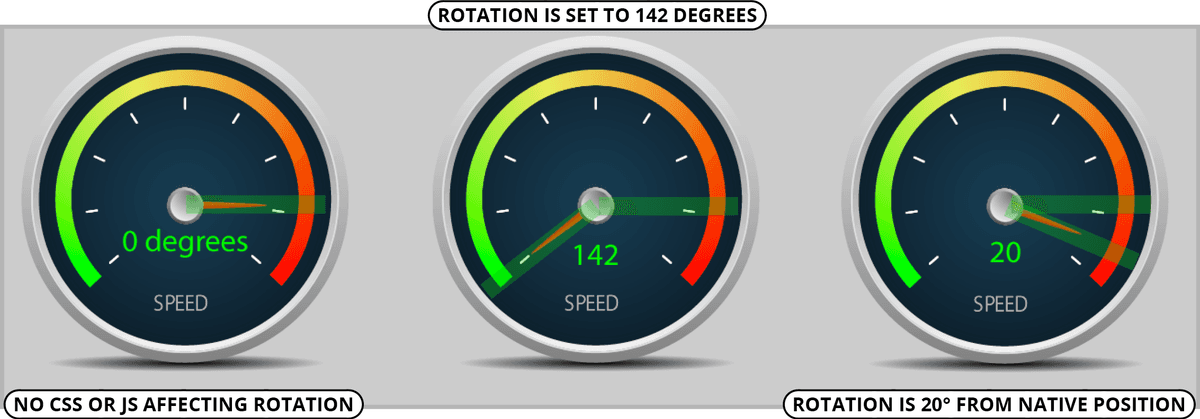
As illustrated below, notice that even though we used set() to modify the start value of the pointer to a 142° rotation, as far as the browser is concerned, tweening the rotation to 20 will be 20° offset from the object’s native rotation of 0.