Git Branches: List, Create, Switch to, Merge, Push, & Delete
Master Git Branch Operations for Better Code Management
Git Branching Benefits
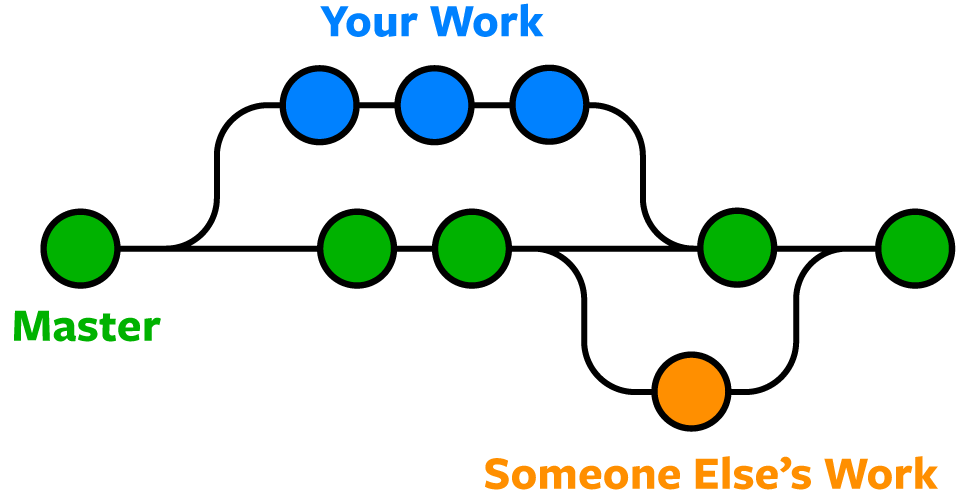
Parallel Development
Work on new features while maintaining a stable main branch. Switch between tasks without losing progress on either.
Risk Management
Isolate experimental code from production-ready code. Merge only when features are complete and tested.
Team Collaboration
Multiple developers can work simultaneously without conflicts. Each feature gets its own development space.
The git status command not only shows your current branch but also displays staged changes, unstaged modifications, and untracked files in your working directory.
Branch Listing Commands
| Feature | Command | What It Shows |
|---|---|---|
| git branch | Local branches only | Current branch marked with asterisk |
| git branch -r | Remote branches only | Shows origin/ prefixed branches |
| git branch -a | All branches | Both local and remote combined |
Creating and Working with New Branch
Create and Switch
Use git checkout -b my-branch-name to create a new branch and immediately switch to it
Make Changes
Edit files, add features, or fix bugs in your new branch environment
Commit Work
Stage and commit your changes to the new branch using standard git add and git commit commands
Ensure your working directory is clean before switching branches. Uncommitted changes may be lost or cause conflicts when switching between branches.
Working with Remote Branches
Fetch Remote Changes
Run git pull to get the latest list of all branches from the remote repository
Track Remote Branch
Use git checkout --track origin/my-branch-name to create a local branch that tracks the remote
Start Working
You now have a local copy of the remote branch that you can modify and push back
Push Command Options
| Feature | Scenario | Command to Use |
|---|---|---|
| New local branch | git push -u origin my-branch-name | Sets upstream tracking |
| New branch (easy way) | git push -u origin HEAD | Uses current branch name |
| Existing remote branch | git push | Simple push to tracked branch |
HEAD is a reference to the top of the current branch, making it an easy way to push to a branch of the same name on the remote without typing the exact branch name.
Safe Merge Process
Check Status
Run git status to ensure your working tree is clean and see what branch you're on
Switch to Target
Checkout the branch that will receive the changes (typically master or main)
Merge Source
Run git merge my-branch-name to merge the feature branch into the current branch
Resolve Conflicts
Handle any merge conflicts that arise during the merge process
Changes are always merged INTO the current branch. Make sure you're on the correct target branch before running the merge command.
Branch Deletion Options
| Feature | Command | Behavior |
|---|---|---|
| git branch -d | Safe delete | Only if already merged |
| git branch -D | Force delete | Deletes regardless of merge status |
| git push origin --delete | Remote delete | Removes branch from origin |
Next Steps for Git Mastery
Apply these commands in actual development scenarios
Understand how to handle conflicts when branches diverge
Study Git Flow, GitHub Flow, and other branching models
Learn pull requests, code reviews, and team workflows
Key Takeaways