Parallax Animation in Figma
What This Tutorial Covers
Smart Animate
Match layers between frames for smooth motion.
Layer Speeds
Different motion amounts create depth.
Trigger Setup
On scroll or click triggers in prototypes.
Noble Desktop's UX/UI Design Certificate teaches Figma in depth alongside the full UX process.
Dive into this comprehensive Figma tutorial to learn how to set up parallax assets and build a parallax animation, including important steps such as setting up a parallax photo, opening the file, setting up the layers, and putting everything in a frame.
Exercise Preview

Setting up a Parallax Photo
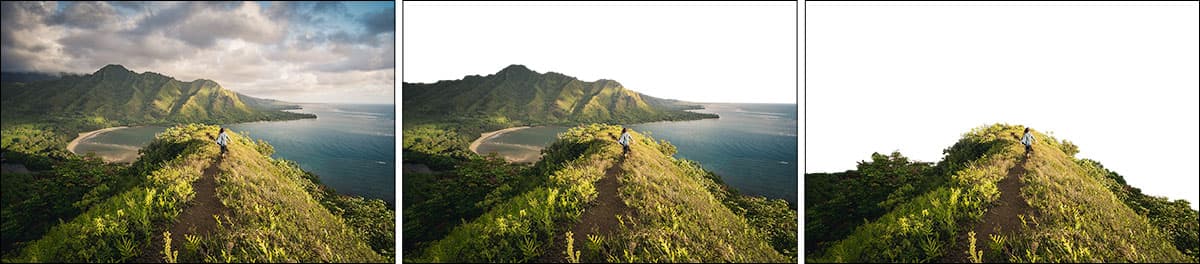
Parallax animations are when multiple layers move at different speeds to create a sense of depth. Things father away (in the background) move slower. Each layer that is closer moves faster, with the closest layer moving the fastest.
The hardest part of creating a parallax animation, is the Photoshop work. We’ve already done this for you, but you’ll need each layer with the unwanted elements removed (transparent). To get them into Figma with transparent backgrounds you can save them as PNG. Below is how our 3 layers (background, middleground, and foreground) look:
Opening the File
In Figma, if you’re not on the homescreen (file browser), do the following:
- In the Desktop app: Click the
 Home tab (Mac users can also choose File > Open File Browser).
 - In the Web app: At the top left, click the Main menu button
 and choose Back to files.
- In the Desktop app: Click the
- To open a local file, click
 Import file (may be an icon near the top right).
 Navigate into Desktop > Class Files > Figma Class and double–click on Parallax.fig to choose it.
Once the file has uploaded, click Done and double–click on the file to open it.
Setting up the Layers
We’ve already brought in the background photo, but you will need to add the other 2 layers (middleground and foreground).
- Click on the photo at the top of the frame to select it.
- Duplicate it by hitting Cmd–D (Mac) or CTRL–D (Windows).
On the frame, nothing will look different because the copy is in the same exact position, except in front (on top) of the previous photo. In the Layers panel though, you can see there are now 2 Background layers. Next we’ll replace the top one with our middleground photo.
- In the toolbar at the top left, click on the down arrow next to Rectangle tool
 and from the menu that appears choose Place image/video
  .
. - Navigate into Desktop > Class Files > Figma Class > Parallax Photos and double–click on Middleground.jpg to choose it.
- Click on the top photo to replace it with this new photo. (Nothing visually will change, but that’s what should happen!)
- In the Layers panel, double–click on the top layer named Background and rename it to Middleground.
- Let’s do this one more time for the foreground photo. With the Middleground photo still selected, duplicate it by hitting Cmd–D (Mac) or CTRL–D (Windows).
- In the toolbar, click on the down arrow next to Rectangle tool and from the menu that appears choose Place image/video .
- Double–click on Foreground.jpg to choose it (if you don’t see it, navigate into Desktop > Class Files > Figma Class > Parallax Photos).
- Click on the top photo to replace it.
- In the Layers panel, double–click on the top layer named Middleground and rename it to Foreground.
Building the Parallax Animation
To build the animation we need 2 frames: one for how the design will look initially, and a second for how the design will look in the end. We already have the first frame, so let’s make the second.
- Click on the parent frame’s name Parallax Start to select it.
- Duplicate it by hitting Cmd–D (Mac) or CTRL–D (Windows).
- Rename the new frame (on the right) by double–clicking its name and changing it to Parallax End.
- On the Parallax End frame, double–click on the top photo to go into the parallax frame.
- In the Layers panel, inside the parallax group click on The Islands of Hawaii layer.
- Hold Shift and in the Layers panel click on the Middleground layer.
- Let’s move them all up. Hold Shift and press the Up Arrow key 5 times.
- In the Layers panel, hold Cmd (Mac) or CTRL (Windows) and click on the Middleground layer (so only the The Islands of Hawaii and Foreground layers are selected).
- Hold Shift and press the Up Arrow key 10 times.
- In the Layers panel, hold Cmd (Mac) or CTRL (Windows) and click on the Foreground layer (so only the The Islands of Hawaii layer is selected).
- Hold Shift and press the Up Arrow key 15 times.
We need to move the bottom of the frame up, but it’s hard to see how far up to drag, so:
- Hide the Middleground and Background layers (hover over the layer name in the Layers panel and click the eye
 icon).
 - In the Layers panel, select the parallax frame.
- Resize the bottom of the frame up to the bottom of the Foreground layer. It won’t snap, so you must be careful when resizing. The final height should be 650.
- When done, show the Middleground and Background layers again.
- Hide the Middleground and Background layers (hover over the layer name in the Layers panel and click the eye
- Now let’s set up the animation. Click on the Parallax Start frame name to select the frame.
- In the right panel, at the top click on Prototype.
In the Prototype panel, to the right of Interactions click the Plus(+) button.
Below Interactions click on the Click
—>None interaction and then:- Change On click to After delay.
- Change the time amount to ,000 ms (we want to see the photo for a second before it start to animate).
- Change None to Navigate to.
- To the right of that, change None to Parallax End
- Under Animation change Instant to Smart animate.
- Below Smart animate set the easing to Ease in and out.
- To the right of easing, set the time to ,000 ms (so it takes 4 seconds to animate).
- At the top right of the window, click Present
 or hit Cmd–Option–Return (Mac) or CTRL–ALT–Enter (Windows).
 - Wait a second and then the animation should happen automagically!
Press the R key to restart the animation and see it again.
The animation is slow so you can see what’s happening, but it’s looking good! The final touch is to move the whole thing up off the screen to simulate scrolling down.
- Close the presentation tab/window.
- In the Parallax End frame (the one of the right), select the parallax frame (the photos and type).
We need to move this frame up so its so it’s fully off screen. But we have to be careful doing this because Figma can easily pull it outside the frame as we drag, which would break the smart animation.
Start dragging the parallax frame up and as you drag, hold the Spacebar (to prevent it from coming out of the parent frame) and Shift (to prevent it moving left/right) and drag it up until it’s above the navbar (hidden outside the top of the parent Parallax End frame).
NOTE: If you don’t like dragging, here’s another way to do it:
- In the Design panel, notice the height (H) should be 650.
- Set Y to -650 (don’t miss the minus part!) and hit Return (Mac) or Enter (Windows) to apply it.
Now the parallax group should be fully outside the top of the frame.
- There’s more text/photo content lower on the frame. Drag that content up so the first paragraph looks nice below the navbar.
- Click in an empty area of the canvas to make sure nothing is selected.
- At the top right of the window, click the Present button .
- Wait a second and admire the final animation!
Press the R key to restart the animation and see it again.