April 1, 2026Bob Umlas/5 min read

Filtering Data in Excel

Master Excel Data Filtering for Enhanced Analysis

What is Data Filtering?

Filtering shows only the data rows you want to see while hiding others. The hidden rows aren't deleted - they're simply filtered out of view, making your data analysis more focused and efficient.

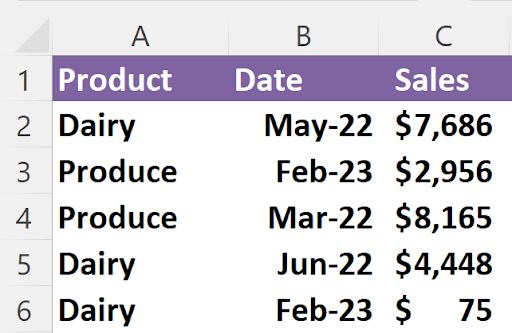
Data filtering is one of Excel's most powerful features for data analysis, allowing you to display only the rows containing information relevant to your current task while temporarily hiding all others. Rather than deleting unwanted data, filtering provides a dynamic view that can be easily modified or removed. Consider this fundamental example with a simple dataset:

Short List

If your analysis requires focusing solely on Dairy products, Excel offers multiple pathways to achieve this result. The filtered output demonstrates several key visual indicators that confirm your filter is active:

Filtering

Notice these critical filtering indicators:

Row numbers display in blue, signaling that filtering is active

Rows 3-4 are completely hidden from view (not deleted, merely filtered)

Dropdown arrows appear in the header row (cells A1:C1)

The filter icon in cell A1 indicates this column controls the current filtering criteria

Understanding these visual cues helps you maintain awareness of your data's filtered state, preventing confusion when working with large datasets. Let's explore the comprehensive methods for implementing filters and expand into advanced filtering capabilities.

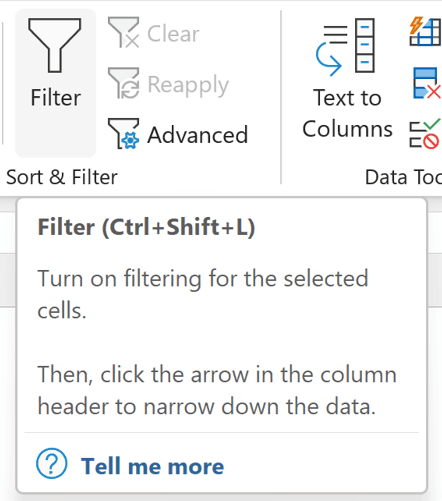
The most straightforward approach utilizes Excel's ribbon interface. Navigate to the Data tab and locate the Sort & Filter group, where you'll find the Filter button. Clicking this button—or using the keyboard shortcut Ctrl+Shift+L—toggles filter mode on and off. When activated, Excel automatically adds dropdown arrows to every column header in the data region surrounding your active cell.

Screenshot from Microsoft Excel's Data tab, showing the 'Filter' button tooltip, which reads: 'Filter (CTRL+Shift+L). Turn on filtering for the selected cells. Then, click the arrow in the column header to narrow down the data.'

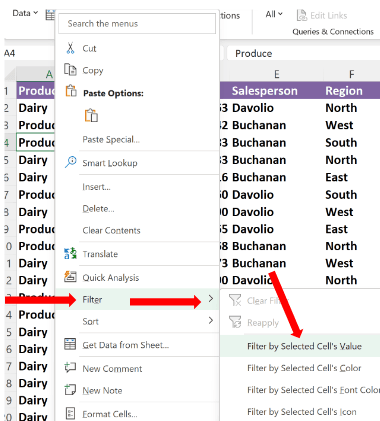
For immediate filtering based on a specific cell value, Excel provides a context-sensitive right-click option. Simply right-click any cell containing the value you want to filter by, then select Filter > Filter by Selected Cell's Value:

Screenshot 1

This method simultaneously activates filter mode and applies the filtering criteria in one efficient step—in this example, filtering to show only "Produce" items.

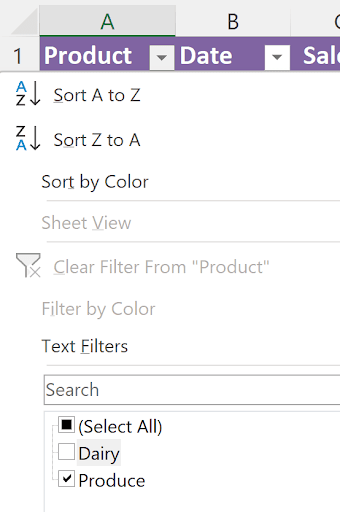
Once filter icons are visible, clicking any dropdown arrow reveals Excel's comprehensive filtering interface. This dialog box combines sorting capabilities with sophisticated filtering options:

Show%20this

The interface offers multiple filtering approaches: sorting options occupy the upper portion, while the bottom section presents checkboxes for each unique value in the column. For datasets with numerous entries, you can selectively check or uncheck items to customize your view. The integrated search functionality becomes invaluable when working with extensive value lists, as demonstrated with this expanded dataset:

Screenshot of an Excel filter menu with a search box and checkboxes for various fruits (Apple, Banana, Grape, Honeydew Melon, Orange, Persimmon, Pineapple, Plum, Watermelon), all selected alongside a 'Select All' option.

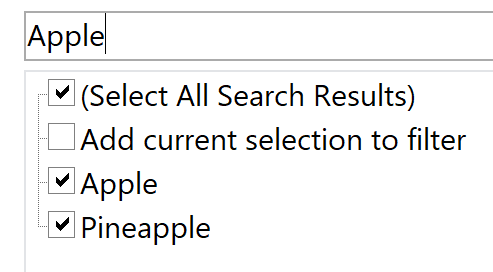
Excel's intelligent search function performs partial matching, which can yield unexpected but useful results. When you type "Apple" in the search box:


Search%20box

Notice that "Pineapple" also appears in the results due to the partial text match. This behavior can be advantageous for finding related items you might not have initially considered. The "Add current selection to filter" checkbox enables cumulative filtering—if you previously filtered by "Banana" and then check this option while searching for "Apple," your results will include both fruits:

Id See

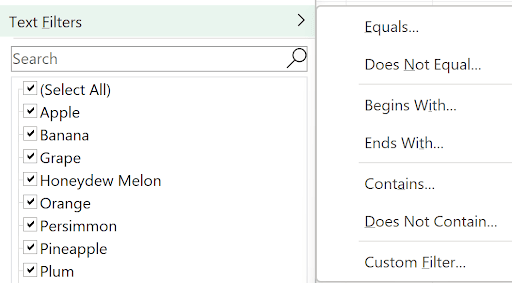
For more sophisticated text-based filtering, Excel provides specialized text filters accessible through the dropdown menu:

Text Fillers

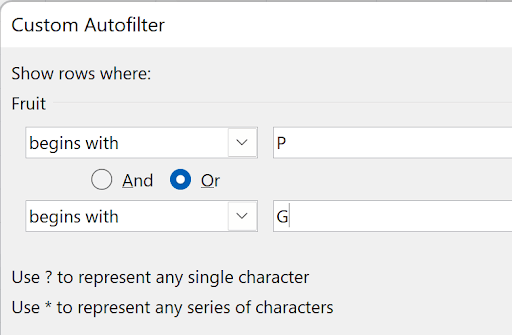
These text filters offer pattern-matching capabilities essential for professional data analysis. The "Begins with" option, for example, allows you to filter for all entries starting with specific characters or strings:

Begins With

Implementing this filter produces a refined dataset showing only items meeting your specified criteria:

Would Show

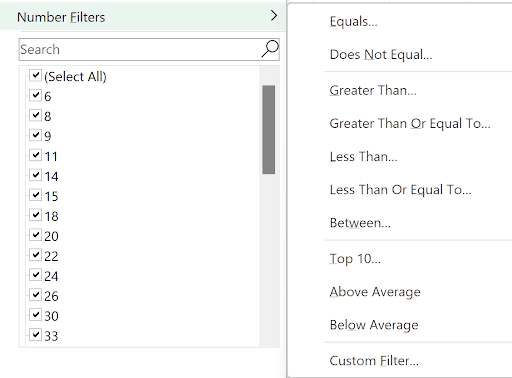
Excel intelligently adapts its filtering options based on your data types. Numeric columns present number-specific filtering options rather than text filters:

Number Filters

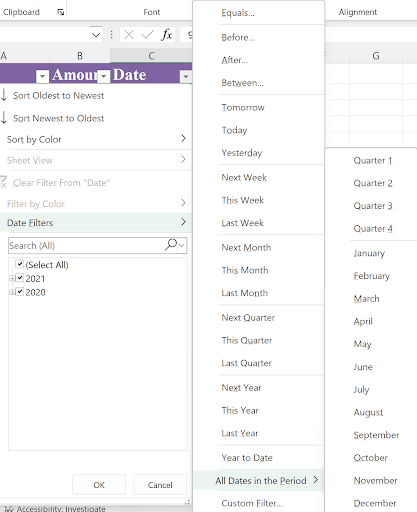
Date columns unlock Excel's comprehensive temporal filtering capabilities, offering extensive options for time-based data analysis:

Data%20filters

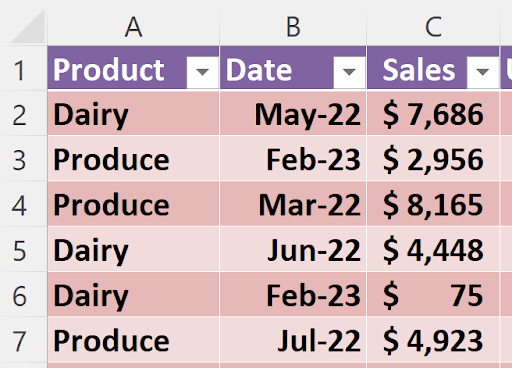
Converting your data range to an Excel Table (covered comprehensively in our separate table formatting guide) automatically implements filtering while adding enhanced functionality. The visual formatting improves readability while maintaining all standard filtering capabilities:

Table Formatting

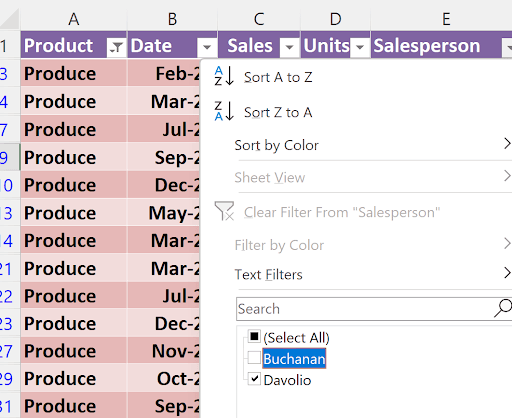
One of Excel's most powerful filtering capabilities is the ability to apply multiple simultaneous filters across different columns. This creates a compound filtering effect where each additional filter narrows your dataset further. For instance, after filtering by Product category, you can subsequently filter by a specific salesperson:

Salesperson

This produces a highly targeted view showing only records meeting both criteria:

Which%20produces


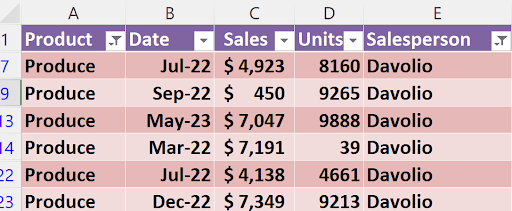
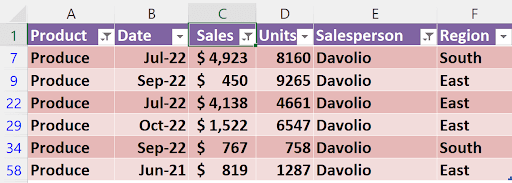
The layering capability extends to numeric criteria as well. You can further refine your filtered dataset by adding financial thresholds, such as displaying only items with sales under $5,000:

5000

5001

5002

Excel provides real-time feedback on your filtering results through the status bar notification in the bottom-left corner of your screen. This indicator shows exactly how many records meet your current criteria out of the total dataset:

Left

Professional tip: The fastest method to display all records while maintaining filter mode is pressing Ctrl+Shift+L twice consecutively. This toggles the filter off and immediately back on, clearing all filter criteria while preserving the filter interface.

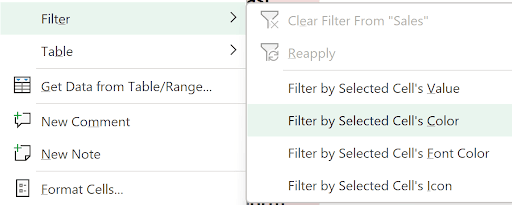
Beyond value-based filtering, Excel supports sophisticated visual-based filtering options accessible through the right-click context menu. These advanced features are particularly valuable when working with formatted datasets:

Repeated%20here

These specialized filtering options expand your analytical capabilities significantly:

Filter by Selected Cell's Color filters based on the cell's background color, not the font color. This proves invaluable when working with color-coded datasets where different colors represent categories, priorities, or status levels.

Filter by Selected Cell's Font Color focuses specifically on text color rather than cell background, useful for datasets where font colors convey meaning.

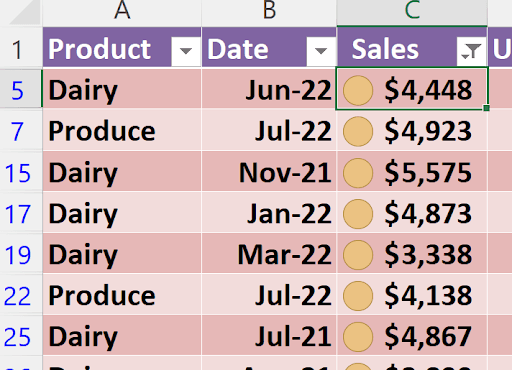
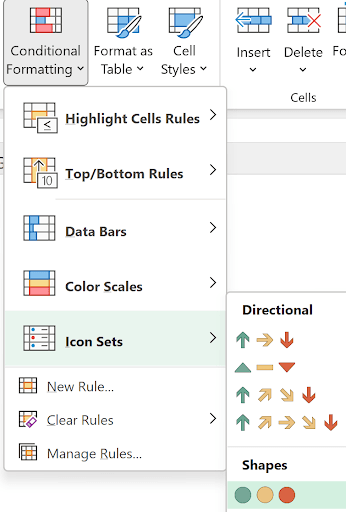
Filter by Selected Cell's Icon becomes powerful when combined with Excel's conditional formatting icon sets. Consider this example where conditional formatting applies performance indicators:

Screenshot of Microsoft Excel's Conditional Formatting dropdown menu displaying options like Highlight Cells Rules, Top/Bottom Rules, Data Bars, Color Scales, and Icon Sets (including directional arrows and shapes).

When applied to your data, conditional formatting creates visual indicators that enhance data interpretation:

Data%20like%20this

Right-clicking on any cell with a specific icon (such as the cell containing $4,448) and selecting "Filter by Selected Cell's Icon" will display only rows sharing that same performance indicator:

Id%20see

Excel's filtering capabilities extend far beyond these fundamental techniques. In our upcoming advanced filtering guide, we'll explore Excel's Advanced Filter feature, which enables complex criteria ranges and in-place or extract operations. We'll also examine the modern Dynamic Array function =FILTER(), introduced in recent Excel versions, which provides formula-based filtering capabilities that automatically update when source data changes—a powerful tool for creating dynamic reports and dashboards in today's data-driven business environment.


Key Takeaways

1Excel filtering hides unwanted rows while keeping data intact, allowing focused analysis of specific information
2Multiple methods exist for applying filters: Filter icon in ribbon, right-click context menu, or keyboard shortcut CTRL+Shift+L
3Right-click filtering provides immediate results by both enabling filter mode and applying the selected cell's value as criteria
4Filter dropdown menus offer advanced options including search functionality, multiple selections, and data type-specific filters
5Different data types (text, numbers, dates) provide specialized filtering options tailored to their format and common use cases
6Multiple fields can be filtered simultaneously to create highly specific data views combining various criteria
7Converting data to Excel tables maintains all filtering functionality while adding visual enhancements and additional features
8Quick reset methods like pressing CTRL+Shift+L twice help efficiently manage filter states without losing filter mode setup

RELATED ARTICLES