Using Excel's Power Query Editor
What This Tutorial Covers
Get & Transform
Pull data from files, databases, and web sources.
M Language
Power Query's transformation language under the hood.
Repeatable Steps
Refresh transformed data with one click.
Noble Desktop's Excel Bootcamp teaches advanced Excel — formulas, pivot tables, Power Query, and more.
In this article, we are going to look at how to use the Power Query Editor in Microsoft Excel
So, What’s a Power Query?
With Power Query, you can connect to virtually any data source, be it one of your own worksheets or an Access database – or a database created in another database application and stored on a server (which you’ll have to identify by a path to it).
Once you’ve selected the data source, you can then shape that data, which is Excel’s term for choosing which columns (think fields, to stay in the data mindset) to use and view in the query, how the data will be sorted, and which filters to apply to distill the data down to just the records you want to see.
You can also combine or merge your query with another query, or combine data sources, or both. In this article, I’ll be sticking with a single data source, and showing you how to make individual queries – otherwise, we’ll end up with a novel that you’d never have time to read. But I will give you links to resources should you wish to go down any of those data rabbit holes on your own!
After that, you can run your query and save it in a new or existing workbook. Excel calls this loading, but in terms you already are familiar with, it’s just running and saving your query. And by run, I mean execute or perform the query – sort and filter the records and export them to a new location for use and viewing. I have to say that by bringing in new terms for things we’re already familiar with doing, Excel has needlessly complicated this feature. But that’s just one woman’s opinion, you may feel differently.
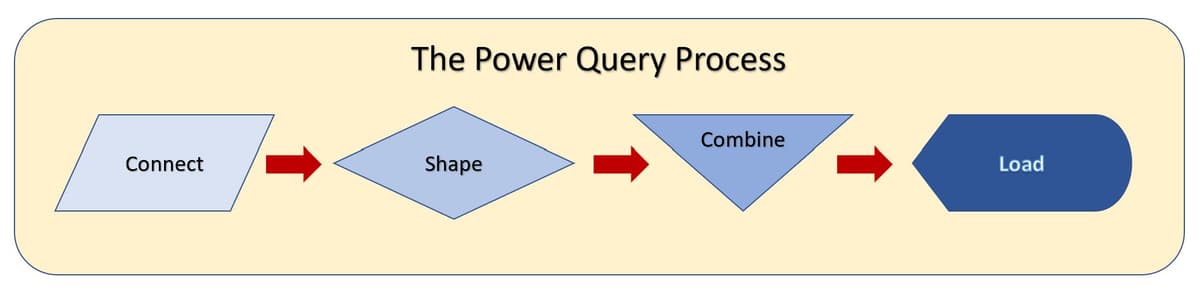
So, the four steps in using Power Query are:
- Connect: Make connections to existing data – in your own computer, on a server, in the cloud, anywhere tabular data can be found.
- Transform: Shape the data to meet your needs, while the original source remains unchanged – by removing unwanted columns (fields) and applying your own sorting and filtering to the remaining fields.
- Combine : As desired/needed, connect queries from multiple data sources into a single worksheet.
- Load: Run your query and load it into a worksheet, where you can view it, use it, and save it. You can also refresh the loaded copy to reflect any changes in the source data.
 Building Your Query in Excel
The most important step – taken before you begin the literal process of creating your query – is to plan your query.
First, determine in which range of cells or table within a worksheet (or external data source such as an Access table) do you want to make the demand, “Gimme all your…” and see only the records that interest you?
After establishing that, decide what do you want to know. From that table or range, which fields do you want to see, and which ones do you want to use in creating the query? Though Excel never uses the word, you’re going to be establishing query criteria - the word/s that come after your “Gimme all your…” demand and tell Excel which records you want to see and how Excel should select and display them for you.
Criteria can include numeric values, dates, or text. So, for example, imagining a database of vendors, you could ask to see all the vendors with whom your company has spent more than $,000 in 2022, but say that you only want to see electricians, plumbers, and HVAC contractors. This kind of query planning will make it much easier to not only choose the right data (that vendors table), but to know which fields you want to filter – the fields that store how much you’ve spent with each vendor, the range of dates you worked with them, and the field that stores the vendor type for each vendor in the table.
It’s important to note that an effective query can include fields in addition to those you use in filtering the data. For example, if you want to contact those vendors who make the cut after you run your query, including the Contact Name, Phone, and Email columns from the table will be handy.
Connecting to Data
Once you’ve decided which range, table, or database you want to use (and have determined where that data literally resides, as you’ll have to select it now), it’s time to connect.
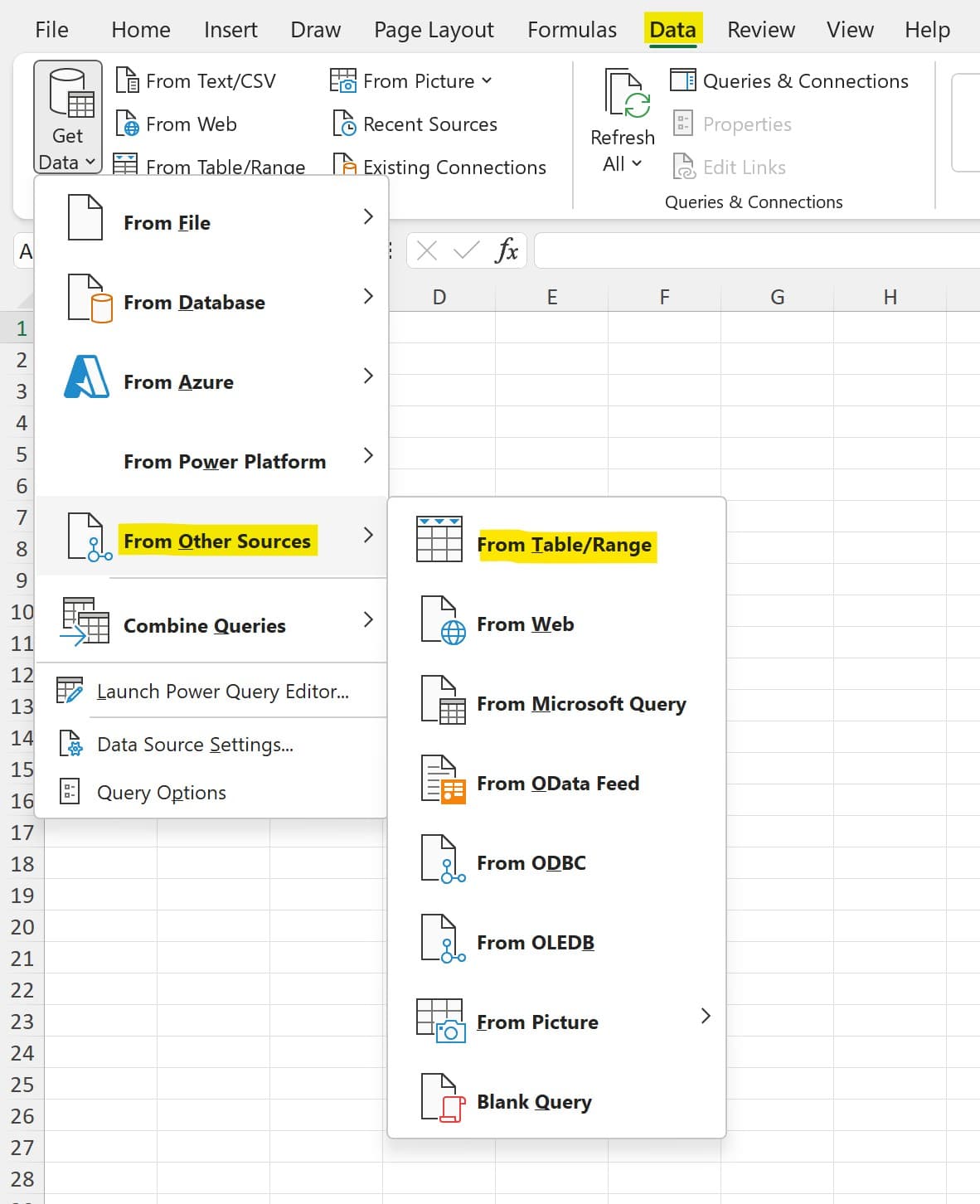
From the Data tab in Excel, click the Get Data button, and then choose From Other Sources. The submenu that appears offers several options, but for this demonstration, we’ll choose From Table/Range, meaning we want to use one of our existing Excel worksheets as the source of our data.
But What If My Data Isn’t In an Excel Worksheet?
The process of building a query doesn’t really change after you’ve chosen your source. For the purposes of this article, I’m taking the simplest path and one that most users will need, and our data source will be an Excel worksheet that contains a data range. But if your data isn’t in Excel, just choose the source from that From Other Sources submenu, and then follow the steps from there to identify the location of that data.
You can also choose From Database, and if you’ve got an Access database – or data stored on an SQL Server – you can choose accordingly from that submenu.
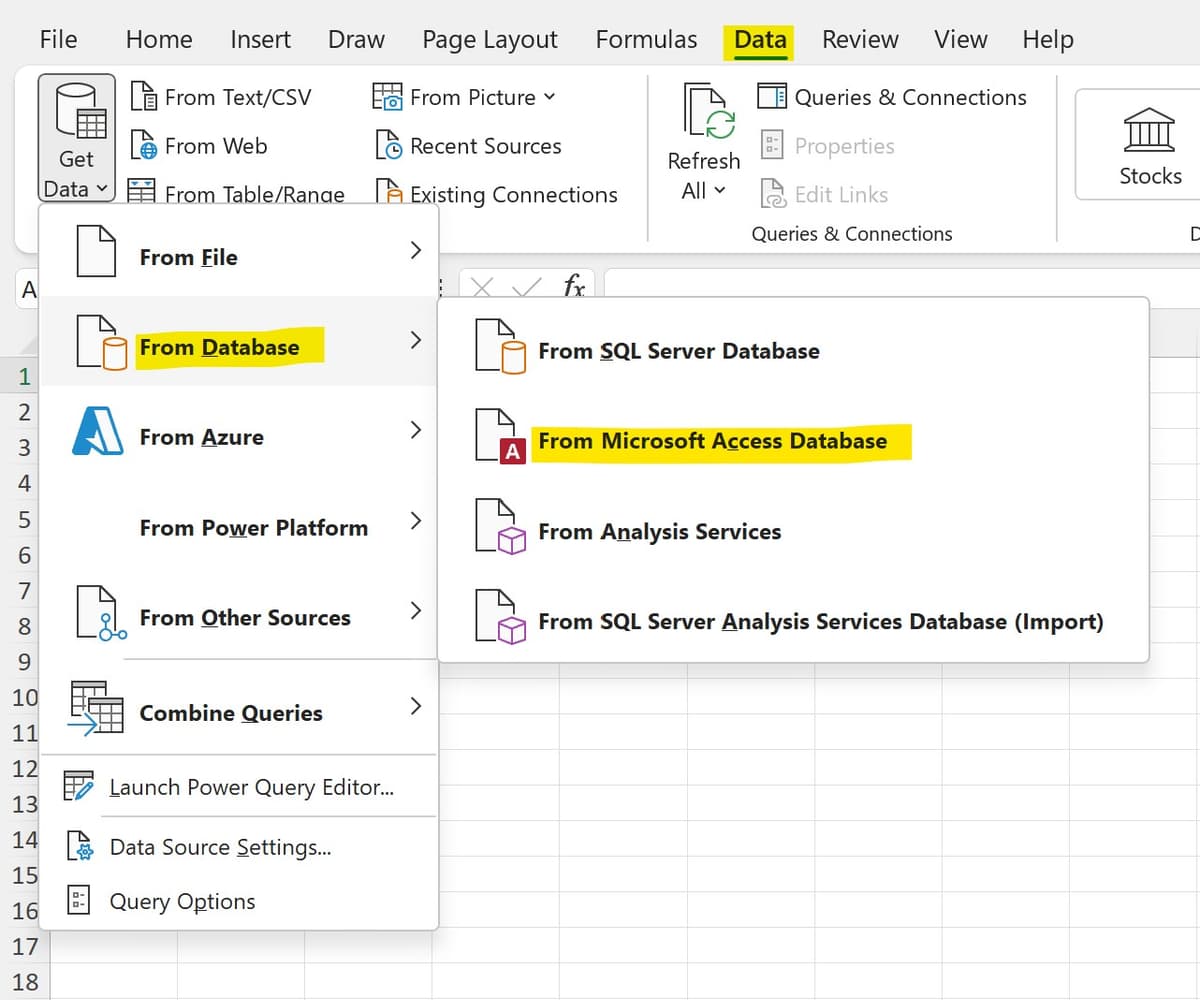
Whichever source you choose, you have to identify the database and its exact location – on your local hard drive, on your One Drive, on another server, in the cloud – wherever it might be. Sticking to my plan to keep this simple, we’ll continue with the From Table/Range process.
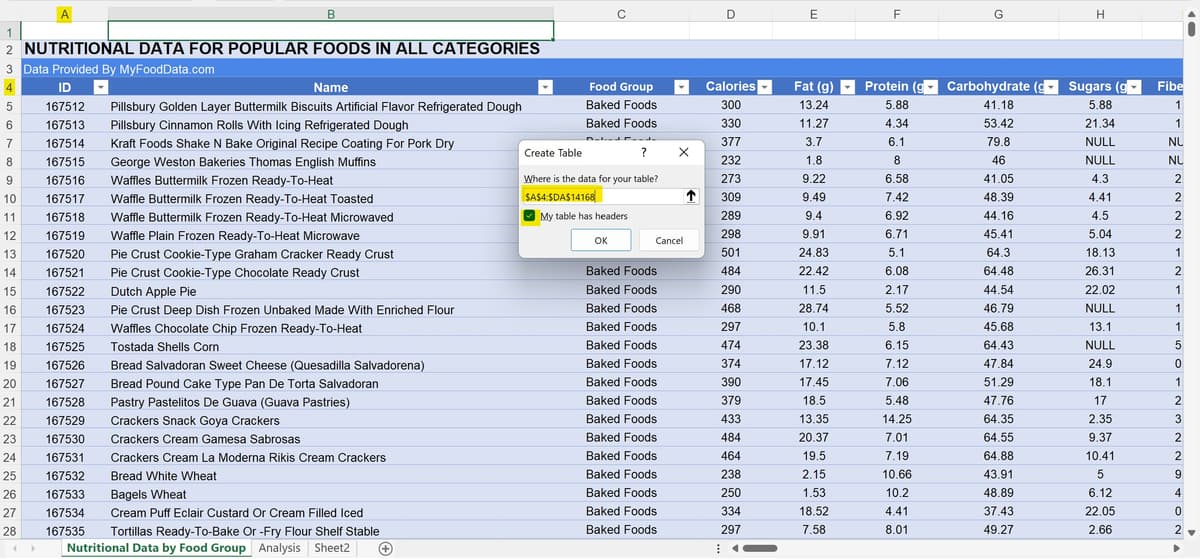
After selecting that submenu item, Excel asks you to identify the table or range you want to use as your data source. As shown here, I have opened the data source first, and Excel wants me to confirm the range of cells that contain both my headers (the field names) and the rows and columns of data.
Using the CTRL + Shift + arrow keys (with the Right Arrow, to go to the last column, and then with the Down Arrow to go to the last row), I identify my range. My headers (which I’ve indicated I have, so Excel knows to look to the top row for my field names) and my data live in rows A4 through DA14168, which means I have over 14,000 records.
From here, when you click OK, the Power Query Editor opens, showing Table1 (a name you can replace with something more meaningful) and a series of ribbons, containing tools for choosing the fields (columns) you’ll be working with to query your table for the records (and the fields within them) that you want to see in the query results.
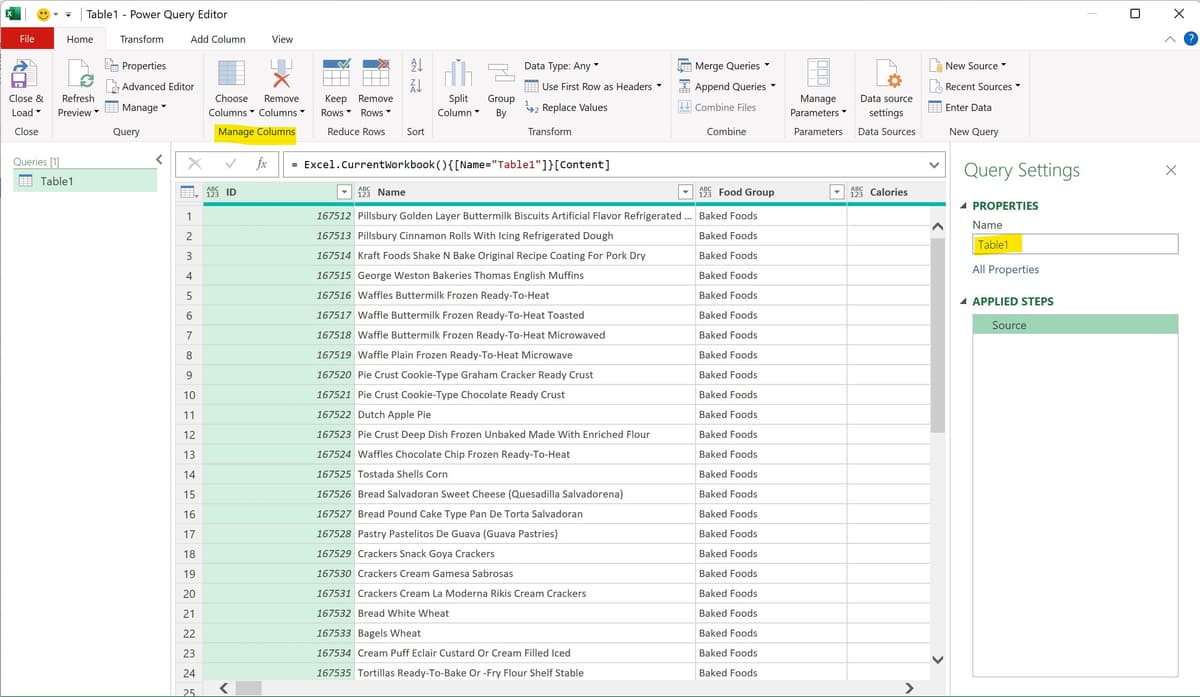
The Power Query window offers five (5) tabs: File, Home, Transform, Add Column, and View. Each ribbon has its own set of tools, just like the ribbons in the main Excel application. Below the ribbons you find what looks like the Formula Bar in Excel, but it’s actually a place for editing the table and fields cited as the source for your query. You never have to interact with this bar, but you’ll see it populate with references to tables and fields as you build your query.
Below that, you have three (3) sections. On the left, a list of queries related to the current table (not in the image here it’s still called Table1, and it’s all alone, as it’s (A) my first query related to this table and (B) it’s not related to any other existing queries. To the right is the Query Settings panel, which gives you a place to rename the query you’re making, and shows a list of the steps you’ve taken thus far in the process. To undo any step, just click the X next to the step and you’re back to the previous step – allowing you to go all the way back to having chosen the table source and nothing beyond that.
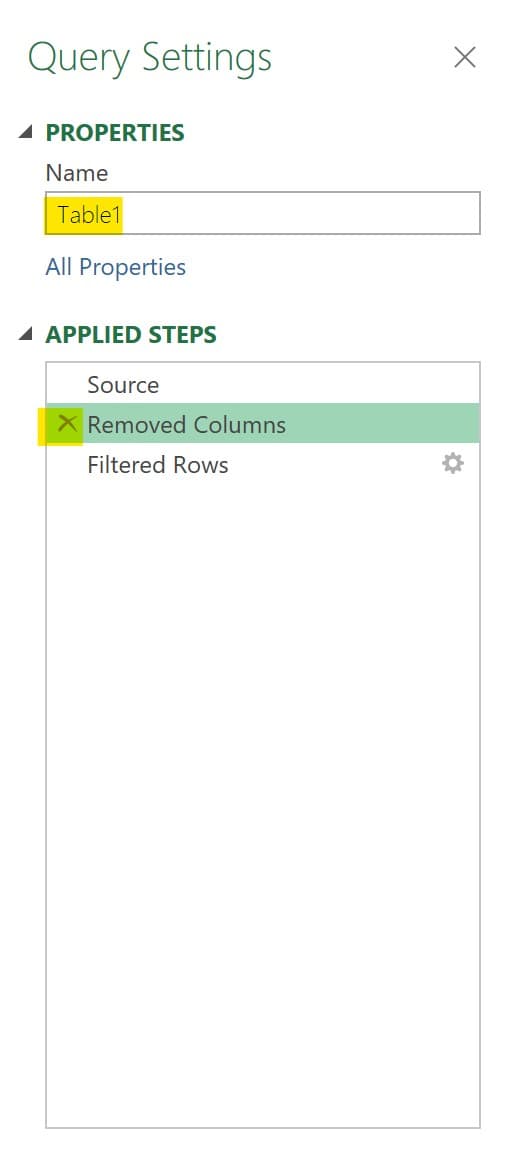
Shaping Your Query
With the Power Query Editor open, your next step is to decide which columns you want to retain – it might be all of them, or if your database has lots of fields, just the ones most important to you – and then to use one or more of them to set your query criteria. Remember, however, you don’t have to remove any of them!
Setting Query Criteria
With the columns you don’t need (if any) removed, now you can use one or more of them to set your query criteria. As I said earlier, Excel calls this shaping the query, but for anyone accustomed to setting up queries in Access or in any other database application, this is simply setting the criteria for your query – the essential “Gimme all your…” settings, so you get just the records you want in the results of your query.
To set the criteria, use the drop arrow next to the header (field name) for the first column you want to use. Thinking back to the example of querying a Vendors table for certain types of vendors with whom a certain amount of money was spent within a range of dates, these are the fields you’d use, and the criteria you’d set:
Field Name |
Criteria |
Total Spent |
>$,000 |
Service Dates |
Between 1/1/2022 and 12/31/2022 |
Vendor Type |
Electrician, Plumbing, HVAC |
Now, in the nutrition database you’ve seen in my examples thus far, I want to see the foods that are grain-based, and see only those with low calories and high protein. So, I’ll set criteria for the Food Group column, Calories, and Protein columns:
Field Name |
Criteria |
Food Group |
Baked Goods, Breakfast Cereals, Grains & Pasta |
Calories |
>300 |
Protein |
>10 grams |
As you click each column’s drop list, you have lots of options – you can sort the records in your database by that given field, you can use checkboxes to choose records by common field values, or you can use filters. The offered filters are determined by the type of data stored in that field, so you’ll see Number Filters in a field containing numbers (including Currency fields), and you’ll see Text filtering options for filtering by the text (characters, words) found in Text fields.
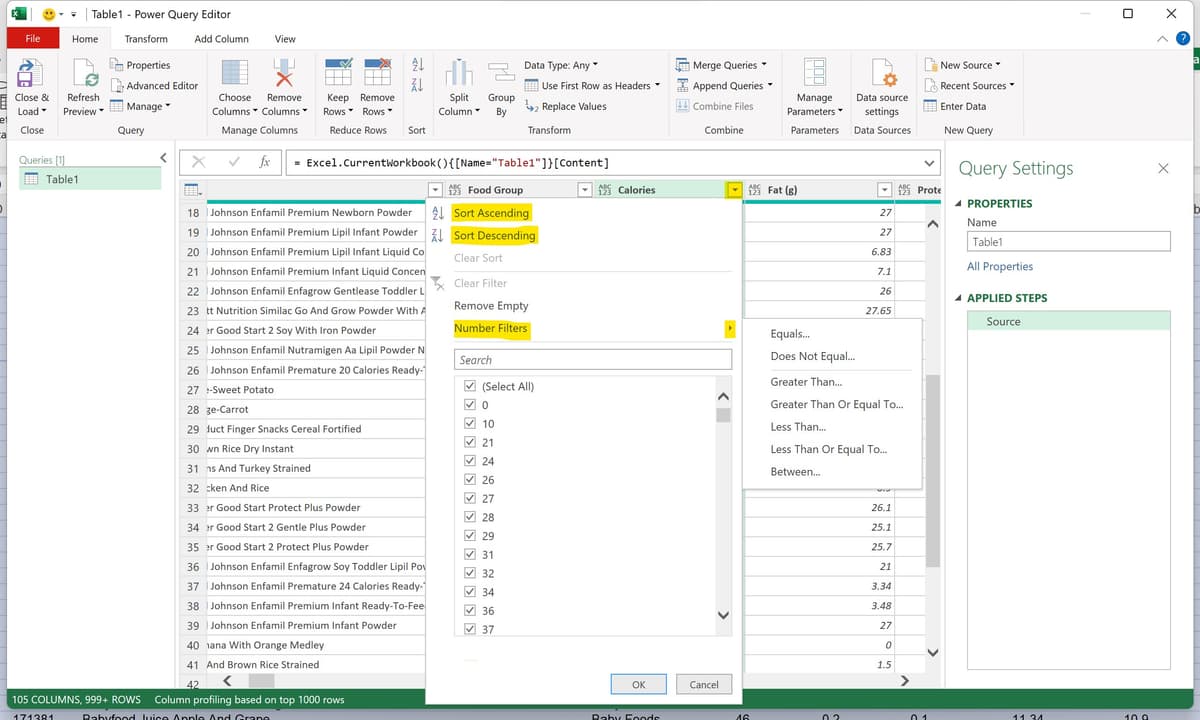
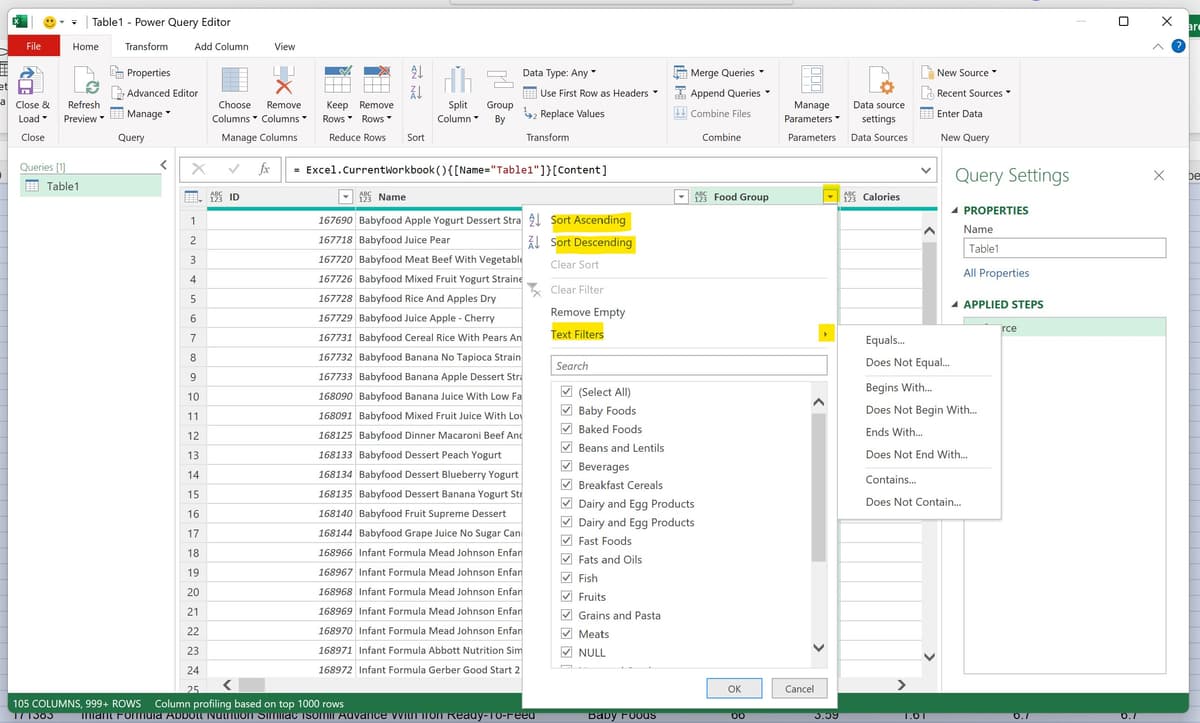
TIP! Does all this look familiar? It should Excel offers these same sorting and filtering tools for any range that’s been converted to a table. Check out my in-depth videos on sorting and filtering here:
Https://drive.Google.com/drive/folders/1wzspYb9yaa1Mwl8C56jsrIejAVKicbbB?usp=share_link
Https://drive.Google.com/drive/folders/1s3updL3dRWdqcTkAa2HaZAUiqh78_Sml?usp=share_link