April 1, 2026Dan Perico/5 min read

Zooming, Panning, & Navigation Part 1

Master AutoCAD Navigation Tools and Zooming Techniques

Essential AutoCAD Navigation Methods

Mouse Wheel

The most versatile and recommended navigation tool. Zoom, pan, and access special commands without interrupting your workflow.

Navigation Bar

Access comprehensive zoom and pan tools through a convenient interface. Ideal for users without a mouse.

Keyboard Commands

Fast keyboard shortcuts like 'Z' for zoom command. Perfect for laptop users working without a mouse.

Topics Covered in This AutoCAD Tutorial:

Using the Mouse Wheel & Navigation Bar

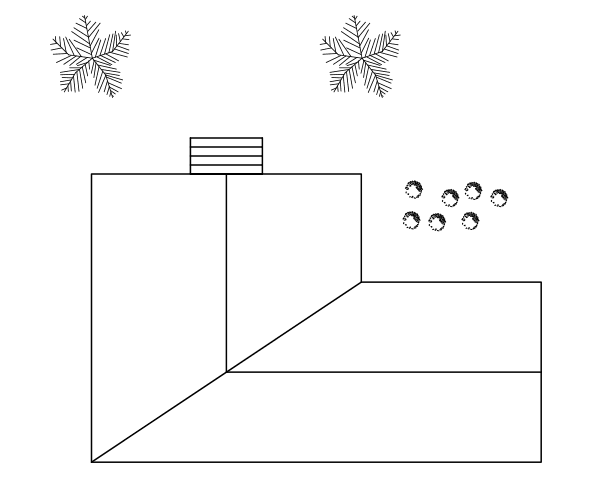
Exercise Preview

ex preview clubhouse zoom

Hardware Recommendation

Always use a mouse when drawing with AutoCAD, even if you are on a laptop with a trackpad. The mouse wheel functionality is essential for efficient navigation.

Mouse Wheel

The mouse wheel remains your most powerful navigation tool in AutoCAD, offering seamless zooming and panning without interrupting your workflow. Position your cursor precisely where you want to zoom and rotate the wheel forward to zoom in or backward to zoom out—this intuitive control maintains focus on your target area rather than zooming to the screen center.

For panning, click and hold the mouse wheel as you would any button. The cursor transforms into a hand icon pan, temporarily activating the Pan command. While holding the wheel down, drag to reposition your view without affecting object placement or measurements—a critical distinction for precision work.

Double-clicking the mouse wheel executes Zoom Extents, automatically framing all drawing objects within your viewport. This command proves invaluable when working with complex drawings or when returning from detailed work to see the complete project scope. Avoid inadvertently clicking and dragging the mouse wheel, as this shifts to 3D orbit view—disorienting and counterproductive in 2D drafting environments.

The mouse wheel's greatest advantage lies in its non-intrusive operation: zoom and pan freely while commands remain active, maintaining your workflow rhythm. Professional drafters rely almost exclusively on mouse wheel navigation for this reason. Even laptop users should invest in a quality mouse rather than relying on trackpad gestures, which lack the precision and speed essential for professional CAD work.

Mouse Wheel Navigation Techniques

1

Basic Zoom

Point cursor to desired location and turn mouse wheel to zoom in and out at that specific point

2

Pan View

Click and drag with mouse wheel to activate Pan command. Cursor becomes hand icon while pressed

3

Zoom Extents

Double-click mouse wheel to fit entire drawing to screen edges automatically

4

3D Orbit

Click and drag mouse wheel to shift to 3D orbit view (not recommended for 2D drawing)

Non-Interrupting Commands

Mouse wheel zoom and pan operations can be used without interrupting whatever command you may be using at the time. This makes workflow seamless and efficient.

Navigation Bar

While the mouse wheel handles most navigation needs, the Navigation Bar provides alternative access to essential tools, particularly beneficial for users without traditional mice or those preferring button-based interfaces.

The Navigation Bar houses the dedicated Pan tool pan tool and Zoom Extents tool zoom extents tool. Click the dropdown arrow beneath the Zoom Extents icon to reveal the complete zoom command palette, offering options like Zoom Window, Zoom Previous, and Zoom Scale. While most Navigation Bar commands target 3D modeling workflows, these 2D navigation tools remain relevant for traditional drafting work.

Unlike mouse wheel operations, Navigation Bar commands may require pressing Enter or Escape to exit, potentially disrupting workflow continuity. To maximize screen real estate and prevent accidental command activation, consider disabling the Navigation Bar via the small X in its top-right corner, or toggle it using the Navigation Bar button in the Viewport Tools panel under the View tab. This setting provides easy restoration when needed.

navbar

Navigation Bar Usage

Pros
Easy access to Pan and Zoom Extents tools
Dropdown menu provides all Zoom command options
Works without interrupting other commands
Ideal for users without a mouse
Cons
Most commands designed for 3D modeling
May require Enter or Escape to exit commands
Takes up screen space
Can accidentally trigger commands

Managing Navigation Bar Display

1

Deactivate Navigation Bar

Click small X on top-right corner to save screen space and prevent accidental command activation

2

Use Ribbon Toggle

Press Navigation Bar button on Viewport Tools panel in View tab to toggle display

3

Restore When Needed

Use same Ribbon button to restore Navigation Bar when required for specific tasks

View Cube

Understanding the View Cube's role prevents common 2D drafting disruptions, even though its primary purpose serves 3D modeling workflows.

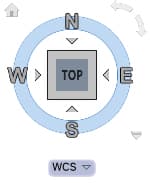
The View Cube occupies the upper-right screen corner and maintains your viewing orientation. For 2D drafting, maintain a consistent top-down parallel projection—the standard for technical drawings and architectural plans. If accidental clicks shift your view perspective, immediately click the Top face of the View Cube to restore proper orientation. Use the curved arrows on the View Cube's corners to correct XY axis positioning when the drawing appears rotated.

Should coordinate system confusion arise, access the dropdown menu at the View Cube's base and select WCS (World Coordinate System) to reset the origin point to its default position. This action resolves most coordinate-related display issues that affect dimensioning and object placement accuracy.

The View Cube's visibility setting saves with individual files rather than as a global preference—a design choice that surprises many users. When you open legacy files or templates created with visible View Cubes, the cube reappears regardless of your current preference. Establish consistent View Cube settings in your template files to maintain workspace uniformity across projects. Toggle visibility through the Viewport Tools panel in the Ribbon.

viewcube

2D Drawing Best Practice

The View Cube is designed for 3D modeling. In 2D drawing, always remain in top-down parallel view to maintain proper drawing orientation.

Correcting View Position

1

Return to Top View

Click on Top view of View Cube icon to restore proper top-down perspective

2

Reorient Axis

Click curved arrows on top-right corner of View Cube to correct XY axis position

3

Reset UCS Origin

Use dropdown menu at bottom of View Cube and select WCS (World Coordinate System)

Display Setting Persistence

View Cube display settings save only with individual files. If you open another file where View Cube was visible when saved, it will return. Set desired display in both drawing files and template files.

ZOOM Command (Z)

Keyboard-initiated zoom commands offer precision control and serve as essential alternatives when mouse wheel navigation proves insufficient or unavailable.

Type Z to access the comprehensive Zoom command palette. The most practical options include Extents, which frames all visible objects; Window, allowing you to define a specific rectangular zoom area by clicking two diagonal points; and All, which zooms to the drawing limits boundary established by your template or the Limits command.

Drawing limits define your working area and prevent infinite zoom-out scenarios. When mouse wheel zooming fails to reveal distant objects, your drawing limits likely require adjustment. Execute Zoom Extents to locate all objects, then adjust limits accordingly in subsequent chapters. This limitation protects against accidental object placement far from your intended drawing area—a common source of plotting and coordination errors.

Master these keyboard shortcuts for efficiency: Z Enter E Enter executes Zoom Extents, while Z Enter A Enter performs Zoom All. These combinations prove invaluable during laptop work sessions or when collaborating on shared workstations without optimized mouse configurations.

Common Zoom Command Options

FeatureOptionFunctionBest Use
ExtentsFits all objects to screenSeeing entire drawing
WindowZoom to specified rectangular areaFocusing on specific region
AllZoom to drawing limitsWhen mouse wheel zoom insufficient
Recommended: Use Extents most frequently for complete drawing view

Keyboard Shortcuts for Laptop Users

0/3

Undoing & Redoing Zoom

AutoCAD's undo system treats navigation commands as standard operations—a behavior that distinguishes it from other software and requires strategic consideration during complex editing sessions.

Both Undo and Redo affect zoom and pan operations alongside drawing modifications, creating potential workflow complications. Consider this scenario: after undoing several drawing commands, you zoom to examine specific details, then attempt to redo the previously undone operations. The zoom command breaks the redo chain, permanently preventing recovery of those undone actions.

This behavior stems from AutoCAD's comprehensive command history system, which maintains complete session records for precision and accountability—essential features in professional environments where design changes require documentation. However, it demands disciplined navigation habits during critical editing phases.

Best practice dictates avoiding zoom or pan operations while actively using Undo and Redo commands. Complete your undo/redo sequence first, then navigate as needed. This approach preserves your command history integrity and prevents the frustration of losing recoverable work due to inadvertent navigation inputs.

Critical Undo/Redo Limitation

Unlike other programs, AutoCAD's Undo and Redo affect zooming and panning. If you enter any command (including zoom) after undoing, you cannot redo previous commands.

Best Practice for Undo/Redo Workflow

1

Complete Undo Sequence

Finish all undo operations before performing any zoom or pan actions

2

Complete Redo Sequence

Execute all necessary redo commands before navigating the drawing

3

Avoid Navigation During Undo/Redo

Do not zoom or pan while using Undo and Redo to prevent losing command history

Key Takeaways

1Mouse wheel is the most versatile navigation tool, allowing zoom, pan, and special commands without interrupting workflow
2Always use a mouse with AutoCAD, even on laptops, as trackpads lack the essential mouse wheel functionality
3Navigation Bar provides comprehensive tools but is primarily designed for 3D modeling, making it less essential for 2D work
4View Cube should be avoided in 2D drawing - maintain top-down parallel view for proper orientation
5Keyboard command 'Z' provides quick access to zoom options, especially useful for laptop users without mice
6Drawing limits must be properly established in templates to avoid zoom restrictions that prevent seeing all objects
7AutoCAD's Undo and Redo affect navigation commands, so avoid zooming or panning during undo/redo sequences
8View Cube display settings are file-specific, so configure them in both drawing files and templates for consistency

RELATED ARTICLES