April 1, 2026Dan Perico/4 min read

The Reference Option Part 1: The Scale Tool

Master Precision Scaling in AutoCAD with Reference Options

Tutorial Focus

This tutorial introduces the Reference Option in AutoCAD's Scale Tool, enabling precise dimensional matching without manual scale factor calculations.

Topics Covered in This AutoCAD Tutorial:

Mastering the Scale Tool's Reference Option and applying precision scaling techniques for professional CAD workflows

Learning Objectives

Reference Option Fundamentals

Understanding how the Reference option enables object-to-object dimension matching. Learn the core concepts behind precision scaling.

Practical Application

Hands-on exercise scaling a vase to specific height measurements. Apply theory through real-world AutoCAD workflow scenarios.

Cross-Platform Integration

Working with files exported from Adobe Illustrator to AutoCAD. Bridge the gap between artistic design and precision drafting.

Exercise Preview

ex preview reference scale tool

Exercise Overview

The Reference option in AutoCAD's Scale command represents one of the most powerful yet underutilized precision tools in the software. This feature enables you to match object dimensions to specific measurements without calculating scale factors—a critical capability for professional drafters and designers working with imported geometry or legacy drawings. The vase illustrated above exemplifies a common workflow challenge: integrating artistic content created in Adobe Illustrator into the precision-driven environment of AutoCAD. While Illustrator excels at creating organic, artistic forms, AutoCAD's strength lies in dimensional accuracy and technical precision. In this exercise, you'll master the Reference option to transform approximate dimensions into exact specifications—a skill essential for any CAD professional working with cross-platform design workflows.

Adobe Illustrator vs AutoCAD for Object Creation

FeatureAdobe IllustratorAutoCAD
Organic ShapesExcellentLimited
Precision ControlBasicAdvanced
Artistic DesignSuperiorFunctional
Technical AccuracyModeratePrecise
Recommended: Use Illustrator for creative design, then import to AutoCAD for precision scaling and technical refinement.
File Compatibility

When opening files created in Adobe Illustrator, AutoCAD may display a compatibility dialog. Always select 'Continue opening DWG file' to proceed with the import.

Intro to the Reference Option on the Scale Tool

Understanding the Reference option transforms how you approach scaling challenges in professional CAD work. Unlike traditional scale factors that require mathematical calculations, the Scale tool's scale tool Reference option works intuitively by establishing known dimensions and scaling to match target measurements. This approach proves invaluable when working with imported geometry, survey data, or any situation where you need to match existing dimensions rather than apply arbitrary scale factors.

The workflow follows a logical sequence: after establishing your base point (the anchor point that remains fixed during scaling), AutoCAD prompts for the Reference option in the Command Line. Selecting this option initiates a two-point measurement system where you define a reference line on the current object—typically representing a known dimension like height or width. The software then allows you to specify the desired length for this reference dimension, either by clicking points in your drawing or by leveraging Object Tracking to match dimensions from other objects. This method provides both precision and flexibility, allowing you to scale visually while maintaining exact dimensional control—particularly useful when working with complex imported geometry or when precise scale factors aren't readily apparent.

Reference Option vs Scale Factor Method

Pros
No manual calculations required for scale factors
Direct visual reference to existing objects
Precise mouse-based scaling with object tracking
Ability to match dimensions of other objects exactly
Cons
Requires existing reference objects or creation of dummy objects
Additional steps compared to direct scale factor input
May need object cleanup after using temporary references

Reference Option Workflow

1

Establish Base Point

Select the point that will remain fixed during the scaling operation, typically at a corner or center of the object.

2

Activate Reference Option

After starting Scale command, press 'R' and Enter when the Reference option appears in the Command Line.

3

Define Reference Line

Click two points on the object to create a reference line that represents the current dimension to be scaled.

4

Set New Dimension

Use mouse or object tracking to specify the new length, and the object will scale proportionally to match.

Making the Vase a Specific Height Using the Reference Option

Now let's apply these concepts in a practical exercise that demonstrates the Reference option's power in real-world CAD workflows.

  1. Open the file Scale-Vase.dwg from your exercise files directory.

  2. Since this file originated in Adobe Illustrator (a common occurrence in modern cross-platform workflows), AutoCAD may display a compatibility dialog. Click Continue opening DWG file to proceed. This warning appears because Illustrator's DWG export doesn't include all AutoCAD-specific metadata, but the geometric data remains intact and fully usable.

  3. Initiate the Scale command and select the vase object. Establish your base point at the endpoint located at the center of the vase's bottom edge. Note that AutoCAD may show both Endpoint and Midpoint object snaps at this location—this occurs when these geometric points coincide. The Endpoint symbol will typically display prominently, and either snap will work for our purposes.

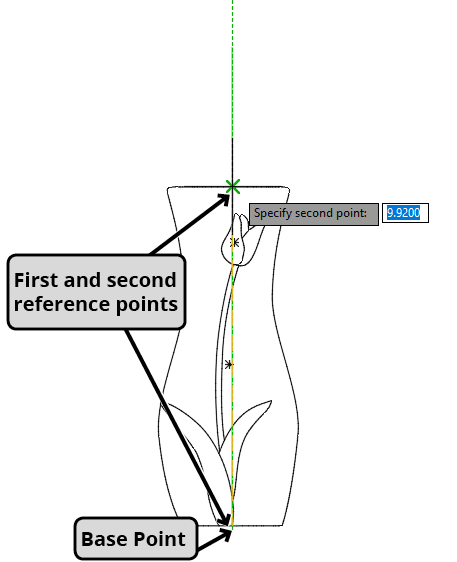
  4. Press R followed by Enter to activate the Reference option. For your first reference point, click the same endpoint you used as the base point (center-bottom of the vase). This establishes the starting point of your reference measurement. For the second reference point, click the Midpoint of the vase's top edge, creating a vertical reference line that represents the current height.

    vase1

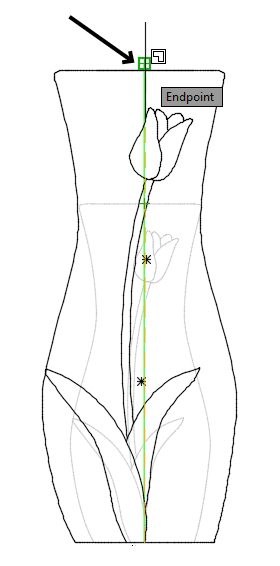
  5. AutoCAD now displays a dynamic reference line and prompts for the new length. Click on the top endpoint of the green reference line shown in the screenshot below. This action defines the new height for your vase—the object will scale proportionally so that its height matches the length of the reference line you've just specified.

    vase2

  6. Clean up your drawing by deleting the temporary reference line. Your vase now maintains its original proportions while conforming to the exact height specification required for your project.

Step-by-Step Execution Checklist

0/7
Expected Result

The vase will be scaled to match the exact height of the green reference line, maintaining its proportions while achieving the precise dimensions required.

Key Takeaways

1The Reference Option in AutoCAD's Scale Tool enables precise dimensional matching without calculating scale factors manually
2Adobe Illustrator excels at creating organic artistic shapes, while AutoCAD provides superior precision control for technical applications
3The Reference Option workflow involves establishing a base point, defining a reference line with two clicks, and specifying the new dimension
4Object Tracking can be used with the Reference Option to match dimensions to existing objects in the drawing
5When importing files from Adobe Illustrator, compatibility dialogs should be handled by selecting 'Continue opening DWG file'
6The base point selection is critical as it remains fixed during scaling, typically placed at endpoints or midpoints
7Reference lines created during the scaling process should be deleted afterward to maintain clean drawing organization
8This method is particularly useful when visual reference is more intuitive than numerical scale factor calculations

RELATED ARTICLES