Text Tools
What This Tutorial Covers
Single-Line vs. Multi-Line
Choose between TEXT and MTEXT based on use.
Text Styles
Reusable text settings for consistent annotation.
Text Editing
Modify, scale, and reposition text after placement.
Noble Desktop's Graphic Design Certificate develops the visual and technical design skills that complement AutoCAD work.
Learn how to use the Multiline Text Tool, adjust text styles, and edit text with the Properties Palette in AutoCAD through this comprehensive tutorial guide.
Exercise Preview
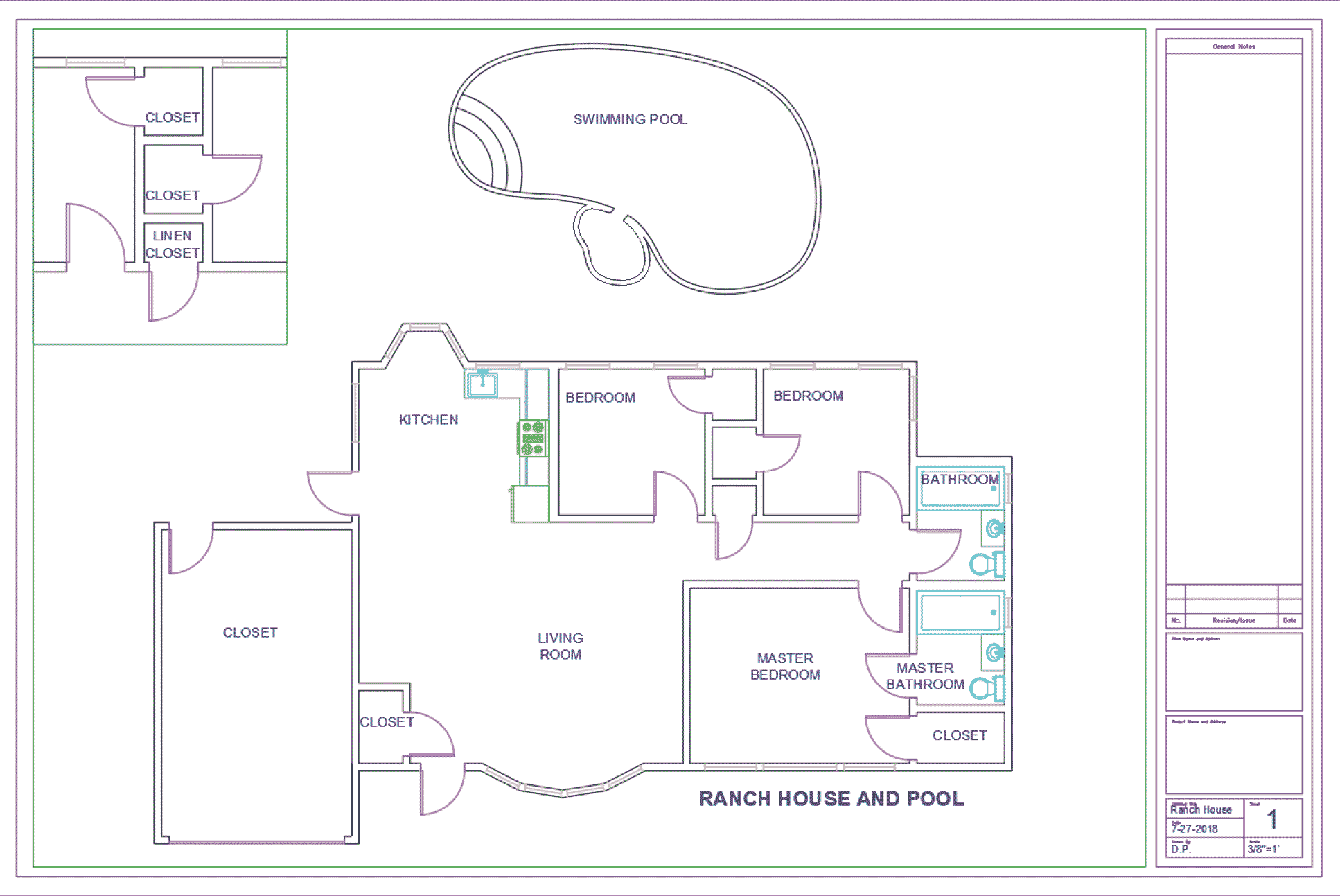
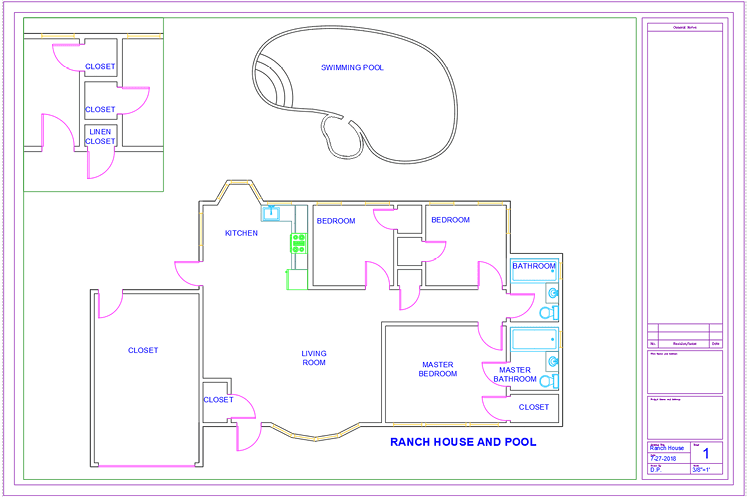
The Multiline Text Tool in Paper Space
Open the file Text-Ranch.dwg. You should be in the D-Sized Layout Tab, if not, switch tabs. Make sure you are in Paper Space.
Change the current layer to TEXT. Start the Multiline Text tool by pressing T Enter or click the Multiline Text button in the Annotation Panel on the Home tab of the Ribbon. The Multiline Text tool requires you to create a text box to contain the text.
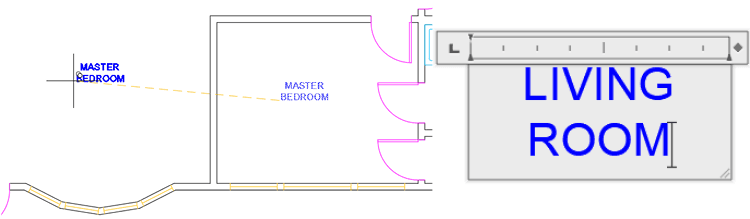
Zoom in on the bedroom in the lower right corner of the floor plan. Click to create a long, horizontal text box as shown below.
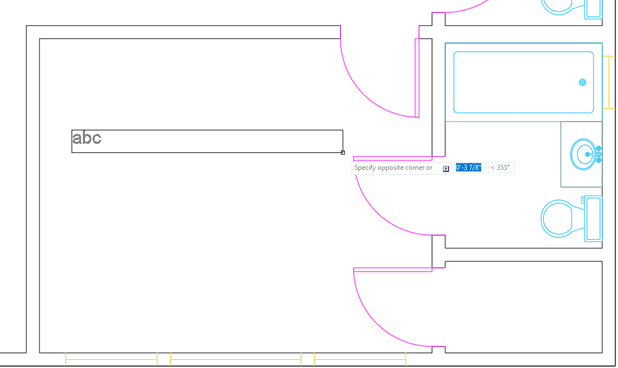
Once the text box is created, the Text Editor tab will appear in the Ribbon. In the Style Panel you will see the Text Height field. If you click on the down arrow next to the field, you will see a limited range of options that does not include 1/4”. Double click in the field to select the existing measurement and type.25 Enter to change the height to 1/4”. Text in AutoCAD is measured in the same units as the drawing, rather than in points. If you enter a Text Height, it will be added to the available options in the Text Height drop down menu. In all capitals, type MASTER BEDROOM.
Pressing Enter will add another line of text, it will not end the Multiline Text command or close the Text Editing Ribbon tab. To exit the Multiline Text tool, either click the Close Text Editor button in the Ribbon, or press Esc. If you press Esc, you will be prompted to specify if you want to save the text changes, you can press Enter for Yes. Press Esc Enter to exit the command and accept the changes.
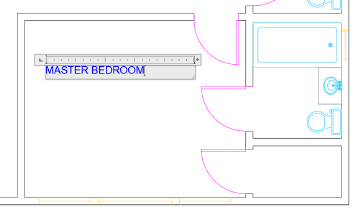
The text you just made is on one line. Because you used the Multiline Text tool, you can resize the text area so the text will reflow into two lines. Select the text, click on the arrow grip to the right, and move to the left until the text flows into two lines.
Now you’ll center both lines of text. Double click on the text and you will re-enter the Text Editor. Double-click again so that both lines of text are highlighted and click the Center Paragraph Alignment button in the Paragraph panel of the Text Editor Ribbon tab. Now both lines of text will be centered. Press Esc Enter to exit the command and accept the changes. Select the text and use the grip to reposition it to the center of the room.
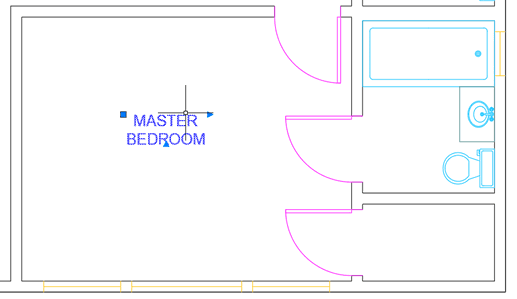
Now that you’ve formatted that text, you can make a copy and change wording rather than make new text from scratch. Use the Copy tool to make a copy of the text in the living room area to the left of the Master Bedroom. Double-click on the text to enter the Text Editor and change the text to say LIVING ROOM, again in all capitals and on two centered lines. If you accidentally switch to Model Space when double-clicking, use the Model/Paper Space button to switch back to Paper Space.
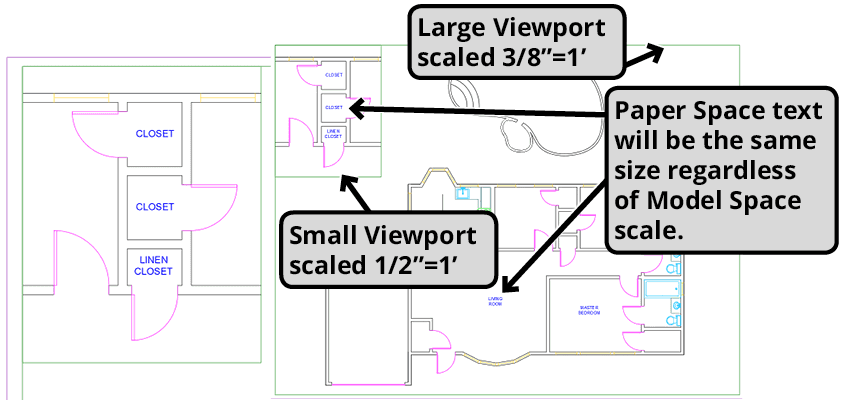
There is smaller viewport in the top left corner of the D-Size Layout Tab overlapping the main viewport. The smaller viewport is zoomed in on the closets. Make sure you are in Paper Space and with the Multiline Text Tool, with at text height of 1/4”, type CLOSET in the two upper closets and type LINEN CLOSET on two lines in the bottom closet as shown below. The viewport showing the closets is a larger scale than main viewport, but because you’re making the text in Paper Space, all of the text in the layout is the same size. If you had made all of your text in Model Space and made it all the same size, it would appear larger in this viewport because it’s magnified to a larger scale. You can however make Model Space text appear to be the same size at different scales by using Annotative Scale, which will be covered in Level 2.
Text Styles
You can change the text height, font, and font style with the Text Editor, but these settings can also be saved with a Text Style. If you expand the Annotation Panel on the Home tab of the Ribbon, drop down menus for Styles will be revealed. A Style is a saved set of options. Styles for Text, Dimensioning, Tables, and Multi Leaders. If you choose a Style from the drop-down menu, new objects you create will conform to that style, in the same way new objects are created on the Current Layer. You can also assign a style as you create the object or after the object is created. Styles are typically created and saved in Templates. Creating Templates and Styles will be covered in the Level 2 class.
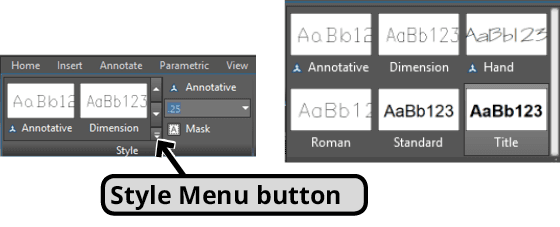
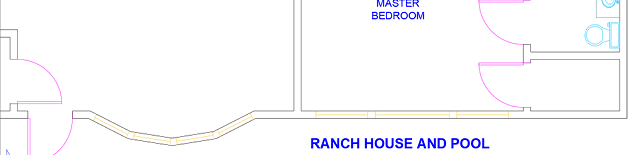
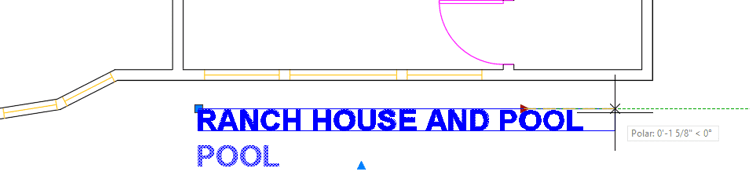
Now you will make new text using the Title Style. You could change the style in the Annotation Panel before you make the text, but then you might have to change it back the next time you make text, so you should only use that method if you’re going to be using the same style for multiple text objects, in this case you will only use the style once. Press T Enter to start the Multiline Text tool. In the Text Editor, click on the down arrow Style Menu button in the Style Panel and choose the Title Style as shown below. Type the words RANCH HOUSE WITH POOL and press Esc to exit the Text Editor then press Enter to accept the text. The text will be Arial Bold to conform to the Title Style.
Editing Text with the Properties Palette
Select the text RANCH HOUSE WITH POOL that you just created. Press CTRL–1 to open the Properties Palette. Scroll down in the Properties Palette so see all of the options in the Text section. Most of the changes that can be made in the Text Editor can also be made here. Change the Text height to 3/8” (.375). Press CTRL–1 to close the Properties Palette. The text will increase in size. Click and pull the stretch arrow on the text to re-flow the text into one line if necessary.
Text in Model Space
There are several advantages to creating text on a layout in Paper Space. Because Paper Space objects are not scaled and are always actual size, the text height you enter will be the height of the text on the final printed page, making it easy to keep the text height consistent throughout the layout, even if there are multiple viewports at different scales. The main disadvantage is that the text will only appear on the layout it was created on. If you are creating text that will be visible in multiple viewports or layouts, it may be better to create it in Model Space.
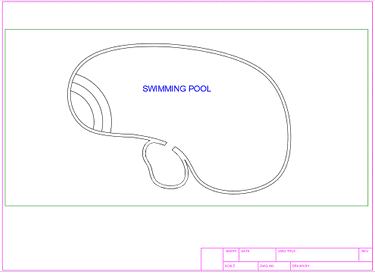
Switch to the A-Sized layout. There is a single viewport displaying the Swimming Pool, locked and scaled at 1/4”=1’.
Double-click inside the viewport to switch to Model Space.
Start the Multiline Text tool. Create a text box in the middle of the pool. Because you are in Model Space and pool is a large architectural object, you wouldn’t be able to see what you’re typing if the text is.25 inches, so AutoCAD will magnify the text so you can read it as you’re typing. The background of the text box in the Text Editor will be gray when the text is being magnified. In all capitals, type SWIMMING POOL and exit the Text Editor. Because the text is so small, you will not be able to see it. Make a large selection box in the general area of the text so you can select it. You can use the Properties Palette to increase the size, but for now you’ll delete the text so you can try a different approach.
Repeat the process from step 3 and make a text box in the center of the pool with the Multiline Text tool, but before you start typing, increase the Text Height to 8”. Because you greatly increased the size and the text is being magnified from its default size so you can see it, now the cursor will be too large to work with, possibly bigger than the screen. Type SWI, the first three letters in SWIMMING POOL, and press Esc Enter to exit the Text Editor and accept the changes. Now you will be able to see the text because of its 8” height. Double-click on the SWI text to re-enter the Text Editor. Because the text is already large, it will not be magnified and you’ll be able to see your work easily. Finish typing the words SWIMMING POOL and exit the Text Editor.
Note that you made the text 8” so that the text height will appear to be 1/4” in the viewport on the D-Sized Layout which is scaled to 3/8”=1’. You can determine what the text height needs to be in Model Space to appear a particular height in Paper Space by multiplying the Scale Factor by the desired Paper Space height. Divide the drawing units by the paper units to obtain the drawing scale factor. If the scale is 3/8”=1’, given that unit is inches and there are 12 inches in a foot, you can multiply 12 X.375 (3/8) to get the Scale Factor, which in this case is 32. The desired Paper Space height is 1/4” (.25), so multiply 32 X.25 to arrive at a Model Space height of 8” to achieve a Paper Space height of.25” in a 3/8”=1’ scaled viewport.
Switch to the D-Sized Layout. The SWIMMING POOL text also appears in this layout because you created it in Model Space. The text in the Model Space of the viewport matches the Paper Space text because the size was calculated to be 1/4” at a scale of 3/8”=1’. The text will be larger in the A-Sized layout because that viewport is a different scale. You may need to make the text in Model Space if it’s going to appear in multiple viewports or layouts, but it’s much easier to keep the text height consistent in Paper Space. Annotative Scale can allow Model Space text to appear to be the same height at different scales in multiple viewports. Annotative Scale will be covered in Level 2.

The Single Line Text Tool
The Single Line Text tool does not require you to make a text box, so you can click anywhere and start typing. However, the Text Editor Ribbon tab is not accessible with the Single Line Text tool. You can enter options through the Command Line before you specify a starting point or change the text settings after with the Properties Palette, but it’s easiest to establish the text options by choosing a Style before you type. You can start the Single Line Text tool by typing TEXT Enter, or by selecting it from the Text dropdown menu in the Annotation Panel or tab in the Ribbon.
Make sure you are on the D-Sized Layout in Paper Space. Zoom in on the lower right corner of the Title Block. Type TEXT Enter to start the Single Line Text tool. Click under the text Drawing Title for the starting point. You will be prompted to specify a rotation angle, press Enter to accept the default angle of 0. Type Ranch and press Enter. Another line of text will be created, so press Enter again without typing any text to exit the command. You can make as many lines as needed this way.
Enter the date, a sheet number of 1, a scale of 3/8”=1’, and your initials under Drawn By as shown below.
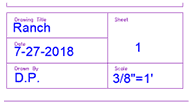
Double Click on Ranch. Double clicking on single line text will start the Text Edit command so you can change or add to the text, but you will not be able to change any of its properties. Add the word House to spell out Ranch House.
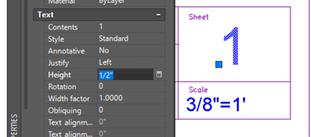
Select the 1 you typed under Sheet. Open the Properties Palette and change the Height to .5 (1/2”).
Spell Check
You can Check Spelling by pressing the Spell Check button in the Spell Check Panel of the Text Editor Ribbon, selecting Spelling from the Tools menu, or typing SPELL Enter in the Command Line.
Type SPELL Enter to open the Check Spelling dialog box. Under Where to check choose Entire Drawing. Click Start. DWG, which is an abbreviation of Drawing, will show up twice. Press Ignore in both instances. If you misspelled any other words, change them. When the spell check is complete, press OK.
If time permits, finish labeling the rooms as shown below.
Save and close the file.