QNew & Drawing Template File Location
AutoCAD Drawing Basics
Lines & Polylines
The core drawing primitives — most CAD work is built from these.
Layers
Organize geometry by purpose: walls, dimensions, hatches, annotations.
Blocks
Reusable symbols for doors, windows, fixtures — edit once, update everywhere.
Dimensions
Annotate distances and angles with proper drawing standards.
Noble Desktop's AutoCAD Certification teaches drafting, layouts, blocks, and dimensions.
Learn how to assign a Template file to the QNew button and establish a Drawing Template file location for the New command. The QNew command will automatically make a new drawing based on a specified template. You can either type QNew Enter or press the QNew button on either the Quick Access or Standard Toolbar.
Exercise Preview
QNew
Press on the Start Drawing button in the Start Tab. You will need to be in an open drawing to access the necessary commands.
Type OP Enter to start the Options command. You will see the Options Dialog box, as shown below. Select the Files tab and click on the plus sign next to where it says Templates Settings.

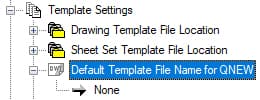
Click on the plus sign next to Default Template File Name for QNEW and then double–click next to the arrow on the word None, or select the word None and click the Browse button. When prompted to select a file, navigate to the student folder and select Mechanical-Inches.dwt and press Enter or click Open. Now if you click the QNew button, a new drawing based on the Mechanical-Inches.dwt file will be created without having to navigate through any folders or dialog boxes. Keep the Files Tab on the Options Dialog box open for the next step.
Now you will assign a Drawing Template File Location so that when you use the New command, you will be automatically navigated to whatever folder you choose instead of the default AutoCAD Template folder, so you will be able to access your own templates without having to fish through folders. Click on the plus sign next to the Drawing Template File Location folder icon. Now you will see a gray arrow pointing to the default template file location. Double–click on the gray arrow or select the file location text and press the Browse button. Navigate to the student folder and select it. Remember you are selecting the folder, not a file. Click OK to select the file. Now click OK in the Options dialog box to close it.
Press CTRL–N to start the New command. The Select Template dialog box will take you to the student folder instead of the default, so you’ll never have to take time to find it! Keep the dialog box open for the next step.
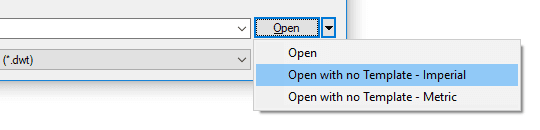
In chapter one, you learned that the default template assigned to the Start Drawing button is the acad.dwt file. This is a blank template and can be useful to have access to, but the template doesn’t exist in the student folder. This is not a problem because you can always create a drawing based on acad.dwt. Press the drop-down arrow next to the Open button. You will see two options for opening files with no template, imperial or metric. In both cases, you will be creating a new drawing based on the default acad template, or a metric version. Select the Imperial option to create a new drawing based on the acad template. Close the file without saving.