April 1, 2026Dan Perico/5 min read

Object Snap Tracking

Master precision drawing with AutoCAD object tracking

Prerequisites

This tutorial assumes basic familiarity with AutoCAD commands and interface. Object Snap must be enabled for Object Tracking to function properly.

Topics Covered in This AutoCAD Tutorial:

Object Snap Tracking

Learning Objectives

Multiview Projection Completion

Learn to complete technical drawings using existing front and side views as reference points for precise construction.

Object Snap Tracking Mastery

Master the F11 function to create orthographic tracking lines from multiple snap points for accurate measurements.

Projection Line Techniques

Utilize 45-degree construction lines and projection intersections to determine precise drawing coordinates without manual measurements.

Exercise Preview

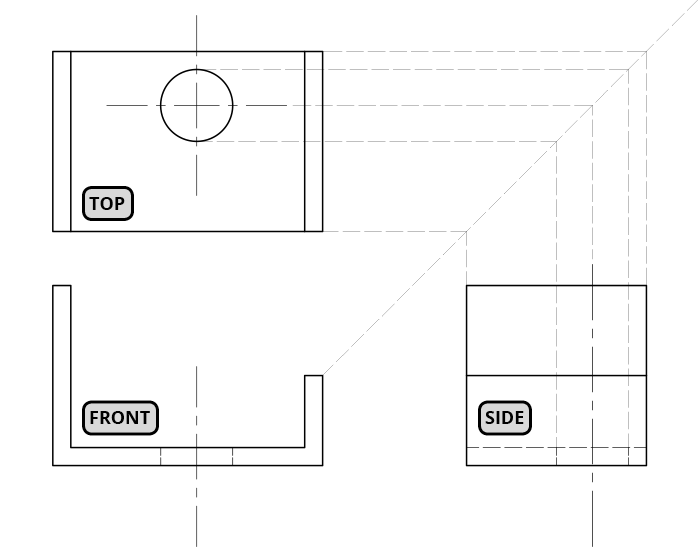
ex preview object snap tracking

Exercise Workflow

1

Analyze Existing Views

Examine the completed front and side views to understand the object geometry and identify projection reference points.

2

Use Projection Lines

Work with extended projection lines from the side view that intersect with the 45-degree construction line.

3

Apply Object Tracking

Create the top view by tracking from intersection points without entering manual measurements.

4

Complete Circular Features

Use centerlines and hidden edge indicators to accurately place and size the circular hole.

Exercise Overview

This exercise demonstrates Object Snap Tracking through a practical multiview projection drawing. You'll work with a partially completed technical drawing where the front and side views are already finished, along with projection lines extending from the side view to a 45° construction line. Your task is to construct the top view using Object Tracking techniques, drawing from the intersection points of the projection lines and diagonal line. The drawing includes a centerline that intersects both front and side views, indicating a circular hole's center point, with dashed lines showing hidden edges. This exercise mirrors traditional drafting methods—you'll create precise technical drawings without manually entering measurements, effectively using AutoCAD as a digital T-square and triangle set. This approach is fundamental to efficient CAD work and remains relevant in today's collaborative design environments where precision and speed are paramount.

Traditional Drafting Parallel

Object Tracking mimics the precision of traditional T-square and triangle drafting methods, allowing you to work without entering measurements while maintaining accuracy.

Key Drawing Elements

Centerlines

Indicate the center point of circular features and serve as critical reference points for object tracking operations.

Hidden Edges

Dashed lines representing features not visible in the current view, essential for understanding complete object geometry.

Intro to Object Snap Tracking (F11 in the Status Bar)

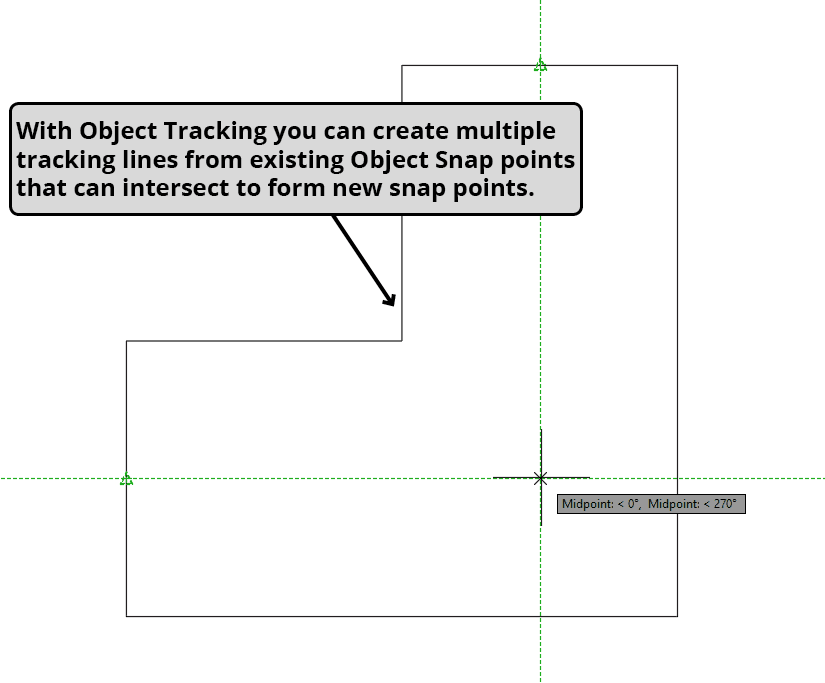
Object Snap Tracking represents one of AutoCAD's most powerful precision tools, enabling you to create orthographic tracking lines from multiple Object Snap points and snap to their intersections. This functionality transforms how you approach dimensional accuracy—allowing you to match object dimensions, align elements during creation, and triangulate points relative to existing geometry with the same precision as traditional drafting instruments.

The tool operates only when Object Snap is enabled and functions exclusively within active commands. This design ensures tracking lines appear precisely when needed without cluttering your workspace. Modern CAD workflows rely heavily on this feature because it dramatically reduces measurement errors while accelerating drawing speed—critical factors in today's fast-paced design environments where accuracy and efficiency directly impact project timelines and client satisfaction.

object snap tracking example

Object Tracking Requirements

0/3

Object Tracking Capabilities

Orthographic Tracking

Create precise vertical and horizontal tracking lines from multiple Object Snap points for accurate alignment and measurement.

Intersection Snapping

Snap to points where tracking lines intersect, enabling complex geometric constructions without manual coordinate entry.

Triangulation Methods

Determine precise point locations by using multiple reference objects, similar to traditional surveying and drafting techniques.

Object Snap Tracking in Practice

Now let's apply these concepts through hands-on practice. This step-by-step exercise will build your confidence with Object Snap Tracking while creating a complete multiview projection.

  1. Open the file Object Track Start.dwg.

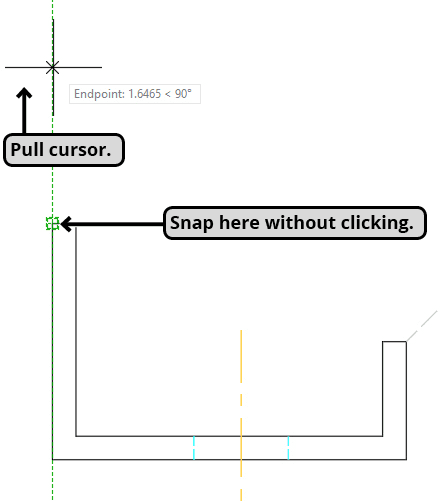
  2. Initiate the Line Command. Position your cursor over the endpoint at the upper-left corner of the front view without clicking—this establishes the snap point. Move the cursor upward until a vertical tracking line appears, aligned with that endpoint. Keep the Line Command active for the next step.

    object snap tracking 1

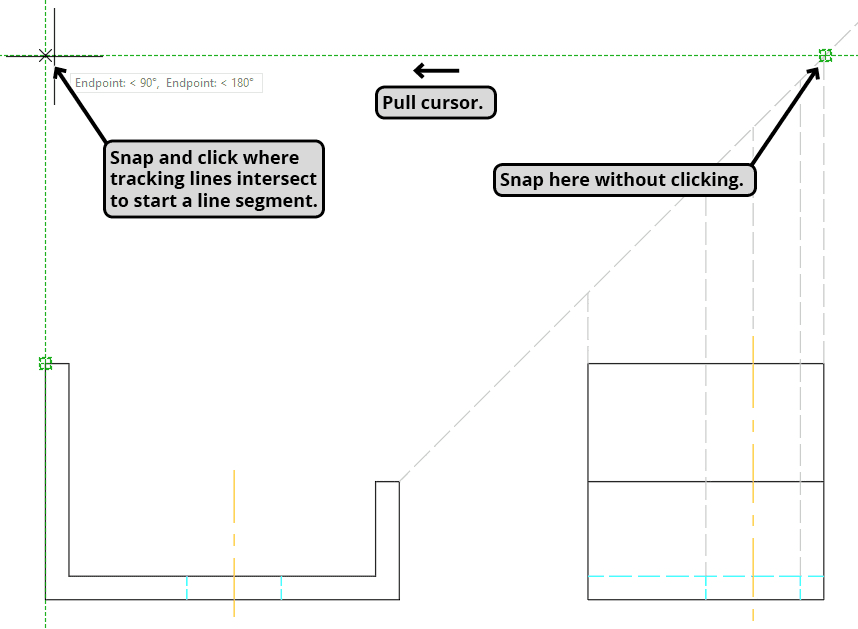
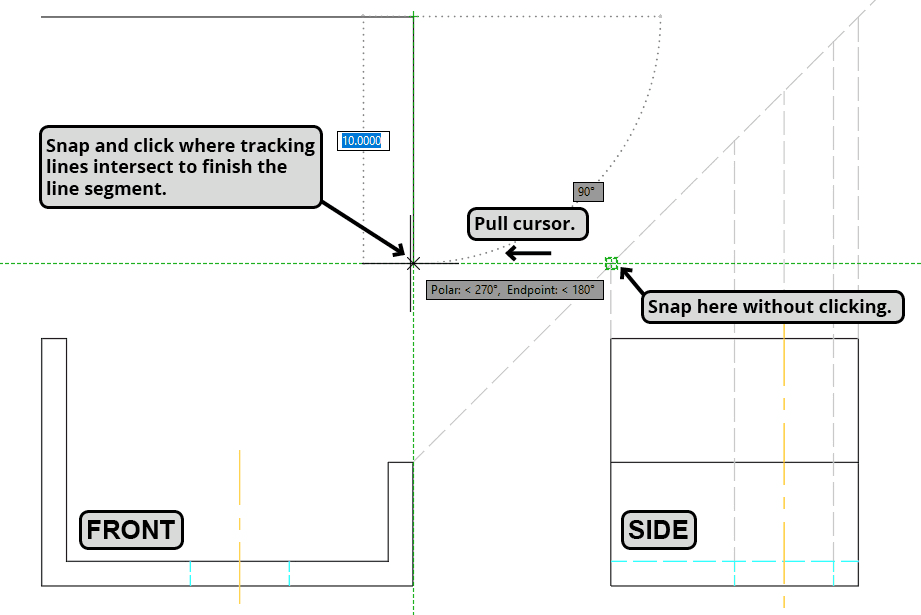
  3. While maintaining the Line Command, move your cursor rightward to the intersection where the diagonal line meets the projection line from the side view's right edge. Hover over this intersection point (don't click), then pull leftward to generate a horizontal tracking line. Click precisely where this horizontal line intersects with your earlier vertical tracking line to begin your line segment.

    object snap tracking 2

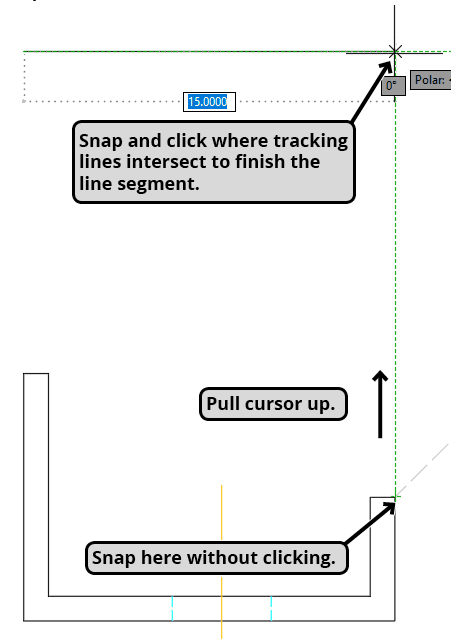
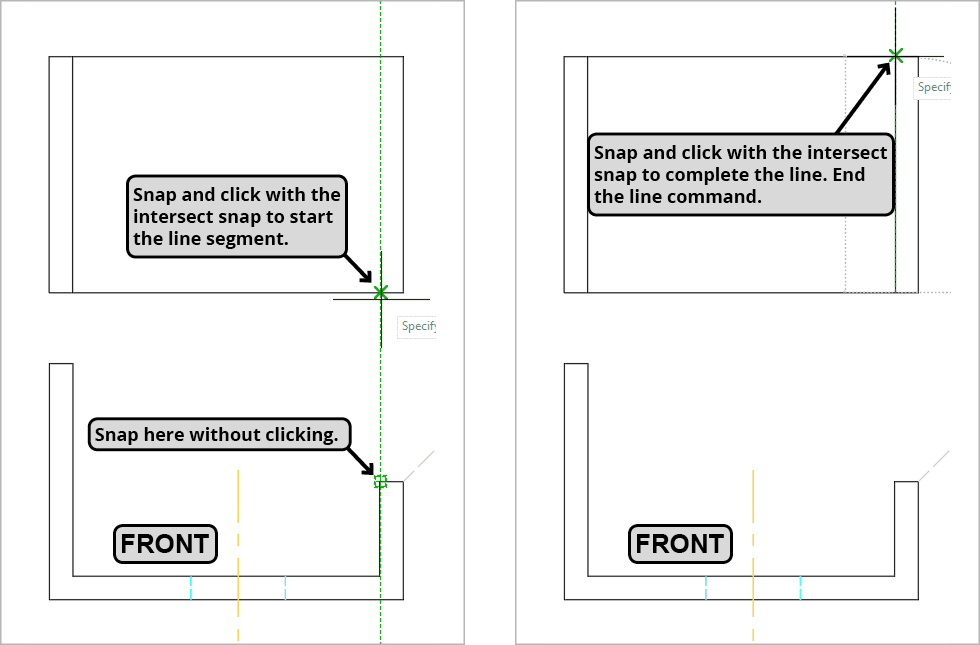
  4. Hover over the endpoint at the upper-right corner of the front view and pull upward to establish a vertical tracking line. Maintain cursor position on this vertical line and click when the line segment snaps to the horizontal tracking line, completing the segment. This creates the top edge of your top view with width perfectly matching the front view—demonstrating Object Tracking's precision advantage. Keep the Line Command active.

    object snap tracking 3

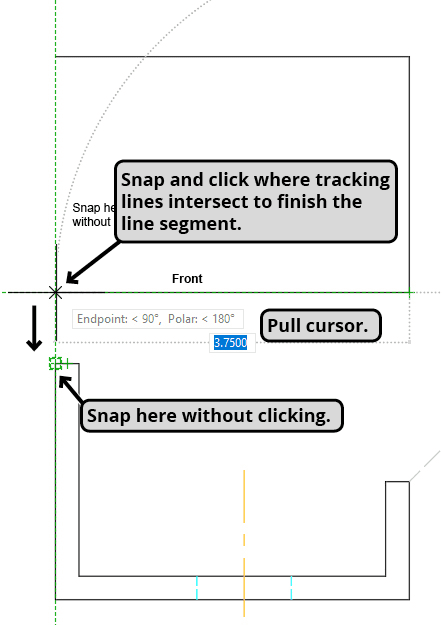
  5. For the next segment, establish an object tracking line by hovering over the intersection where the side view's left edge projection meets the diagonal line. Pull your cursor leftward along the horizontal tracking line until it snaps to the vertical tracking line aligned with your previous line segment's endpoint. Click to complete this segment while maintaining the Line Command.

    object snap tracking 4

  6. Hover over the endpoint at the upper-left corner and track upward along the vertical line until it intersects and snaps to the horizontal tracking line. Click on this intersection to complete the segment. Press C then Enter to close the outer perimeter and end the Line Command. You've now completed the basic outline using purely tracking-based measurements.

    object snap tracking 7

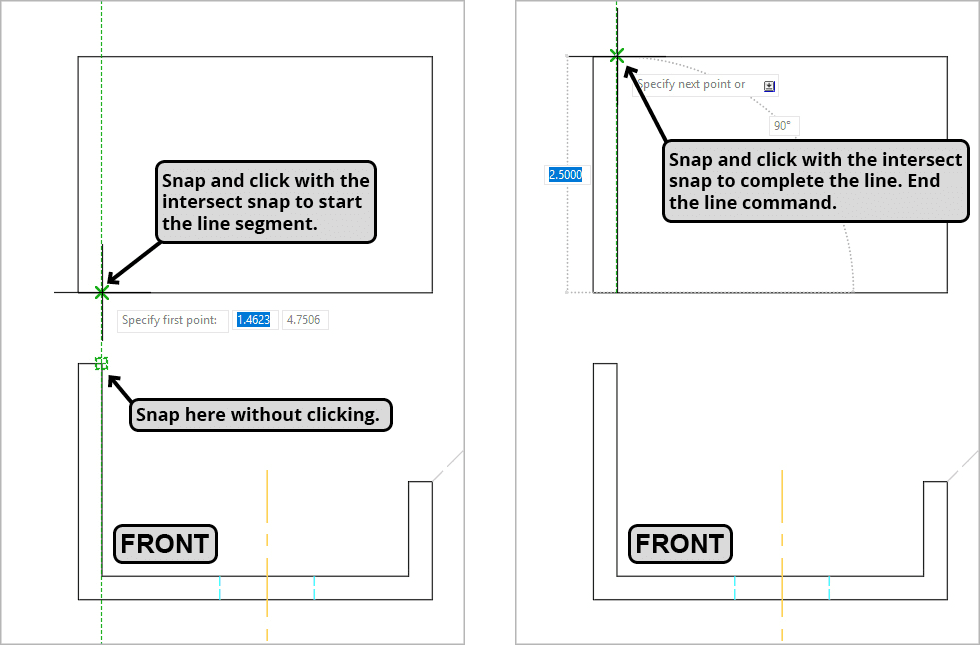
  7. Restart the Line Command and apply Object Tracking to complete the left and right sides of the top view following the diagrams below. Remember the fundamental principle: hover to create tracking lines, click only to start or end actual line segments. This distinction is crucial for efficient Object Tracking workflow.

    object snap tracking 10 and 9

    object snap tracking 11 and 12

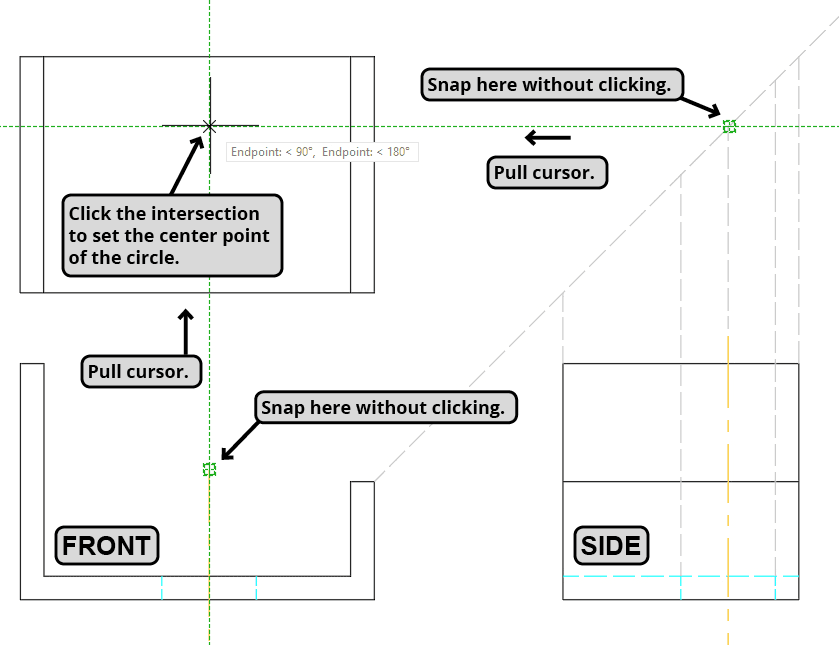
  8. The front and side views clearly indicate a circular hole penetrating the object—shown by the centerline (which always marks a circle's center) and dashed lines representing hidden edges. Using the Circle Command with Object Tracking, you'll locate this hole's center by tracking from the front view's centerline and the intersection where the side view's centerline projection meets the diagonal line. Launch the Circle Command and follow the illustrated steps below.

    object snap tracking 15

    object snap tracking 16

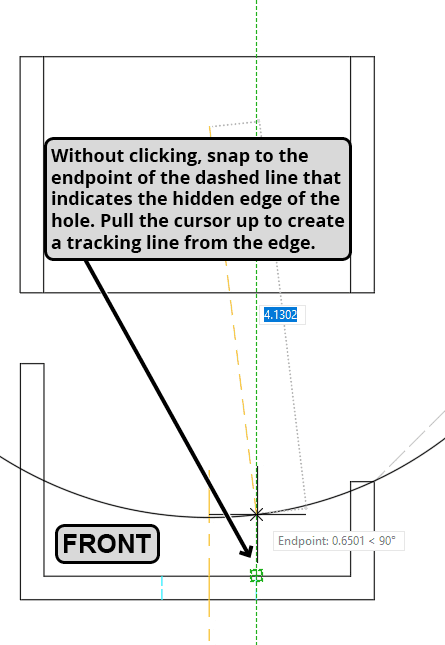
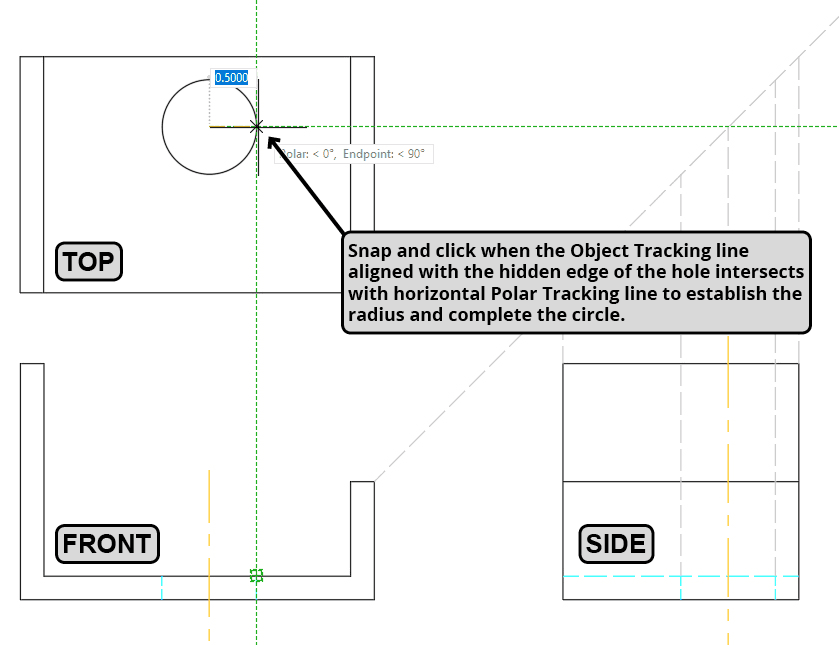
  9. Following the diagram instructions below, track from an endpoint on one of the hidden edges to the horizontal tracking line and click to establish the radius and complete the circle. This demonstrates how Object Tracking maintains dimensional relationships across multiple views.
    object snap tracking 17

  10. Your top view is now complete, demonstrating Object Tracking's power in professional CAD work. This technique becomes indispensable in complex projects where dimensional accuracy and drawing speed directly impact productivity. Object Tracking will quickly become intuitive with practice, transforming from a conscious technique into natural workflow. For optimal skill development, we strongly recommend repeating this entire exercise from the beginning—repetition builds the muscle memory essential for efficient CAD operation in professional environments.

Key Takeaways

1Object Snap Tracking enables precise drafting without manual measurement entry, mimicking traditional T-square and triangle methods
2Object Snap must be enabled as a prerequisite for Object Tracking functionality, and both only work within active commands
3Press F11 or use the status bar to toggle Object Snap Tracking for creating orthographic tracking lines from multiple snap points
4Snap to reference points without clicking to create tracking lines, only click when placing actual geometric features
5Multiview projections can be completed efficiently using projection line intersections with 45-degree construction lines
6Centerlines indicate circular feature centers while dashed lines represent hidden edges in technical drawings
7Object Tracking allows triangulation of points using multiple reference objects for complex geometric constructions
8Regular practice with Object Tracking develops intuitive precision drafting skills that significantly increase drawing speed and accuracy

RELATED ARTICLES