April 1, 2026Dan Perico/4 min read

Modifying with Grips Part 1

Master AutoCAD grip modifications and stretching techniques

Key AutoCAD Grip Concepts

Grip Selection

Select objects when not in a command to reveal grips at endpoints, midpoints, and center points. Blocks show only one grip by default.

Hot Grips

Click on a grip to make it hot (dark red), enabling stretching operations and access to modify tools through right-click menus.

Multiple Selection

Hold Shift key before clicking to select multiple grips across objects. Cannot add to selection once grips become hot.

Topics Covered in This AutoCAD Tutorial:

Stretching with Grips, Accessing Modify Tools with Grips

Stretching with Grips

Building on the fundamentals covered in Section 1, grip-based editing represents one of AutoCAD's most efficient modification workflows. When you select objects outside of any active command, grips automatically appear at strategic locations: endpoints and midpoints of lines, center points of circles and arcs, and insertion points of blocks. This immediate visual feedback transforms your cursor into a powerful editing tool.

The grip system operates on a simple but effective principle. Clicking on any grip activates it, turning the grip from its default blue color to a "hot" red state. In this activated state, the grip becomes a dynamic editing handle—moving it will stretch the connected geometry accordingly. For blocks, you'll see only a single grip at the insertion point, and moving this grip relocates the entire block as a unit.

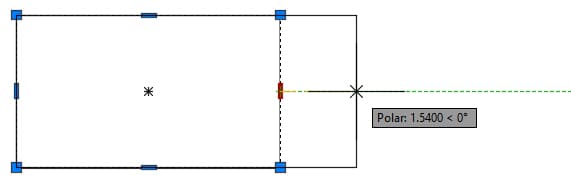
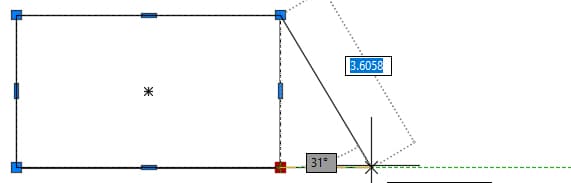
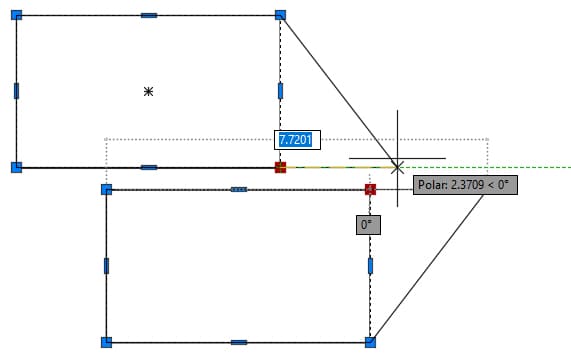
Professional drafters leverage several advanced grip techniques to maximize efficiency. You can stretch or extend elements to precise distances by pulling in your desired direction to establish a tracking line, then typing the exact measurement. For complex edits involving multiple objects, hold the Shift key before clicking additional grips to create a multi-grip selection—but remember, you must hold Shift before making your first grip hot, as you cannot expand the selection afterward. When working with line segments, clicking and moving a midpoint grip relocates the entire segment, while endpoint grips stretch the geometry from that anchor point.

  • Stretching a midpoint:

    grip stretch midpoint

  • Stretching an endpoint:

    grip stretch endpoint

  • Stretching multiple items:

    grip stretch double

Basic Grip Stretching Process

1

Select Objects

Select objects when not in a command to make grips visible at key points

2

Activate Grip

Click on a grip to make it hot (dark red) and enable stretching mode

3

Stretch to Distance

Pull in a direction to get tracking lines and type specific distances for precise stretching

Midpoint vs Endpoint Grip Behavior

FeatureMidpoint GripEndpoint Grip
Movement EffectMoves entire segmentStretches line segment
Tracking LinesAvailable for precise distancesAvailable for precise distances
Multi-selectionRequires Shift keyRequires Shift key
Recommended: Use endpoint grips for stretching operations and midpoint grips for moving entire segments

Accessing Modify Tools with Grips

While stretching represents the default grip behavior, AutoCAD's grip system unlocks access to a comprehensive suite of modification tools through contextual menus. The key lies in understanding how different selection methods reveal different capabilities. When you hover over a grip without clicking, it displays in light red, indicating it's ready for interaction but not yet activated.

The grip interaction method determines which tools become available. Right-clicking on an unactivated grip (light red) provides access to standard modify commands that behave exactly as if you'd launched them from the ribbon or command line. However, right-clicking on a hot grip (after left-clicking to make it red) reveals a specialized menu with enhanced functionality designed specifically for grip-based editing workflows.

  • Snapping without clicking or Right–clicking on a midpoint grip:
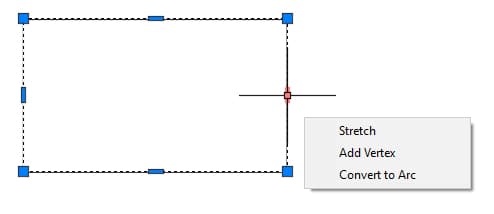
    grip menu1

  • Snapping without clicking or Right–clicking on an endpoint grip:
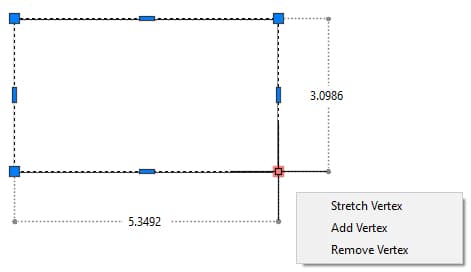
    grip menu4

  • Snapping and Right–clicking without Left–clicking to select the grip first:
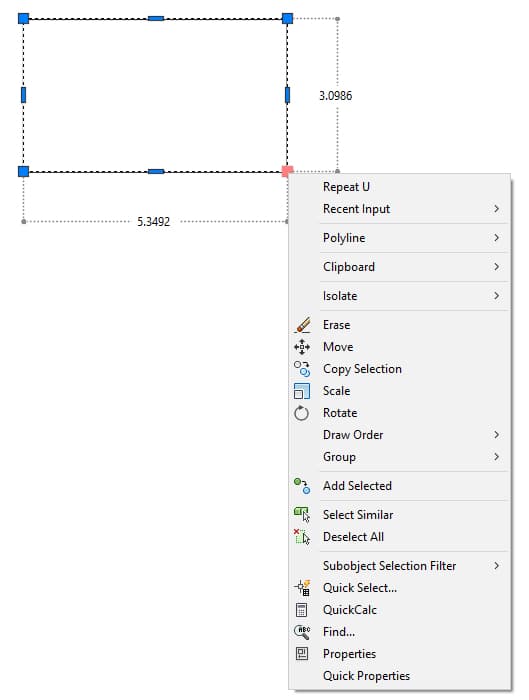
    grip menu3

  • Snapping without clicking or Right–clicking on an endpoint grip:
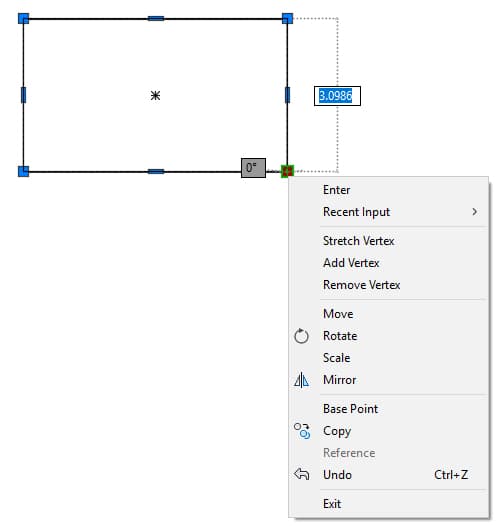
    grip menu2

This distinction between hot and cold grip menus is crucial for advanced users. Cold grip menus (right-clicking without left-clicking first) execute standard commands with their normal prompts and behavior. Hot grip menus fundamentally alter how these commands operate, offering streamlined workflows that can significantly accelerate your drafting process.

Grip States and Right-Click Behavior

FeatureCold Grip (Light Red)Hot Grip (Dark Red)
Activation MethodSnap without left-clickingLeft-click to select
Right-click MenuStandard modify toolsSpecialized grip-based tools
Command BehaviorNormal modify command behaviorGrip acts as default base point
Recommended: Use hot grips for enhanced modify operations with automatic base point selection
Grip Selection Timing

The order of operations matters: snap first, then right-click for cold grip menu, or left-click first then right-click for hot grip menu. Different menus provide different modify tool behaviors.

Differences in Modify Tools Selected in the Hot (Red) Grip Right–click Menu

When you access modify tools through the hot grip menu, AutoCAD transforms these familiar commands into more intuitive, context-aware operations. Understanding these enhancements can dramatically improve your productivity, especially when working with repetitive modifications or complex geometric relationships.

  • The hot grip automatically serves as the base point for all operations, eliminating the need to specify one manually—a significant time-saver in production environments. If your design requires a different reference point, the Base Point option in the menu allows you to override this default behavior while maintaining the other grip-based advantages.

  • The Scale command scale tool becomes remarkably more precise when accessed through hot grips. The visual feedback and dynamic preview allow for more intuitive scaling operations compared to the traditional command-line approach, making it particularly valuable for iterative design work.

  • The Copy tool copy tool operates differently in this context—it functions as a modifier for other commands rather than a standalone operation. To achieve traditional copy behavior, select both Move and Copy from the right-click menu. This copy option can enhance Move, Rotate, Scale, or Mirror operations, creating copied versions during the transformation process.

  • Perhaps most significantly, the grip-based copy system enables multiple iterations of the same operation. Unlike standard commands that typically create single copies, the hot grip copy function allows you to generate multiple copies with consistent spacing and orientation—invaluable for creating arrays, patterns, or repeated elements in your drawings.

  • The system's most powerful feature emerges when you combine Copy with the CTRL key. After establishing your first copy to define the distance and angle relationship, holding CTRL while clicking creates additional copies at identical intervals. This creates evenly distributed arrays with mathematical precision—a capability exclusive to the hot grip workflow that has become essential for modern parametric design approaches.

  • Holding the CTRL key when using Copy and Rotate:
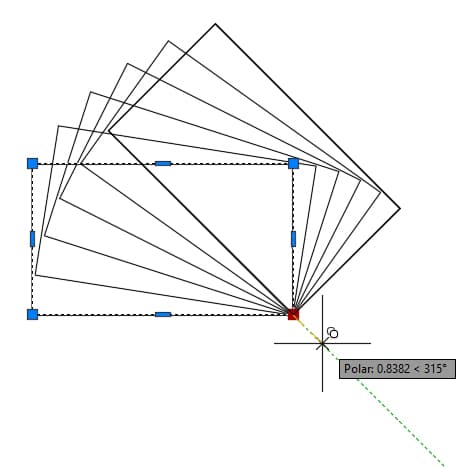
    grip CTRL rotate

  • Holding the CTRL key when using Copy and Move:
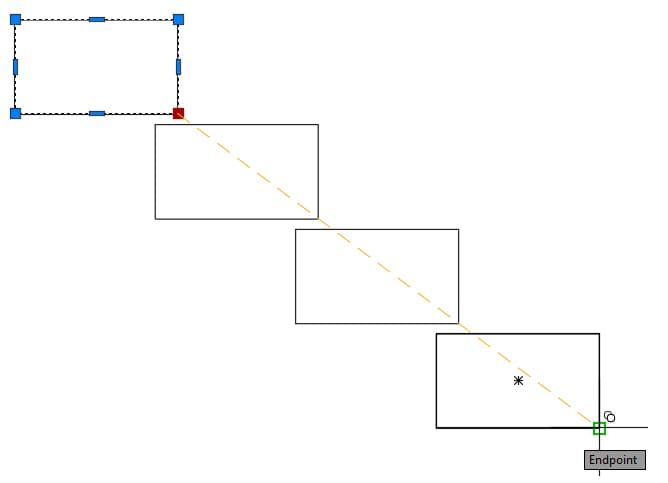
    grip CTRL move

Hot Grip Modify Tools

Pros
Grip automatically acts as base point
More precise scaling with mouse control
Multiple copies possible with Copy + other tools
CTRL key enables evenly distributed copies
One-step copy operations for Move, Rotate, Scale, Mirror
Cons
Copy tool requires combination with other tools
Different behavior from standard modify commands
Cannot add grips to selection after making hot

Creating Evenly Distributed Copies

1

Make Grip Hot

Left-click on grip to make it hot, then right-click for menu

2

Select Copy + Tool

Choose Copy and another modify tool (Move, Rotate, etc.) from menu

3

Establish Pattern

Make first copy normally to set distance and angle from original

4

Hold CTRL

Hold CTRL key and click to create additional copies at same spacing

Unique Grip Advantage

The ability to create evenly distributed copies using CTRL key with Copy and other modify tools is exclusive to the hot grip right-click menu and cannot be achieved through normal command entry.

Key Takeaways

1Grips appear at endpoints, midpoints, and center points when objects are selected outside of commands, with blocks showing only one grip by default
2Hot grips (dark red) are activated by left-clicking and enable stretching operations, while cold grips (light red) appear when hovering without clicking
3Multiple grips can be selected using the Shift key, but only before making any grip hot - additional grips cannot be added after activation
4Midpoint grips move entire line segments when dragged, while endpoint grips stretch the segments for length modifications
5Right-click menus differ significantly between cold and hot grips, offering standard modify tools versus specialized grip-based operations
6Hot grip modify tools use the grip as the default base point, eliminating the need to specify one during operations like scale, rotate, or move
7The Copy tool in hot grip menus must be combined with other modify tools and enables multiple copy creation, unlike standard copy commands
8Evenly distributed copies can only be created using the CTRL key technique with hot grip Copy operations, establishing spacing with the first copy then repeating the pattern

RELATED ARTICLES