April 1, 2026Dan Perico/5 min read

Object Snap Part 1: Free AutoCAD Tutorial

Master Precision Drawing with Object Snap Fundamentals

Why Object Snap Matters

Never 'eyeball' your drawings. Object Snap ensures exact precision by snapping to specific points on existing objects, making your work faster, easier, and more accurate.

Topics Covered in This AutoCAD Tutorial:

Intro to Object Snap, Object Snap Settings

Learning Path for Object Snap Mastery

1

Understand Object Snap Basics

Learn how Object Snap allows you to snap to specific points without manual coordinate entry, improving accuracy and speed.

2

Master Individual Object Snaps

Explore each Object Snap type including Endpoint, Midpoint, Center, and specialized snaps for different drawing scenarios.

3

Use Override Functions

Apply temporary Object Snap overrides for single-use situations without changing your default settings.

Intro to Object Snap

Professional CAD work demands precision that the human eye simply cannot achieve. Just as Polar Tracking eliminates guesswork when specifying angles, Object Snap ensures you connect to exact points without manually entering coordinates. This fundamental AutoCAD feature transforms your workflow from approximate to absolute—making your drawings not just faster to create, but mathematically precise.

The cardinal rule of professional drafting is simple: never "eyeball" placement. Visual approximation introduces errors that compound throughout a project, potentially costing time, materials, and credibility. Object Snap eliminates this risk by magnetically pulling your cursor to precise geometric points on existing objects. The more complex your drawing becomes, the more indispensable this feature proves—turning a dense network of lines, arcs, and shapes into a precise foundation for your next moves.

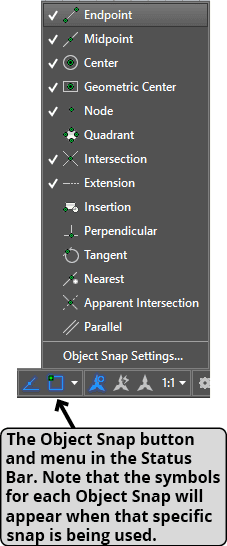
AutoCAD offers multiple Object Snap types, each targeting specific geometric features with distinct visual symbols for instant recognition. These snaps activate only during active commands, giving you real-time precision exactly when you need it. The intelligent approach is to customize your active snap combination based on your current task—some snaps complement each other perfectly, while others can create interference that leads to unintended connections. Toggle Object Snaps on or off instantly by pressing F3 or clicking the Object Snap button object snap button in the Status Bar. The dropdown arrow reveals the full Object Snap menu, where you can activate specific snaps for your current workflow.

object snap menu in status bar

Understanding each Object Snap type and its optimal use cases will dramatically improve your drafting efficiency and accuracy.

Object Snap vs Manual Placement

Pros
Guarantees exact point placement accuracy
Significantly faster than entering coordinates
Works seamlessly with existing drawing objects
Provides visual confirmation with snap symbols
Can be toggled on/off instantly with F3 key
Cons
May snap to unintended points in dense drawings
Different snaps can interfere with each other
Requires understanding of when to use each type
Only works when another command is active
Essential Object Snap Control

Use F3 to quickly toggle Object Snaps on/off, or click the Status Bar button. The arrow next to the button opens the menu to select specific snaps.

Object Snaps

  • Endpoint: Targets the precise start or end points of lines, arcs, and polyline segments. Essential for connecting elements seamlessly, including the corner vertices of rectangles and polylines where segments meet. This is your most frequently used snap for creating connected geometry.

  • Midpoint: Locates the exact center of any line, arc, or polyline segment. Invaluable for symmetrical designs and bisecting elements. Center: Identifies the center point of circles and arcs—critical for concentric designs and radial layouts.

  • Geometric Center: Calculates the centroid of closed polylines, including complex irregular shapes. Particularly useful for balanced layouts and center-point references on custom forms.

  • Node: Connects to points created with Point, Divide, or Measure commands. Essential when working with precisely spaced reference points or construction geometry.

  • Quadrant: Targets the four cardinal points (top, bottom, left, right) of circles and arcs. Perfect for orthogonal connections to curved elements and maintaining clean geometric relationships.

  • Intersection: Finds where lines and curves cross, and can generate virtual intersections where polar tracking lines meet existing objects. Note that tracking line intersections require active Polar Tracking—a powerful combination for precise positioning.

  • Extension: Enables precise point placement at specified distances from existing snap points. Hover over a snap point, pull your cursor along the implied extension line, then type a distance value. This advanced technique maintains geometric relationships while extending beyond existing elements.

  • Insertion: Targets the base point of blocks and external references. Critical for precise block placement and maintaining coordinate relationships in complex assemblies.

  • Perpendicular: Creates or connects to perpendicular relationships with existing geometry. Especially valuable in Ortho mode, where it provides perpendicular connections that Polar Tracking's intersection snap cannot achieve.

  • Tangent: Establishes smooth, tangent connections between lines and curved elements. Essential for creating flowing transitions without sharp corners—fundamental in mechanical design and architectural curves.

  • Nearest: Connects to the closest point along any object's path. While useful for positioning elements against boundaries, use this snap judiciously—its convenience can lead to imprecise placement. Activate it temporarily when needed, rather than keeping it always on.

  • Apparent Intersection: Identifies where non-intersecting lines would meet if extended. Invaluable for maintaining implied geometric relationships and creating construction points for complex layouts.

  • Parallel: Generates tracking lines parallel to any existing line, regardless of your Polar Tracking angle settings. When using the Line command, hover over any line to activate the parallel reference, then move to your desired start point—AutoCAD will display a parallel tracking line for precise alignment.

Beyond the standard Object Snap workflow, AutoCAD provides override functionality for those moments when you need a specific snap for just one operation.

Essential Object Snap Types

Endpoint

Snaps to start or end points of lines, arcs, and polyline segments including rectangle corners. Most commonly used snap for precise connections.

Midpoint

Targets the exact center of any line, arc, or segment. Perfect for creating balanced designs and symmetrical layouts.

Center

Locates center points of circles and arcs. Essential for creating concentric shapes and radial patterns.

Intersection

Finds where lines and arcs meet. Can create virtual intersections with polar tracking lines for advanced placement.

Specialized Object Snap Types

Quadrant

Snaps to top, bottom, left, and right points of circles and arcs. Useful for creating tangent lines and geometric constructions.

Perpendicular

Creates or snaps to perpendicular intersections. Particularly valuable in Ortho Tracking mode for precise 90-degree angles.

Tangent

Enables smooth Line tool transitions to circles and arcs without sharp corners. Creates professional curved connections.

Extension

Places points at specific distances from object snaps using tracking lines. Advanced technique for precise measurements.

Nearest Snap Caution

The Nearest snap can place objects at random points along any object. Only activate when specifically needed, as it easily causes incorrect placement.

When to Use Different Object Snaps

FeatureBest ForAvoid When
EndpointConnecting lines preciselyWorking with dense geometry
MidpointCreating symmetrical designsNeed quarter or third points
CenterRadial patterns, concentric shapesNo circles or arcs present
NearestPlacing against walls or surfacesPrecision work required
Recommended: Combine multiple snaps but disable conflicting ones for your specific task

Object Snap Override

Object Snap Overrides provide surgical precision—activating a specific snap for a single use, then automatically disabling it when your command completes. This prevents the need to constantly toggle your snap settings for one-off requirements. Access overrides by right-clicking during any snap-compatible command to reveal the context menu. Important caveat: the Line command's first click establishes a starting point, so if you right-click before setting this initial point, AutoCAD will continue from the previous line endpoint rather than displaying the override menu. For consistent access to overrides, consider using the Object Snap toolbar, which remains available regardless of command state. This workflow proves especially valuable when working with complex drawings where your standard snap combination might create unwanted connections or when you need a specialized snap like Tangent or Apparent Intersection for a specific geometric relationship.

Using Object Snap Overrides Effectively

0/4
Override Strategy

Use overrides when you need a specific Object Snap for just one operation, avoiding the need to constantly toggle your default snap settings.

Key Takeaways

1Object Snap eliminates guesswork by providing exact point placement on existing objects, making drawings faster and more accurate than manual coordinate entry
2Never rely on visual 'eyeballing' for point placement - always use Object Snap or specific coordinates for professional precision
3Essential Object Snaps include Endpoint for connections, Midpoint for symmetry, Center for circles, and Intersection for where objects meet
4Toggle Object Snaps on/off using F3 key or Status Bar button, with the arrow menu allowing selection of specific snap types
5Different Object Snaps can interfere with each other, so adjust your active snaps based on the specific drawing situation
6Object Snap Override provides temporary access to specific snaps without changing default settings, activated via right-click or Object Snap Toolbar
7Specialized snaps like Tangent, Perpendicular, and Extension offer advanced placement options for complex geometric constructions
8The Nearest snap should be used cautiously as it can easily place objects at unintended random points along any object

RELATED ARTICLES