April 1, 2026Dan Perico/6 min read

Using Layers to Assign Color & Line Weight

Master layer-based property management in AutoCAD

Core Layer Properties in AutoCAD

Line Weight

Controls the thickness and visual prominence of lines. Essential for creating drawing hierarchy and professional output standards.

Line Type

Defines pattern styles like solid, dashed, or dotted lines. Helps differentiate between construction types and drawing elements.

Color Assignment

Provides visual organization and layer identification. Colors indicate layer membership and can be customized for plotting output.

Topics Covered in This AutoCAD Tutorial:

Layers, Properties by Layer

Property Assignment Methods

FeatureProperty by LayerProperty by Object
Organization LevelHigh - SystematicLow - Individual
Maintenance EffortMinimalHigh
Best Practice StatusRecommendedUse Sparingly
Control MethodLayer SettingsObject Properties
Recommended: Property by Layer is the preferred method for professional AutoCAD workflows

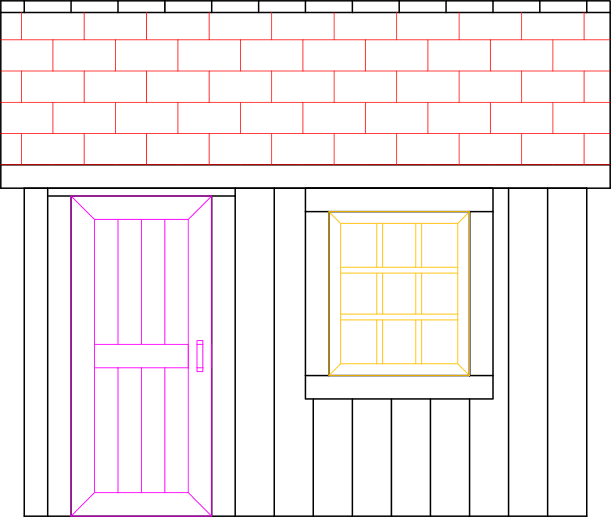
Exercise Preview

ex preview layers

Understanding AutoCAD Layers

Unlike other programs, layers in AutoCAD have nothing to do with stacking order. They are organizational tools for grouping objects with similar properties, not literal layers in a visual stack.

Exercise Overview

In AutoCAD, layers function as the organizational backbone of professional drafting. Think of them as transparent sheets that separate and categorize objects by purpose, discipline, or drawing phase. Layers provide granular control over visibility, editing permissions, and visual properties—making them indispensable for managing complex drawings and collaborative workflows.

The cornerstone of professional AutoCAD practice is Property by Layer—assigning line weight, line type, color, and transparency at the layer level rather than to individual objects. This approach ensures consistency across drawings, simplifies editing workflows, and maintains industry standards. While Property by Object assignment offers more granular control (covered later in this course), it's typically reserved for specific exceptions rather than standard practice.

A critical distinction: unlike graphic design applications, AutoCAD layers have no relationship to stacking order or visual depth. The name "layer" is somewhat misleading—they're better understood as object categories or filters that control visibility and properties. Most professional workflows rely on predefined layer structures established in template files (.dwt), which ensure consistency across projects and team members. This exercise uses an architectural template to demonstrate industry-standard layer management.

Now let's explore how layers work in practice by organizing a tool shed drawing using professional architectural standards.

Layer Management Workflow

1

Identify Current Layer

Check the Layer Control to see which layer is active. This determines where new objects will be created.

2

Select Objects

When objects are selected, the Layer Control shows their assigned layer. Multiple objects on different layers will show a blank field.

3

Assign Properties

Move objects to appropriate layers to automatically inherit the layer's color, line weight, and line type properties.

4

Control Visibility

Use layer states to freeze, thaw, lock, or unlock layers as needed for drawing clarity and editing control.

Using Layers in a File

  1. Open the file Layers-Architectural.dwg. This drawing file utilizes an architectural template with layer naming conventions that follow AIA (American Institute of Architects) standards, making it immediately recognizable to industry professionals.

  2. Examine the Layer Panel or Toolbar—you'll notice the Layer Control displays A-Walls. When no objects are selected, this field shows the current layer, which determines where new geometry will be placed. Maintaining awareness of your current layer is fundamental to organized drafting—a single misplaced line on the wrong layer can cause significant downstream issues in complex drawings.

    Notice that all objects in the tool shed drawing appear in the same color, indicating they reside on the same layer. Select any object to reveal its true layer assignment: the Layer Control now shows 0. This demonstrates AutoCAD's context-sensitive display—showing the current layer when nothing is selected, or the selected objects' layer when something is active. When selecting objects from multiple layers simultaneously, the field displays blank, indicating mixed layer assignments.

  3. Currently, all geometry resides on layer 0—AutoCAD's default layer that exists in every drawing file (.dwg) and template (.dwt). Layer 0 serves as a fallback and cannot be renamed or deleted, though many professionals assign it a distinctive color (often magenta or cyan) as a visual warning against accidental use.

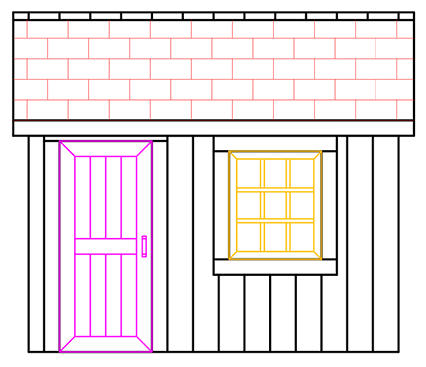
    To demonstrate layer assignment, select the window in the tool shed. Open the Layer Control dropdown and change the assignment from 0 to A-Windows. Watch as the window immediately adopts the layer's color. This color-coding system is AutoCAD's primary visual feedback mechanism—in professional workflows, color primarily indicates layer assignment rather than final appearance. During printing or PDF export, Plot Styles can override layer colors (typically to black) while preserving other layer properties like line weights.

  4. Select the door and assign it to layer A-Doors. Again, observe the immediate color change that confirms proper layer assignment. This visual feedback prevents costly errors in complex drawings where misplaced elements might otherwise go unnoticed.

  5. Select any shingle pattern near the roof's center. These shingles represent a Hatch object—a parametric pattern that fills defined areas with repeating geometry or solid fills. When selected, notice the Ribbon automatically switches to the Hatch Editor contextual tab, demonstrating AutoCAD's intelligent interface adaptation.

    Click the Home tab to restore access to standard tools, then assign the hatch to the appropriate hatch layer using the Layer Panel. This workflow—selecting objects and switching contexts—is fundamental to efficient AutoCAD operation.

  6. With the door, window, and hatch properly assigned, all remaining objects still reside on layer 0. Rather than selecting each object individually, leverage AutoCAD's selection tools for efficiency. Select any remaining object, then right-click and choose Select Similar. This powerful command selects all objects sharing common properties—in this case, layer assignment—dramatically accelerating bulk operations.

  7. With all remaining objects selected, choose Elevations from the Layer Control to move everything simultaneously. This demonstrates the efficiency gains possible when combining selection tools with layer management—a technique essential for managing drawings with hundreds or thousands of objects.

  8. Line weight represents line thickness and constitutes a critical communication tool in technical drawings—heavier lines typically indicate cut sections, while lighter lines show non-cut elements. To visualize line weights on screen, access the Status Bar's customization menu by clicking its customize button, then ensure LineWeight is checked.

    The Lineweight button line weight button now appears in the Status Bar. This toggle controls on-screen line weight display—the actual line weights always appear in final output regardless of screen display settings. Click the Lineweight button line weight button to activate the display and observe the varying line thicknesses throughout the drawing.

    Important note: screen representation of line weights is approximate and relative to your display resolution and zoom level. Final print output will reflect true line weight values as specified in the layer properties and plot style settings.

    lineweights on

  9. Beyond property assignment, layers provide powerful visibility and editing controls through Layer States. Click the D-Size Layout tab to view the drawing as it will appear on standard architectural D-size paper (24" × 36") with a professional title block—the format commonly used for construction documents.

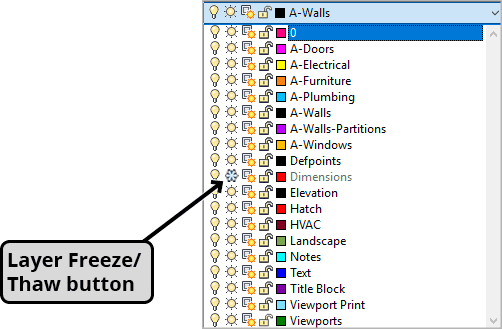
    Expand the Layer Control to examine layer states. Notice the snowflake icon on the Dimensions layer—this indicates the layer is frozen (hidden). Frozen layers are invisible and cannot be selected, edited, or plotted. Click the snowflake to change it to a sun icon, thawing the layer and revealing the dimension annotations.

    layer freeze thaw button

    NOTE: The screenshot above shows the D-Size Layout with the Dimensions layer thawed, displaying the complete drawing with annotations.

  10. To preview the final printed output, enter the PREVIEW command. The preview window displays exactly how the drawing will appear when printed or exported to PDF—a critical step in professional workflows to catch formatting issues before output.

    Notice that all objects now appear in black rather than their layer colors, demonstrating how plot styles override display colors for professional presentation. Use the zoom controls to examine line weight variations—heavier lines clearly distinguish primary elements like walls from secondary elements like dimensions and notes.

    layers architectural finished d size

    Click the X in the preview window's upper-left corner to close the preview and return to the drawing environment.

  11. Save and close the file to preserve your layer organization work. This drawing now demonstrates proper layer management practices that form the foundation of professional AutoCAD workflows.

Architectural Layer Standards

A-Walls

Default current layer for wall elements. Typically uses heavy line weights to emphasize structural components in architectural drawings.

A-Windows

Dedicated layer for window objects. Uses distinct colors and line weights to differentiate openings from solid wall elements.

A-Doors

Specific layer for door elements. Maintains consistent properties for all door symbols and swing representations throughout the drawing.

Layer 0 Best Practice

Every AutoCAD file has Layer 0 which cannot be renamed or deleted. Many users change its color to avoid accidentally placing objects on it. Keep Layer 0 empty in professional drawings.

Layer State Management Tasks

0/4
Color vs Print Output

Layer colors are primarily for screen organization. When printing or exporting to PDF, Plot Styles can override layer colors, typically converting everything to black for professional output.

Key Takeaways

1AutoCAD layers organize objects by assigning consistent properties like line weight, line type, and color rather than controlling visual stacking order
2Property by Layer is the recommended approach for professional workflows, providing systematic organization and easy maintenance compared to Property by Object
3The Layer Control displays the current layer when no objects are selected, and shows object layers when items are selected
4Layer 0 exists in every AutoCAD file and cannot be deleted or renamed; professional practice recommends keeping it empty and changing its color
5Template files define standard layer structures appropriate for specific disciplines like architectural drafting
6Layer states allow freezing, thawing, locking, and unlocking layers to control visibility and editing access
7Line weights assigned through layers provide drawing hierarchy and professional appearance in final prints
8Screen display colors help identify layer membership, while Plot Styles control final output appearance regardless of layer colors

RELATED ARTICLES