Modifying Objects Part 2
What This Tutorial Covers
Stretch & Scale
Reshape geometry without redrawing it.
Rotate & Mirror
Reorient objects with precision.
Trim & Extend
Clean up intersections and edges.
Noble Desktop's AutoCAD Certification teaches 2D drafting, 3D modeling, and the production drawing workflow architects and engineers rely on every day.
Delve into this comprehensive AutoCAD tutorial and learn how to modify objects in a digital workspace, including the use of move, copy, rotate, scale, and mirror tools.
Exercise Preview
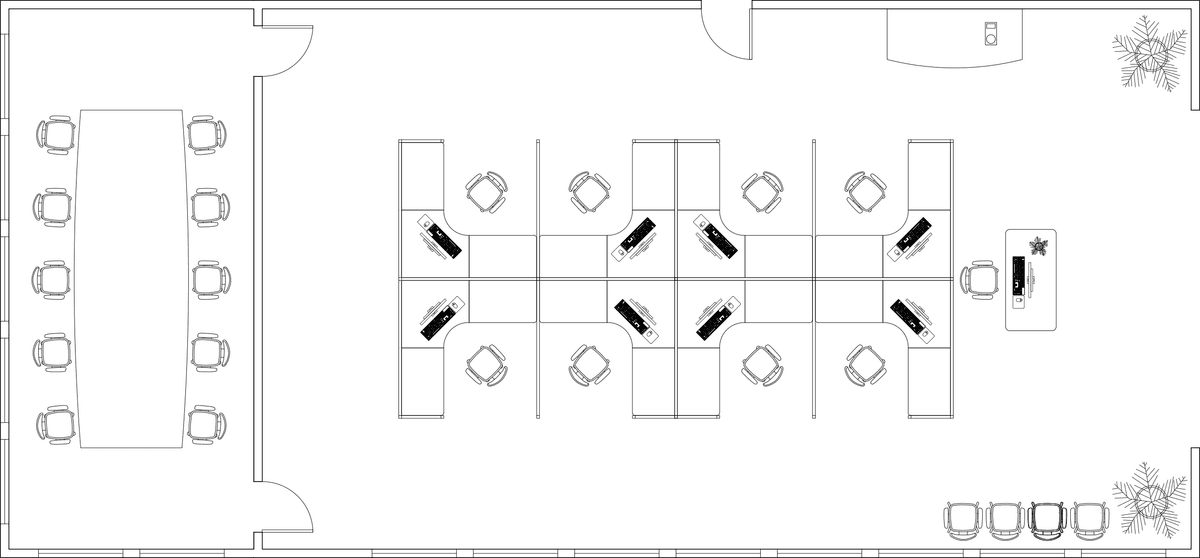
Modifying Objects in a File
Open the file Modify-Office.dwg.
Zoom in on the brown rectangle. This is a drawing of a table. Start the Move tool
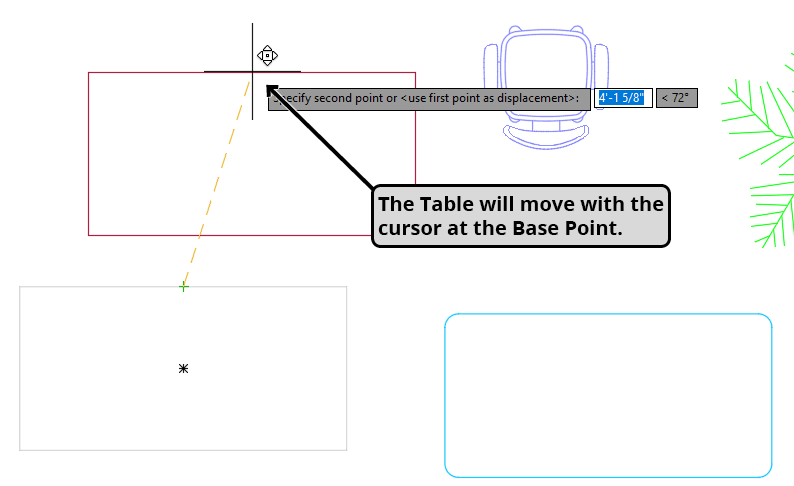
 and click to select the rectangle. Press Enter to end the selection stage. The Specify Base Point prompt will appear in the command line. Snap and click on the Midpoint of the top edge of the rectangle to establish the base point. Move the cursor upward to the right side of the upper wall. You will see that the table will move with the cursor at the base point.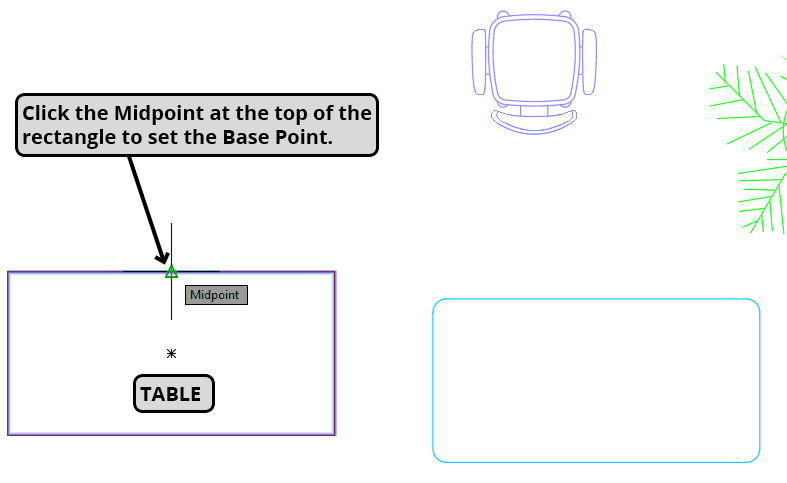
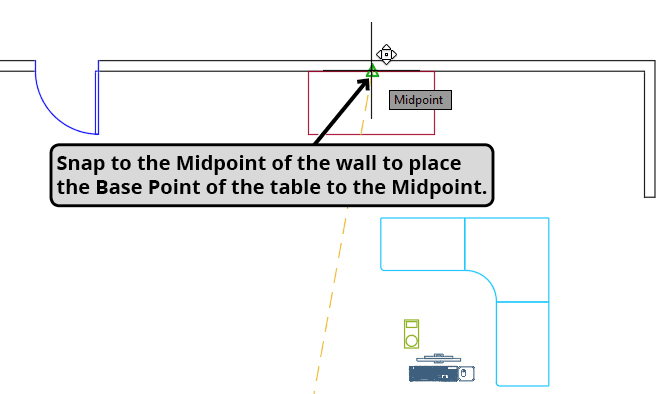
Click on the midpoint between the door and the right corner on the lower edge of the upper wall. The Base Point will be snapped to the Midpoint desk will be moved to the middle of the upper wall between the door and right side of the office and the Move tool will end.
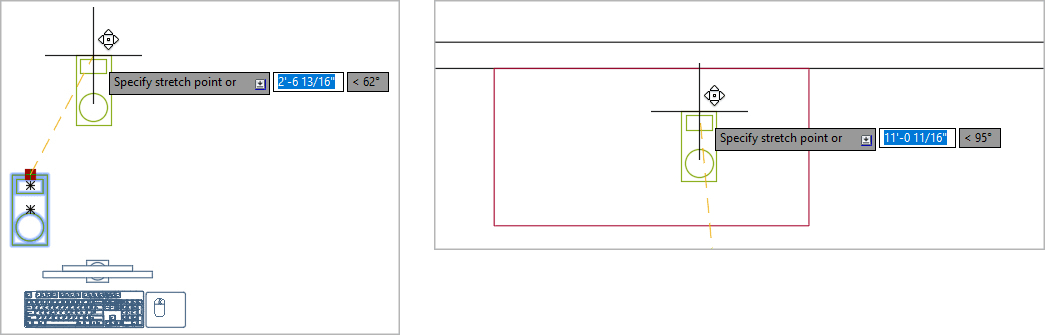
Click on the coffee maker to select it. The coffee maker is a block, and is a group of objects that behaves like a single object with only one grip. This makes blocks easy to move an manipulate with the grip. Click the grip on the desk, you will see it turn red, which is also referred to as making the grip hot. The grip will act as a base point and you can easily move the block. Move the coffee maker with the grip and place it on the table anywhere you’d like.
Start the Copy command
 . Select the large fern and press Enter to end selection. Click to establish a Base Point somewhere near the center of the fern. At this stage is will seem identical to the Move tool, but if you when you click a second point, you will be creating a copy. Click to create 2 copies of the fern on either side of the office entrance. Press Enter to end the command.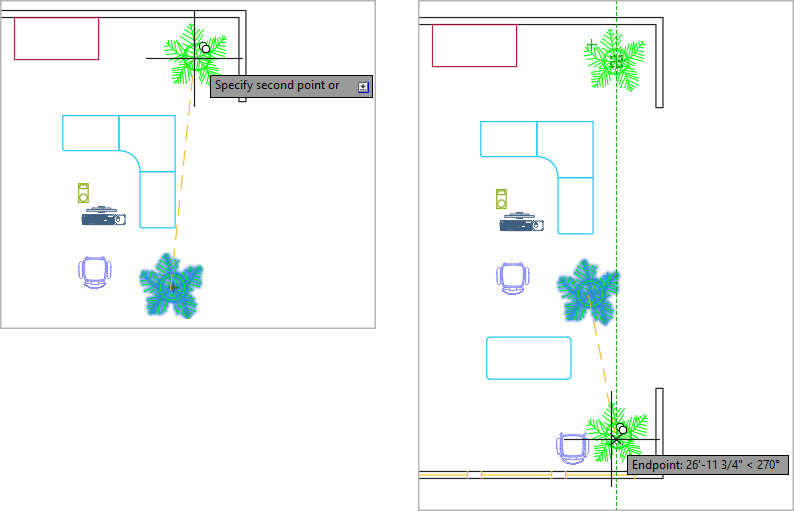
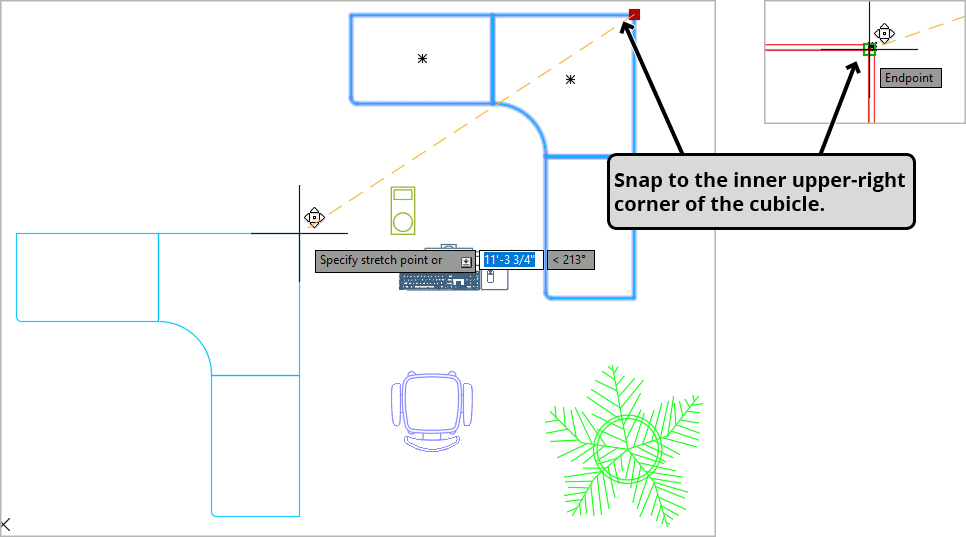
Click on the corner desk to select it. Click the grip to make it red and move the desk to the right cubicle and snap it to upper-right corner endpoint of the inner wall of the cubicle to place the desk. Press Escape to deselect the desk.
Start the Copy tool
and select the swivel chair. Specify a base point and make a copy of the chair in front of the corner desk.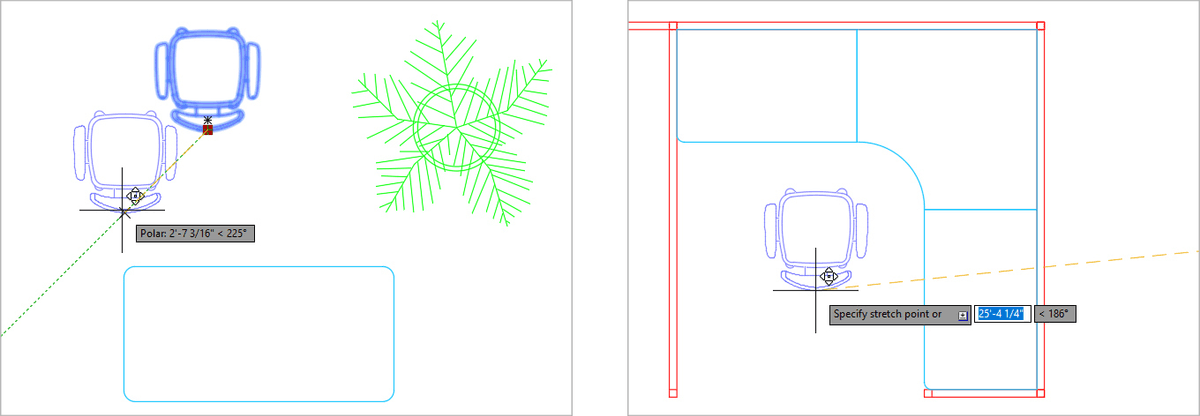
Start the Rotate command
 . The swivel chair should still be selected, but if the Select Objects prompt appears, click on the chair and press Enter. Use the Geometric Center snap to center of the seat cushion to place the Base Point. The Command Line will tell you to specify a rotation angle. You can type an angle in but you can also use your mouse and snap to a Polar Tracking line. Make sure your incremental Polar Tracking angle is 45˚ and use the mouse to rotate the chair 45˚ to the right by snapping to the Polar Tracking line and clicking and ending the Rotate command. Keep the chair selected for the next step.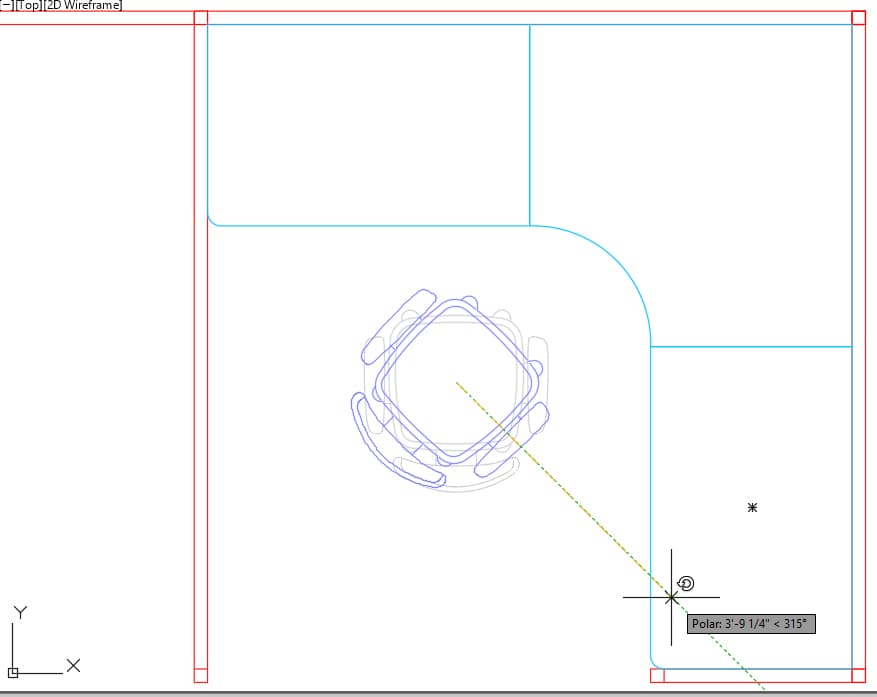
Now you will use Object Tracking to center the chair with the desk. Click the swivel chair to select it. Click on the grip to make it red and move the chair. Without clicking, snap to the midpoints and pull tracking lines from both the top and side desktops and place the chair where the tracking lines meet to center the chair with the desk.
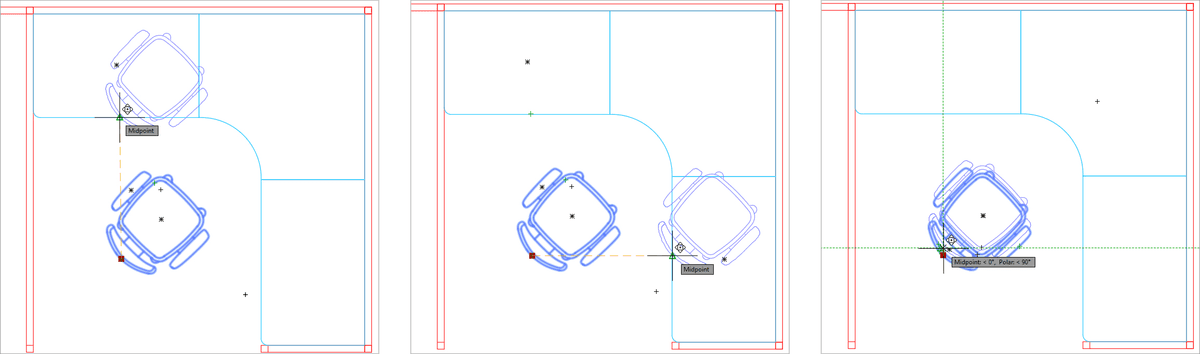
Now that you’ve placed the desk and chair in the cubicle, you will use the Mirror command
 to create mirrored copies in the cubicle to the left. Start the Mirror command and select the desk and the chair. Press Enter to end the selection stage. The Command Line will tell you to specify the first point of the mirror line. Unlike the other Modify tools covered in this chapter, you will establish two points to make a mirror line rather than a single base point. Snap and click on one of the horizontal Midpoints or Geometric Center points within the middle wall of the cubicles to establish the first point on the mirror line. Pull the cursor up or down and snap to the vertical tracking line. Making sure that the vertical line stays active, click on any point along the tracking line to establish the second point of the mirror line. A mirrored copy will appear on the other side of the mirror line. The command will ask if you want to erase the source objects. The default option is No, so you can just press Enter to duplicate the objects and end the Mirror command.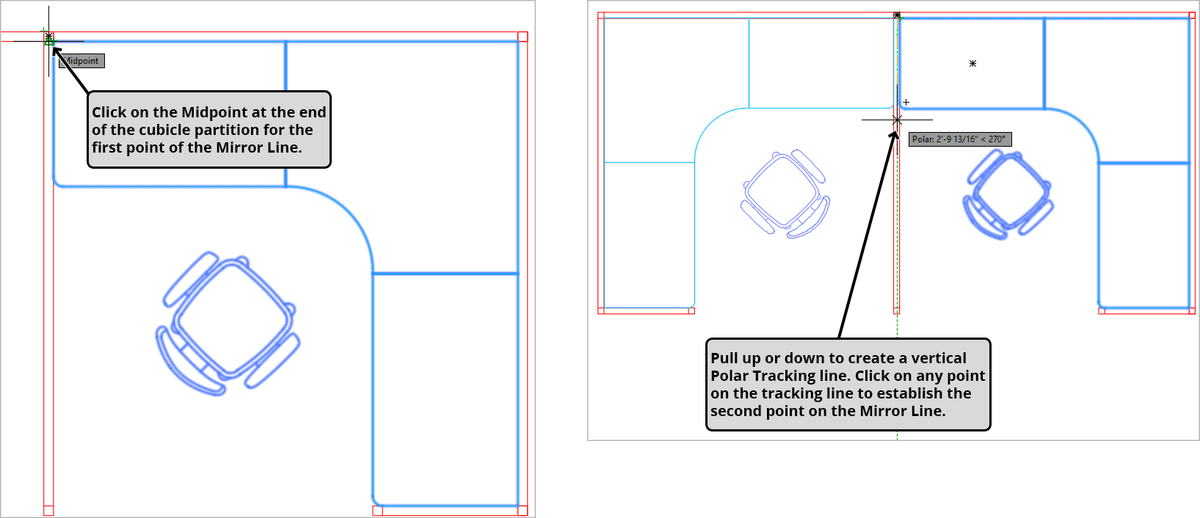
Now you will use the Mirror tool
to duplicate the cubicles. Press Enter to repeat the Mirror command. Select both cubicles including the desks, chairs, and partitions. Click on any Midpoint of any of the vertical lines within the top partition to establish the first point of the Mirror Line. Pull the cursor to the left or right to create a horizontal Polar Tracking line that divides the top partition. Click on any point of the horizontal tracking line to establish the second point on the Mirror Line. Press Enter to select the No option for the Erase source objects prompt to duplicate the cubicles and end the Mirror command.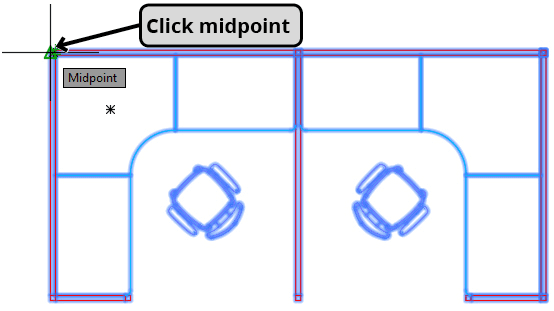
TIP: Click on the midpoints of any vertical lines in the top partition for the first point of the Mirror Line so that you can use Polar Tracking to make a Mirror Line that horizontally divides the top partition.
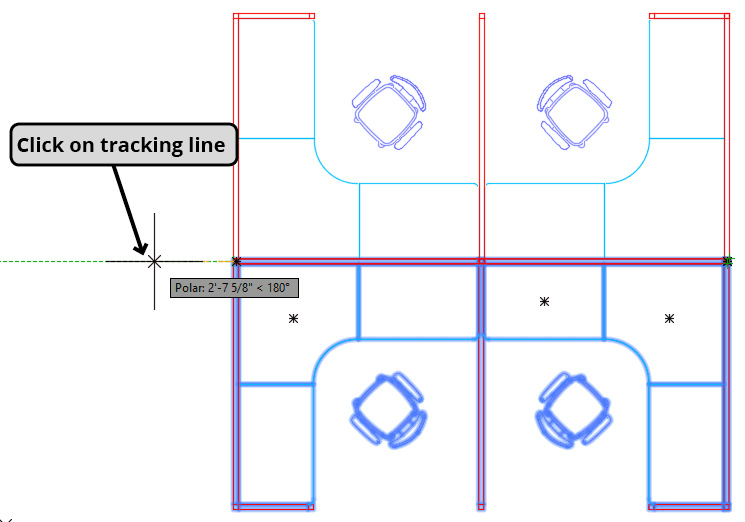
TIP: Click on at any point on the horizontal tracking line to establish the second point on the Mirror Line and create mirrored copies of the cubicles.
Press Enter to repeat the Mirror command
. Select all 4 cubicles including the desks, chairs, and partitions. Click on any Midpoint of any of the horizontal lines within the rightmost partition to establish the first point of the Mirror Line. Pull the cursor up or down to create a vertical Polar Tracking line. Click on any point of the horizontal tracking line to establish the second point on the Mirror Line. Press Enter to select the No option for the Erase source objects prompt to duplicate the cubicles and end the Mirror command.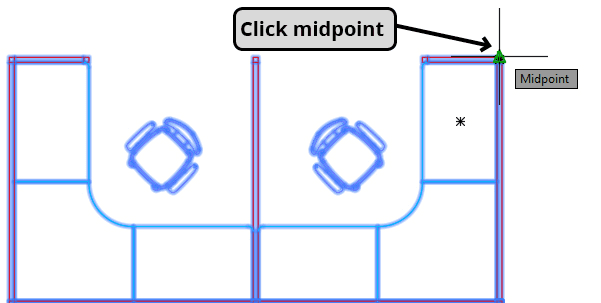
TIP: Click on the midpoints of any horizontal lines in the right partition for the first point of the Mirror Line so that you can use Polar Tracking to make a Mirror Line that vertically divides the top partition.
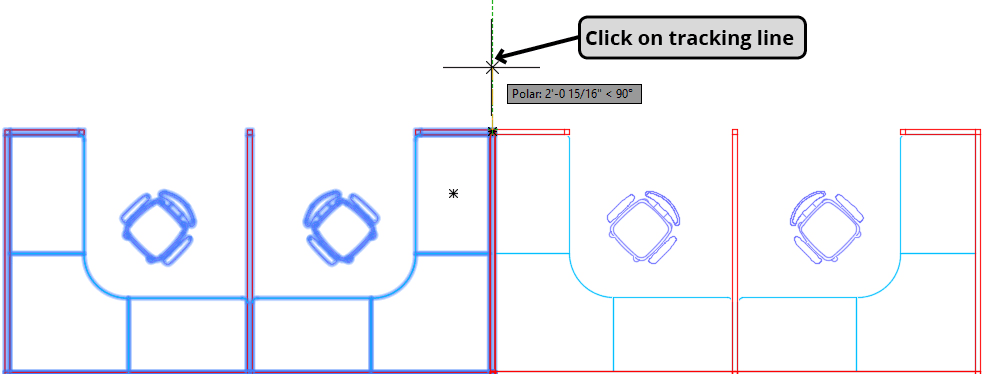
TIP: Click on at any point on the vertical tracking line to establish the second point on the Mirror Line and create mirrored copies of the cubicles.
Using the Mirror command on the cubicles duplicated some of the lines in the partitions over the originals, creating some overlapping objects. Start the Overkill command
 . Select all of the cubicles and press Enter. Accept the defaults in the Overkill dialog box and click OK. Now the drawing is cleared of any repetitive overlapping lines.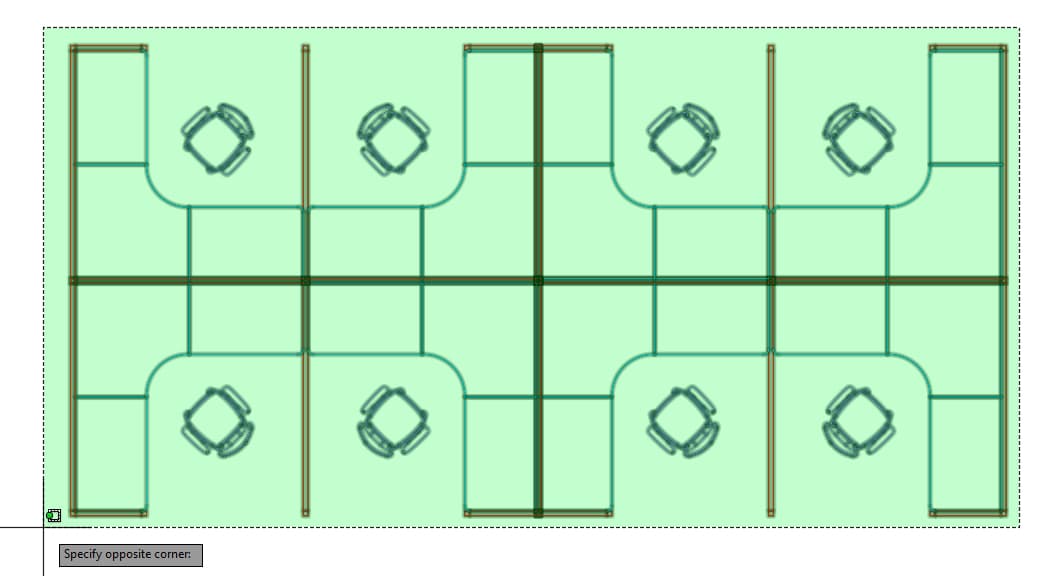
Pan the screen to the large conference table. Press Enter to repeat the Mirror command
. Use a green crossing selection box to select the row of chairs to the right of the table and press Enter to finish the selection. Click on the midpoint on the top or bottom edge of the table and then click a second point on the vertical Polar Tracking line to make the mirror line. Click Enter to duplicate the chairs and end the Mirror command.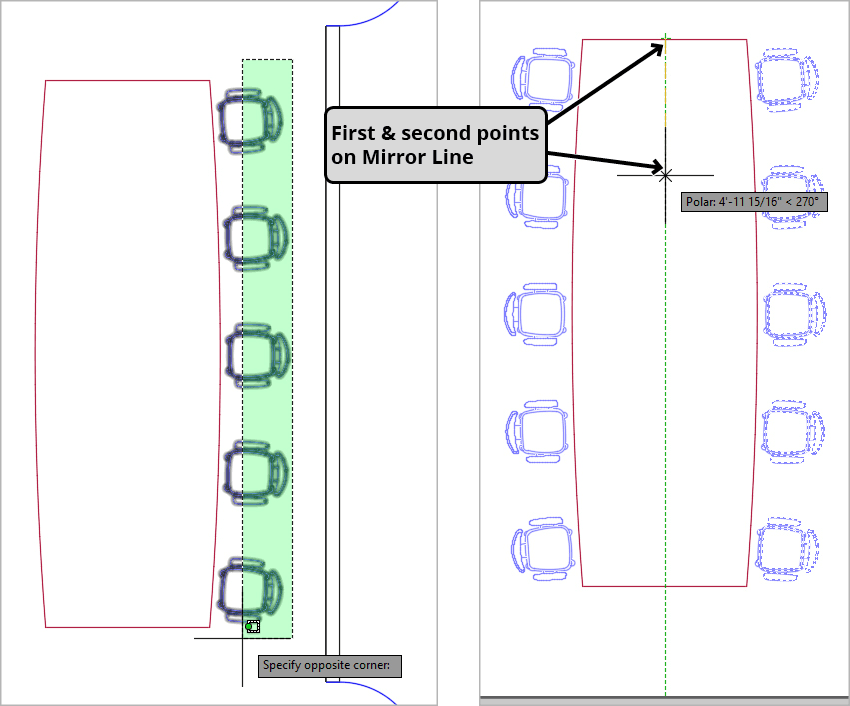
Pan to the large fern you made copies of earlier. Start the Scale command
 . Select the fern and press Enter to finish the selection. Click near the center of the fern to establish the base point. Enter a Scale Factor of .25 to shrink the plant and end the command.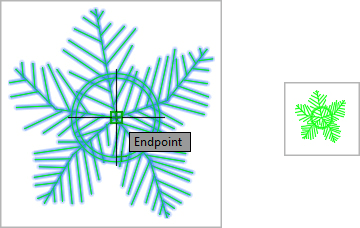
Use Move
, Rotate , and Grips to arrange the chair, desk, computer, and small fern as shown below. Make sure the midpoints of the desk and chair are aligned with the midpoint of the cubical partitions.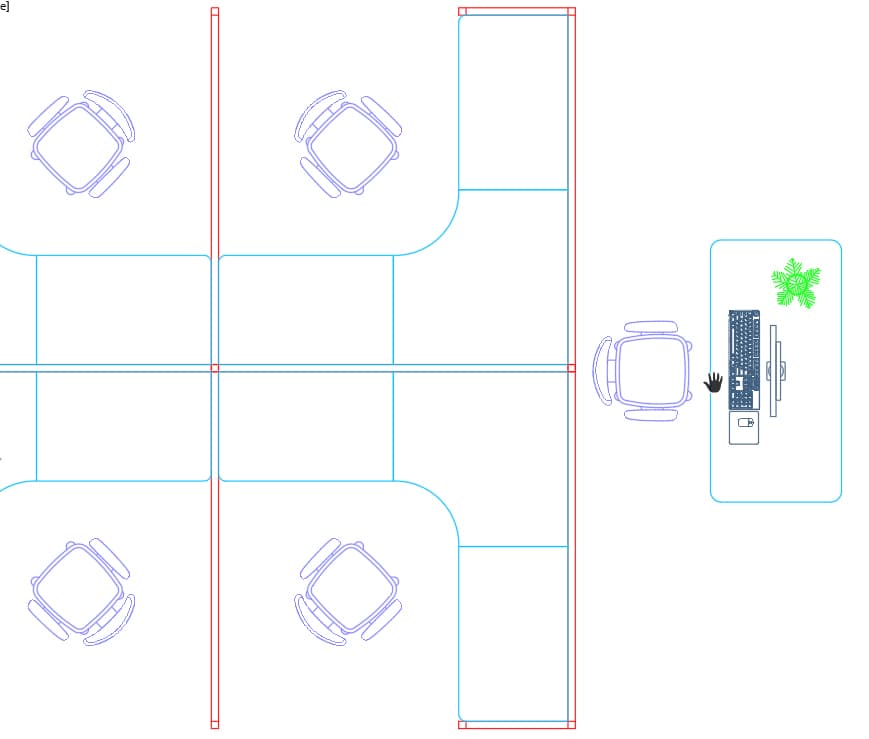
Save the file and keep it open for the next exercise.