Rendering & Exporting Options
What This Tutorial Covers
Render Queue
Built-in After Effects rendering — straightforward but slower.
Adobe Media Encoder
Background rendering that frees After Effects to keep working.
Format Choice
Pick codecs and containers that match your delivery target.
Noble Desktop's Video Editing & Motion Graphics Certificate teaches After Effects alongside Premiere Pro, Cinema 4D, and DaVinci Resolve.
Dive deep into this comprehensive After Effects tutorial, covering essential topics such as rendering uncompressed files and videos with transparency, creating custom render templates, and exploring high-quality rendering options.
Exercise Preview
Getting Started
In After Effects, go to File > New > New Project.
Press Cmd–I (Mac) or CTRL–I (Windows) or do a File > Import > File.
Navigate into Desktop > Class Files > After Effects Class > Rendering > Assets, and double–click Welcome-to-New-York.mov to open it.
Drag Welcome-to-New-York.mov from the Project panel to the Create a new Composition button
 at the bottom of the panel.
Rendering a Video with Transparency
When collaborating with a team, you will often need to render footage you have animated so others can use it in their own part of the task. Because semi-transparent footage, effects, or text with no background often needs to be overlaid on top of other footage, it’s useful to know how to export a video that supports transparency.
This type of footage is handy in many situations. For instance, video editors often add a personal or team watermark to a video to protect their copyright. TV stations sometimes overlay their logo over their programming so viewers know which channel they are watching. This type of watermark is called a bug. Let’s render one!
Let’s say that you animated the Movie bug and are ready to render it so a colleague can add it to the documentary. To save time, we created this for you. Press Cmd–I (Mac) or CTRL–I (Windows) or do a File > Import > File.
Navigate into Desktop > Class Files > After Effects Class > Rendering > Assets > AE Projects to Import, and double–click Movie-Documentaries-Bug.aep to open it.
NOTE: If you didn’t have Museo Sans 300 (the font used in this project), you would see a dialog that prompts you to sync it from Adobe.
In the Project panel, expand
 into the Movie Documentaries Bug.aep folder.
Double–click on the Movie Bug composition to open it in a new Timeline tab.
Press CTRL–0 (Mac) or the 0 key on the numeric keypad (Windows or Mac) to preview this animation with multiple alpha mattes.
To ensure that our video will render with the transparency we need, we need to check whether or not it has a transparent background. At the bottom middle of the Composition panel, click the Toggle Transparency Grid button
 so it’s blue.
Great, you should see the checkerboard background that indicates transparency!
We’re ready to render. Go to Composition > Add to Render Queue.
In the Render Queue, you should see the Welcome-to-New-York comp listed first. If the box next to it is checked, uncheck it so it won’t render now.
- Under the Movie Bug file and next to Output Module, click on the down arrow
 menu and choose Lossless with Alpha.
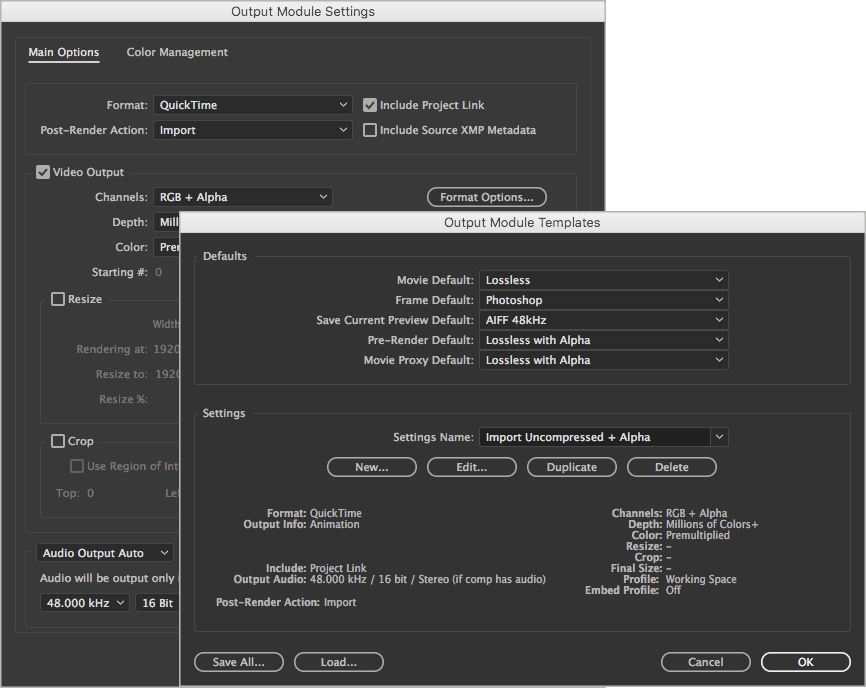
 - To see the options, click on the blue text Lossless with Alpha.
- At the top of the window, make sure Format is set to QuickTime.
- Click the Format Options button.
There are several codecs that support transparency—the default Animation is one, but it’s not industry-standard. Change the Video Codec to Apple ProRes 4444.
NOTE: In older versions of After Effects on Windows, set Video Codec: DNxHR/DNxHD, Resolution: DNxHR HQX 10-bit, and Alpha: Uncompressed.
- Click OK once.
- Keep the Output Module Settings dialog open.
Once the movie renders, we could hand it off to a colleague so they could add it to the documentary. Because we’ll actually do this work ourselves, let’s make sure After Effects imports it after it’s been rendered. Still in the Output Module Settings, from the Post-Render Action menu choose Import.
NOTE: Under Video Output, notice that the Channels menu says RGB + Alpha. Remember that the Alpha channel contains the transparency info for the video.
We’re done with these settings, so click OK.
Next to Movie Bug’s Output To menu, click on Not yet specified (or a filename of you see it).
Because we are going to use the movie file as an asset in our documentary once After Effects automatically imports it, let’s render it into our Assets folder.
- Navigate to Desktop > Class Files > After Effects Class > Rendering > Assets > Pre-renders.
- Name it Movie-Bug.mov
- Click Save.
Click the Render button. Because the bug was checked on in the Render Queue panel, it will start rendering.
Once the rendering is complete, click into an empty area of the Project panel to deselect everything. You should also see the Movie-Bug.mov file you just rendered!
In the Timeline, switch to the Welcome-to-New-York tab so we can add the bug to this composition.
From the Project panel, drag Movie-Bug.mov to the Timeline, dropping it above [Welcome-to-New-York.mov].
Movie-Bug.mov is 1920 X 1080 pixels because that’s the standard size for broadcast HDTV. However, our Welcome to New York movie is 1280 X 720 pixels. Because this type of HD composition is 2⁄3 the size of the HDTV standard, let’s scale the bug down. With [Movie-Bug.mov] selected, press S to pull up its Scale.
NOTE: While the 1920 X 1080 pixel size is industry-standard for television broadcast, 1280 X 720 is fine for videos that won’t be broadcast such as streaming videos.
In the Timeline, set Scale to 66.7%.
Let’s make sure our bug is HD title safe so it would be visible on all HDTV sets if we were to broadcast it on Movie. Go to the bottom of the Composition panel, click the Choose grid and guide options button
 , and select Title/Action Safe.
Slide forward with the playhead to see that the text fits within the HD Title Safety Guidelines (the second set of lines when you count from the right side inward).
Because we rendered the Movie Bug movie with a transparent background, we can see both movies at once!
Rendering Green Screen Footage
Rendering with transparency is also useful for footage that uses a green screen background. Before rendering, you would first need to remove the green by using a green screen removal plugin such as Keylight (bundled with After Effects). Much like removing backgrounds in Photoshop, keying out (removing) the green can be time-consuming and takes practice to do well, so this topic is beyond the scope of this class. Fortunately, it’s covered extensively in Noble Desktop’s After Effects 2 course. Visit tinyurl.com/noble-ae2 for more info.
Saving Frequently Used Render Settings into a Template in After Effects
When working with lots of similar video clips that all need to be rendered using the same settings, using a template of Output Module settings will save you a lot of time. Let’s check out the prepared templates and learn how to create our own.
At the top of the Timeline, click on the Movie Bug tab name to return to this comp.
To quickly add this composition to the Render Queue, use the keyboard shortcut Cmd–M (Mac) or CTRL–M (Windows).
In the Render Queue tab, under the bottom Movie Bug file and to the right of Output Module, click the arrow
 .
.In the menu that appears, look through the options. When ready to move on, choose the Lossless with Alpha template that comes bundled with After Effects.
Directly to the right of the arrow
, click on the blue words Lossless with Alpha.Notice that the settings are similar to the ones we used when we rendered the Movie bug. If we were to render now, we would get a file that has the Alpha channel in addition to the Red, Green, and Blue channels.
Click on Format Options, and set Video Codec to Apple ProRes 4444 (a full quality video format that supports transparency).
NOTE: ProRes 422, though close to full quality, does not support transparency. H.264 is neither full-quality, nor does it support transparency.
Hit OK twice to close both dialogs.
Under the Movie Bug file and to the right of Output Module, click the arrow
once more. This time, choose Make Template from the menu that appears.In the middle of the Output Module Templates dialog that appears, the text in the Settings Name menu should be highlighted. Type Uncompressed + Alpha_yourInitials.
Underneath the name of the template, click the Edit button.
Windows users only: Next to Format, choose QuickTime. (If it’s grayed out, go into the Format Options, change the Video Codec to Apple ProRes 4444, and click OK once.)
Make sure Channels is set to RGB + Alpha. (It should already be set because selecting the pre-made Lossless with Alpha template chose that setting for us.)
Click OK twice to commit the settings and create the new template.
We won’t render semi-transparent footage again in this book, so let’s delete the first template we created. Go to Edit > Templates > Output Module.
To the right of the Settings Name, click the arrow
 and from the menu that appears, select the Uncompressed + Alpha_yourInitials template.
Underneath the name of the template, click the Delete button.
Now that the template is gone, click OK to exit the dialog.
Adobe Media Encoder: Creating a User Preset
- Let’s also save the settings we’ve been using to render our final movies.
- Switch to the Welcome-to-New-York tab to view the timeline.
- Go to Composition > Add to Adobe Media Encoder Queue.
Once Media Encoder opens, make sure we’re looking at the same thing by going to Window > Workspaces > Default Workspace
Then go to Window > Workspaces > Revert Workspace to reset to factory settings.
On the right you should see that Welcome-To-NY has been added to the Queue.
Below the Format column, click the small arrow
 and choose H.264 if it isn’t already.
Below the Preset column, click the small arrow
and choose Match Source-High Bitrate from the menu.Click the words Match Source-High Bitrate to customize these settings.
In the Export Settings window that opens up, a little further down, make sure you’re viewing the Video tab.
Click the Match Source button to make sure our export is the same dimensions as our sequence settings.
Scroll down in the Video section and check on Render at Maximum Depth so that our video exports at a high quality.
Below that, find the Bitrate Settings.
Set Bitrate Encoding to VBR, 2 pass. This refers to a Variable Bit Rate and number of encoding passes.
Further down in the Video section, under Advanced Settings, check on Key Frame Distance and set it to 30 to match it to our project’s frame rate.
At the bottom of the Export Settings window, check on Use Maximum Render Quality.
Look up at the top of the Export Settings window. The Preset column should now say Custom because we customized it. Let’s save these changes to a new preset. Click the
 button to the right of Preset.
Name it H264-yourInitials.
Click OK to create the new template. This will save us some time in future exercises!
For most of the rest of the exercises in this book, you’ll be able to use this preset! Hit OK again to get out of Export Settings, and you’ll find this new preset in the main Adobe Media Encoder window. Below the Preset column, click the small arrow
and you’ll choose H264-yourInitials, which will be located above Match Source-High Bitrate in the menu, as shown here: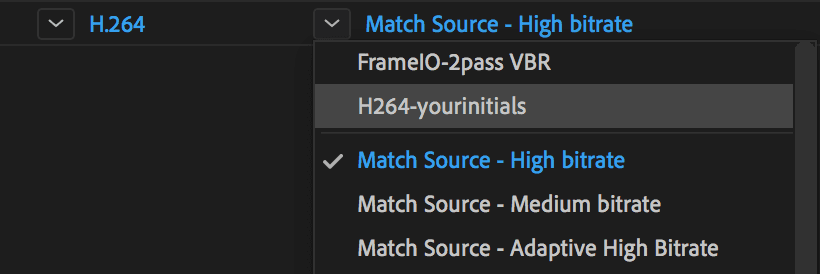
- We don’t need to actually render this now, so let’s delete what’s in the Queue. Click in an empty space in the Queue panel.
- Hit Cmd–A (Mac) or CTRL–A (Windows) to select all.
- Press the Delete key.
- If asked to confirm, click Yes.
Quit Adobe Media Encoder.
Exporting Still Images Out of After Effects
It may seem strange to export images from After Effects, but it’s actually more common than you would think. Images are helpful for getting an art director’s opinion, proofreading a text-heavy video (such as a pharmaceutical ad with lots of fine print), and more. You can save either a single frame or multiple frames.
- Switch back to After Effects.
- Switch to the Render Queue panel which should be open at the bottom of the window.
- Double–click on the Welcome-to-New-York name to switch to this composition’s Timeline tab. That’s a neat trick!
- First, we’ll export a single frame. Move the playhead to 5:02.
At this point in time, the detailed buildings on the bottom right are making it quite hard to see the Movie bug. To get our client or colleague’s opinion on whether we need to boost the Opacity or otherwise change the bug’s appearance, let’s save this frame. Go to Composition > Save Frame As > File.
It’s a good idea to keep still images in a separate folder from renders. Navigate to Rendering > Renders > JPEGs for Review, keep the name as is, and click Save.
NOTE: The default file name Welcome-to-New-York (0-00-05-02).psd includes the frame’s timecode. The PSD file extension is the default for exporting still images.
Let’s de-clutter our queue. Click on the first instance of Movie Bug and Shift–click on the other one. They should be the first and second render items.
Press Delete on your keyboard to remove them from the queue.
If the box next to the first Welcome-to-New-York file is checked, uncheck it now.
To help us keep track of multiple renders based on the same file, we can add comments. Near the top of the Render Queue, look in the list of columns. If you don’t see a Comment column, CTRL–click (Mac) or Right–click (Windows) on the name of any column and choose Columns > Comment.
Under the bottom Welcome-to-New-York file’s Comment column, click in the empty space, type Single frame, and press Return (Mac) or Enter (Windows).
Under the bottom Welcome-to-New-York file’s Output Module, click on Photoshop.
We get a compressed image with a small file size, set Format to JPEG Sequence. (Though it says Sequence, it will still only export the single frame at 5:02.)
If the JPEG Options dialog does not open, click the Format Options button.
Set the following:
Quality: 6 (you can type the number or choose High from the dropdown) Format Options: Baseline Optimized (this produces the smallest file size) JPEG Compression
If you compress JPEGs too much, you will see unsightly, blocky artifacts in detailed areas. 60% quality is a good baseline but you can often compress them a bit more. When planning on exporting a long JPEG sequence, we recommend first exporting a single frame at several quality settings to see how much compression you can get away with.
This file is perfect for sending via email! To exit both dialogs, click OK twice.
Click the Render button.
Let’s also export several frames at once. Under the first Welcome-to-New-York item’s Started column, click the Plus icon
 . This lets us render or export a single comp using multiple settings (formats, sizes, etc.), which saves a lot of time.
We actually want to export this comp once, so next to the first of the two renders (which should be using the H.264 80% Quality template), click the Minus icon
 .
.Next to Output Module, click on Lossless and change Format to JPEG Sequence.
After Effects remembers the last used compression settings, so just click OK.
Next to Render Settings, click on Best Settings to open a dialog.
On the left side under Resolution, change Full to Half to shrink the file down to half the comp’s size (640 X 360 pixels instead of the original 1280 X 720).
On the right side under Frame Rate, choose Use this frame rate and to its right, enter 8 to cut our frame rate down from approximately 24 per second to 8 FPS. Rather than exporting every single frame, this exports every third frame.
The Movie bug’s entrance animation happens as the movie fades up from black, and ends right before the first actor’s name starts fading in. On second thought, let’s email our collaborator all the frames in the first second and a half to check whether they like this timing. Select Use comp’s frame rate once more.
Underneath the frame rate options, click the Custom button.
- Triple–click into the End menu to highlight all the text, enter 115 (the end of the first actor’s fade-in).
Click OK twice.
Next to Output To, click on the file name or Not yet specified.
- Navigate to Class Files > After Effects Class > Rendering > Renders > JPEGs for Review folder.
- Keep the suggested file name (the ##### represent frame numbers).
- Click Save.
- Click the Render button.
- Keep After Effects open, but switch to your Desktop.
Navigate into Class Files > After Effects Class > Rendering > Renders > JPEGs for Review > Welcome-to-New-York.
There should be 40 frames (24 frames to get from 0:00 to 1:00, then 16 more to get to the final frame named 00039).
Switch back to After Effects.
Go to File > Close Project and in the dialog that appears, Don’t Save any changes.
TIFF & PNG Image Sequences
Unlike the JPEG format, the TIFF and PNG formats support transparency. If you or your team are planning on sequencing these images so they become frames in a high quality video, use one of these lossless formats. Even when applying lossless LZW compression to a TIFF via the Format Options, PNGs (with the default settings) are usually the smaller of the two.