Movie Logo: Importing Layered Files & Adding Easing
What This Tutorial Covers
Layered Imports
Bring multi-layer Illustrator or Photoshop files in cleanly.
Composition Settings
Match resolution, frame rate, and duration to source.
Easing Curves
Smooth keyframe interpolation for natural motion.
Noble Desktop's Video Editing & Motion Graphics Certificate teaches After Effects alongside Premiere Pro, Cinema 4D, and DaVinci Resolve.
This tutorial guides you through various techniques in Adobe After Effects, including importing layered files, creating animations, and examining Photoshop layouts, ultimately aimed at creating an intro animation for a Movie feature presentation.
Exercise Preview
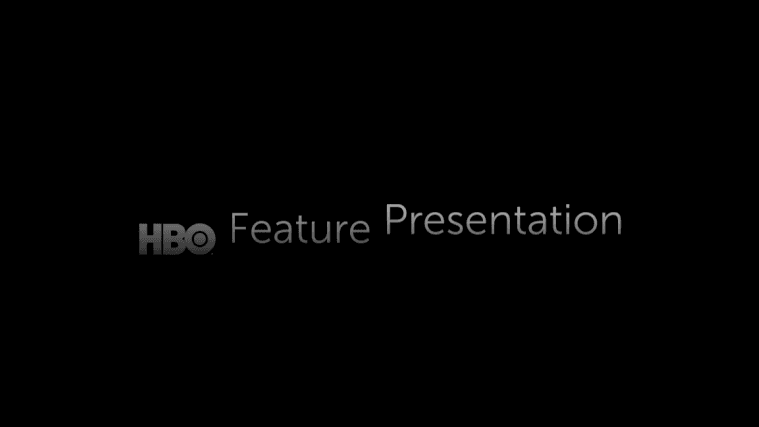
Examining the Photoshop Layout
Let’s examine the Photoshop layout we’re about to import into After Effects. This way we can better understand some of the limitations of working with Photoshop files in After Effects.
On the Desktop, navigate to Class Files > After Effects Class > Movie Intro > Assets and double–click Movie Feature Pres.psd to open it in Photoshop.
In the Layers panel on the right, click on the Movie logo layer (the topmost of three layers) to select it.
To the left of the layer name, notice the Smart Object thumbnail
 . Smart objects are embedded layers that are typically more complicated than a basic Photoshop layer. (For instance, they may have multiple layers or contain vector graphics.) This one contains a vector logo that was created in Adobe Illustrator.
To see the advantage of embedding vector graphics into a Photoshop document, go to Edit > Free Transform.
Press Shift and drag one of the corner resize handles
 so the smart object gets larger. It scales infinitely large and it stays sharp (it never loses resolution).
We only wanted to scale it up for demonstration purposes, so press the Esc key. (Or if you already applied the transform, go to Edit > Undo Free Transform.)
Back in the Layers panel, notice that the Feature Presentation layer has a T thumbnail
 . This means it’s vector text that was created within Photoshop using the Horizontal Type tool
  . We can also use the tool to edit the text.
To the right of the top two layer names, notice there’s an fx icon
 .
.Next to both fx icons, click the small triangle
 to see the Gradient Overlay effect on both the Movie logo smart object and the Feature Presentation text layer.
Press Cmd–Q (Mac) or CTRL–Q (Windows) to quit, and Don’t Save your changes.
Flattening a Layered File by Importing As Footage
There are four main ways to import a layered file into After Effects. Let’s first see how to import as Footage, which will flatten our PSD as if it were a file type that does not support layers (such as a JPEG or PNG).
Go to File > Import > File.
Navigate into Desktop > Class Files > After Effects Class > Movie Intro > Assets, and click on Movie Feature Pres.psd. Do not open it yet!
Near the bottom, find the Import As menu (Mac users may need to click the Options button). Keep Footage selected to import as a flattened file with one layer.
Click Open (Mac) or Import (Windows).
When importing a layered PSD, you’ll see another dialog before the asset imports. Under Import Kind, go into the menu and choose Footage if it isn’t already selected.
Under Layer Options, select Merged Layers if it isn’t already selected. This option flattens the entire image (instead of importing a single layer).
Click OK to finish importing the flattened PSD.
In the Project panel, drag the Movie Feature Pres.psd asset we just imported down to the Create a new Composition button
 at the bottom of the panel.
In the Timeline, notice the following:
- Notice that our composition is 6 seconds long. (You can press the End key (or Fn–Right Arrow) to confirm that the last frame is at 5;29.) It took this setting from our dummy comp, which is why we created it first!
- Our comp only has a single layer named [Movie Feature Pres.psd]. This is because After Effects combined the Movie logo, Feature Presentation text, and black BG into a single file.
Importing a Single Layer
Go to File > Import > File or use its shortcut Cmd–I (Mac) or CTRL–I (Windows).
From the Assets folder, double–click on Movie Feature Pres.psd.
At the top of the pop-up, make sure the Import Kind is still set to Footage.
Under Layer Options, select the Choose Layer option to import a single layer.
Click into the menu to its right (it probably says Movie logo because that’s the topmost layer in our PSD). You should see a list of all three of the document’s layers.
Select the first layer, Movie logo if it isn’t already.
Underneath the selected layer name, you’ll see two ways to deal with the Layer Styles created in Photoshop:
- If we choose Merge Layer Styles into Footage, layer styles such as the gradient on the text will become part of the flattened file.
- If we choose Ignore Layer Styles, After Effects will remove any applied layer styles. That means it will get rid of our gradient, which is not what we want!
Choose Merge Layer Styles into Footage if it isn’t already selected.
Next to Footage Dimensions, click into the menu to find the following two options:
- Choosing Layer Size crops the layer’s bounding box to the layer content itself.
- Choosing Document Size crops the layer’s bounding box to the size of the original PSD (which is the same 1920 X 1080 HD video size as our composition).
It’s almost always easier to animate a layer if we choose Layer Size. We can see why, choose the other option—Document Size.
Click OK to finish importing the single layer.
In the Project panel, drag Movie logo/Movie Feature Pres.psd down to the Timeline, dropping it above the existing layer.
In the Tools panel at the top, make sure the Selection tool
 is active.
In the Composition panel, click on the Movie logo and drag it around to see the following results that are usually undesirable:
- Because the original PSD is the same size as the comp, the layer’s bounding box is huge! Whenever you drag the layer away from its original place, some of its bounding box goes outside the composition frame. It’s kind of like moving the tiny logo around on a giant piece of glass, which can get annoying. However, there are some practical uses for this method, as you’ll learn later in this exercise.
- Notice the layer’s anchor point
 is located in the center of the huge bounding box, not on the logo itself! Because the Position property takes its coordinates in relation to the anchor point, it would be hard to position and animate the logo.
We want to import the file as a composition instead of a flattened file or single layer. To get rid of all the assets we no longer want, go to File > Revert.
In the dialog that pops up, choose Yes to revert back to the last saved version.
Importing a Layered File with All Its Layers Intact
Let’s import our PSD with all of its layers intact so we can animate it as a proper layout. To do this, we can import it using one of the two Composition options.
Press Cmd–I (Mac) or CTRL–I (Windows) or do a File > Import > File.
From the Assets folder, double–click on Movie Feature Pres.psd.
In the pop-up that appears, select the following options:
Import Kind: Composition – Retain Layer Sizes Layer Options: Merge Layer Styles into Footage Importing As Composition & Dealing with Layer Styles
Choosing to Import As Composition crops the incoming layers to be as large as the original document, which means each layer’s anchor point is placed in the center of the comp. We’re choosing to Retain Layer Sizes so each layer’s bounding box gets cropped to the layer’s size, and the anchor points are centered to the layer’s content.
Choosing Editable Layer Styles allows us to modify and animate layer styles applied in Photoshop such as our gradient, within After Effects. We’re choosing Merge Layer Styles into Footage because it’s faster for rendering and we don’t need to tweak or animate the gradient in After Effects.
Click OK to finish importing the file with its layer structure intact.
In the Project panel next to the Movie Feature Pres Layers folder
 , click the arrow
  to expand the folder’s contents.
In this folder, you should see all three of the PSD’s layers as individual files. This is helpful if you want to animate one or more layers separately. Because we won’t do this, we won’t use this folder.
Double–click on the Movie Feature Pres composition (the one with a filmstrip icon
to its left) to open it in the Timeline.You should see that all 3 of the PSD’s layers are inside the 6-second comp!
So you don’t accidentally move the background, in the Timeline lock the BG layer by clicking the Lock icon
 next to its triangle.
- In the Timeline, select the Movie logo layer.
- Shift–click on the Feature Presentation layer.
- Press P to bring up their Position
Press Shift–A to bring up their Anchor Point.
In the Composition panel, notice that there are anchor points
in the middle of each layer. In addition, the bounding boxes for the two layers is no larger than each layer itself.In the Timeline, notice that both layers have the same value for their y-axis Position and Anchor Point (the second values). This is because the Movie logo and text are the same height in the PSD file.
The Benefits of Importing As Composition
Retaining layer sizes is best for final art, but sometimes you need to start animating before your assets are finalized. In these cases, import as Composition to ensure your layers are properly aligned no matter how much they change down the road.
To see a disadvantage of importing a layered PSD with a vector smart object, select the Movie logo layer and press the S key to pull up its Scale.
Hover over one of the Scale values and drag the hand slider
 to the right, until the values are around 500%.
Yikes, the edges are pixelated! This is because After Effects treats vector smart objects as if they are raster (pixel-based) graphics. Because Photoshop creates raster graphics, we don’t have the option to enable the Continuously Rasterize switch
 for a layer inside a PSD. We won’t scale up the logo, so this project is OK as is.
Press Cmd–Z (Mac) or CTRL–Z (Windows) to undo the scaling.
If You Need to Scale up a Vector Smart Object
Whenever you need to scale up a vector smart object, import the file into After Effects as a separate asset. To save it inside your project’s Assets folder, go into Photoshop. Double–click the Smart Object icon
to open the app where you created the vector graphic. If using Illustrator, save it as an AI file.Alternatively, you can duplicate the Smart Object layer in Photoshop and scale the copied layer, as big as you’ll need it to get in AE. We recommend turning off the visibility eyeball for this duplicate, and renaming the original with “_fpo" at the end of the layer name (indicating “for placement only”).
Back in the Timeline, select the Feature Presentation layer.
Despite it being editable in Photoshop, right now the text is not editable in After Effects. To enable editing capabilities, go to Layer > Create > Convert to Editable Text.
In the Composition panel, the text’s appearance may slightly change. In the Timeline, you’ll see a T thumbnail
 . That’s Adobe’s way of indicating an editable text layer. The benefits of editable text layers include the ability to change the styling (such as font and color). You can even use After Effects text animators, which we’ll learn about a bit later in the course.
In the Timeline, expand the Feature Presentation layer to see there is now a set of Layer Styles which includes the gradient.
Notice that the anchor point moved to the bottom center of the text. This is because the anchor point for editable text layers is at the bottom of the text. In addition, this text was set to center alignment in Photoshop, and After Effects honored this.
Isolating the Feature & Presentation Text Using Masks
We want to animate the Feature and Presentation text separately. To do this, we need to duplicate the layer and then isolate each word using masks.
In the Timeline, select the Feature Presentation layer.
Go to Edit > Duplicate or press Cmd–D (Mac) or CTRL–D (Windows).
We don’t get confused later, rename the two layers as follows. (Remember that you can press Return (Mac) or Enter (Windows) to start and end renaming):
Top layer: Feature Bottom layer: Presentation In the Tools panel at the top of the screen, choose the Rectangle tool
 .
.If no layers are selected, dragging with the tool will create a shape layer. So it creates a mask on the layer we want, go to the Timeline and select the Feature layer.
To hide everything but the word Feature, drag a rectangle around it as shown below:

In the Timeline to the left of the Feature layer name and to the right of the eye
 , locate the Solo switch
  . Click in the empty space to toggle it on.
Toggle it off when done. If you see anything besides Feature, do an Undo (Cmd–Z (Mac) or CTRL–Z (Windows)), draw the rectangle again, and check your work.
Repeat the previous steps to isolate the Presentation text. To recap:
- Select the Presentation layer.
- Use the Rectangle tool to drag a mask around the word Presentation.
- Toggle the Solo switch on to double–check. Turn it off when done.
Let’s lock the masks so we don’t accidentally move them. In the Timeline under the Feature layer and to the left of Mask 1, click the empty box to lock
the mask.Repeat the previous step to lock
the Presentation layer’s Mask 1.Go to Layer > Mask and check on Hide Locked Masks if it isn’t already. If a mask is locked, its outline won’t appear in the Composition panel.
Go to Layer > Transform > Center Anchor Point in Layer Content, to center the anchor point on each of these words.
Creating a Fade-In That Slows Down at the End
Now that the logo and each chunk of text is isolated, we need to animate these layers. Each word will have the same fade-in animation but start at different times, so we’ll all the layers together, and then offset the timing.
Lock the background layer.
In the Timeline, select all the layers: Cmd-A (Mac) or CTRL A on (Windows)
Press P followed by Shift–T to display the Position and Opacity properties for all your layers.
To create this animation, we’re going to animate backwards. This means we’ll set keyframes at one time and then go earlier in time to change the values of those properties and create animation. Click on the timecode
 and type 20 to go to 0;20, the final position for our text lockup.
Next to Position, click the stopwatch
 , and Position keyframes will be created on all layers.
Add an Opacity keyframe as well by clicking its stopwatch
.Let’s set the initial keyframes. Press the Home key (or Fn–Left Arrow) to go to 0;00.
While watching the Y position value (that’s the 2nd number) on Movie logo, use your Shift and Up Arrow keys to move the layers up. Stop when the Movie logo’s Y position is at about 500.
Change the Opacity to 0% so you have two new Opacity keyframes at this point in time, for each layer.
Hit Spacebar to play back and see that the end of the animation is a bit abrupt.
To remedy that, we’ll add an ease. In the Timeline, select the keyframes
 at 0;20 by dragging a selection box around them.
CTRL–click (Mac) or Right–click (Windows) and choose Keyframe Assistant > Easy Ease In to slow down into these final keyframes.
- Move the playhead back to 0;00.
Press Spacebar to preview. The slowdown is subtle, but adds some weight to the end of the animation.
To add the staggered fade-ins, shift the start (in-point) of the text layers to the timecodes indicated below. Remember, you can do this by moving your playhead to a timecode listed below, and hitting the left square bracket [ or by typing the timecodes into the In Column.
Timeline Layer Start Timecode Feature 0;15 (15 frames after the Movie logo starts fading up) Presentation 0;25 (10 frames later, as less stagger makes sense here) TIP: To confirm the keyframes have indeed been shifted, feel free to press U.
Press Spacebar to preview from the beginning.
Creating a Fade-Out with Easing at the Beginning
We’ll keep the text on-screen for a few seconds so the viewer can read it. Let’s move on to the exit animation: a fade-out where the text falls down as it loses opacity.
We want our fade-out to start at 4;00. Click the timecode
and type 4.(including the period, which indicates we want 0 frames after the 4).Select all of your layers again with Cmd-A (Mac) or CTRL A (Windows). If you can’t see their keyframes, press U to reveal them.
To the left of both Position and Opacity, click the diamond
 to add another set of keyframes for these two properties. Notice that the new keyframes are linear , because the outgoing shape of the previous keyframe (an Easy Ease In) ended with a linear shape
  .
.- Go to 4;25 in time.
- Hold Shift and press the Down Arrow key to move the layers down. Keep an eye on the Movie logo’s Y position again (2nd value on Position) and keep going until it gets to about 610.
Also change the value of Opacity to 0% for all the selected layers.
Drag a selection around the 6 keyframes
 at 4;00 (the start of the fade-out).
Go to Animation > Keyframe Assistant > Easy Ease Out to apply easing to the beginning of the sequence.
This means the animation will be slow as the playhead goes out from (gets past) this keyframe, then transition back to linear, faster motion as it gets closer to the final set of keyframes (the end of the fade-out).
Press Spacebar to preview. Nice!
On the Feature layer, draw a selection box around the last four keyframes.
Move the playhead to 4;05 (5 frames after the Movie logo starts fading off), and drag the keyframes to meet your playhead. Holding the Shift key after you’ve started dragging the keyframes, will snap the selected keyframes to the playhead. But be careful, holding Shift before you’ve started dragging the keyframes will de-select the one your mouse is over.
On the Presentation layer, draw a selection box around the last four keyframes.
Move the playhead to 4;10 (for a consistent 5-frame stagger), and drag the keyframes to meet your playhead. Hold the Shift key after you start to drag, to snap.
Collapse any open Timeline layers to reduce clutter.
Press Spacebar to preview. Great job, you’re done with this shot!
Do a File > Save and leave this project open to use in the next exercise.